How CAL Works
Pick your league type and tournament to see the journey step by step: how to register, join or create a league, run the auction, and follow the tournament.
Showing the guide for CAL Public Indian T20 League
01 Create your Account
Free, and it takes about two minutes.
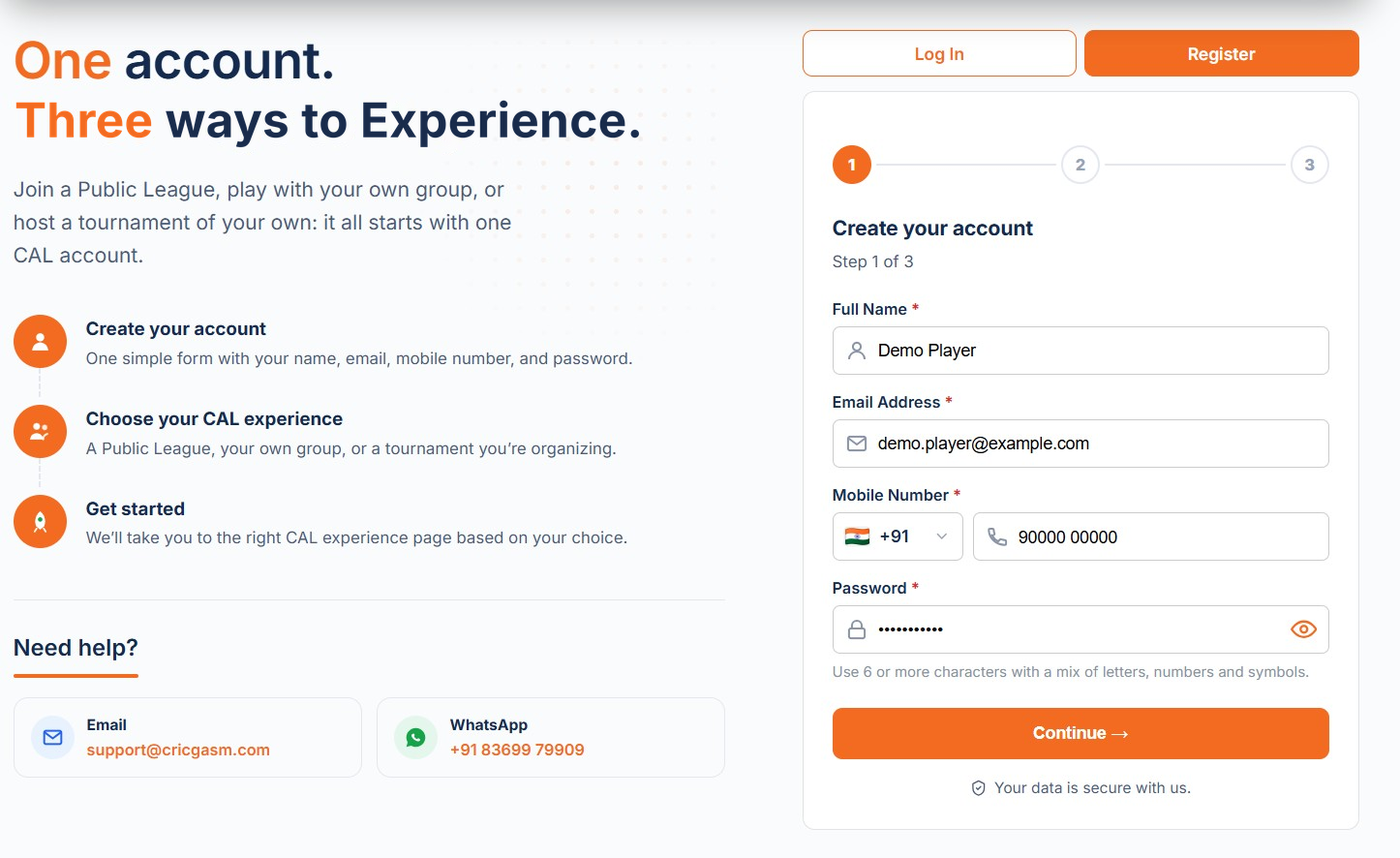
- Open the Register page. Registration takes three short steps.
- Step 1: Enter your name, email, mobile number and password. You must be 18 or older.
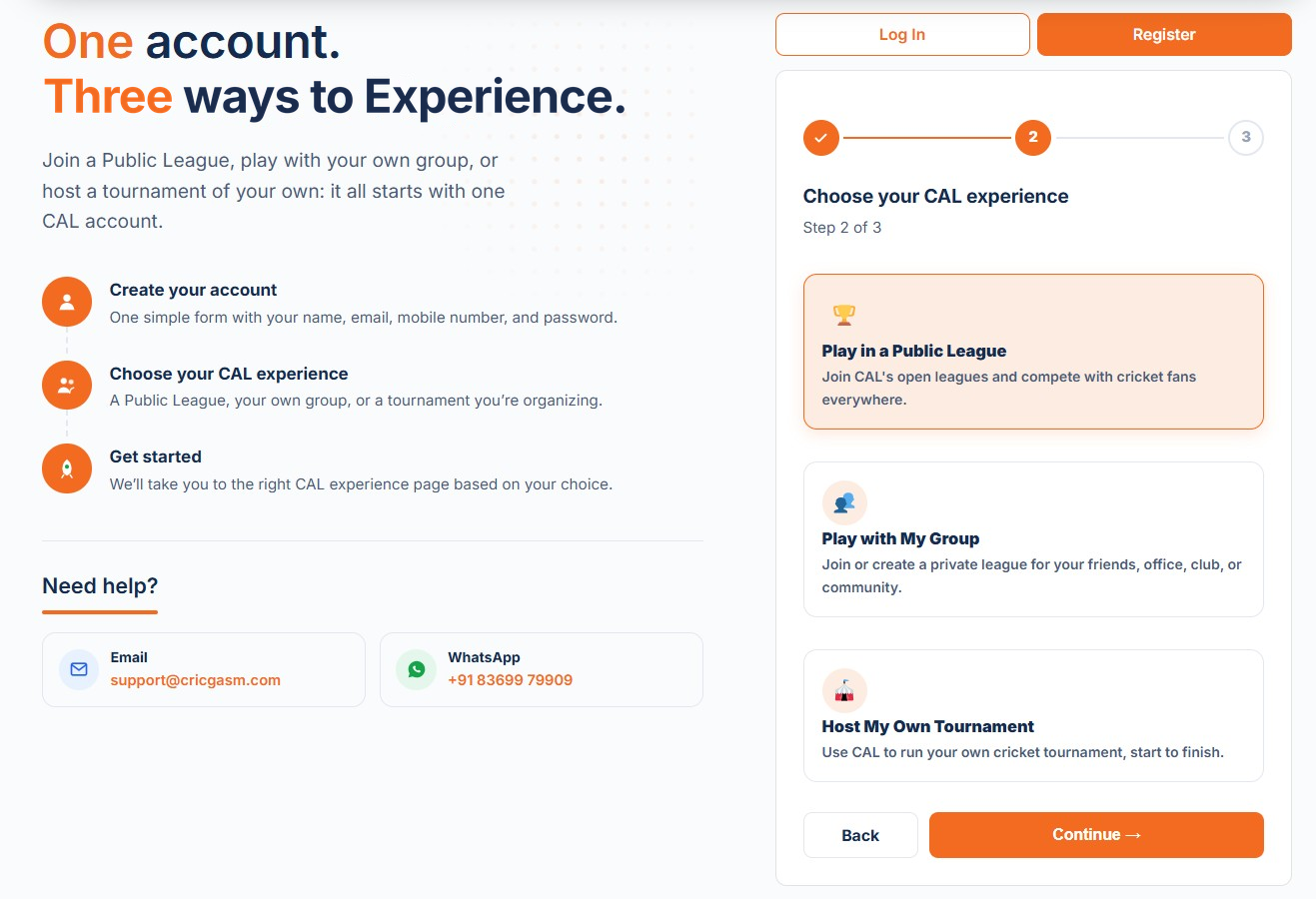
- Step 2: Select Play in a Public League.
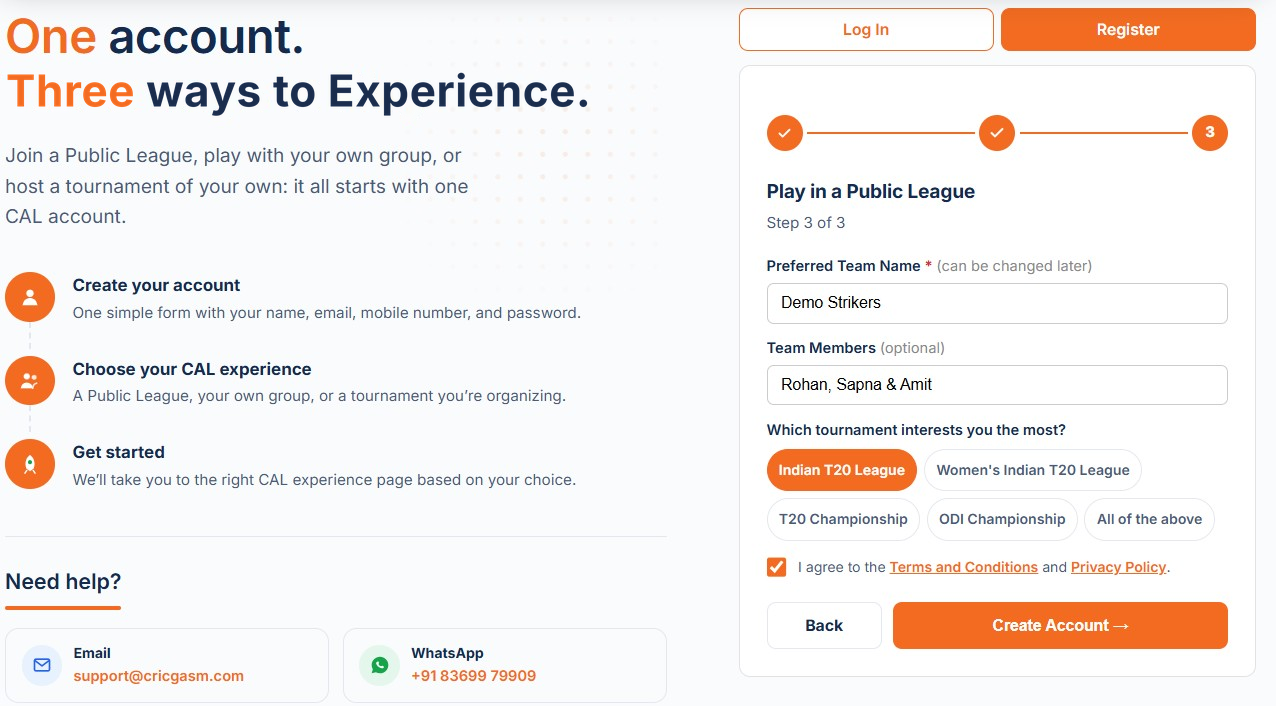
- Step 3: Enter your team name, optionally add team members, and select your preferred tournaments.
- Accept the Terms & Conditions and Privacy Policy, then click Create Account.
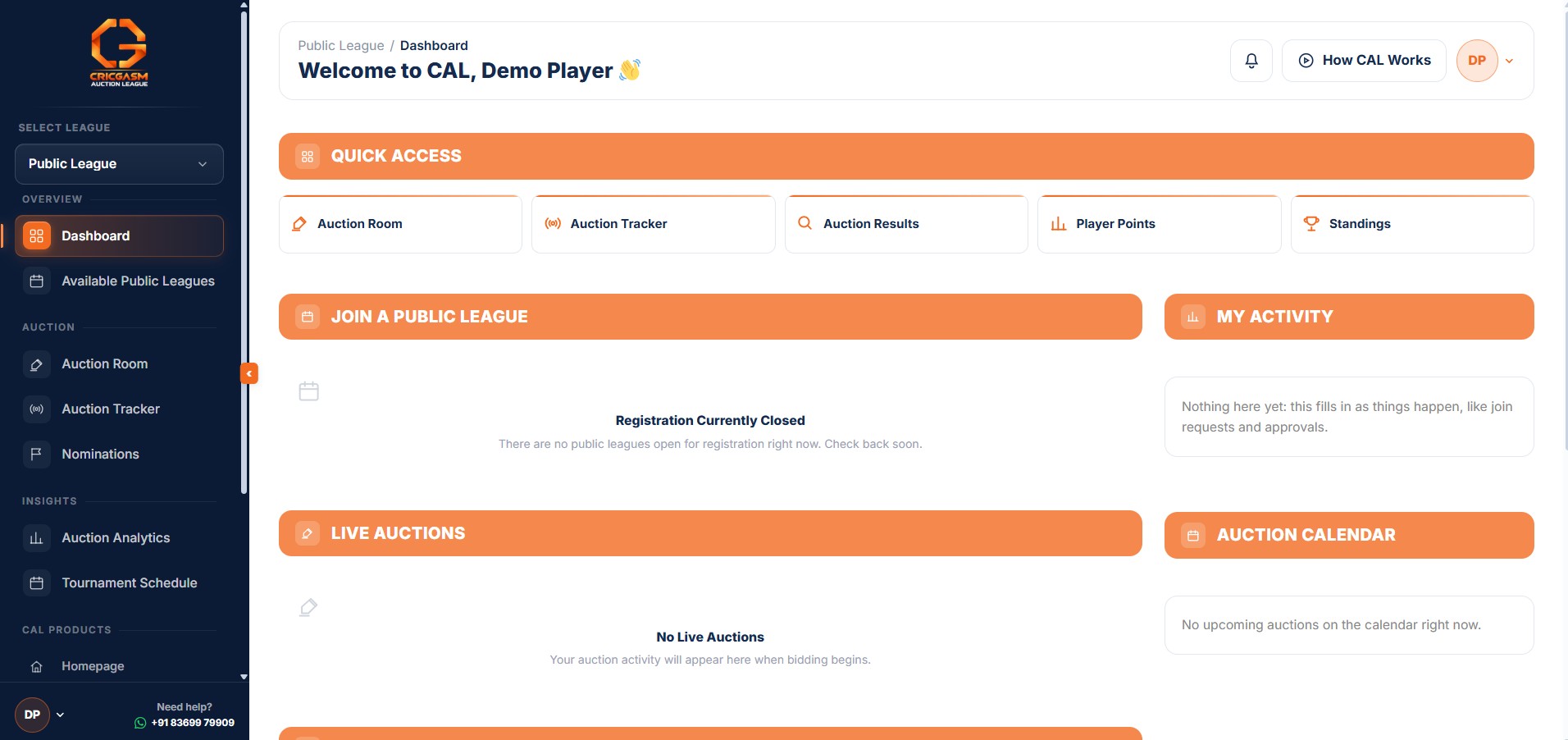
- You’re ready to go. You’ll land on your dashboard, where the left menu helps you navigate CAL. Need help? Use the WhatsApp link at the bottom.
Open Register
Enter your name, email, mobile number and password.
Choose your experience
Select Play in a Public League.
Set up your team
Add your team name and members, and choose your preferred tournaments.
Land on your dashboard
Click Create Account and you arrive on your own dashboard.
02 Join a League
Find an open league and pay for your seat.
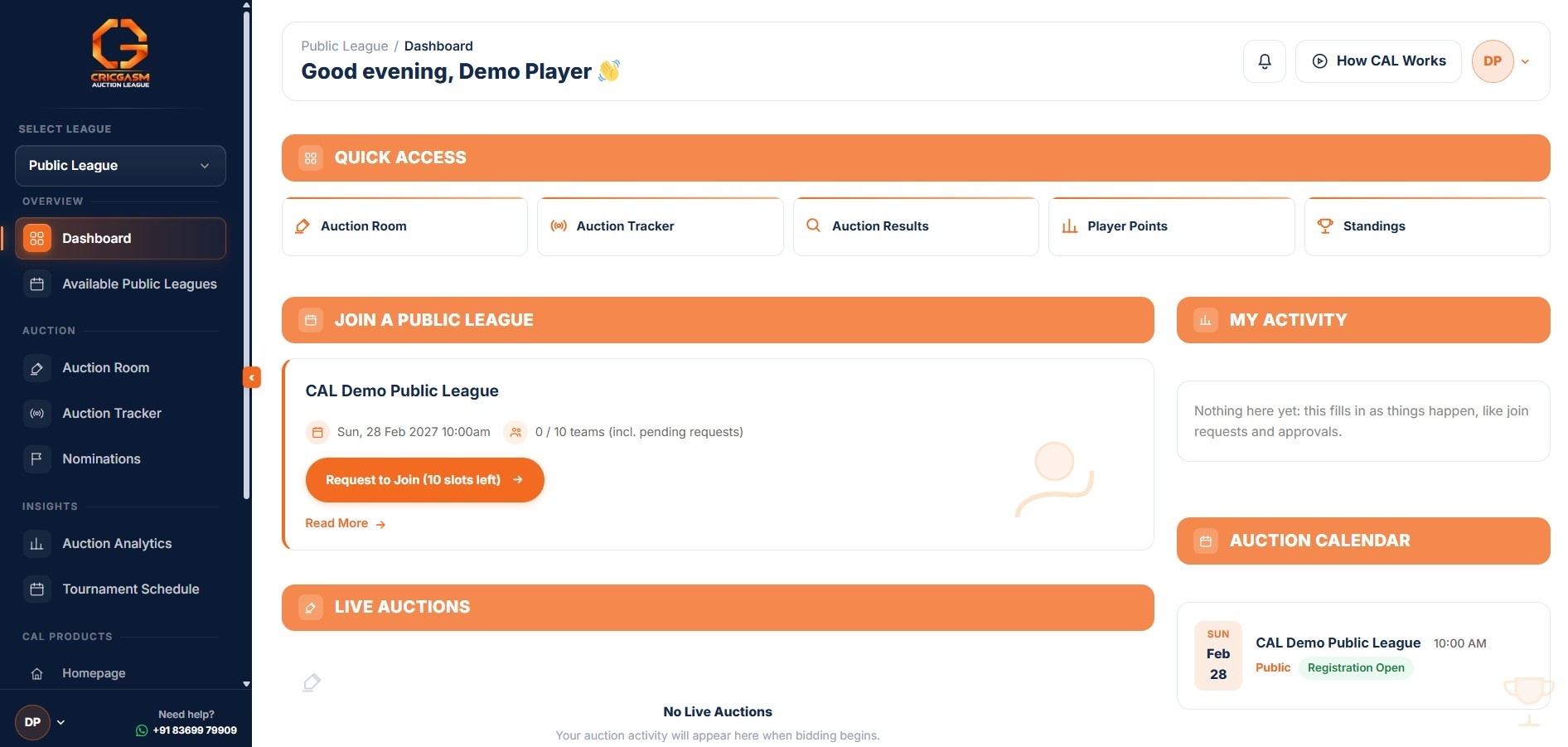
- Open Join a Public League from your dashboard to see available leagues, tournaments and auction dates.
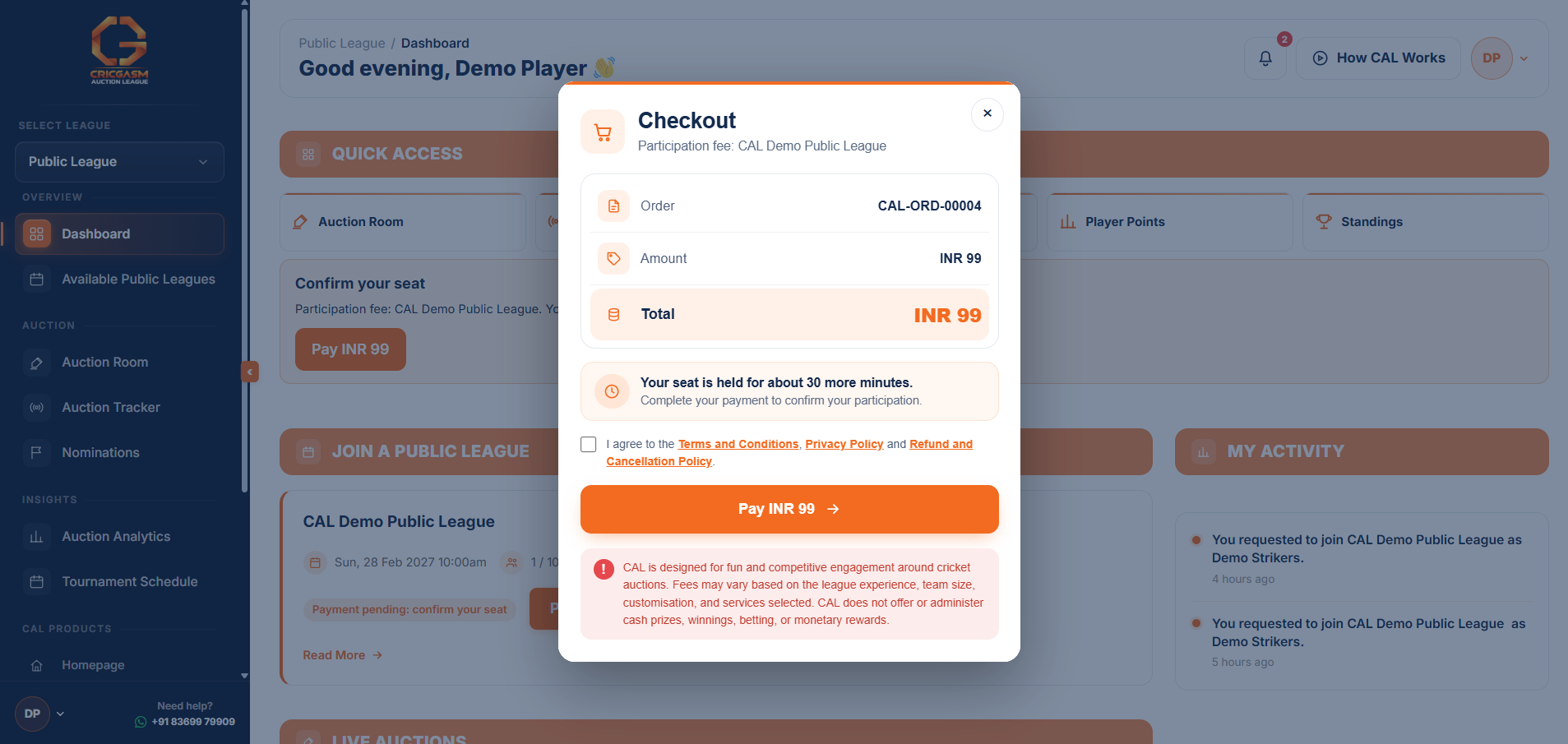
- Select Join for the league you want. Checkout will open on your dashboard.
- Your seat is reserved for 30 minutes while you complete payment. If you close checkout, you can reopen it using the Pay option on your dashboard.
- Public Leagues are paid per auction. See the current price on the Pricing page.
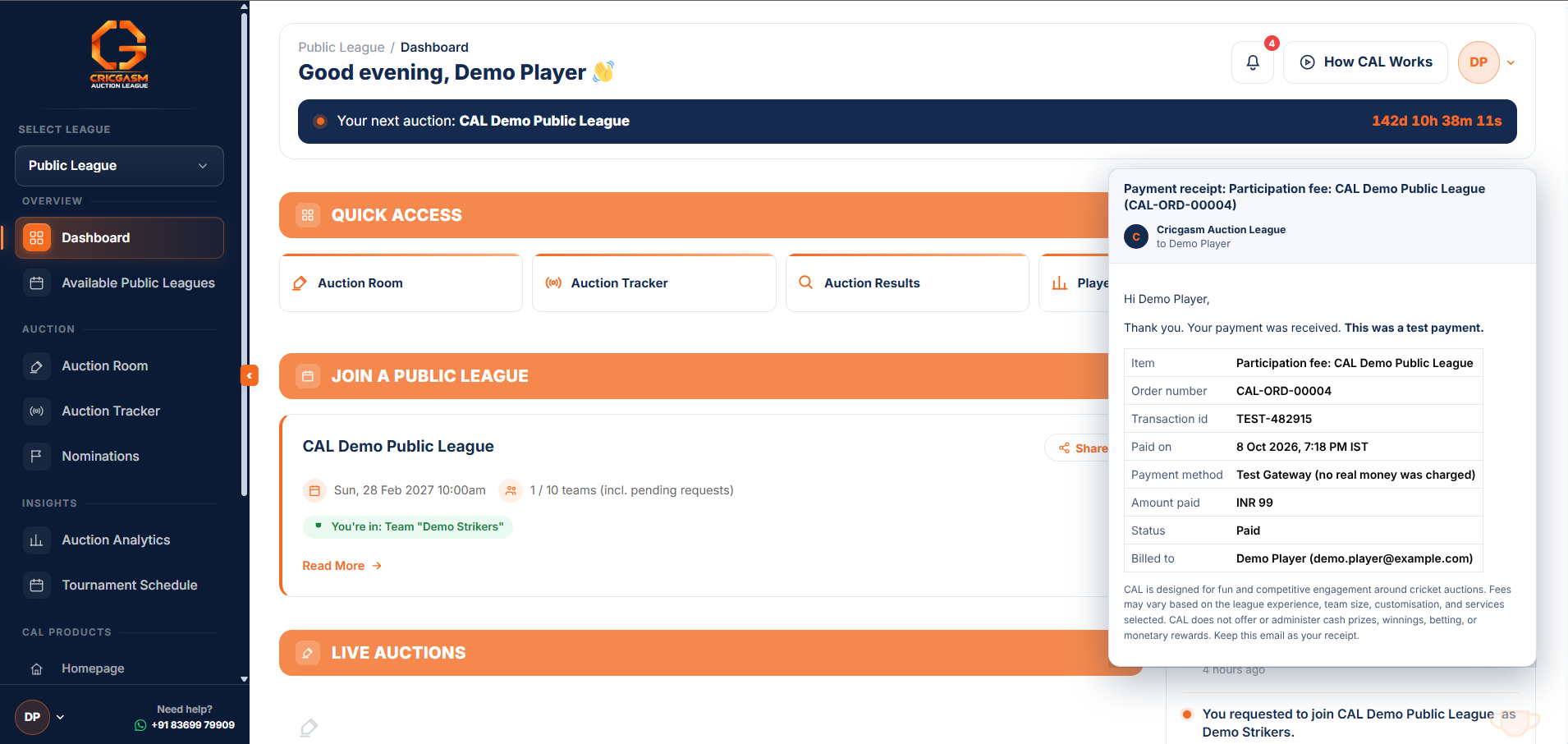
- After payment, you’re all set. You’ll return to your dashboard, and CAL will email you a receipt with your transaction details.
Find an open league
Open Join a Public League on your dashboard to see leagues, tournaments and auction dates.
Join and pay
Checkout opens on your dashboard. Your seat is reserved for 30 minutes.
Get your receipt
You return to your dashboard and CAL emails a receipt with your transaction details.
03 Auction Day
Everything happens in the Auction Room. Here is what you will see.
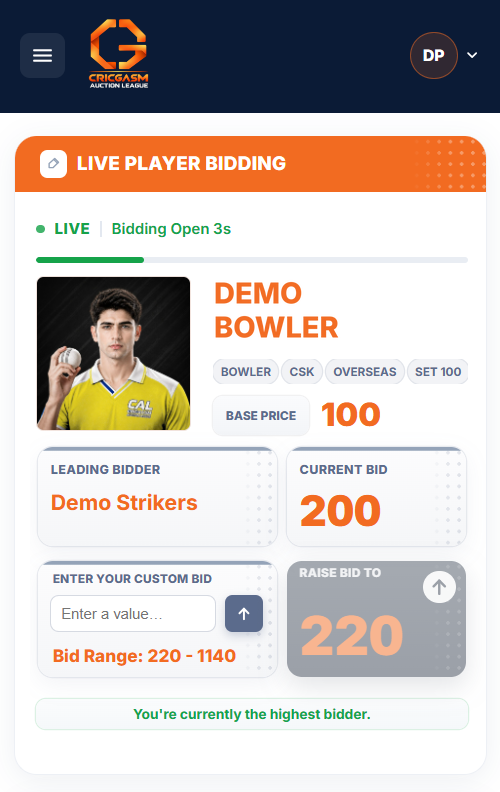
- Try the demo players: the auction opens with four practice players (Demo Batter, Demo WK, Demo AR and Demo Bowler). Place a few bids to get a feel for the screen. Nothing you do on them counts.
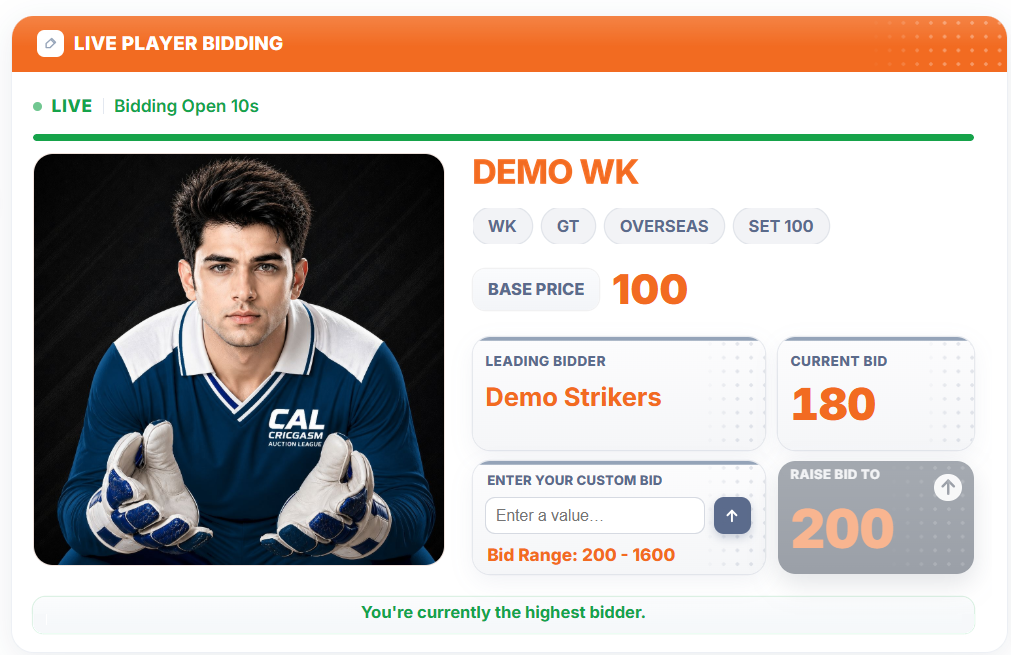
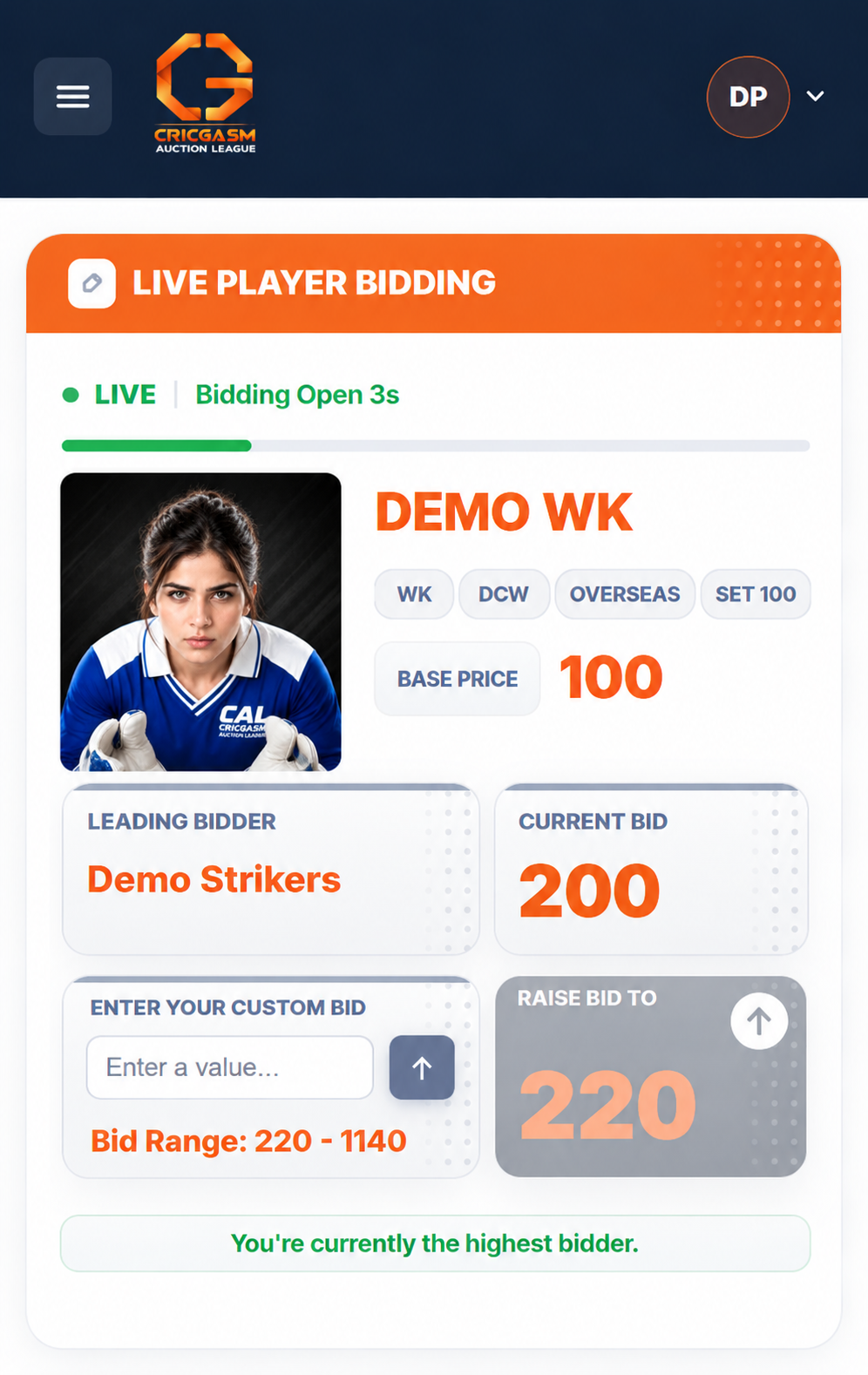
- Auction Room: open it from your dashboard when the auction begins. Each player has a 12-second bidding timer, followed by Any Further Bids? for 10 seconds and Final Call for 10 seconds. Click Raise Bid or enter your own amount using Custom Bid, in 20-point steps, up to your Max Bid/Player. With no bids, the player goes unsold.
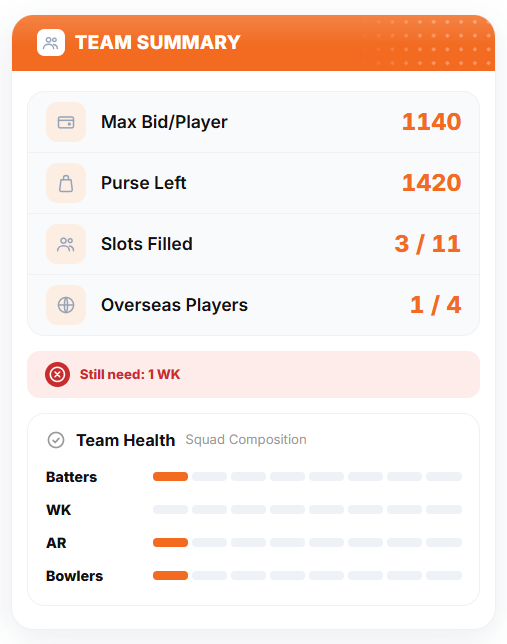
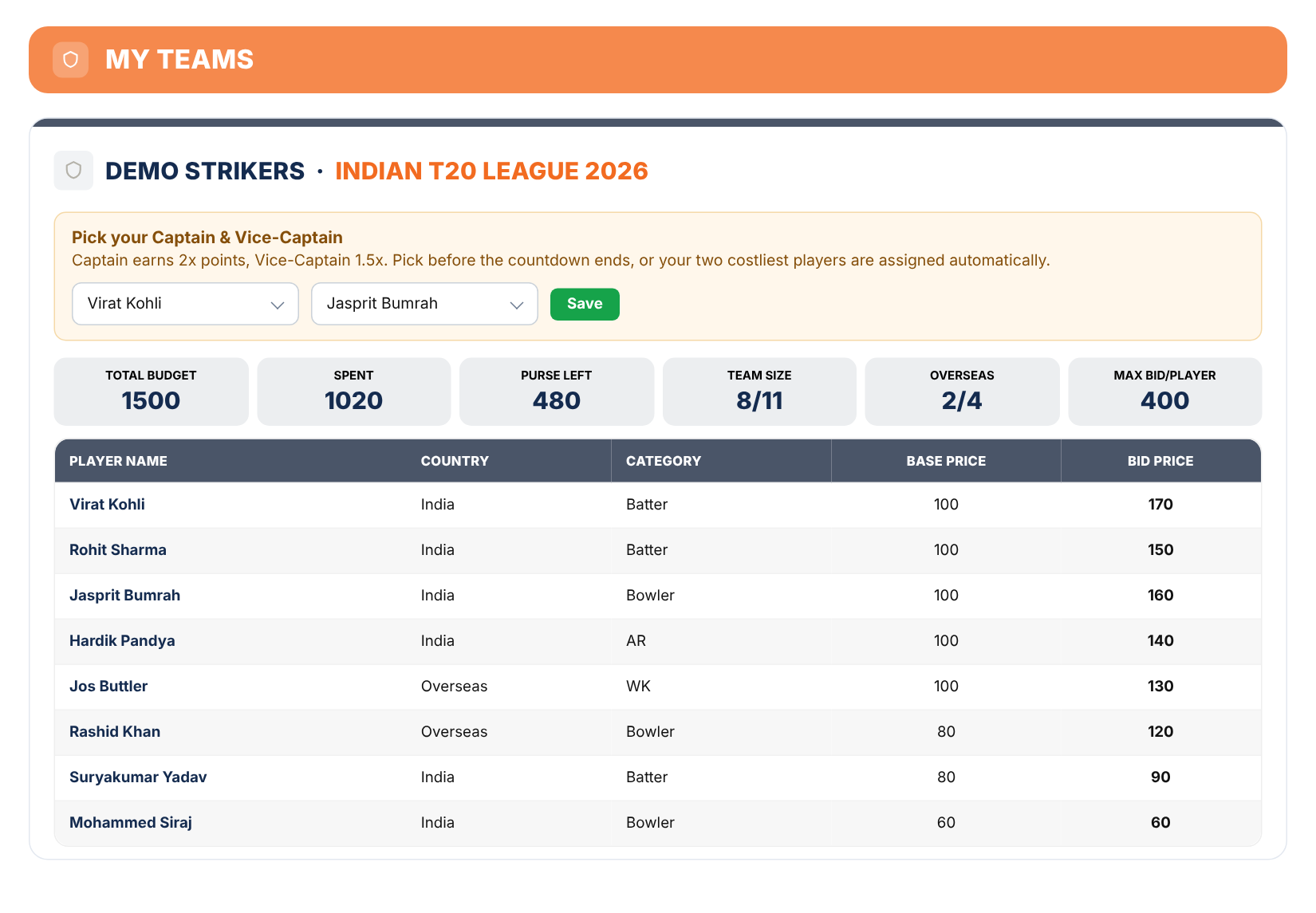
- Team Summary: your own squad, purse and Max Bid/Player as you buy players.
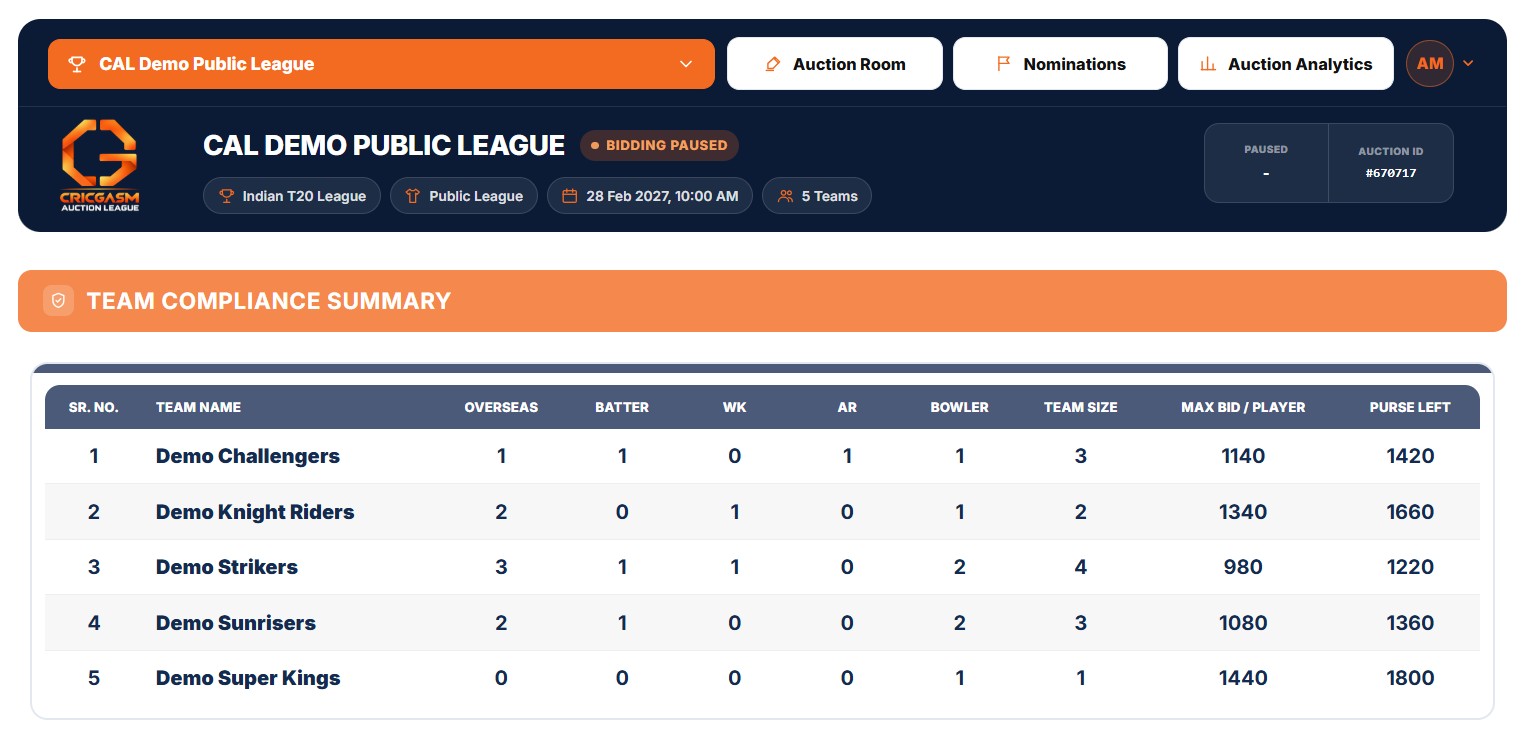
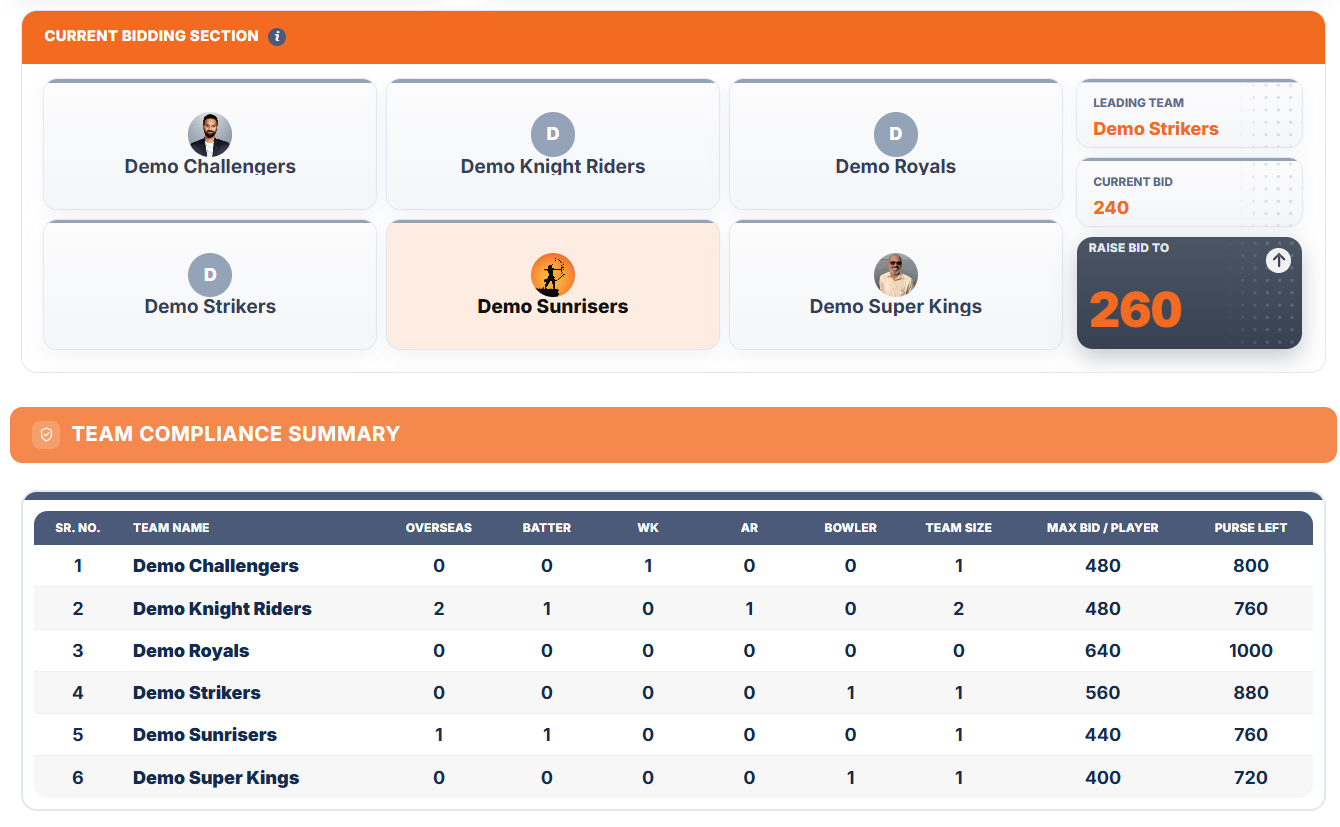
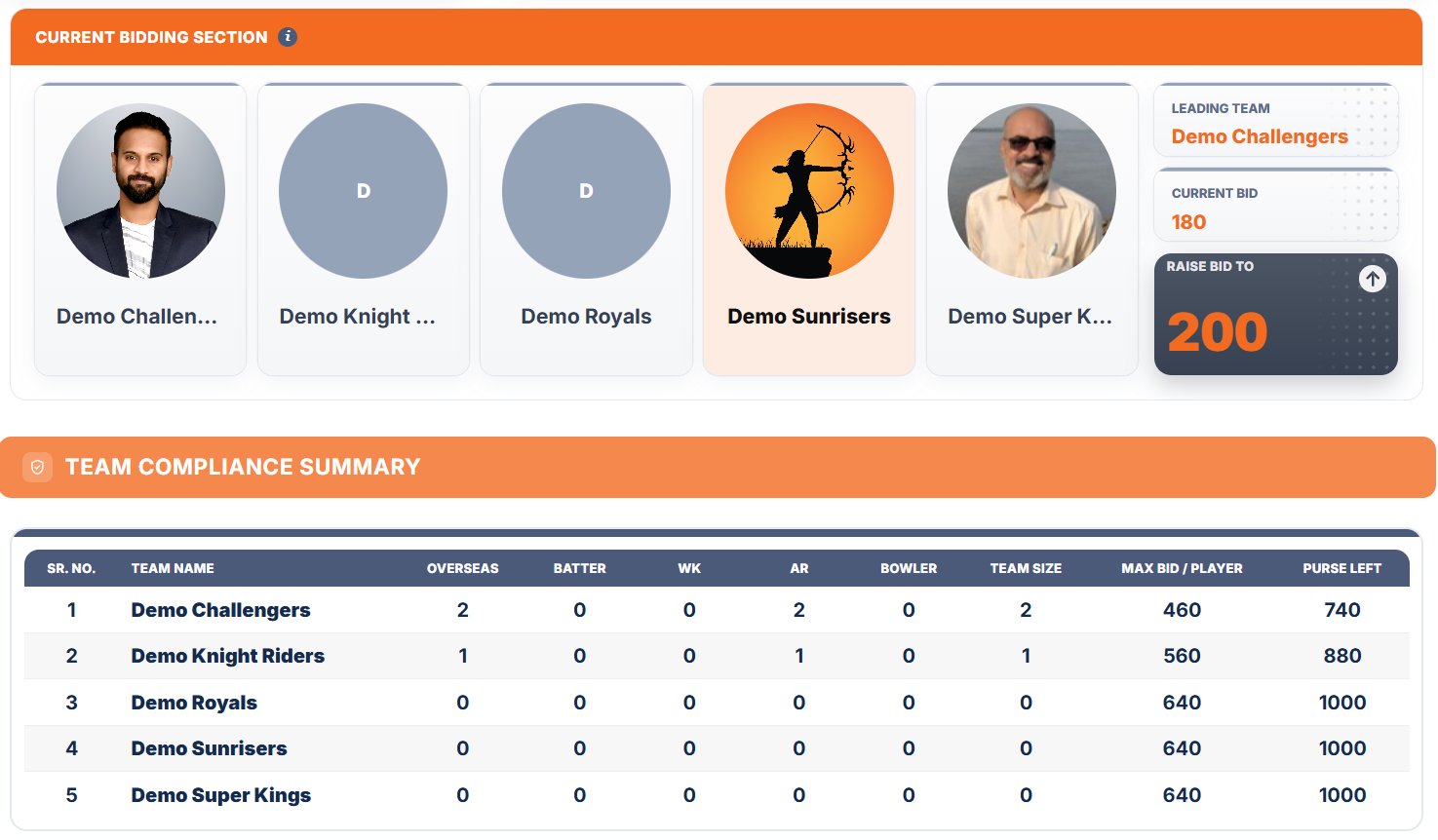
- Auction Tracker: the compliance table for every team (overseas, roles, team size, Max Bid/Player and purse left), plus the other teams’ squads.
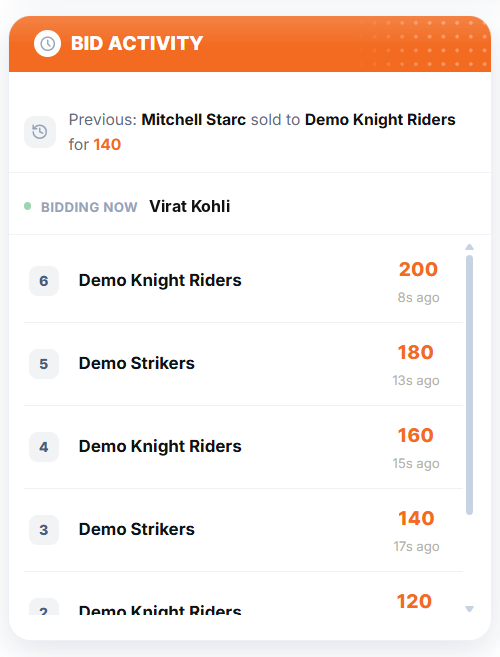
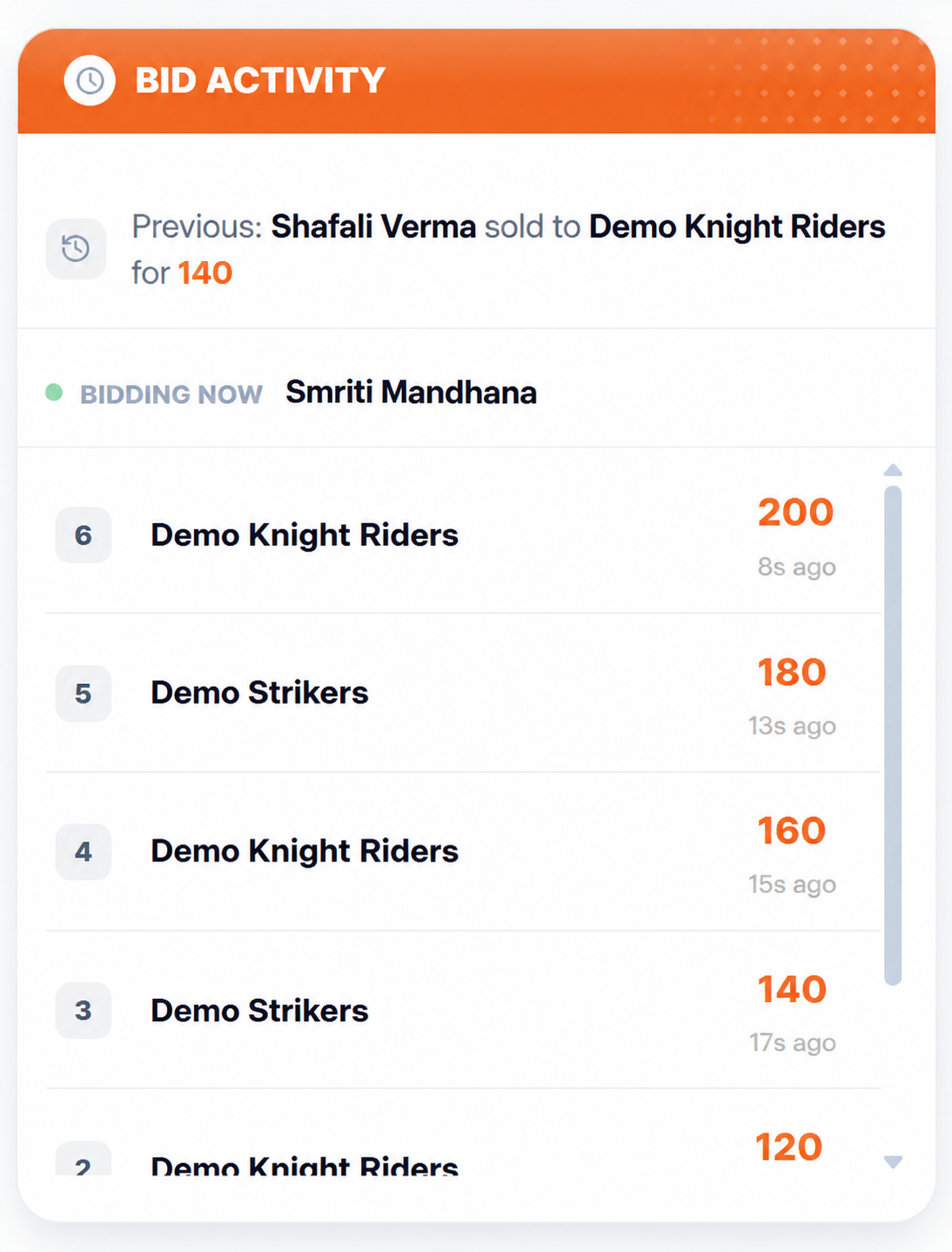
- Bid Activity: the latest bids on the player currently up for auction.
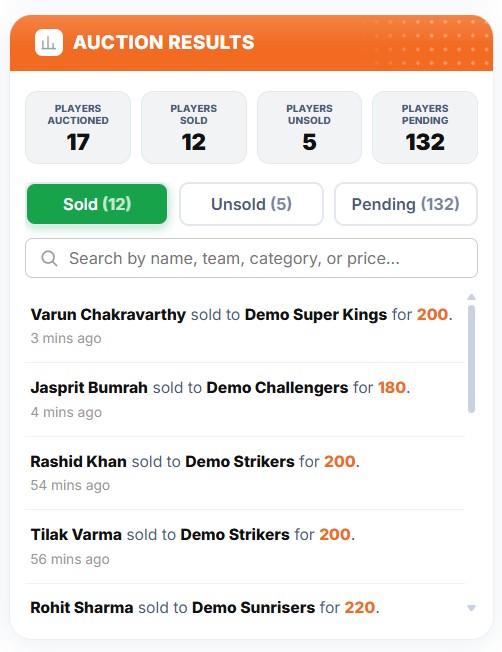
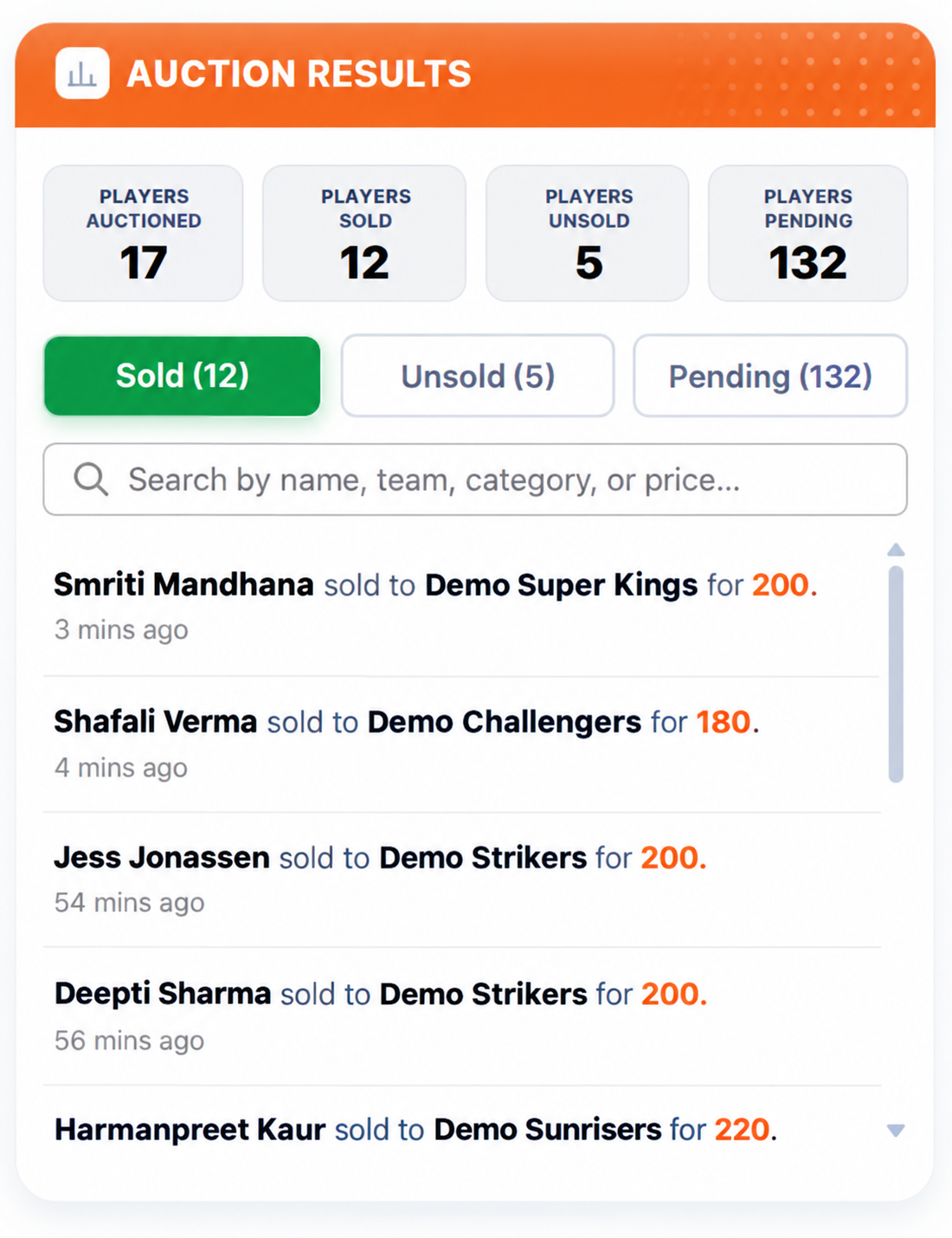
- Auction Results: the list of sold and unsold players.
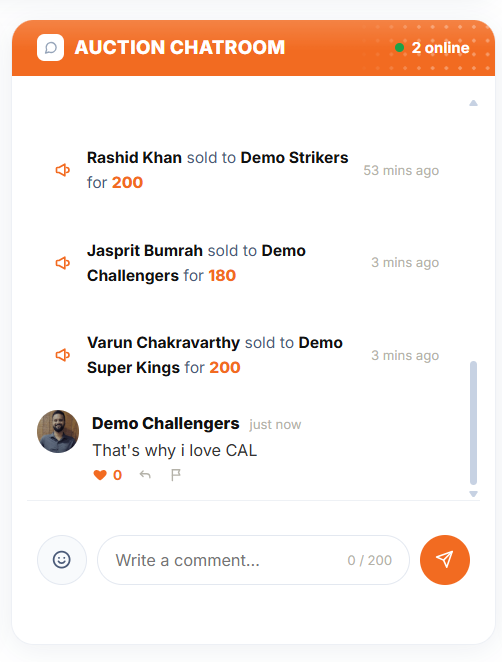
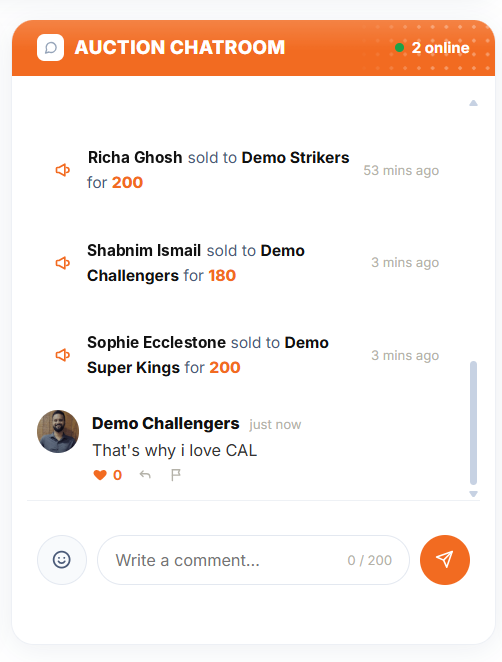
- Chatroom: chat with the other teams during the auction.
- If you’re still short of 11 players after the main rotation, nominate up to 5 players from the unsold pool for the Final Round.
Auction Room
Live Player Bidding: raise or custom bid on every player.
Team Summary
Your own squad, purse and Max Bid/Player.
Auction Tracker
Compliance table and every team’s squad.
Bid Activity
The latest bids on the current player.
Sold and Unsold
The full list of sold and unsold players.
Chatroom
Talk to the other teams while the bids fly.
04 Follow the Tournament
Track your squad as the tournament progresses.
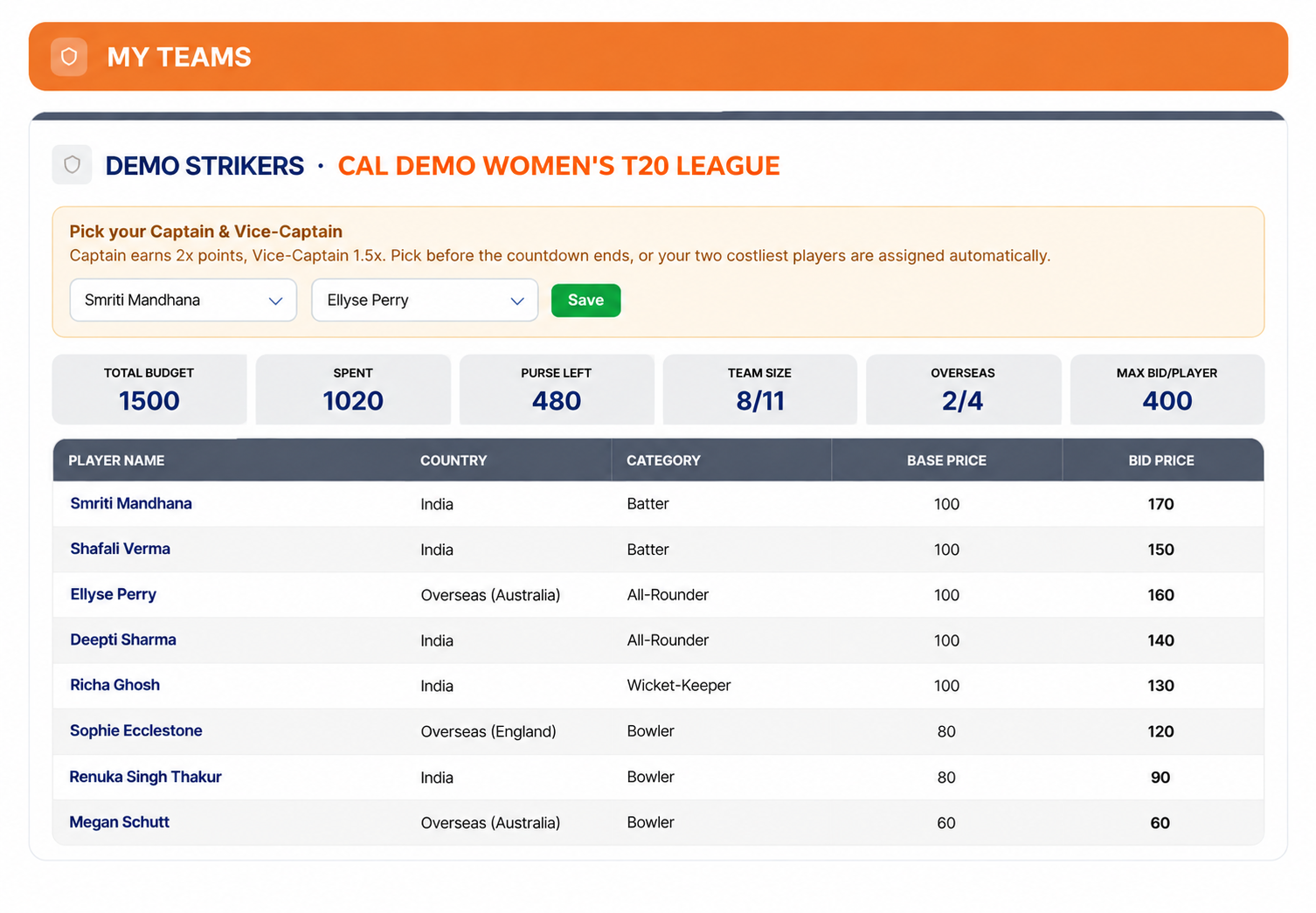
- After the auction, choose your Captain (2× points) and Vice-Captain (1.5× points) before the tournament start countdown ends. They must be two different players.
- If you don’t choose, your two costliest players are assigned automatically, the highest price as Captain. Other teams’ choices stay hidden until the tournament starts.
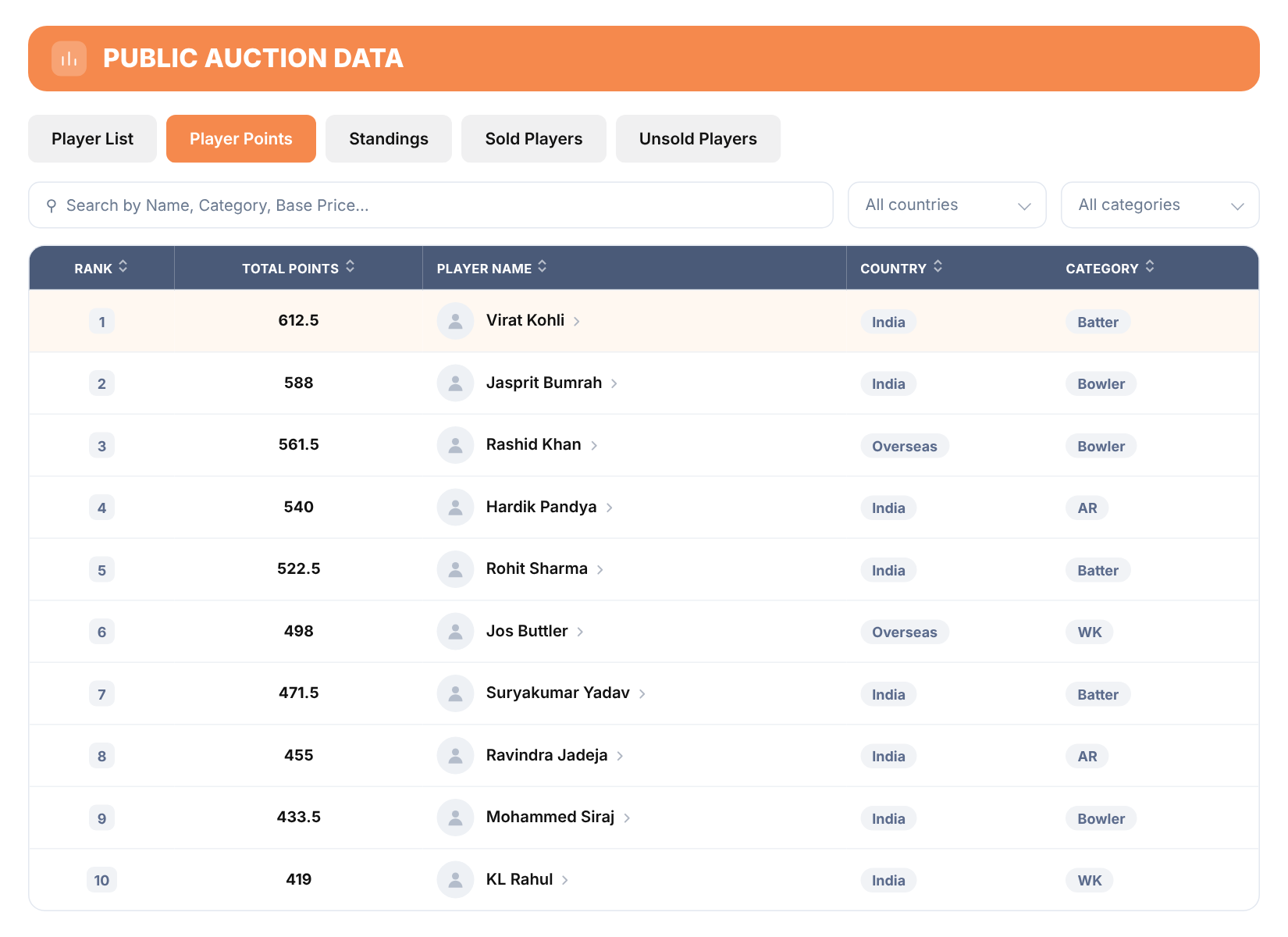
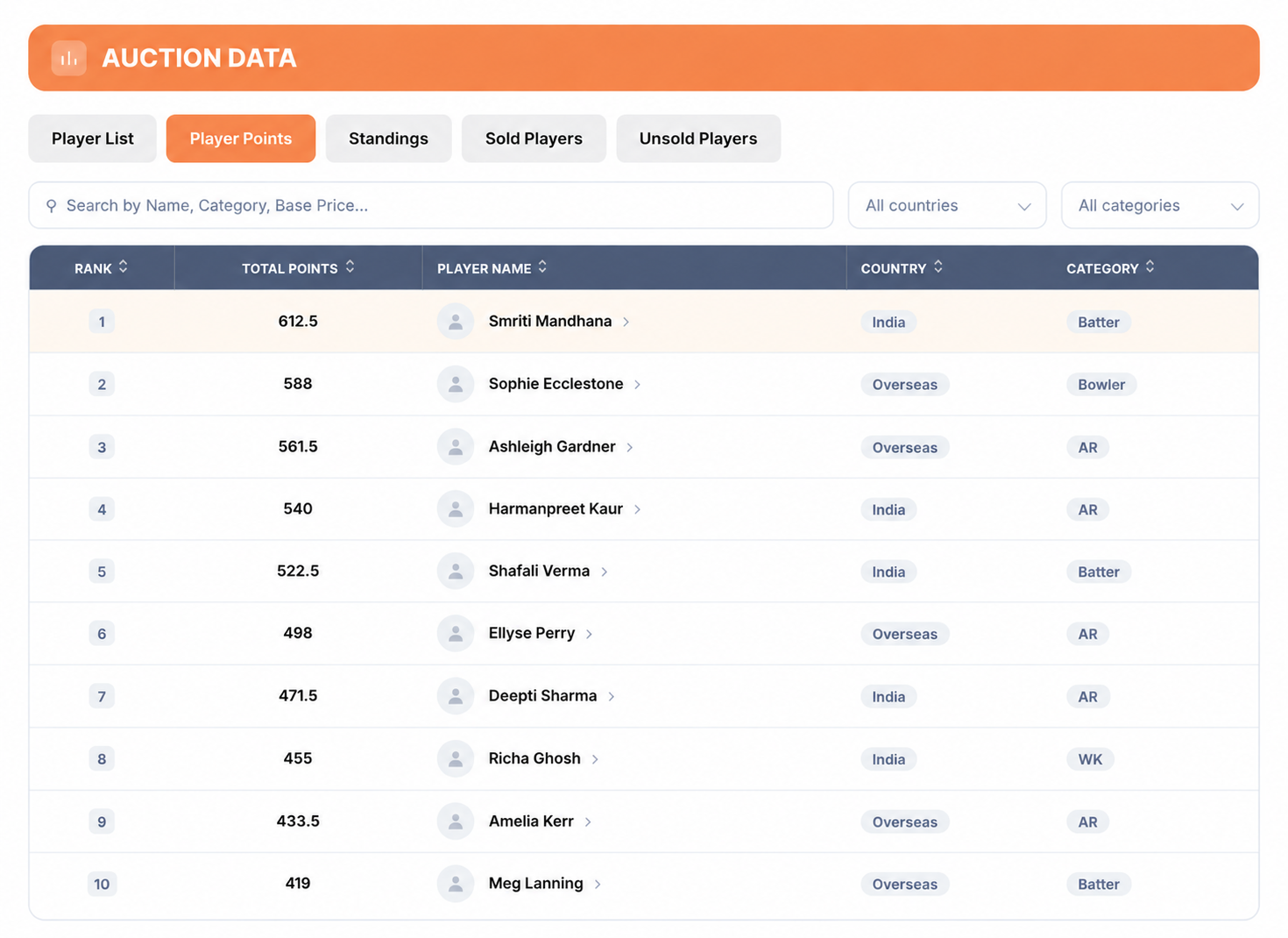
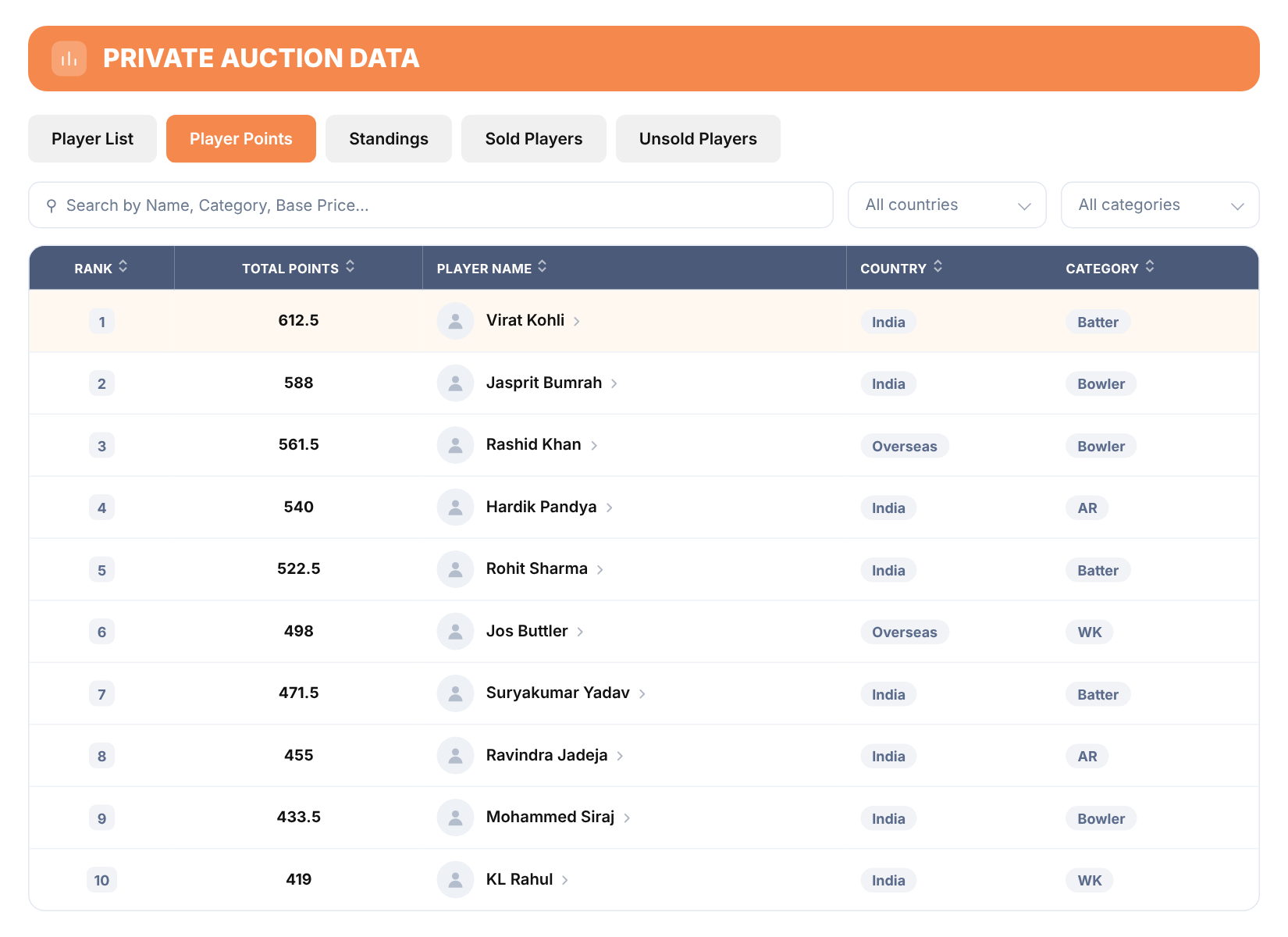
- Use Player Points to follow points earned from official match scorecards using the CAL Points System.
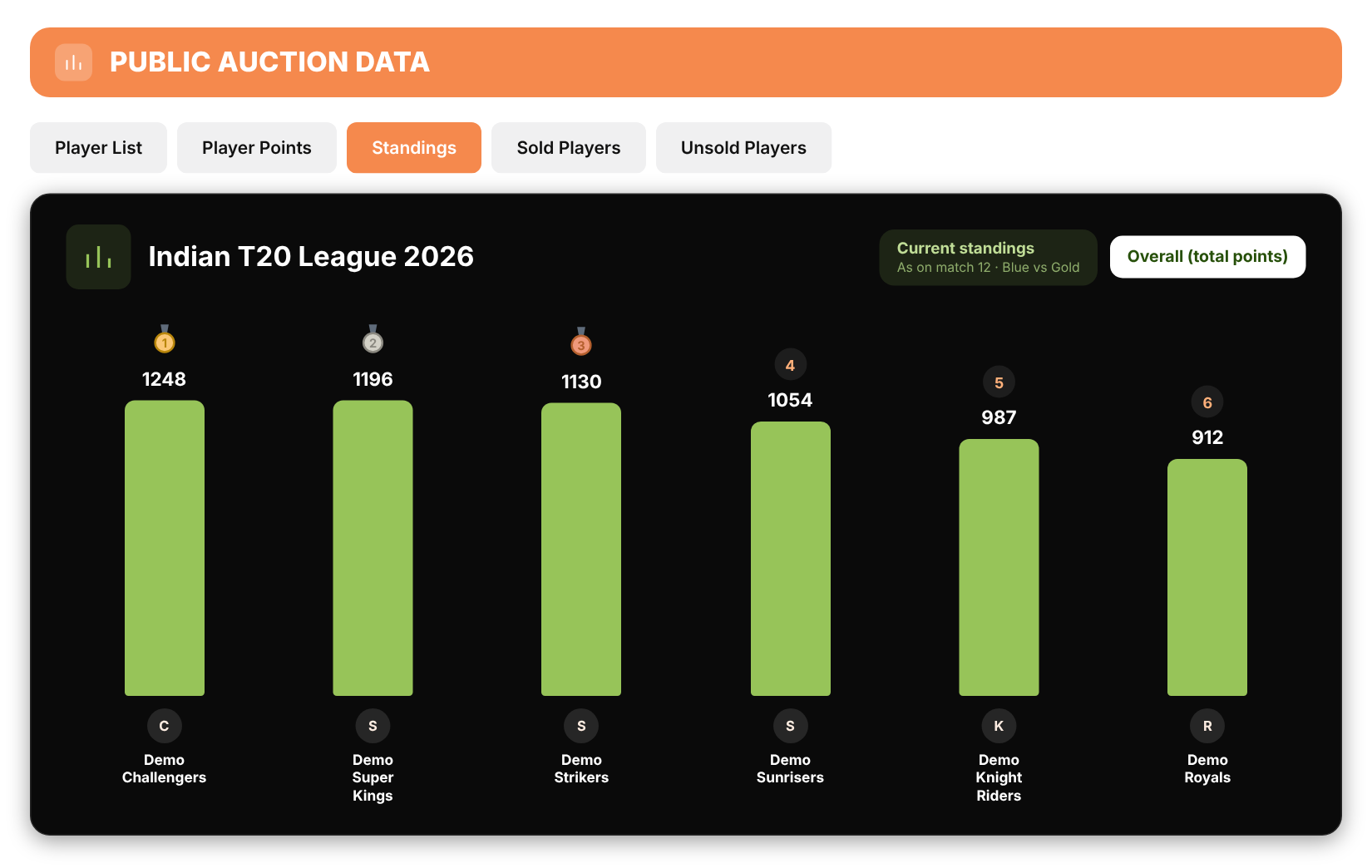
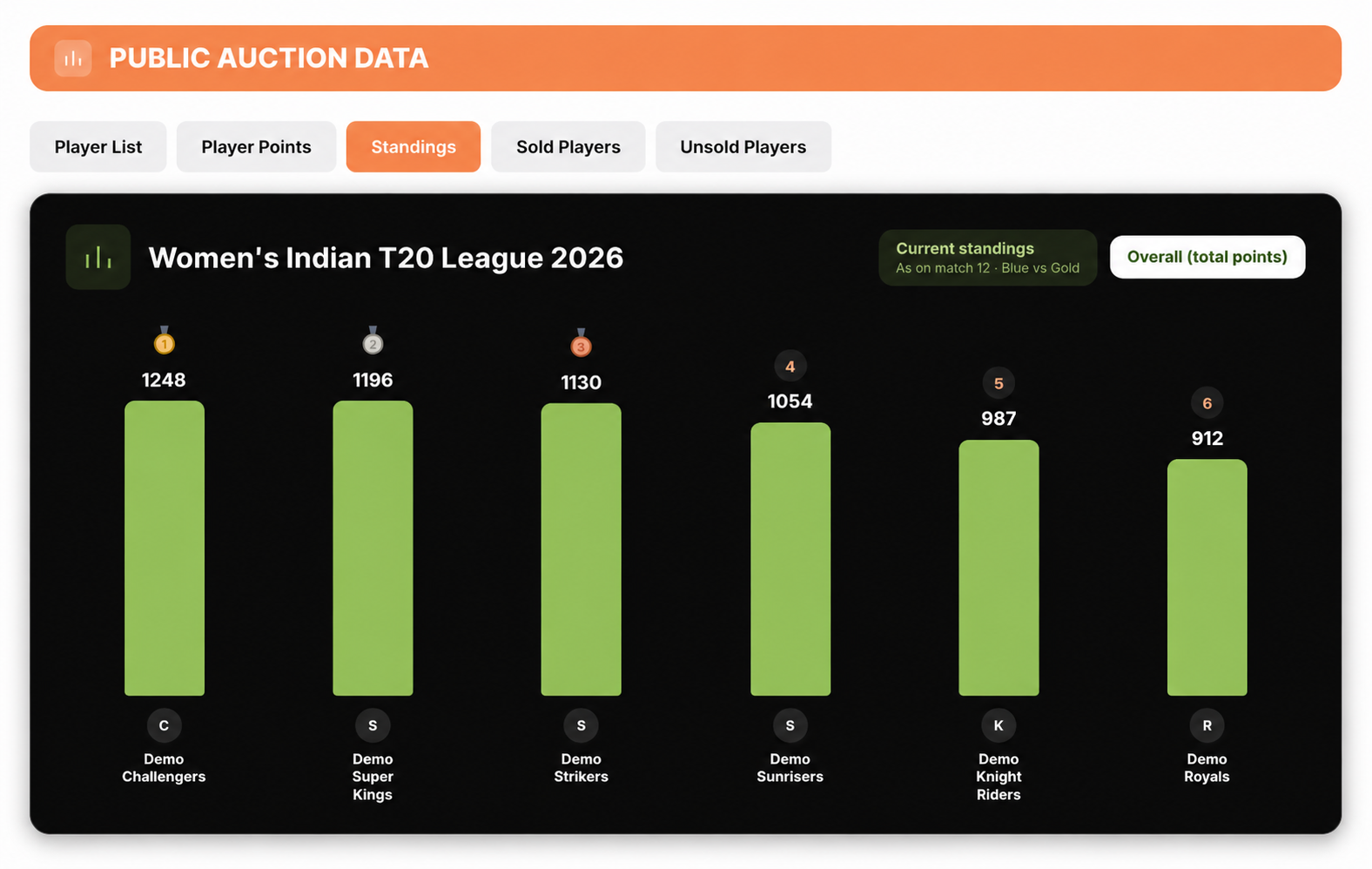
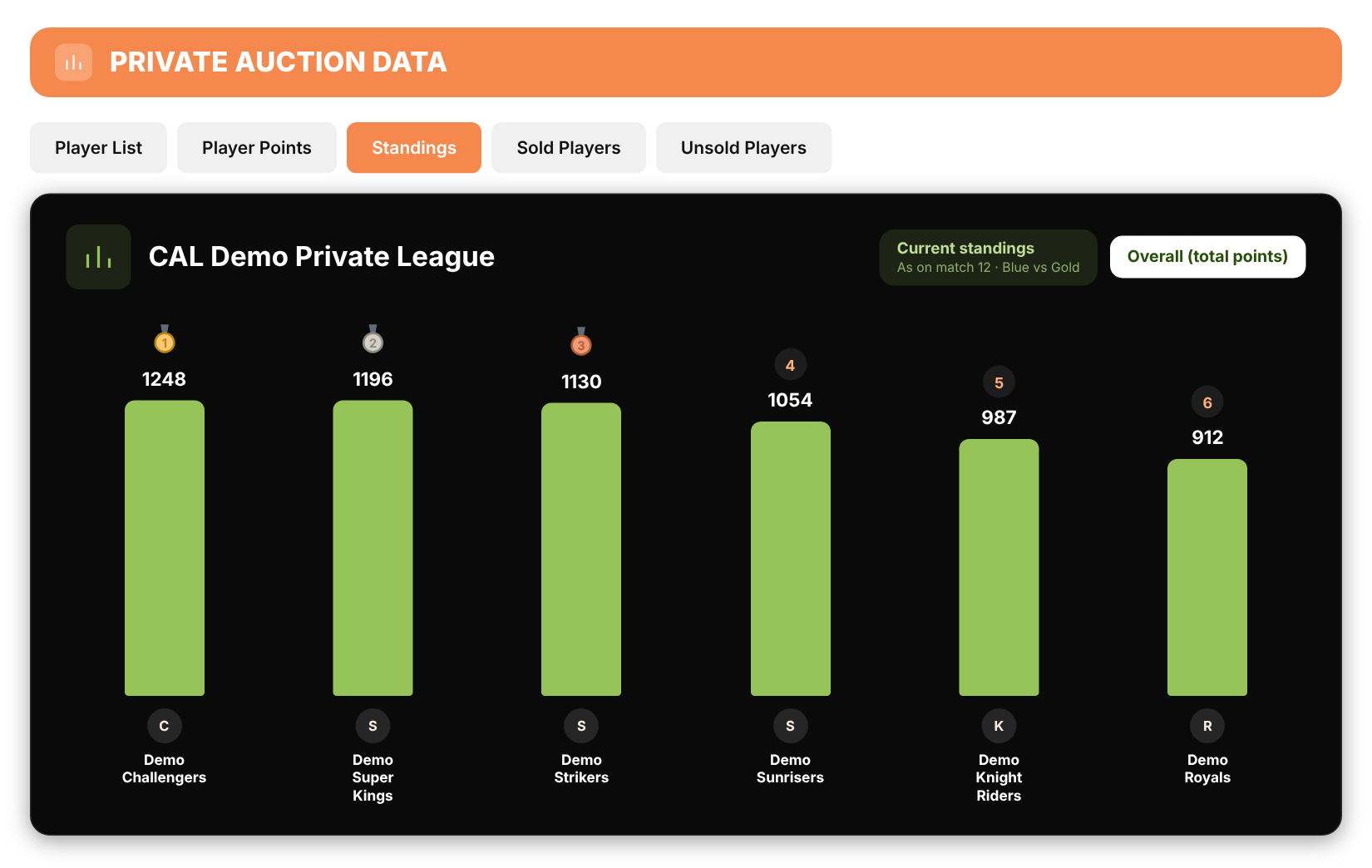
- Open Standings to see teams ranked by their total CAL Points.
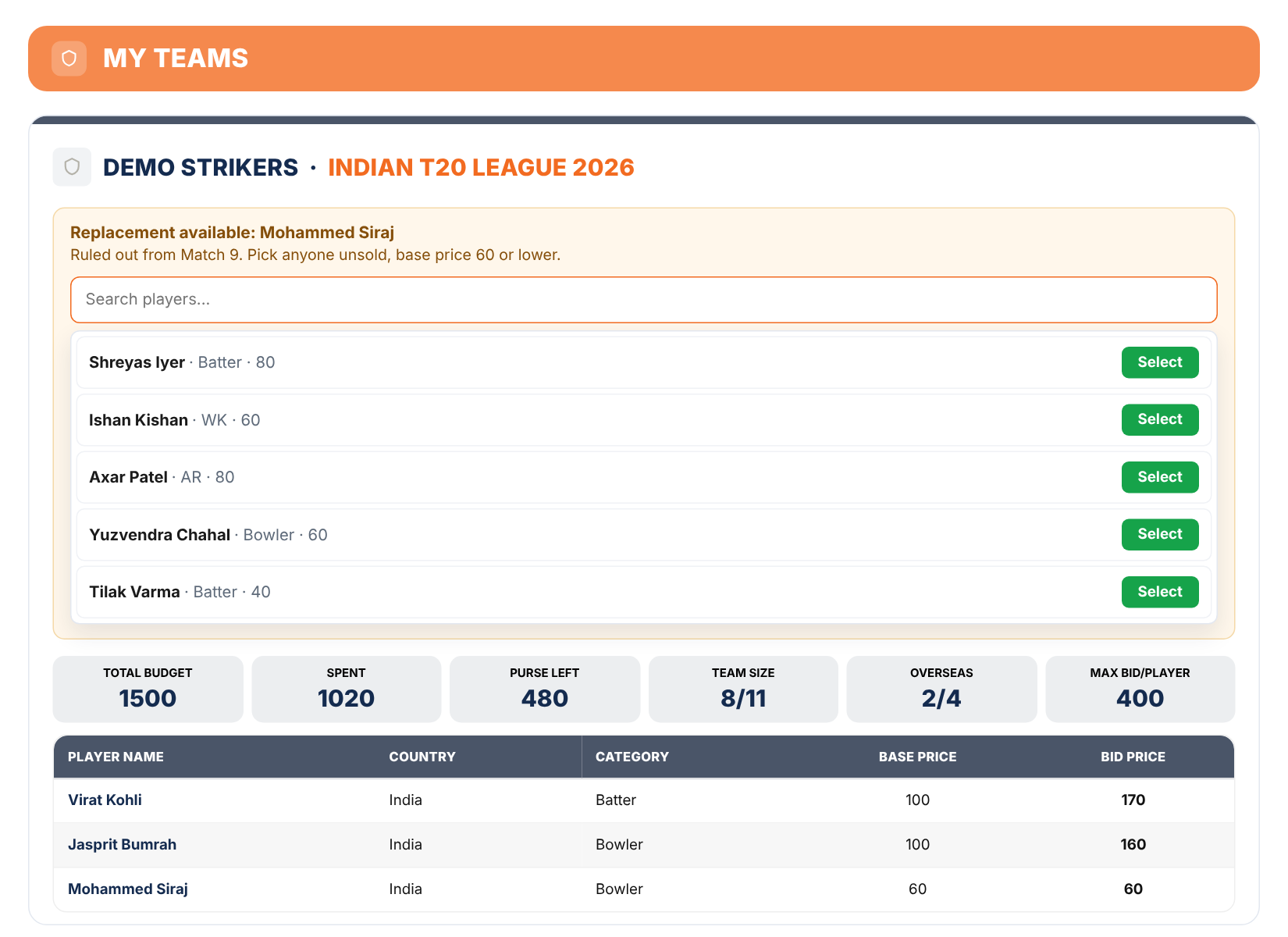
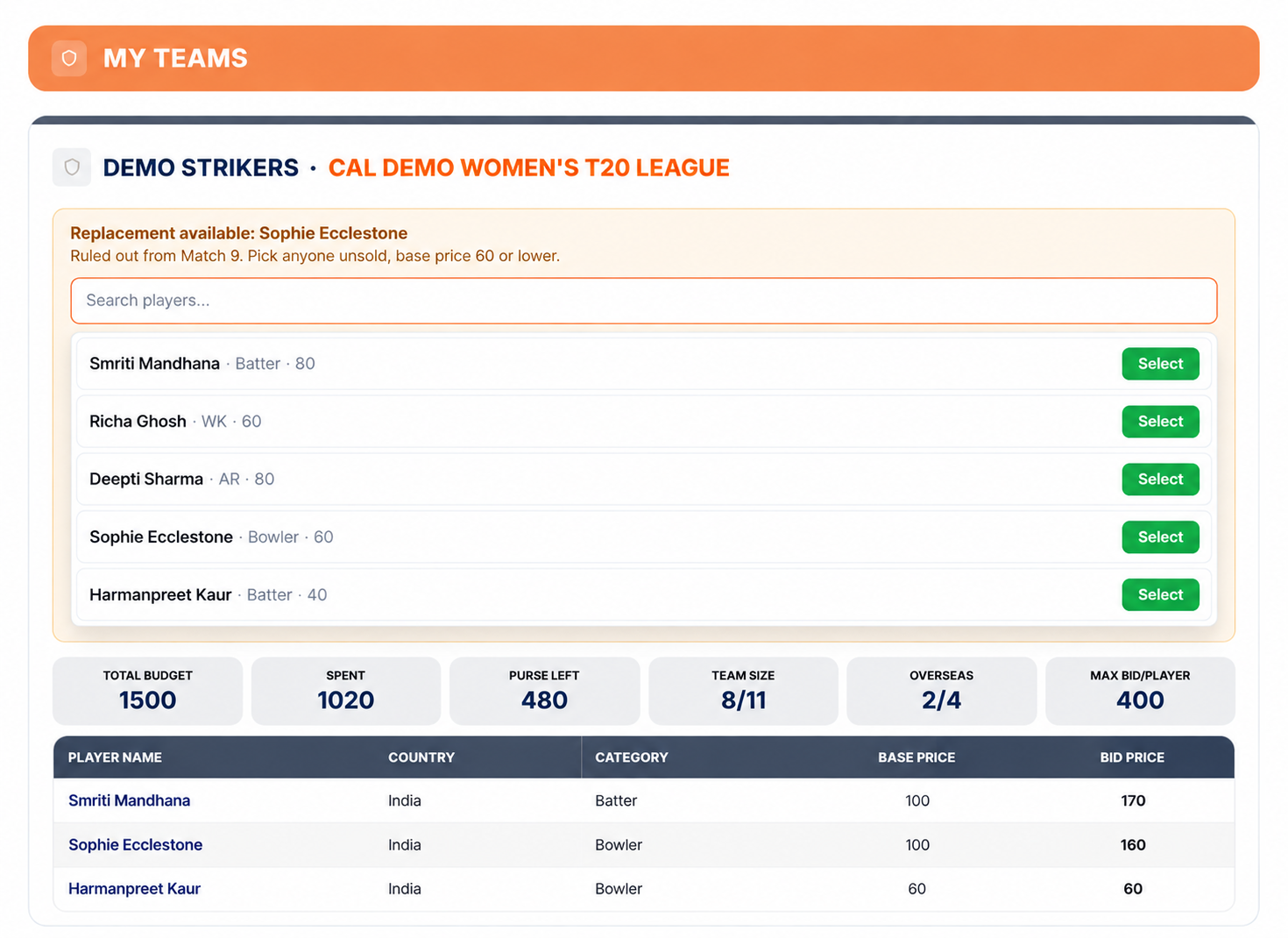
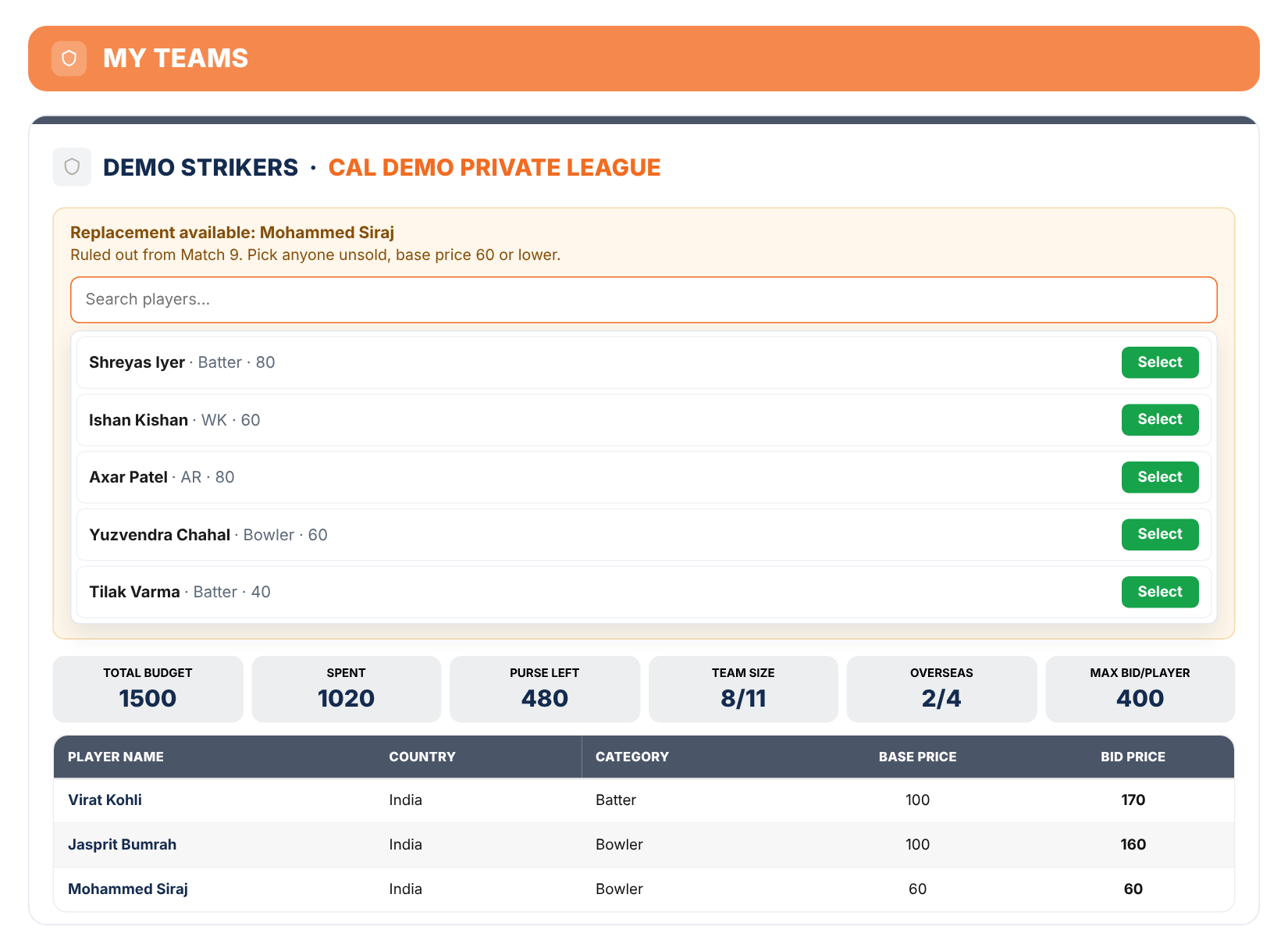
- If a player is officially ruled out, use the Replace tool on your dashboard to request a replacement. The organizer reviews and approves each request.
Choose your captains
Captain scores 2× and Vice-Captain 1.5×. Choose before the tournament starts.
Follow Player Points
Points from official match scorecards, using the CAL Points System.
Check Standings
Teams ranked by their total CAL Points.
Request replacements
If a player is officially ruled out, use the Replace tool on your dashboard.
01 Create your Account
Free, and it takes about two minutes.
- Open the Register page. Registration takes three short steps.
- Step 1: Enter your name, email, mobile number and password. You must be 18 or older.
- Step 2: Select Play in a Public League.
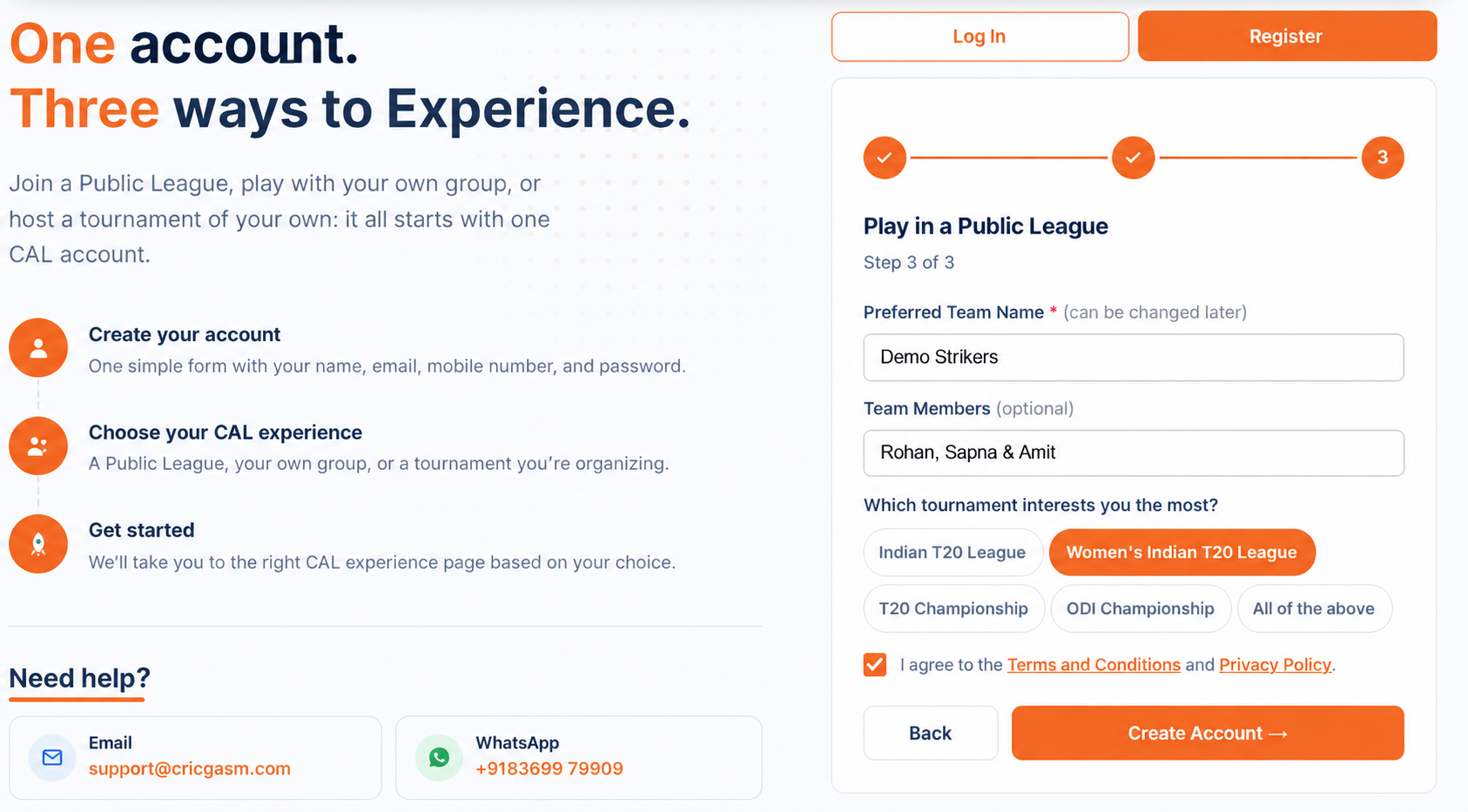
- Step 3: Enter your team name, optionally add team members, and select your preferred tournaments.
- Accept the Terms & Conditions and Privacy Policy, then click Create Account.
- You’re ready to go. You’ll land on your dashboard, where the left menu helps you navigate CAL. Need help? Use the WhatsApp link at the bottom.
Open Register
Enter your name, email, mobile number and password.
Choose your experience
Select Play in a Public League.
Set up your team
Add your team name and members, and choose your preferred tournaments.
Land on your dashboard
Click Create Account and you arrive on your own dashboard.
02 Join a League
Find an open league and pay for your seat.
- Open Join a Public League from your dashboard to see available leagues, tournaments and auction dates.
- Select Join for the league you want. Checkout will open on your dashboard.
- Your seat is reserved for 30 minutes while you complete payment. If you close checkout, you can reopen it using the Pay option on your dashboard.
- Public Leagues are paid per auction. See the current price on the Pricing page.
- After payment, you’re all set. You’ll return to your dashboard, and CAL will email you a receipt with your transaction details.
Find an open league
Open Join a Public League on your dashboard to see leagues, tournaments and auction dates.
Join and pay
Checkout opens on your dashboard. Your seat is reserved for 30 minutes.
Get your receipt
You return to your dashboard and CAL emails a receipt with your transaction details.
03 Auction Day
Everything happens in the Auction Room. Here is what you will see.
- Try the demo players: the auction opens with four practice players (Demo Batter, Demo WK, Demo AR and Demo Bowler). Place a few bids to get a feel for the screen. Nothing you do on them counts.
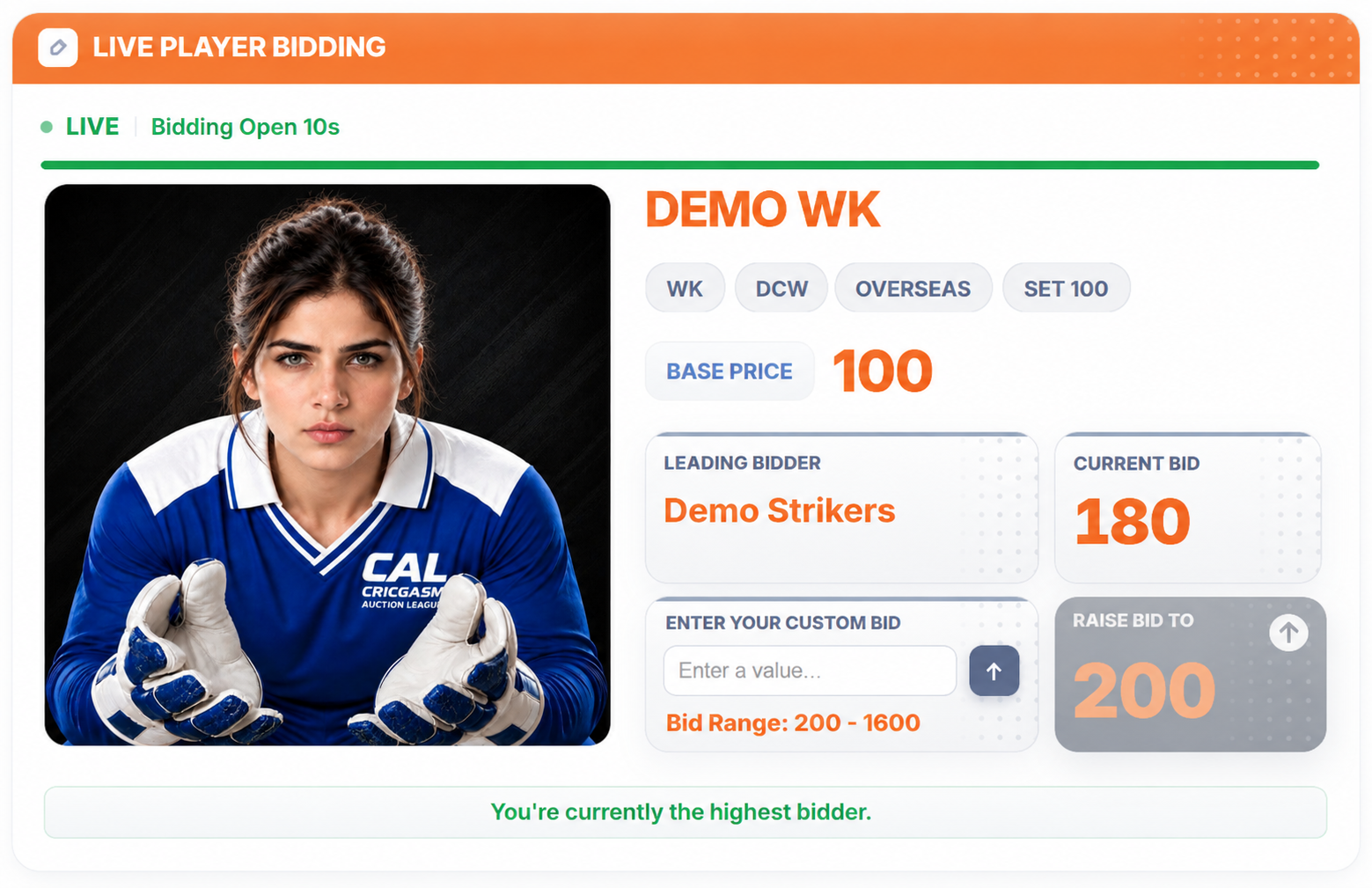
- Auction Room: open it from your dashboard when the auction begins. Each player has a 12-second bidding timer, followed by Any Further Bids? for 10 seconds and Final Call for 10 seconds. Click Raise Bid or enter your own amount using Custom Bid, in 20-point steps, up to your Max Bid/Player. With no bids, the player goes unsold.
- Team Summary: your own squad, purse and Max Bid/Player as you buy players.
- Auction Tracker: the compliance table for every team (overseas, roles, team size, Max Bid/Player and purse left), plus the other teams’ squads.
- Bid Activity: the latest bids on the player currently up for auction.
- Auction Results: the list of sold and unsold players.
- Chatroom: chat with the other teams during the auction.
- If you’re still short of 11 players after the main rotation, nominate up to 5 players from the unsold pool for the Final Round.
Auction Room
Live Player Bidding: raise or custom bid on every player.
Team Summary
Your own squad, purse and Max Bid/Player.
Auction Tracker
Compliance table and every team’s squad.
Bid Activity
The latest bids on the current player.
Sold and Unsold
The full list of sold and unsold players.
Chatroom
Talk to the other teams while the bids fly.
04 Follow the Tournament
Track your squad as the tournament progresses.
- After the auction, choose your Captain (2× points) and Vice-Captain (1.5× points) before the tournament start countdown ends. They must be two different players.
- If you don’t choose, your two costliest players are assigned automatically, the highest price as Captain. Other teams’ choices stay hidden until the tournament starts.
- Use Player Points to follow points earned from official match scorecards using the CAL Points System.
- Open Standings to see teams ranked by their total CAL Points.
- If a player is officially ruled out, use the Replace tool on your dashboard to request a replacement. The organizer reviews and approves each request.
Choose your captains
Captain scores 2× and Vice-Captain 1.5×. Choose before the tournament starts.
Follow Player Points
Points from official match scorecards, using the CAL Points System.
Check Standings
Teams ranked by their total CAL Points.
Request replacements
If a player is officially ruled out, use the Replace tool on your dashboard.
01 Create your Account
One account, then choose to join a friend or create your own.
- Open the Register page and enter your name, email, mobile number and password. You must be 18 or older.
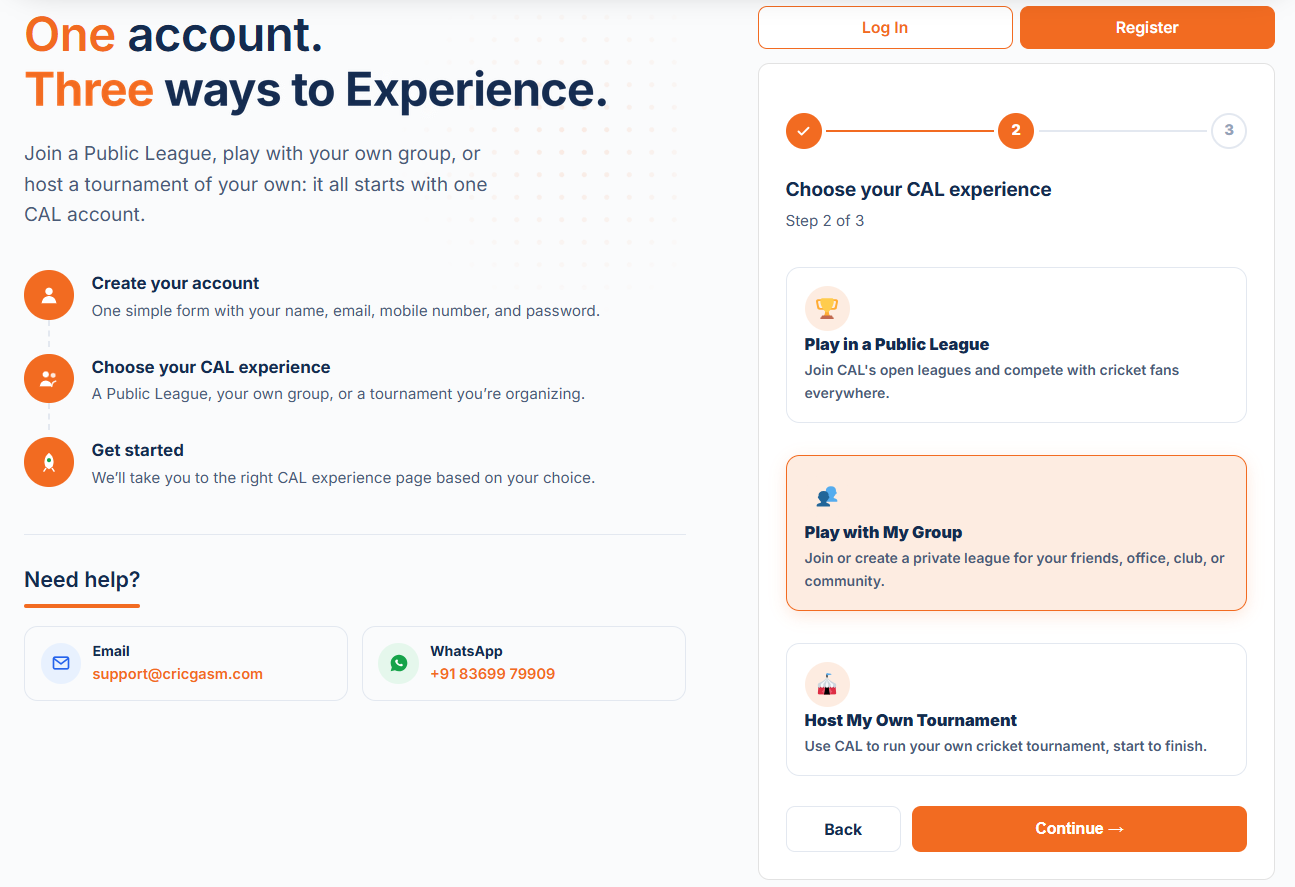
- Step 2: Select Play with My Group.
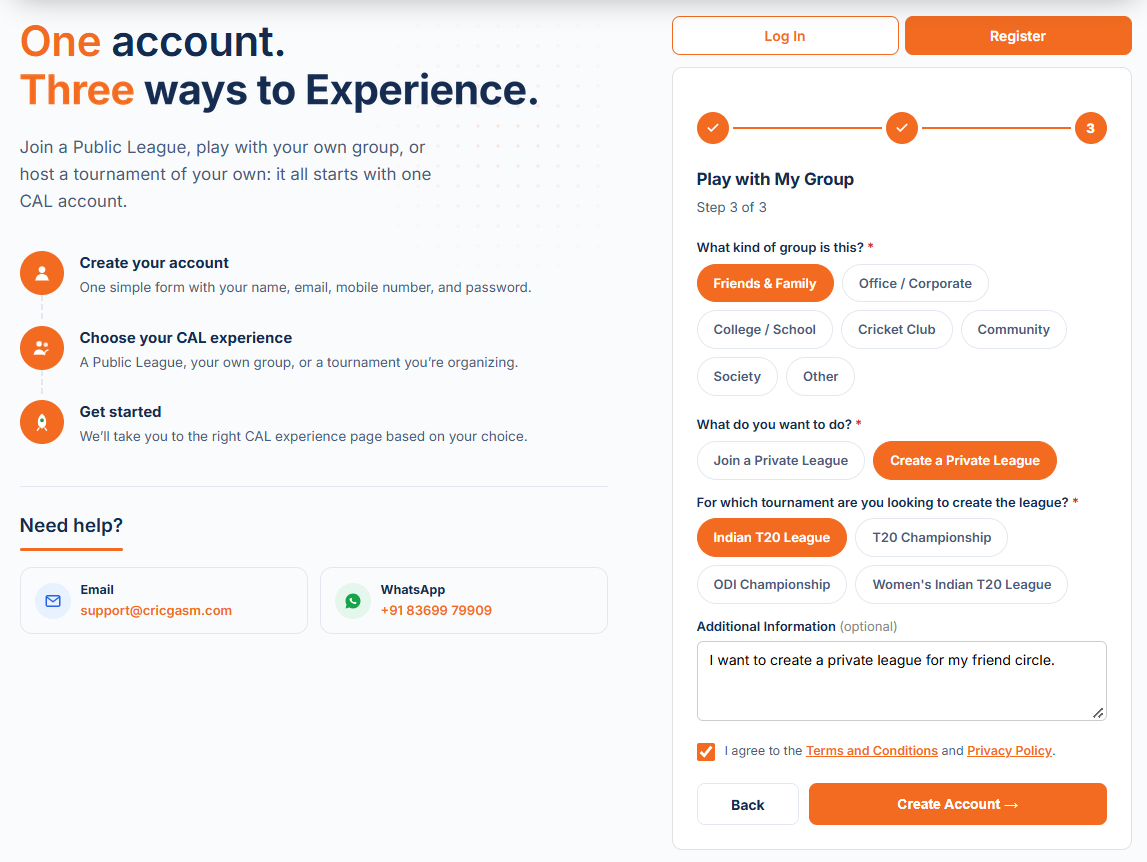
- Step 3: To create your own league, select your group type and then choose Create a Private League.
- Joining a friend’s league? Select Join a Private League and enter their invite code, or use the invite link they shared with you.
- Enter your team name, accept the Terms & Conditions and Privacy Policy, then click Create Account.
Open Register
Enter your name, email, mobile number and password.
Play with My Group
Select it in step 2, then choose your group type.
Create or join
Create a Private League, or join a friend’s with their invite code or link.
Create your account
Add your team name, accept the terms, then click Create Account.
02 Create your League
Free to build. Pay only when you activate your league.
- Try a Demo Auction first: from your console, create one free Demo Auction to learn the system. It is instant, needs no approval or payment, and runs with 2 teams. Only you can see it, and you can have one at a time.
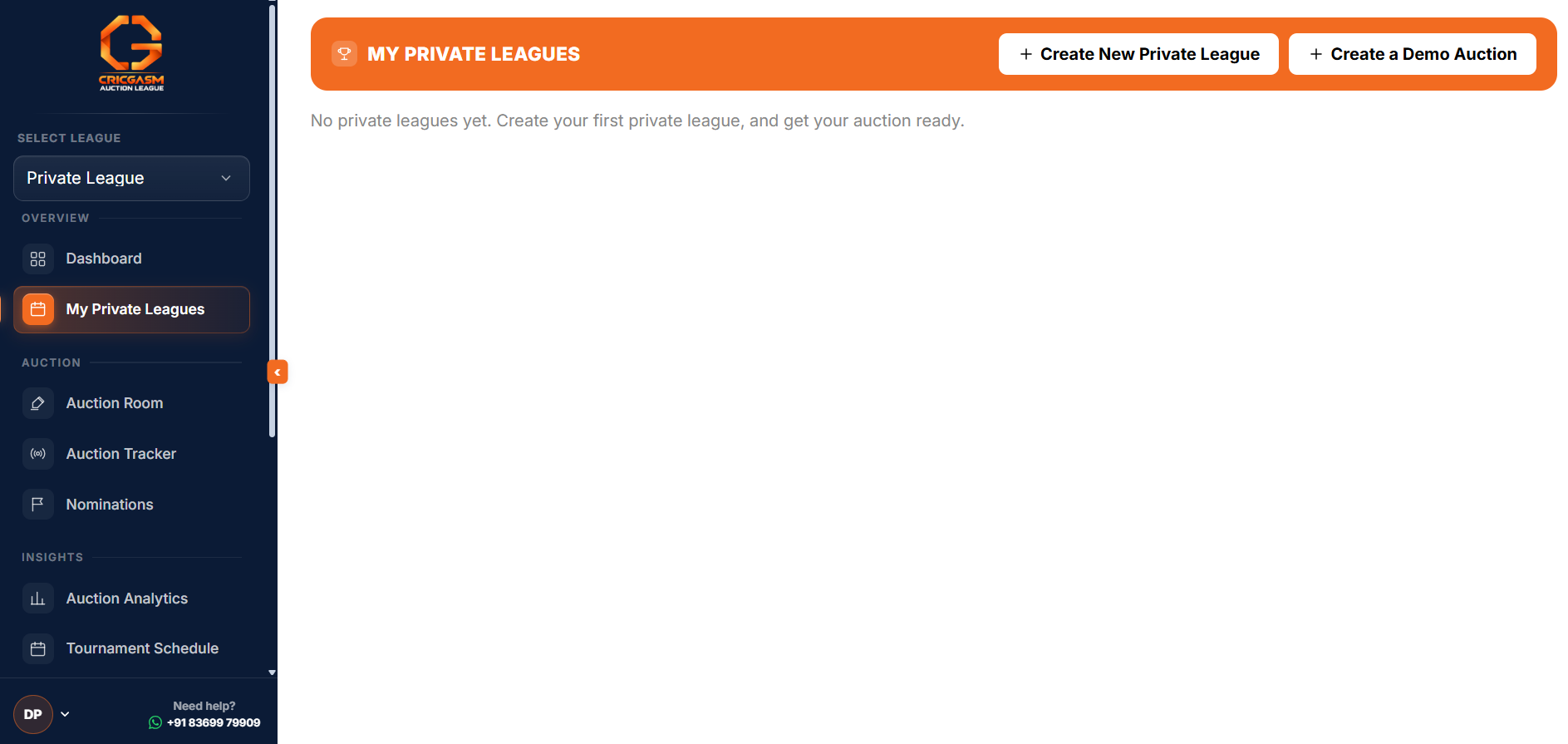
- Open My Private Leagues from your dashboard.
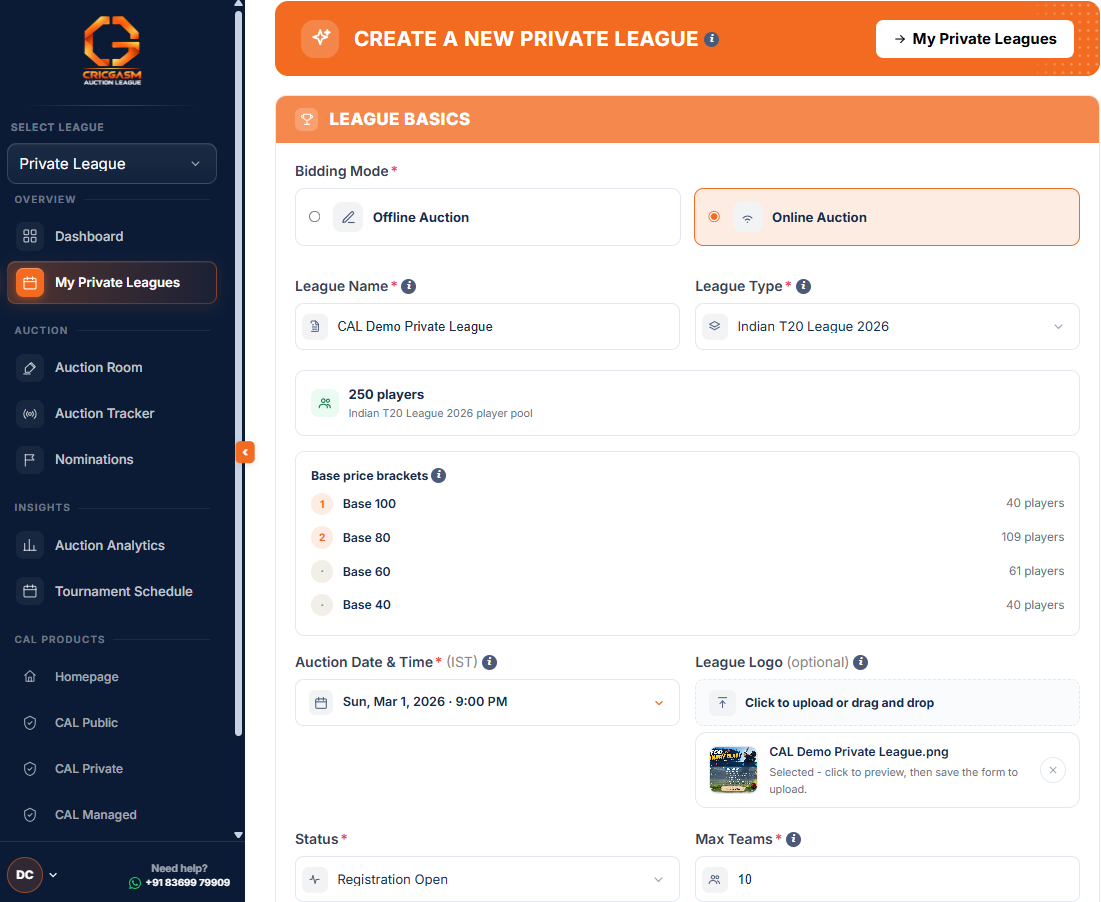
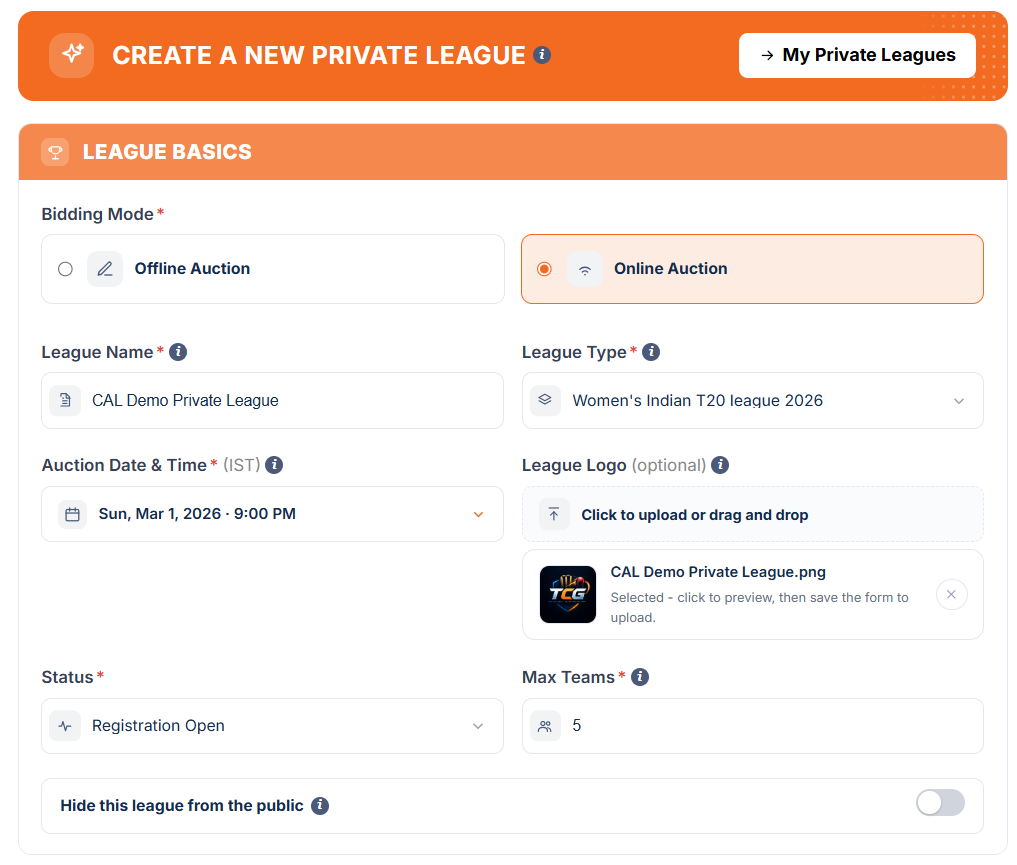
- Set up your League Basics, including the league name, bidding mode, auction date and time, team limit, and any optional details.
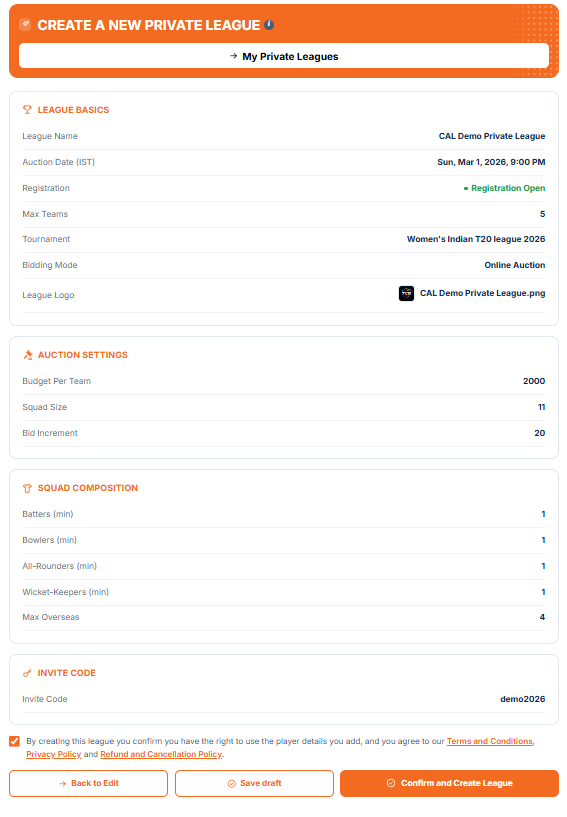
- Auction settings remain fixed for CAL Private leagues.
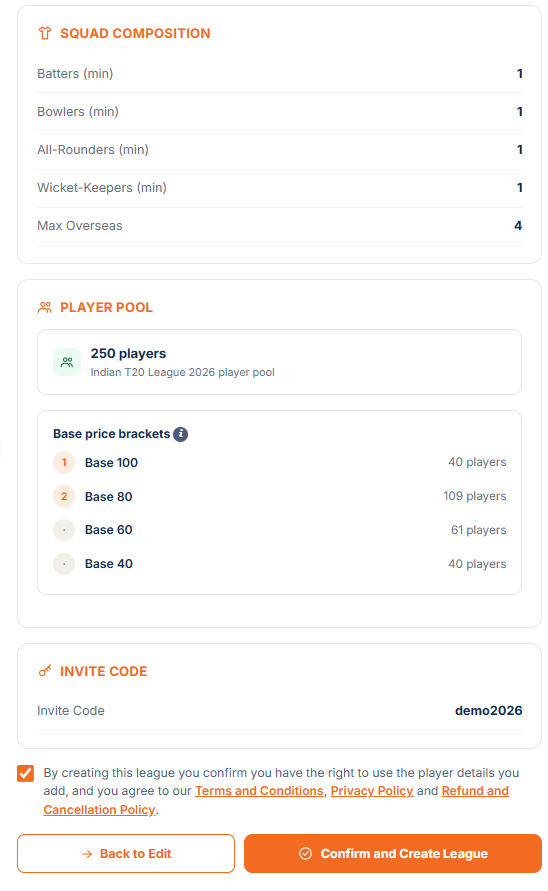
- Review your league, and check the details before creating it.
- Creating the league is free. You pay only when you activate it. The price depends on the number of teams, and if you add more teams later, you only pay the difference. See the Pricing page.
Open My Private Leagues
Find it in your dashboard menu.
Set up League Basics
League name, bidding mode, auction date and time, team limit and optional details.
Auction settings are fixed
They stay the same for every CAL Private league.
Review and create
Check the summary before you create the league.
03 Invite your Friends
Your league is invite-only. Share your code or join link.
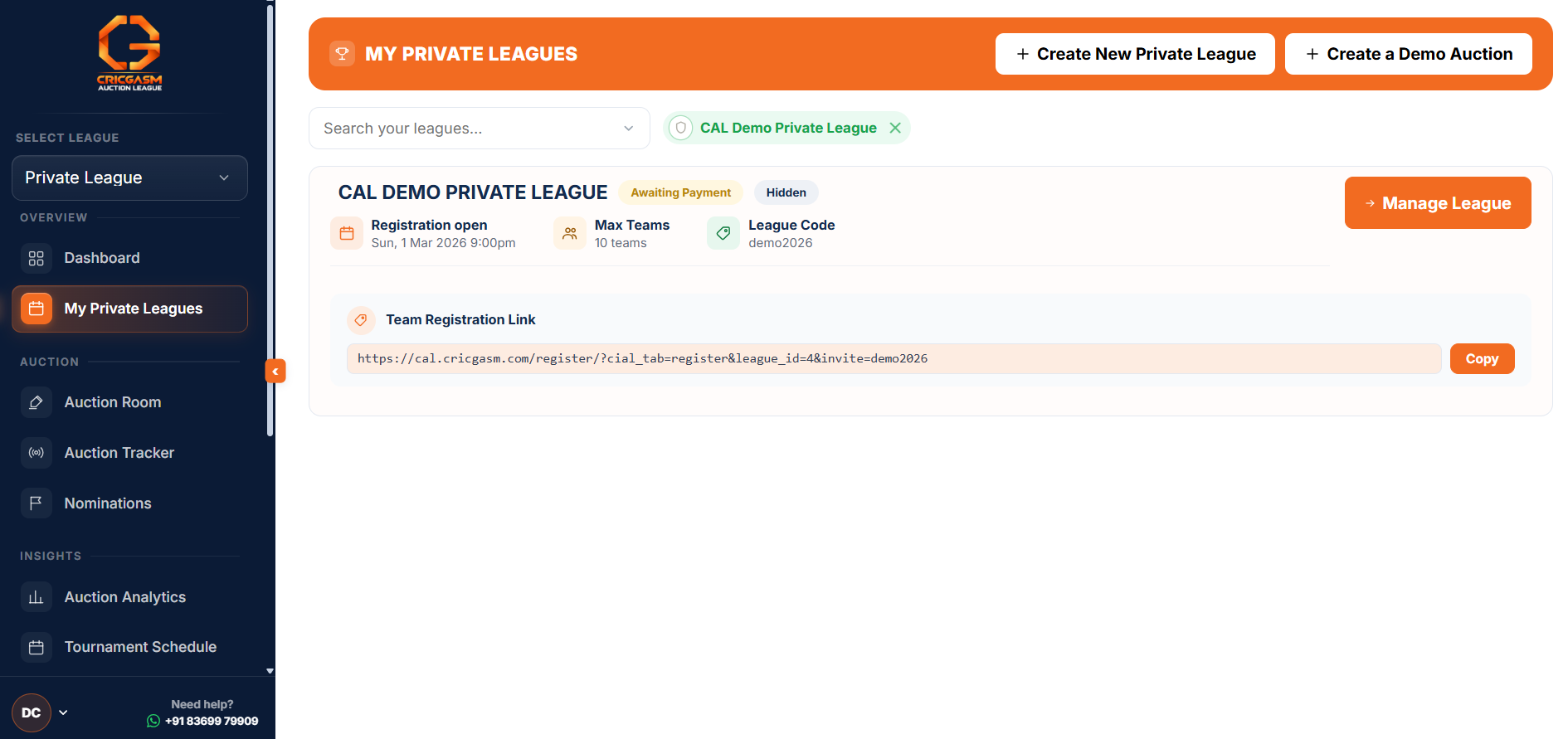
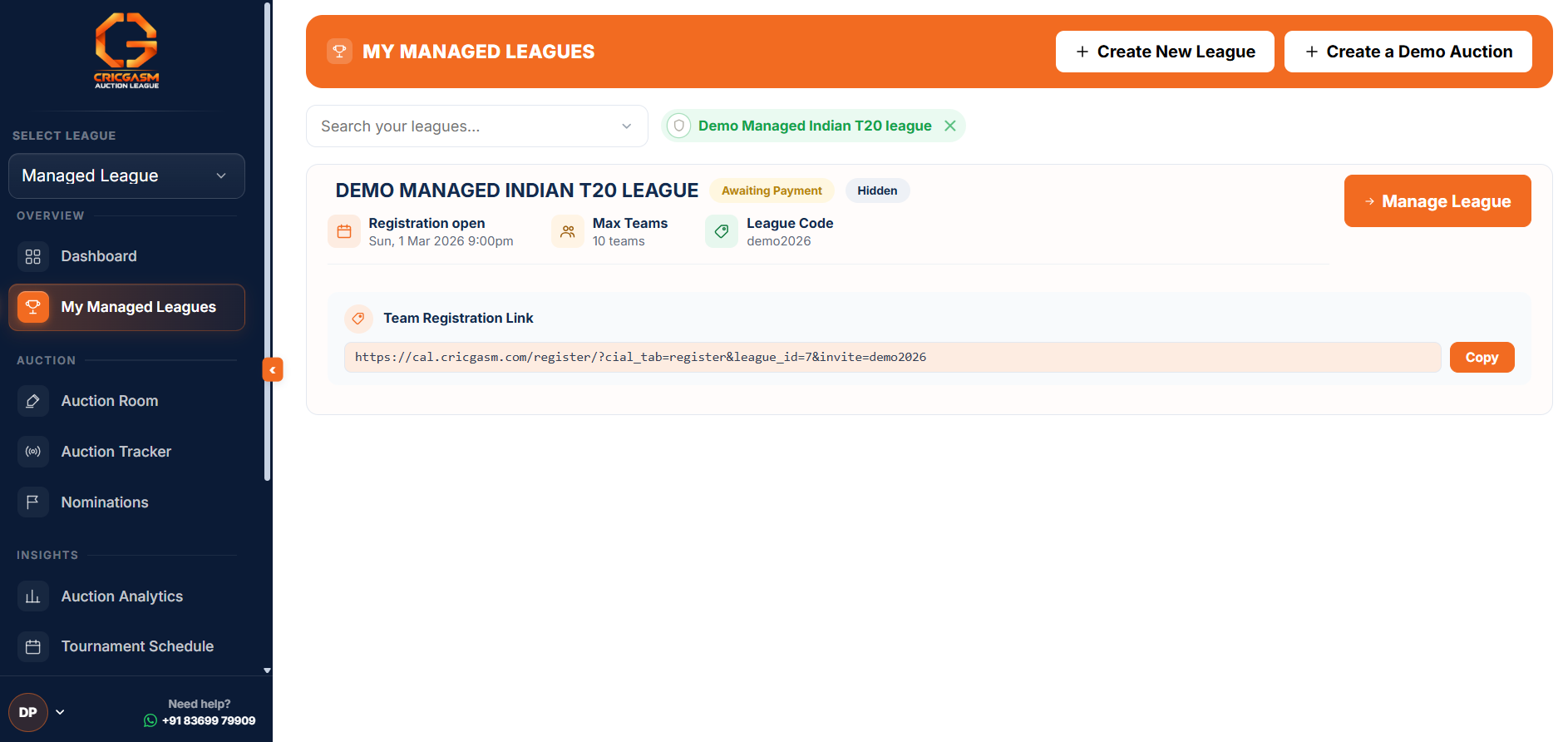
- Open My Private Leagues and find your league card. It shows your league code and a Team Registration Link.
- Press Copy and share the link with your friends by WhatsApp or email.
- Friends who prefer can also join with the league code instead of the link.
- You can hide your league from public view, so only people with the link or code can find it.
Find your link
Your league card shows the code and the Team Registration Link.
Copy it
Press Copy to grab the join link.
Share it
Send it to your friends by WhatsApp or email.
04 Friends Join
Your friends register through your link. No code needed.
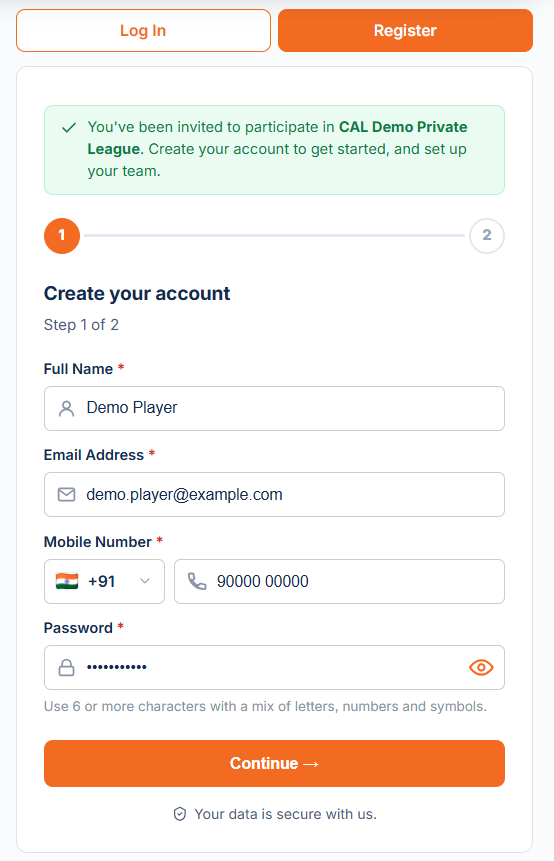
- Your friend opens your link. A green banner confirms they have been invited to your league.
- Step 1: they create their account with name, email, mobile number and password.
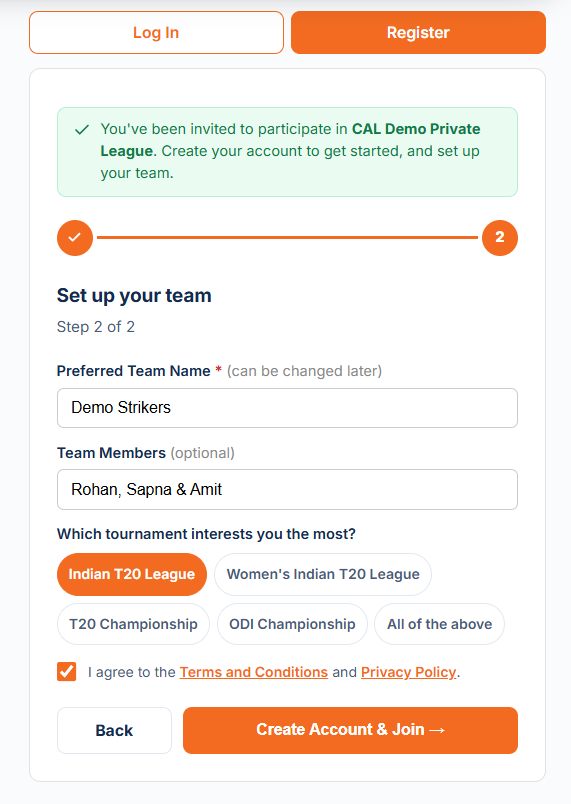
- Step 2: they set up their team: a preferred team name (it can be changed later), optional team members and the tournament that interests them most. They accept the Terms and Conditions and Privacy Policy, then press Create Account and Join.
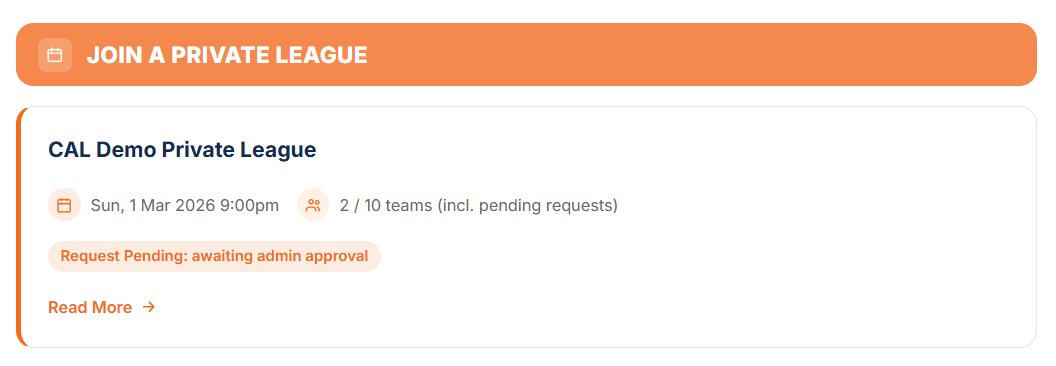
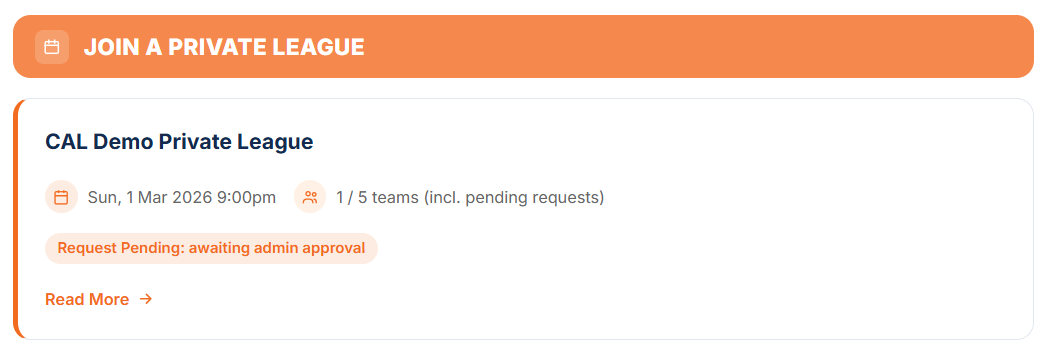
- Their request is sent to you. Their dashboard shows the team under My Teams marked Request Pending until you approve it.
- Friends who already have an account just log in through the link and the request goes straight through.
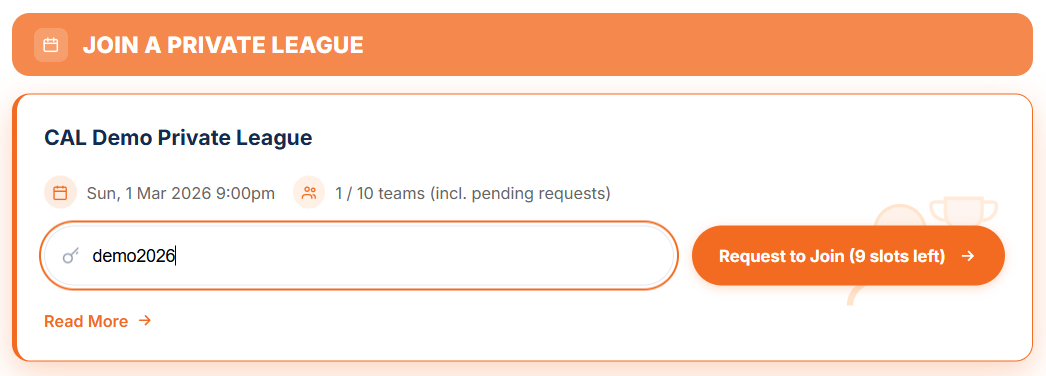
- Prefer a code? Friends with an account open their dashboard, type your league code into Join a Private League and press Request to Join.
Open the link
Friends see a banner confirming they were invited to your league.
Set up the team
Team name, members and tournament interest, then accept the terms.
Request sent
The request waits for your approval.
05 Approve Teams
Only teams you approve can bid.
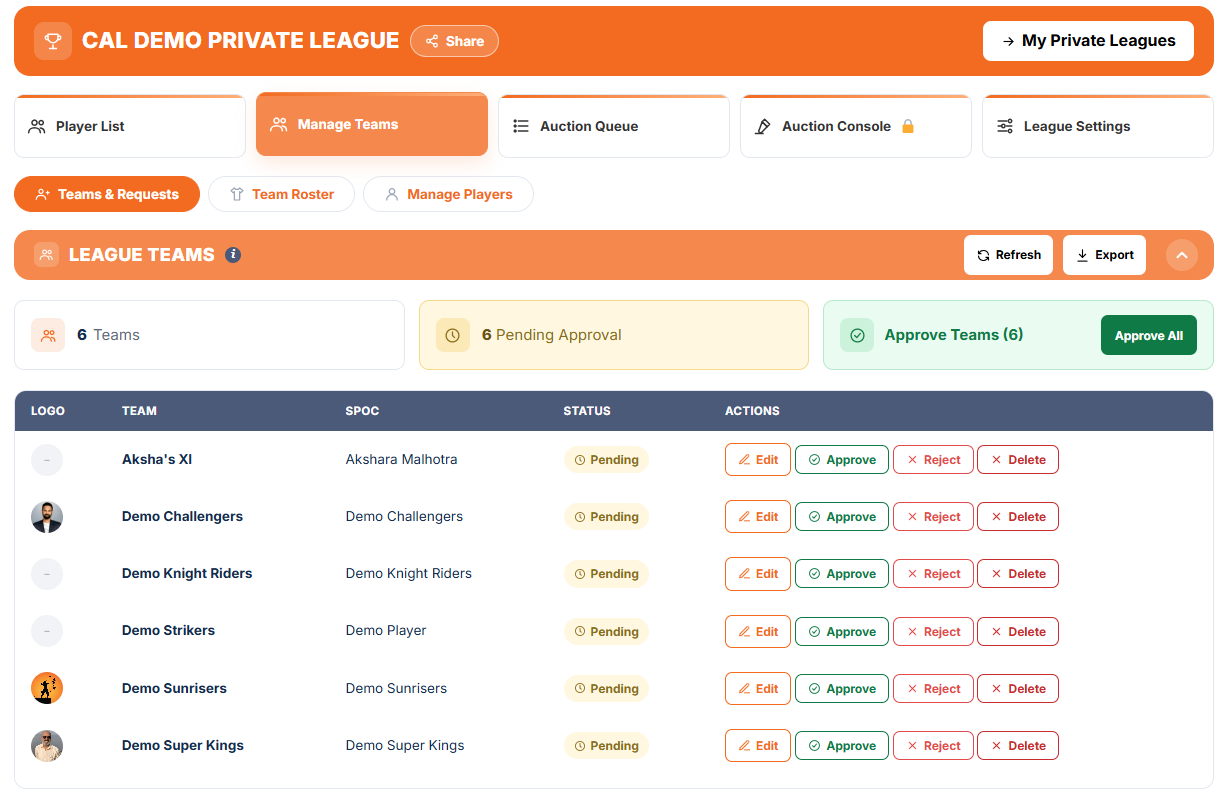
- Open Teams and Requests. New requests from your friends appear here, ready for you to review.
- Check the team name and members, then approve the teams you want to allow in. Only approved teams can bid.
- Teams you do not approve stay out of the league.
- Approve every team before you activate your league and start the auction.
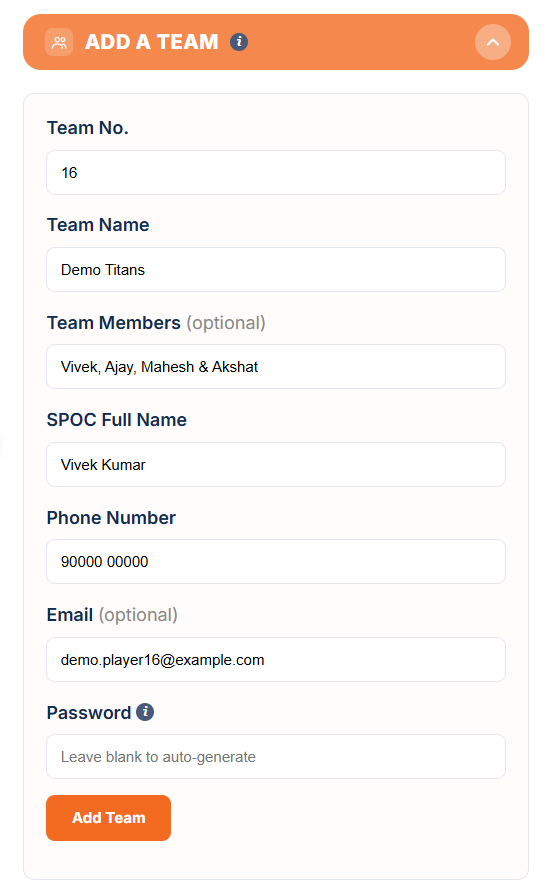
- Adding a team yourself? Fill in Add a Team on the same tab: team number, team name, SPOC name and phone number, with optional team members. Teams you add are approved straight away.
Open requests
New team requests appear under Teams and Requests.
Approve
Approve the teams you want. Only approved teams can bid.
League is set
Your approved teams are ready for the auction.
06 Player List
Check your ready-made players, then activate your league.
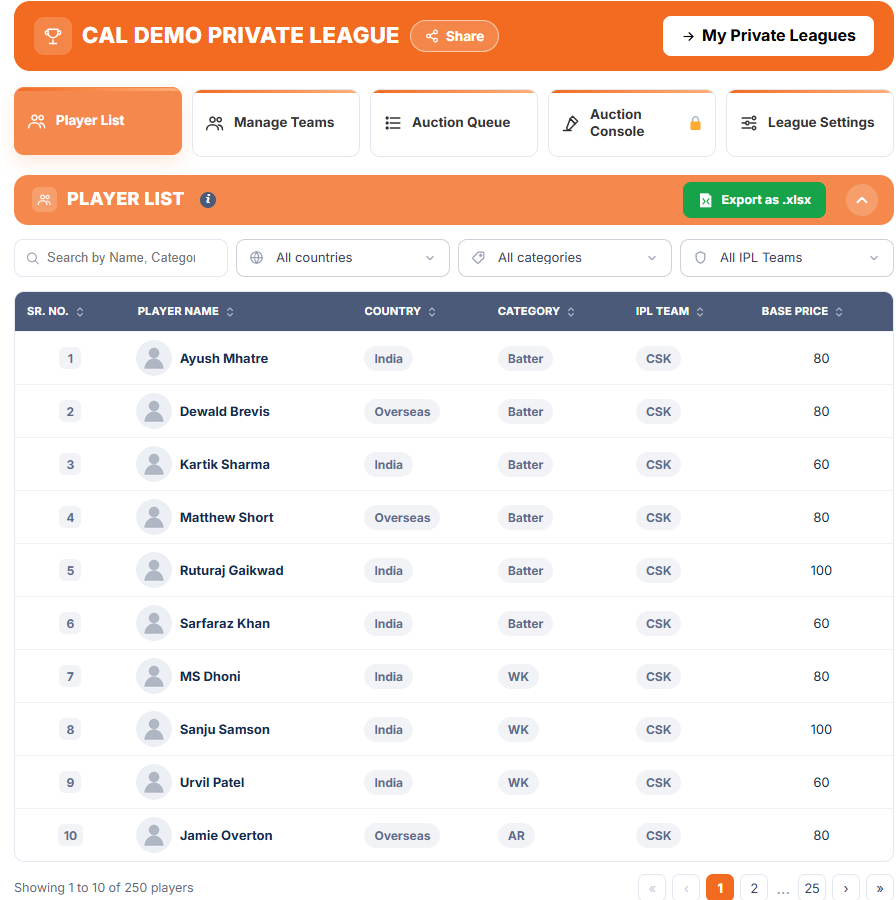
- Open the Player List tab. Private leagues come with a ready-made list of international players, so there is nothing to upload or set up.
- Review the players, their categories and their base prices before your auction.
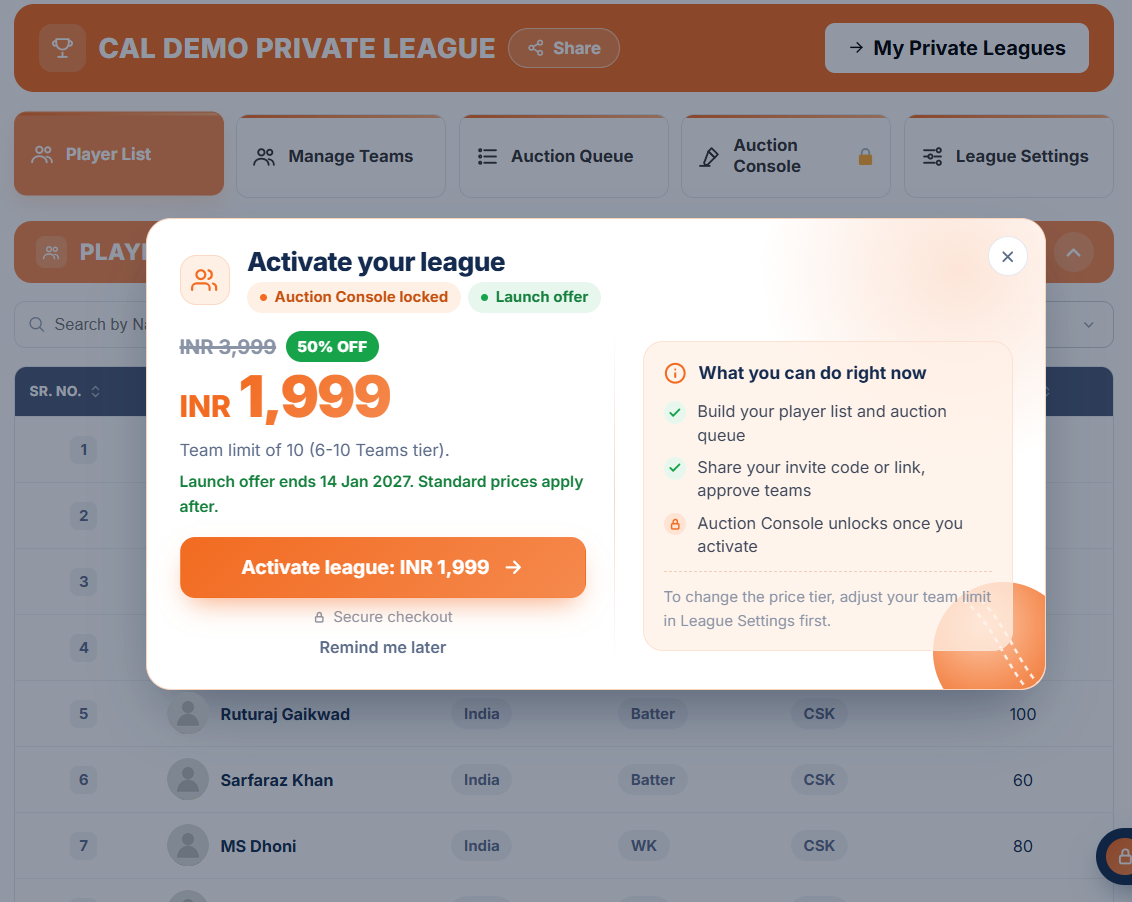
- Once every team is approved, activate your league. Checkout opens as a popup, and the price depends on the number of teams. If you add more teams later, you only pay the difference. See the Pricing page.
- After you pay, you return to your dashboard and receive an email receipt. Your league is now ready for the auction.
Check the player list
A ready-made list. Nothing to upload.
Activate your league
Pay once your teams are approved.
07 Run the Auction Online
Teams bid live in the Auction Room, with you in control.
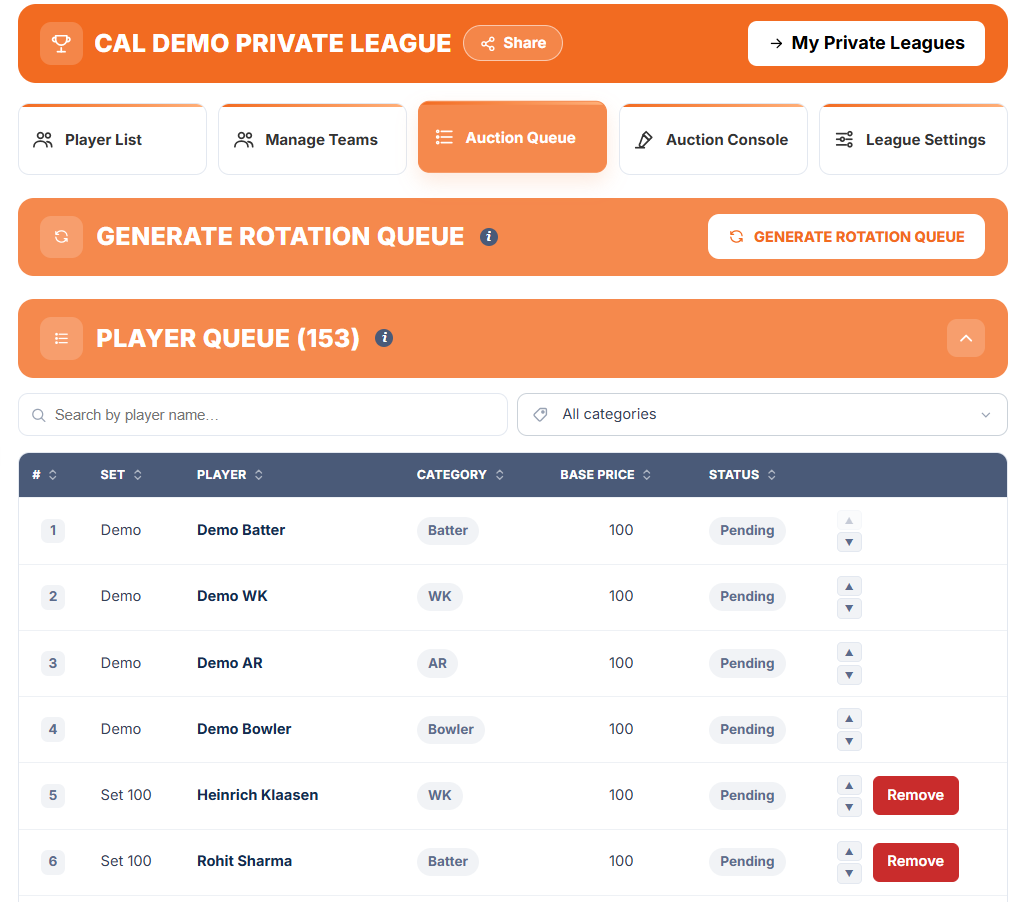
- Demo players first: the queue opens with four practice players (Demo Batter, Demo WK, Demo AR and Demo Bowler), so teams can try bidding before the actual players. They never affect a purse, a squad or the results, and they cannot be removed.
- In the Auction Queue tab, use Generate Rotation Queue to create a random list of players up for bidding.
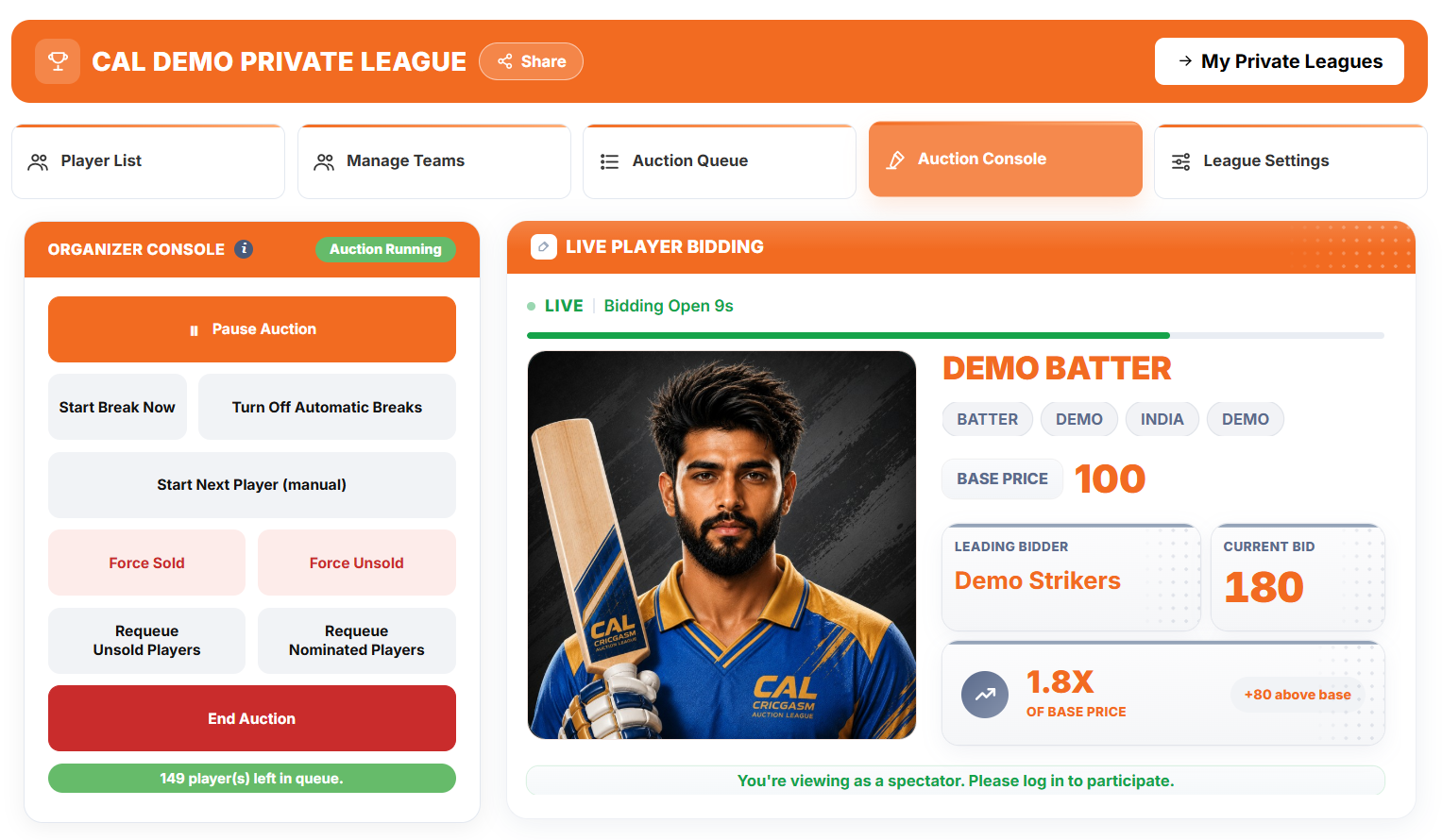
- On auction day, open the Auction Console. You control the auction, and can start, pause, resume or end it at any time.
- Teams bid in the Auction Room using the live timer.
- Teams still short of a full squad can nominate up to 5 players from the unsold pool in the Final Round.
- Teams follow along in the Auction Room: Live Player Bidding, Team Summary, Auction Tracker, Bid Activity, the Sold and Unsold list and the Chatroom.
Generate the queue
Generate Rotation Queue makes a random list of players up for bidding.
Open the Auction Console
Start, pause, resume or end at any time.
Teams bid online
Bidding runs on the live timer in the Auction Room.
08 Run the Auction Offline
Run the auction in person, with CAL keeping the books.
- While creating your league, choose Offline Auction as the Bidding Mode. It is locked once the auction has started.
- Teams are added and approved as usual. In an offline auction the bidding happens in the room, so there is no timer and no Bid button for teams.
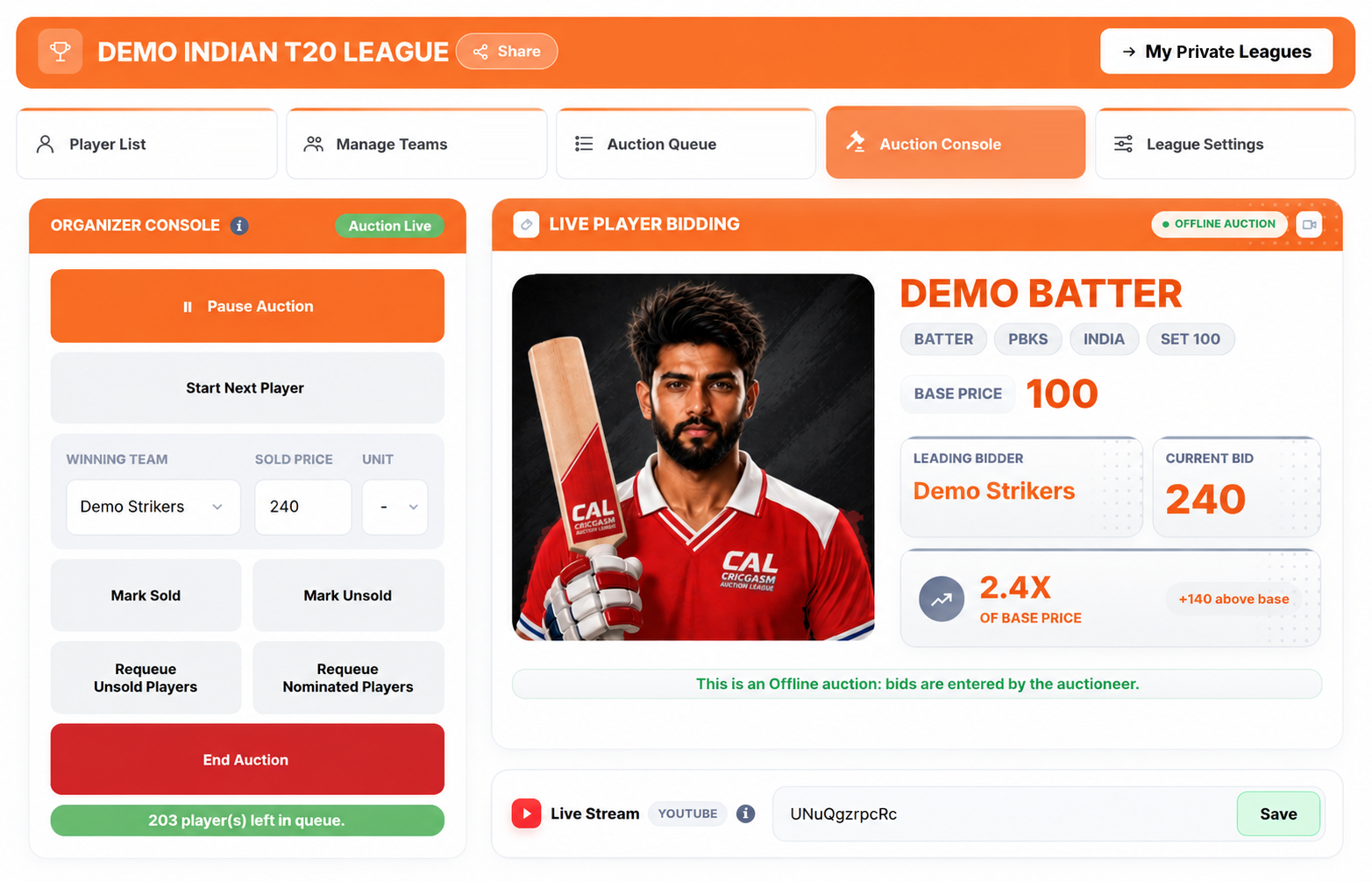
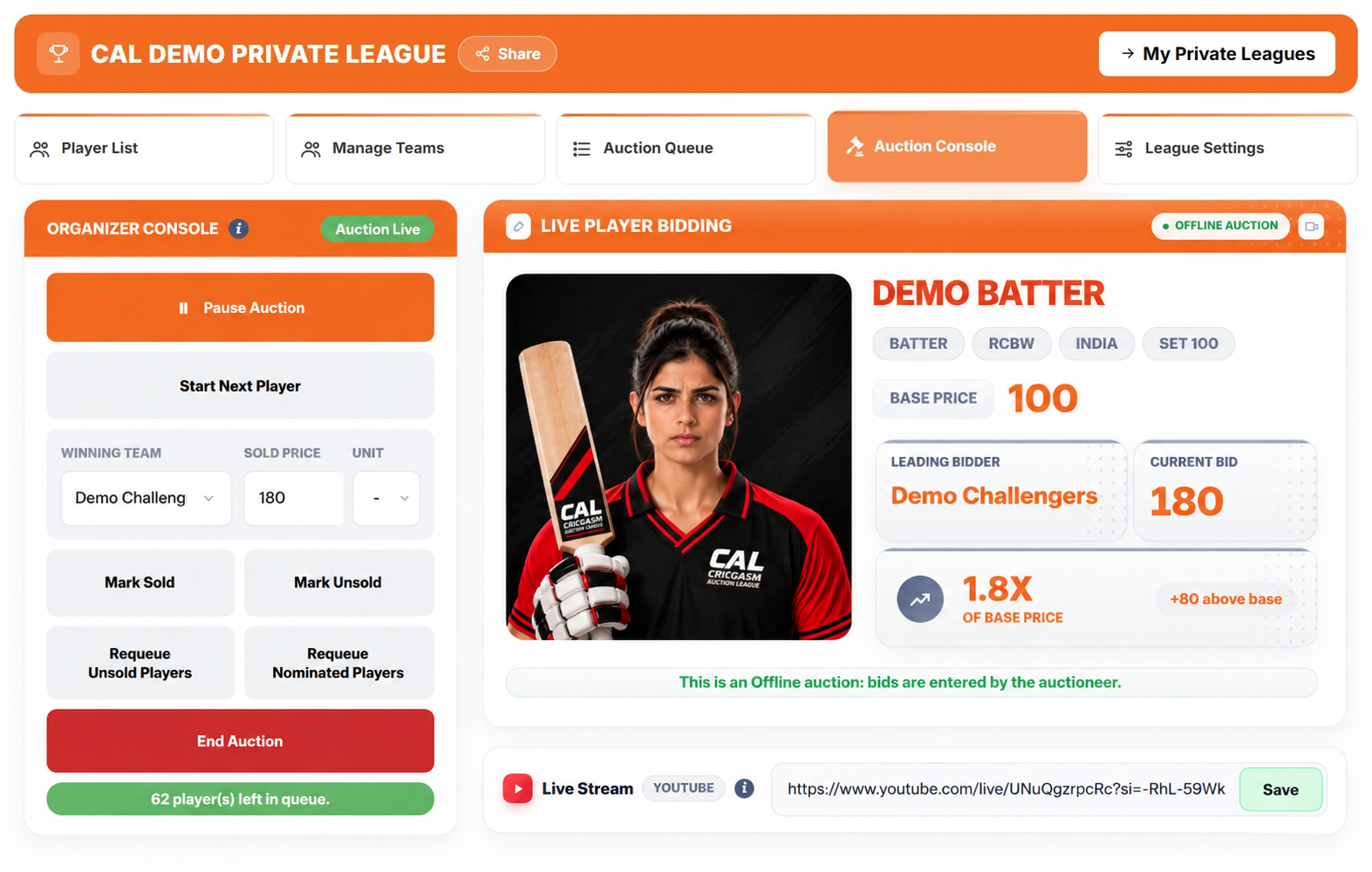
- On auction day, open the Auction Console and press Start Auction. You can pause and resume the session at any time.
- Press Start Next Player. The next player from your queue appears on the console. Call out the bidding in the room.
- When the hammer falls, choose the Winning Team, enter the Sold Price and press Mark Sold. CAL checks the price against the base price, any step-up tiers, the team’s budget and its squad rules. Once recorded, the sale is final.
- If nobody bids, press Mark Unsold. Unsold players can be put back in the queue with Requeue.
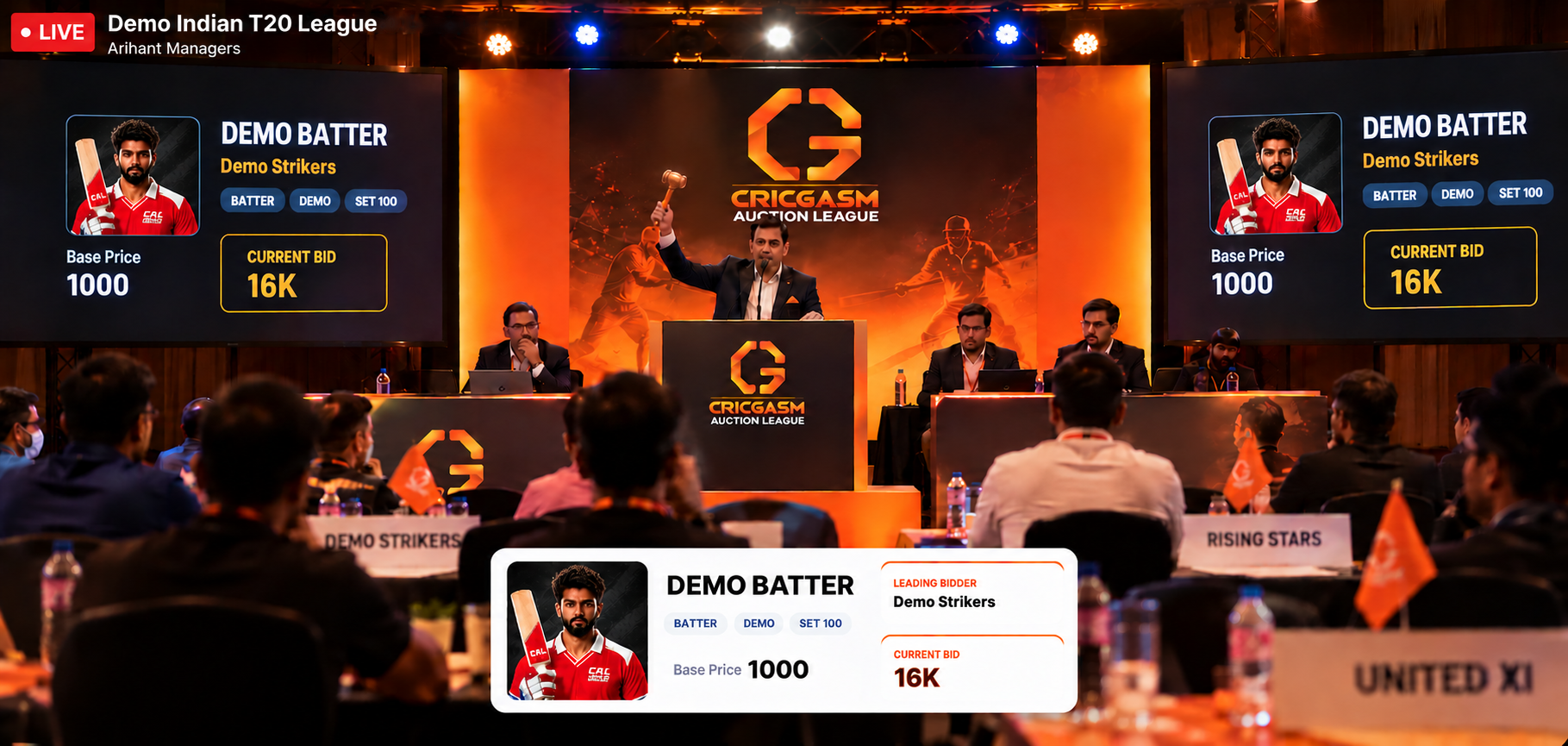
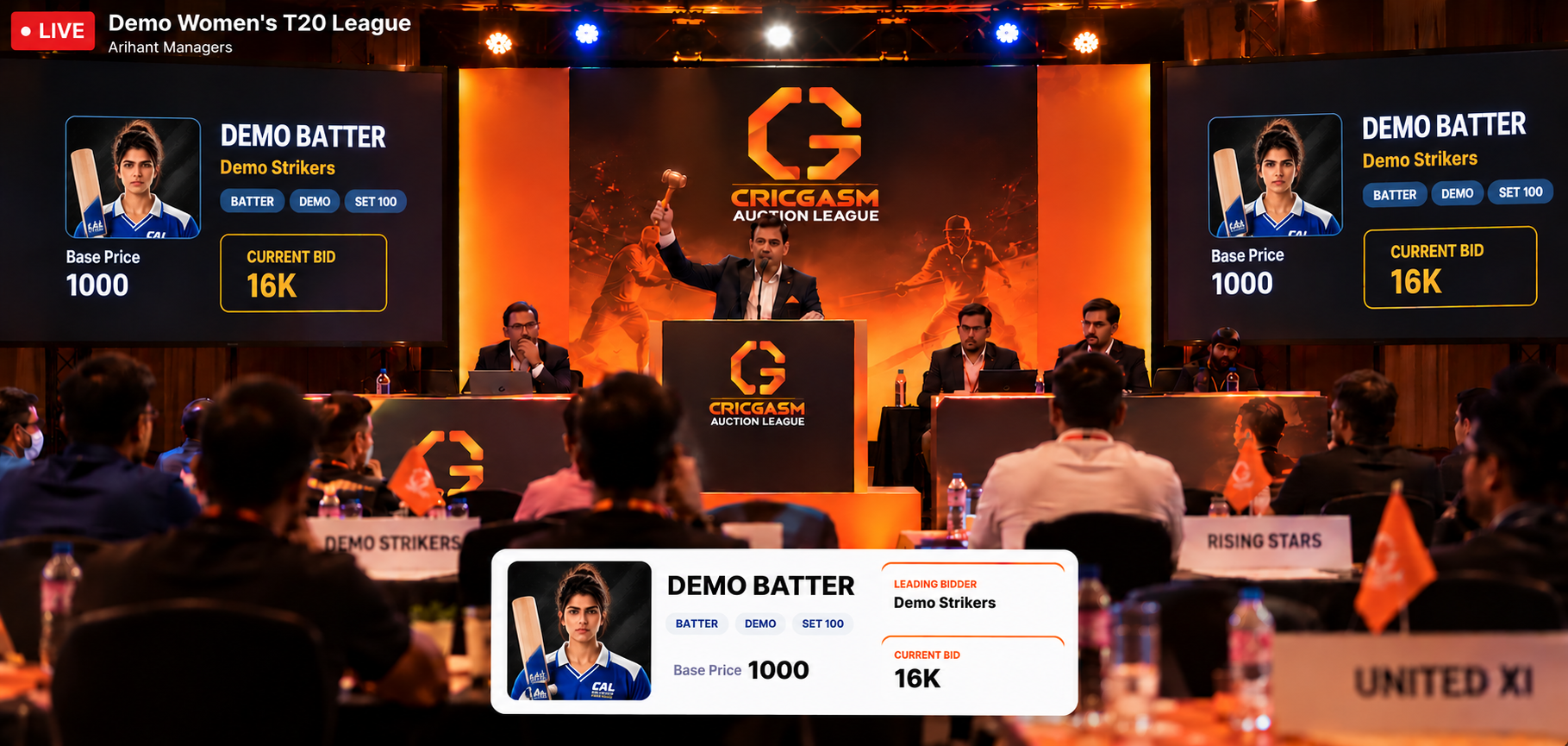
- Streaming the room? Paste your YouTube live link into the Live Stream card, and teams who could not attend can watch from the Auction Room.
- Teams can still follow the results in the Auction Room: Team Summary, Auction Tracker, the Sold and Unsold list and the Chatroom.
Choose Offline
Pick Offline Auction as the Bidding Mode when you create the league.
Start the auction
Open the Auction Console, press Start Auction, then Start Next Player.
Record each sale
Choose the Winning Team, enter the Sold Price and press Mark Sold.
Share the stream
Optional: add a YouTube live link so teams can watch remotely.
09 Follow the Tournament
Track your squad as the tournament progresses.
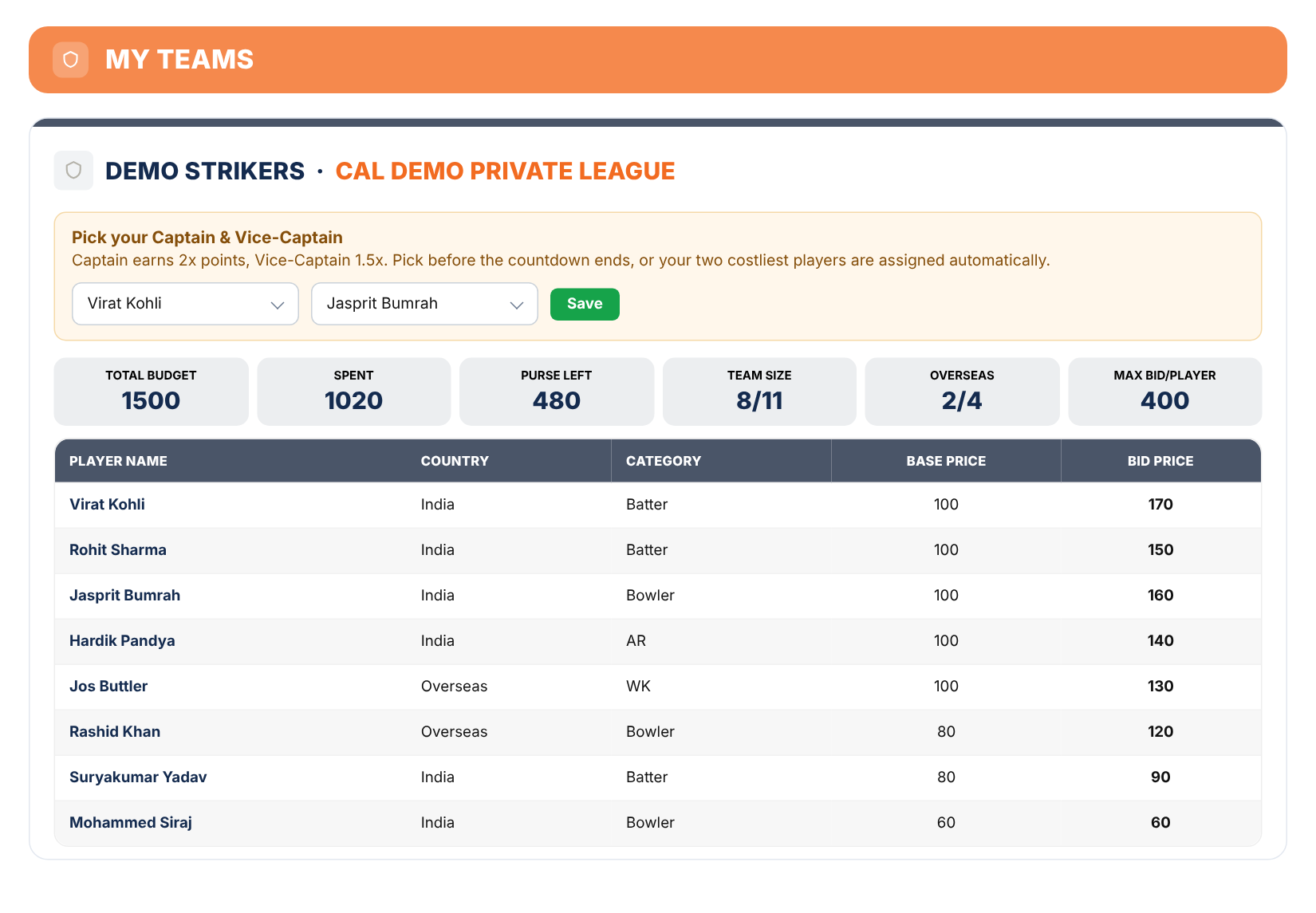
- After the auction, choose your Captain (2× points) and Vice-Captain (1.5× points) before the tournament start countdown ends. They must be two different players.
- If you don’t choose, your two costliest players are assigned automatically, the highest price as Captain. Other teams’ choices stay hidden until the tournament starts.
- Use Player Points to follow points earned from official match scorecards using the CAL Points System.
- Open Standings to see teams ranked by their total CAL Points.
- If a player is officially ruled out, use the Replace tool on your dashboard to request a replacement. The organizer reviews and approves each request.
Choose your captains
Captain scores 2× and Vice-Captain 1.5×. Choose before the tournament starts.
Follow Player Points
Points from official match scorecards, using the CAL Points System.
Check Standings
Teams ranked by their total CAL Points.
Request replacements
If a player is officially ruled out, use the Replace tool on your dashboard.
01 Create your Account
One account, then choose to join a friend or create your own.
- Open the Register page and enter your name, email, mobile number and password. You must be 18 or older.
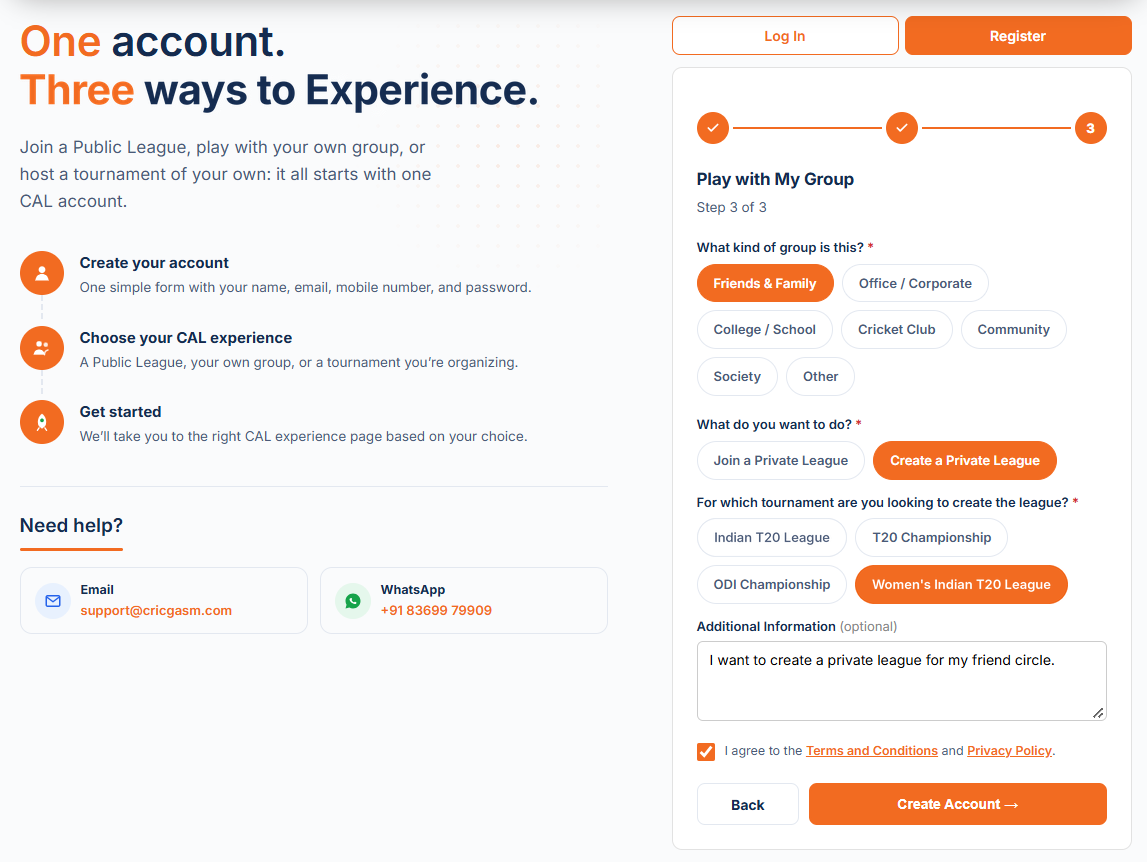
- Step 2: Select Play with My Group.
- Step 3: To create your own league, select your group type and then choose Create a Private League.
- Joining a friend’s league? Select Join a Private League and enter their invite code, or use the invite link they shared with you.
- Enter your team name, accept the Terms & Conditions and Privacy Policy, then click Create Account.
Open Register
Enter your name, email, mobile number and password.
Play with My Group
Select it in step 2, then choose your group type.
Create or join
Create a Private League, or join a friend’s with their invite code or link.
Create your account
Add your team name, accept the terms, then click Create Account.
02 Create your League
Free to build. Pay only when you activate your league.
- Try a Demo Auction first: from your console, create one free Demo Auction to learn the system. It is instant, needs no approval or payment, and runs with 2 teams. Only you can see it, and you can have one at a time.
- Open My Private Leagues from your dashboard.
- Set up your League Basics, including the league name, bidding mode, auction date and time, team limit, and any optional details.
- Auction settings remain fixed for CAL Private leagues.
- Review your league, and check the details before creating it.
- Creating the league is free. You pay only when you activate it. The price depends on the number of teams, and if you add more teams later, you only pay the difference. See the Pricing page.
Open My Private Leagues
Find it in your dashboard menu.
Set up League Basics
League name, bidding mode, auction date and time, team limit and optional details.
Auction settings are fixed
They stay the same for every CAL Private league.
Review and create
Check the summary before you create the league.
03 Invite your Friends
Your league is invite-only. Share your code or join link.
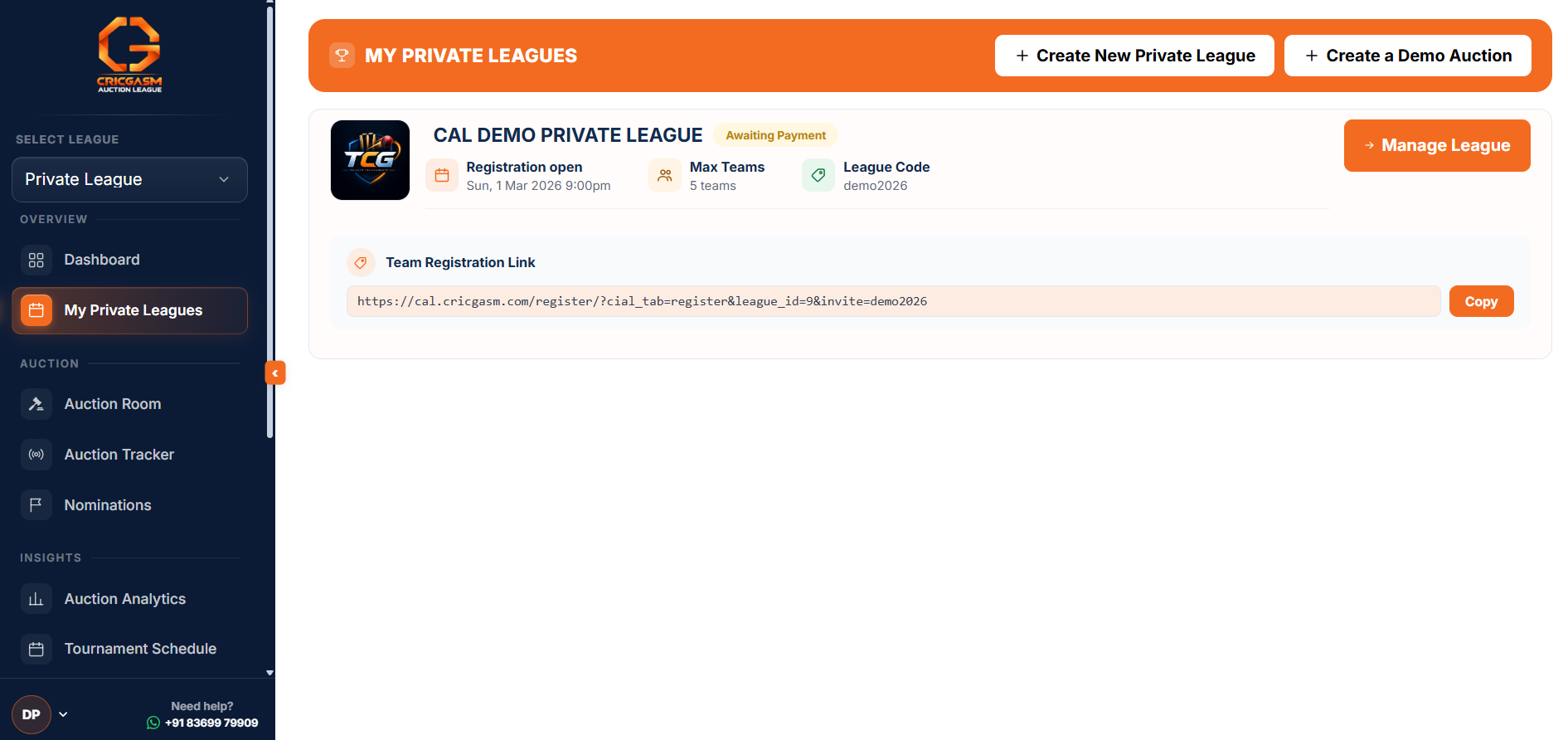
- Open My Private Leagues and find your league card. It shows your league code and a Team Registration Link.
- Press Copy and share the link with your friends by WhatsApp or email.
- Friends who prefer can also join with the league code instead of the link.
- You can hide your league from public view, so only people with the link or code can find it.
Find your link
Your league card shows the code and the Team Registration Link.
Copy it
Press Copy to grab the join link.
Share it
Send it to your friends by WhatsApp or email.
04 Friends Join
Your friends register through your link. No code needed.
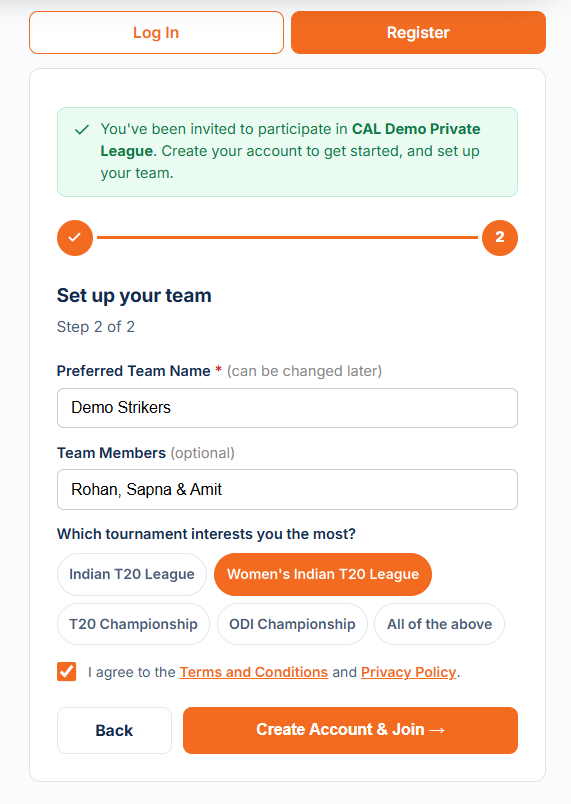
- Your friend opens your link. A green banner confirms they have been invited to your league.
- Step 1: they create their account with name, email, mobile number and password.
- Step 2: they set up their team: a preferred team name (it can be changed later), optional team members and the tournament that interests them most. They accept the Terms and Conditions and Privacy Policy, then press Create Account and Join.
- Their request is sent to you. Their dashboard shows the team under My Teams marked Request Pending until you approve it.
- Friends who already have an account just log in through the link and the request goes straight through.
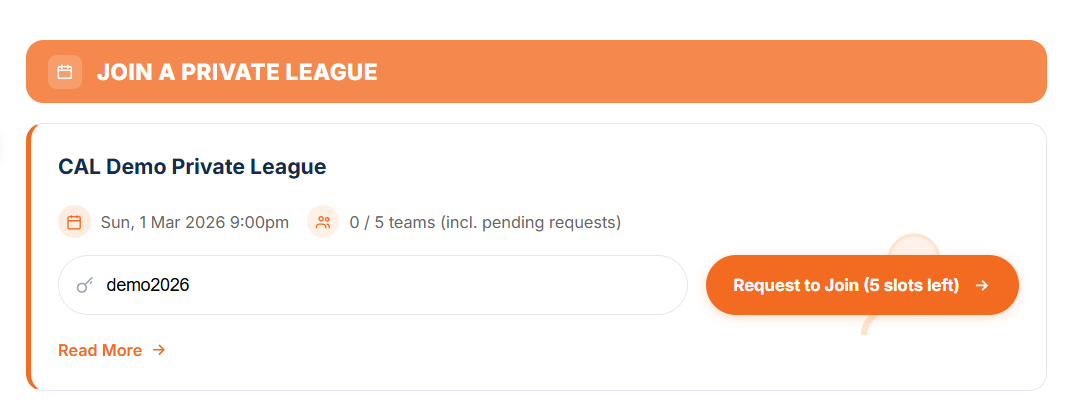
- Prefer a code? Friends with an account open their dashboard, type your league code into Join a Private League and press Request to Join.
Open the link
Friends see a banner confirming they were invited to your league.
Set up the team
Team name, members and tournament interest, then accept the terms.
Request sent
The request waits for your approval.
05 Approve Teams
Only teams you approve can bid.
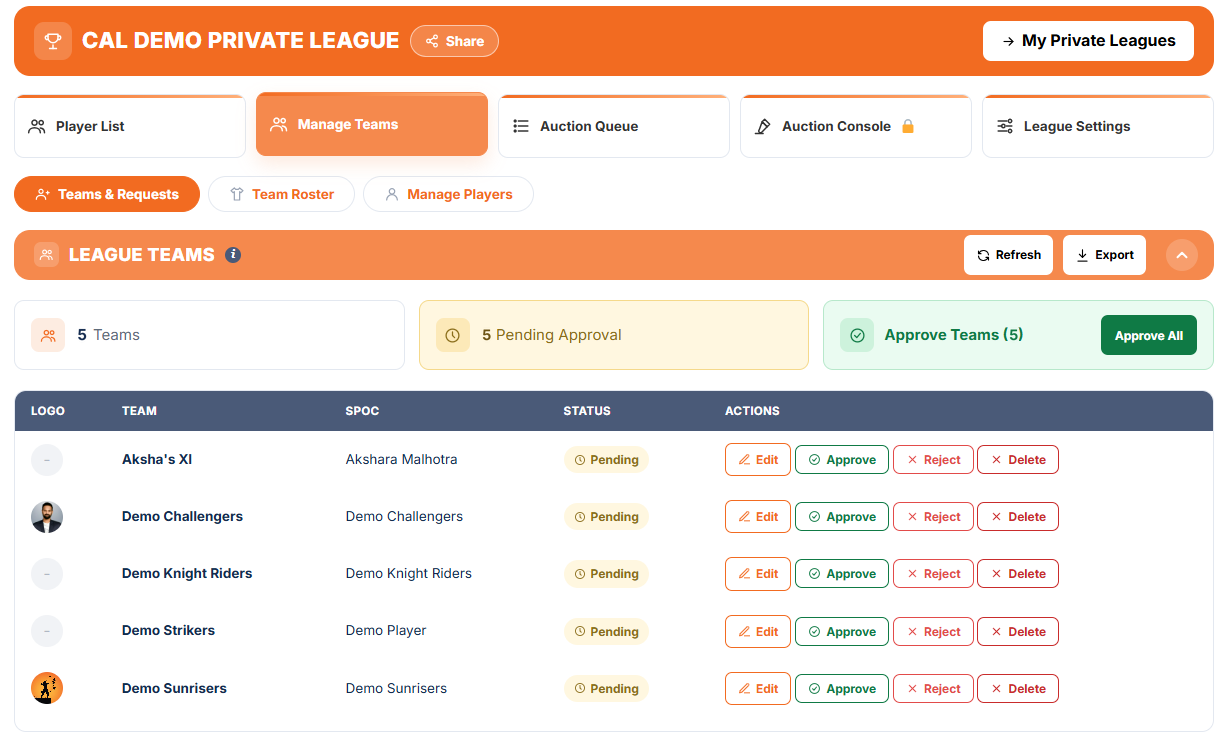
- Open Teams and Requests. New requests from your friends appear here, ready for you to review.
- Check the team name and members, then approve the teams you want to allow in. Only approved teams can bid.
- Teams you do not approve stay out of the league.
- Approve every team before you activate your league and start the auction.
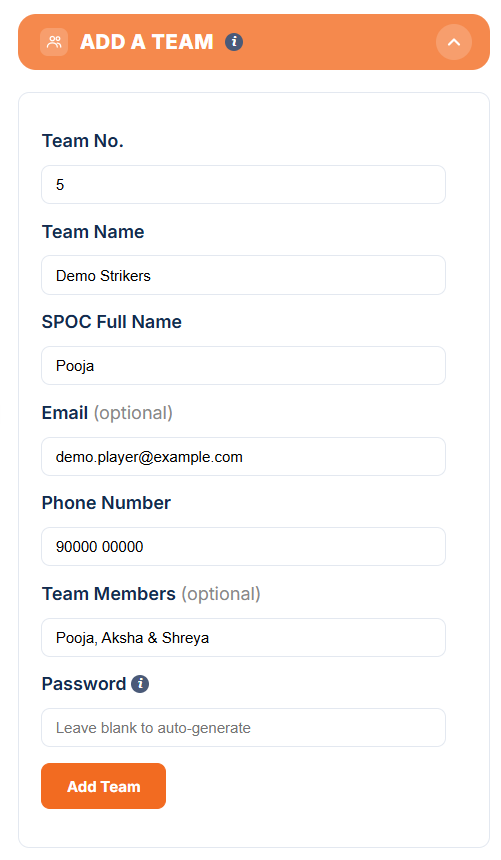
- Adding a team yourself? Fill in Add a Team on the same tab: team number, team name, SPOC name and phone number, with optional team members. Teams you add are approved straight away.
Open requests
New team requests appear under Teams and Requests.
Approve
Approve the teams you want. Only approved teams can bid.
League is set
Your approved teams are ready for the auction.
06 Player List
Check your ready-made players, then activate your league.
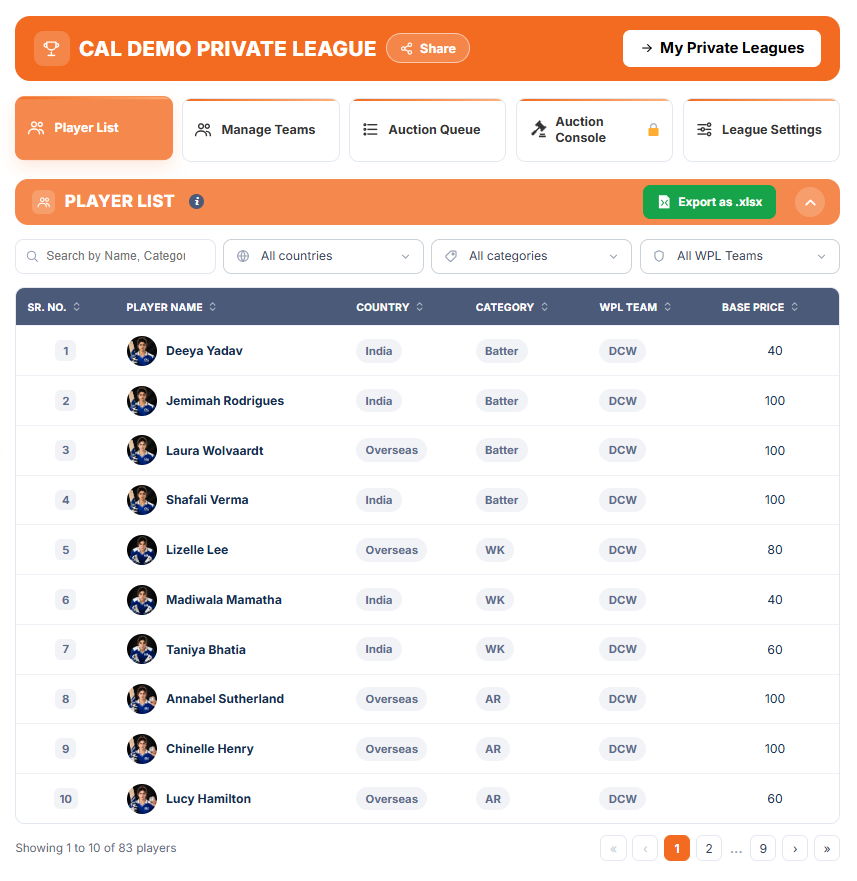
- Open the Player List tab. Private leagues come with a ready-made list of international players, so there is nothing to upload or set up.
- Review the players, their categories and their base prices before your auction.
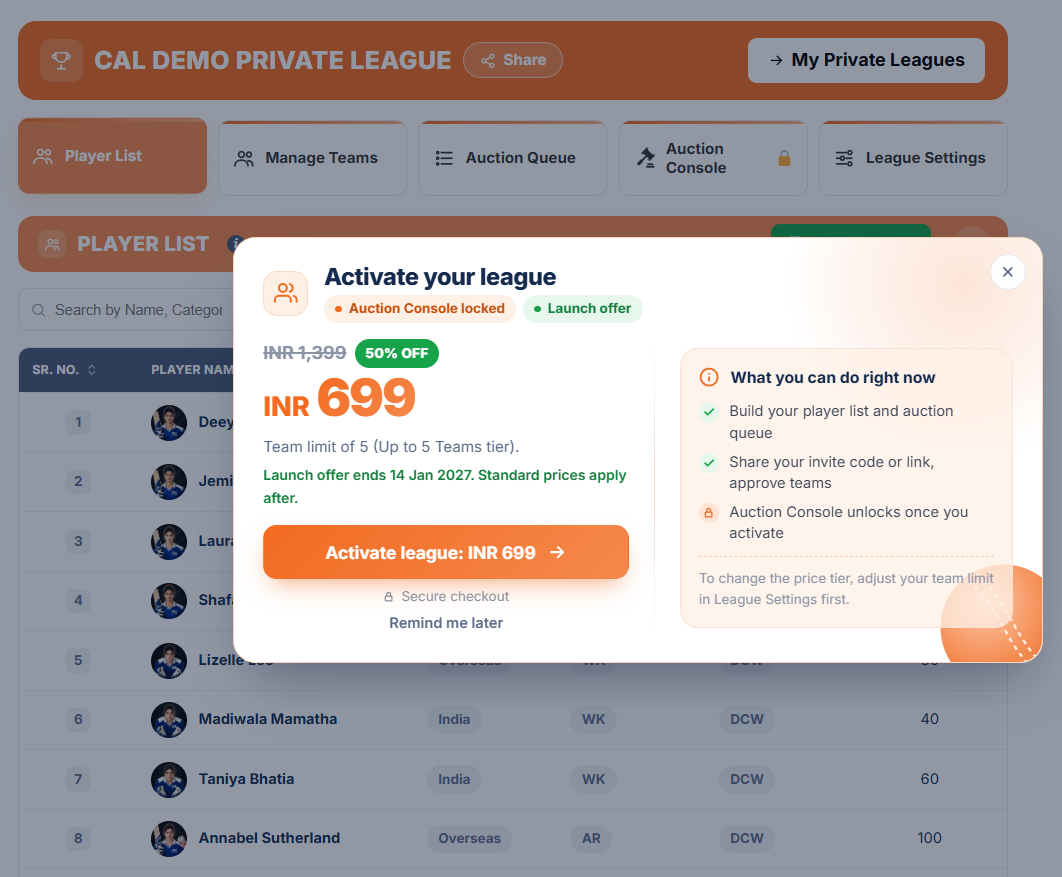
- Once every team is approved, activate your league. Checkout opens as a popup, and the price depends on the number of teams. If you add more teams later, you only pay the difference. See the Pricing page.
- After you pay, you return to your dashboard and receive an email receipt. Your league is now ready for the auction.
Check the player list
A ready-made list. Nothing to upload.
Activate your league
Pay once your teams are approved.
07 Run the Auction Online
Teams bid live in the Auction Room, with you in control.
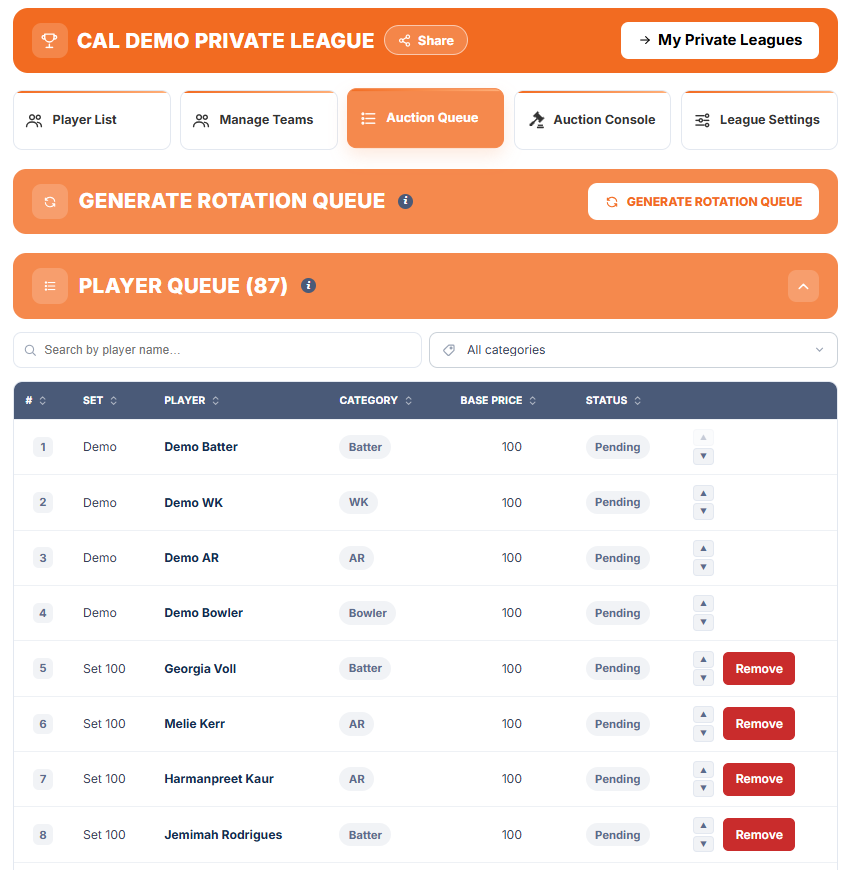
- Demo players first: the queue opens with four practice players (Demo Batter, Demo WK, Demo AR and Demo Bowler), so teams can try bidding before the actual players. They never affect a purse, a squad or the results, and they cannot be removed.
- In the Auction Queue tab, use Generate Rotation Queue to create a random list of players up for bidding.
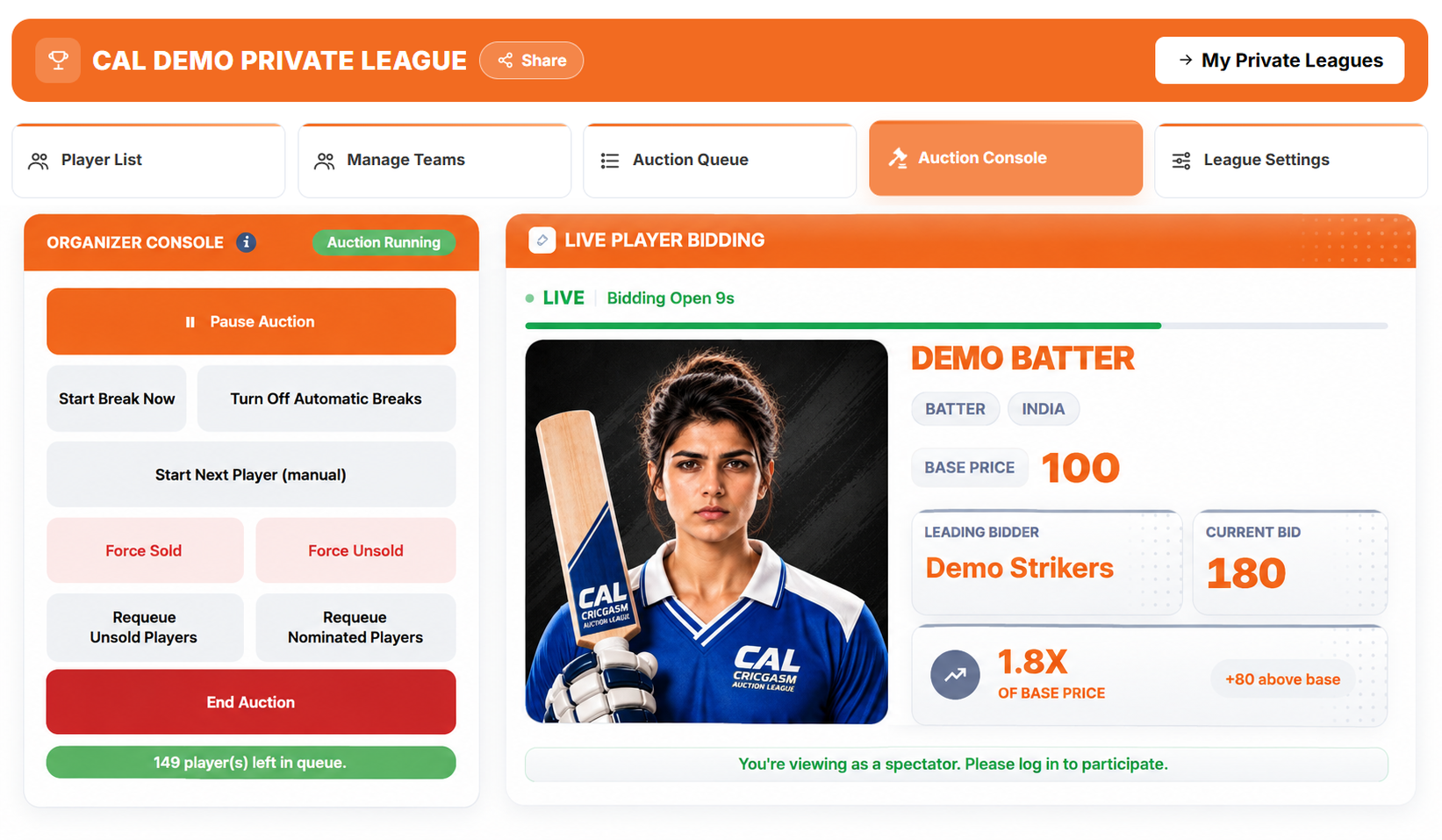
- On auction day, open the Auction Console. You control the auction, and can start, pause, resume or end it at any time.
- Teams bid in the Auction Room using the live timer.
- Teams still short of a full squad can nominate up to 5 players from the unsold pool in the Final Round.
- Teams follow along in the Auction Room: Live Player Bidding, Team Summary, Auction Tracker, Bid Activity, the Sold and Unsold list and the Chatroom.
Generate the queue
Generate Rotation Queue makes a random list of players up for bidding.
Open the Auction Console
Start, pause, resume or end at any time.
Teams bid online
Bidding runs on the live timer in the Auction Room.
08 Run the Auction Offline
Run the auction in person, with CAL keeping the books.
- While creating your league, choose Offline Auction as the Bidding Mode. It is locked once the auction has started.
- Teams are added and approved as usual. In an offline auction the bidding happens in the room, so there is no timer and no Bid button for teams.
- On auction day, open the Auction Console and press Start Auction. You can pause and resume the session at any time.
- Press Start Next Player. The next player from your queue appears on the console. Call out the bidding in the room.
- When the hammer falls, choose the Winning Team, enter the Sold Price and press Mark Sold. CAL checks the price against the base price, any step-up tiers, the team’s budget and its squad rules. Once recorded, the sale is final.
- If nobody bids, press Mark Unsold. Unsold players can be put back in the queue with Requeue.
- Streaming the room? Paste your YouTube live link into the Live Stream card, and teams who could not attend can watch from the Auction Room.
- Teams can still follow the results in the Auction Room: Team Summary, Auction Tracker, the Sold and Unsold list and the Chatroom.
Choose Offline
Pick Offline Auction as the Bidding Mode when you create the league.
Start the auction
Open the Auction Console, press Start Auction, then Start Next Player.
Record each sale
Choose the Winning Team, enter the Sold Price and press Mark Sold.
Share the stream
Optional: add a YouTube live link so teams can watch remotely.
09 Follow the Tournament
Track your squad as the tournament progresses.
- After the auction, choose your Captain (2× points) and Vice-Captain (1.5× points) before the tournament start countdown ends. They must be two different players.
- If you don’t choose, your two costliest players are assigned automatically, the highest price as Captain. Other teams’ choices stay hidden until the tournament starts.
- Use Player Points to follow points earned from official match scorecards using the CAL Points System.
- Open Standings to see teams ranked by their total CAL Points.
- If a player is officially ruled out, use the Replace tool on your dashboard to request a replacement. The organizer reviews and approves each request.
Choose your captains
Captain scores 2× and Vice-Captain 1.5×. Choose before the tournament starts.
Follow Player Points
Points from official match scorecards, using the CAL Points System.
Check Standings
Teams ranked by their total CAL Points.
Request replacements
If a player is officially ruled out, use the Replace tool on your dashboard.
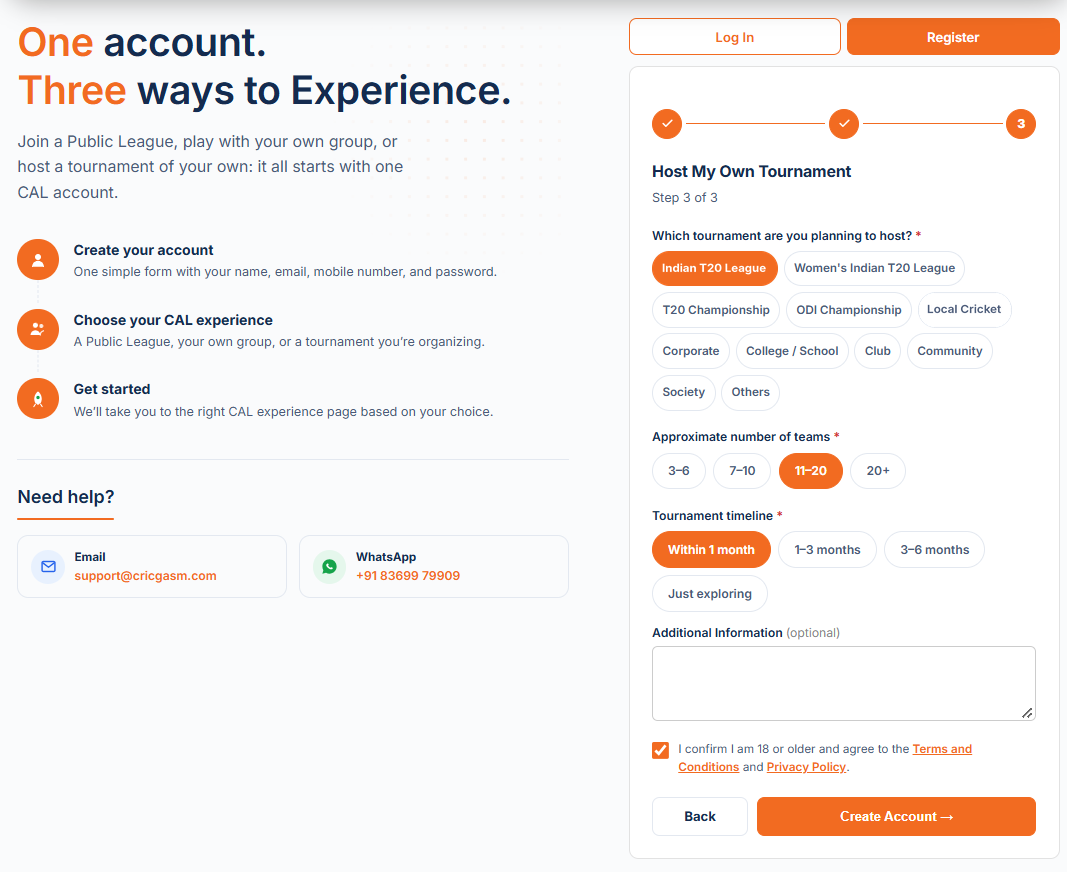
01 Create your Account
Tell us what you plan to host.
- Open the Register page and enter your name, email, mobile number and password.
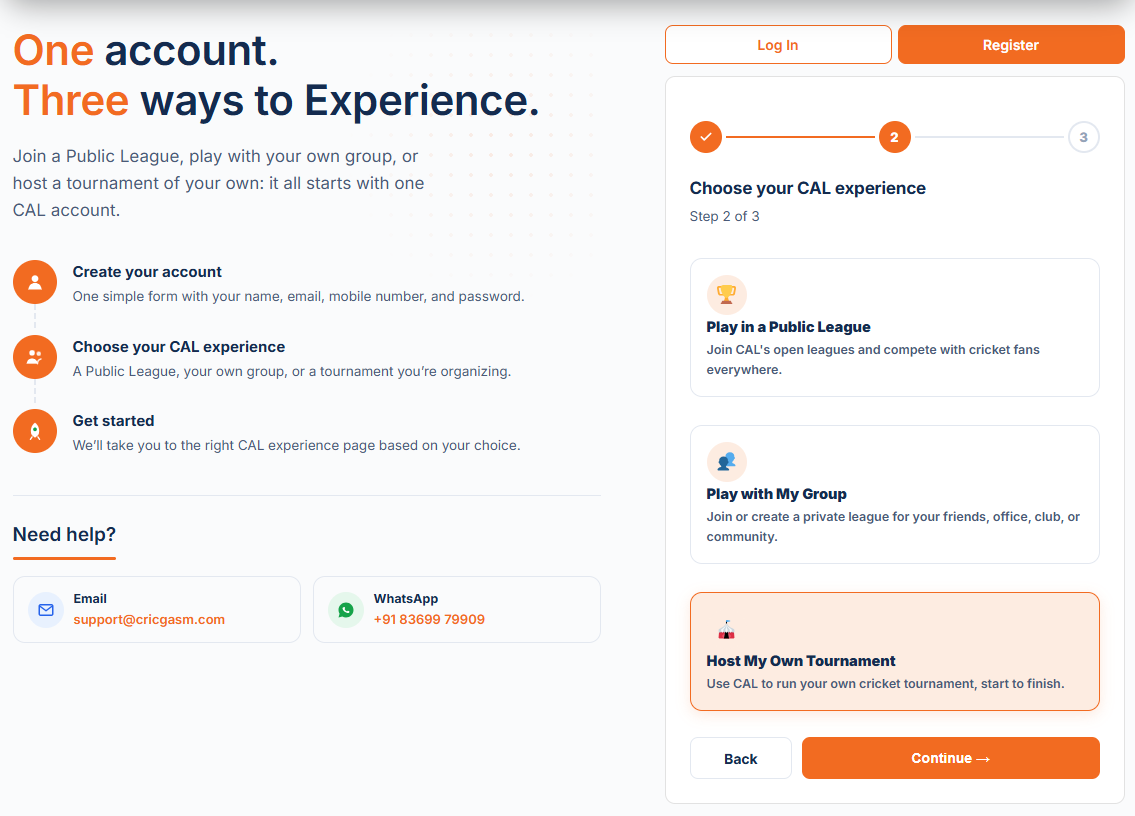
- Step 2: Select Host My Own Tournament.
- Step 3: Tell us about your tournament, including the tournament type, expected number of teams and timeline. You can also add any additional details.
- Accept the Terms & Conditions and Privacy Policy, then click Create Account.
Open Register
Your details, in step 1 of 3.
Host My Own Tournament
Choose the experience in step 2.
Tell us your plan
Which tournament, about how many teams, and your timeline.
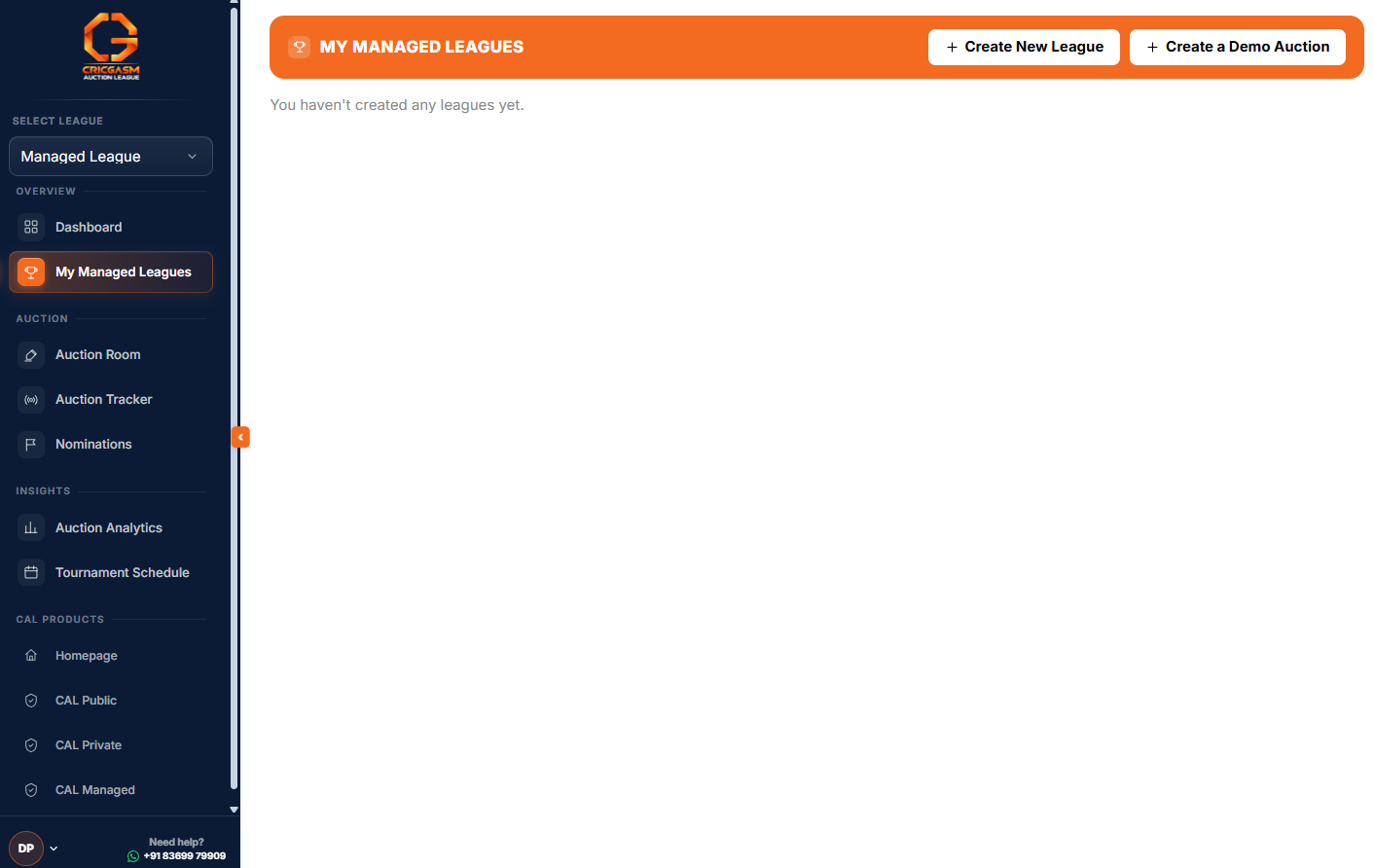
Land on your dashboard
With My Managed Leagues in the menu.
02 Create your League
Free to build. Pay only when you activate your league.
- Try a Demo Auction first: from your console, create one free Demo Auction to learn the system. It is instant, needs no approval or payment, and runs with 2 teams. Only you can see it, and you can have one at a time.
- Open My Managed Leagues and create a league.
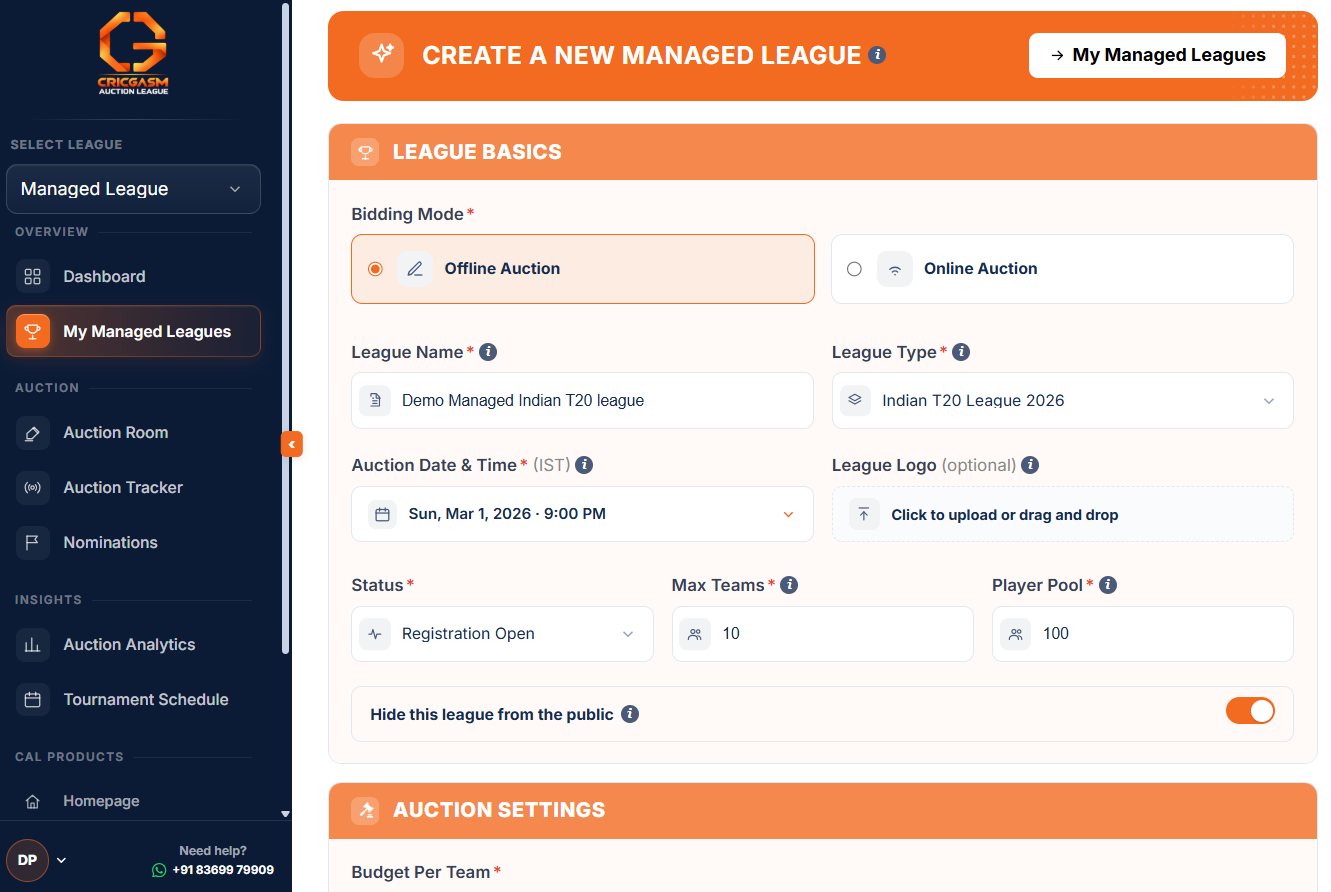
- Choose your tournament and decide whether to use its international player pool or your own rules.
- Set your League Basics, including the league name, bidding mode, auction date and time, and team limit.
- Set your Auction Settings, including the budget, bid increment, squad size and budget unit.
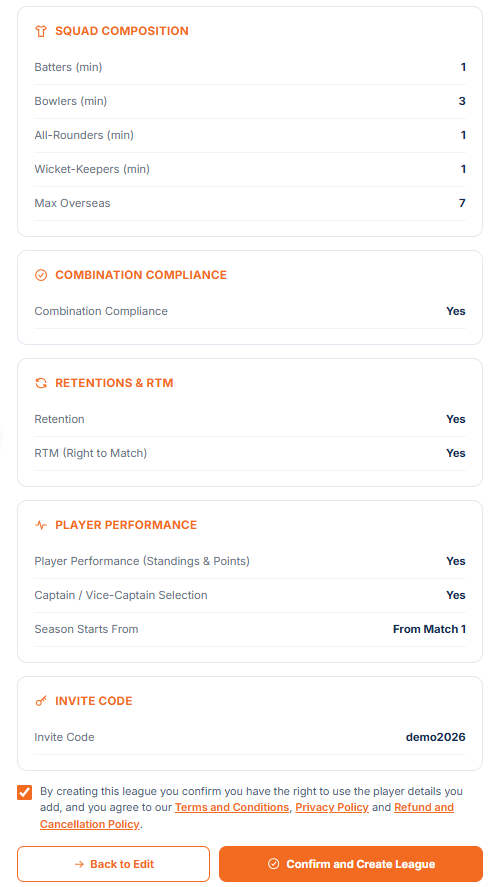
- Review your league and check the details before creating it. You pay only when you activate the league, with pricing based on your team limit. See the Pricing page.
My Managed Leagues
Your console for every tournament you host.
Choose your tournament
Use its international player pool or your own rules.
Basics and Auction Settings
Name, bidding mode, date, team limit, budget, bid increment and squad size.
Review and create
Check the details. You pay only when you activate.
03 Invite your Teams
Your league is invite-only. Share your code or join link.
- Open My Managed Leagues and find your league card. It shows your league code and a Team Registration Link.
- Press Copy and share the link with your teams by WhatsApp or email.
- Teams who prefer can also join with the league code instead of the link.
- You can hide your league from public view, so only people with the link or code can find it.
Find your link
Your league card shows the code and the Team Registration Link.
Copy it
Press Copy to grab the join link.
Share it
Send it to your teams by WhatsApp or email.
04 Teams Join
Teams register through your link. No code needed.
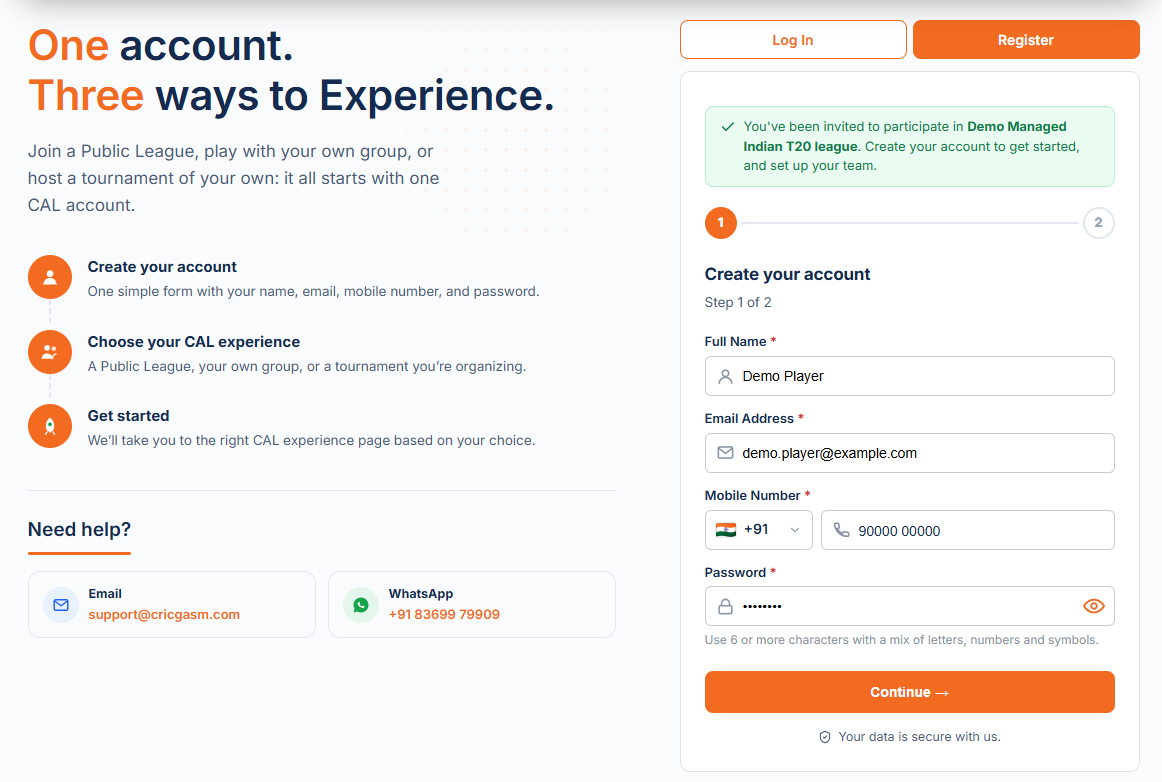
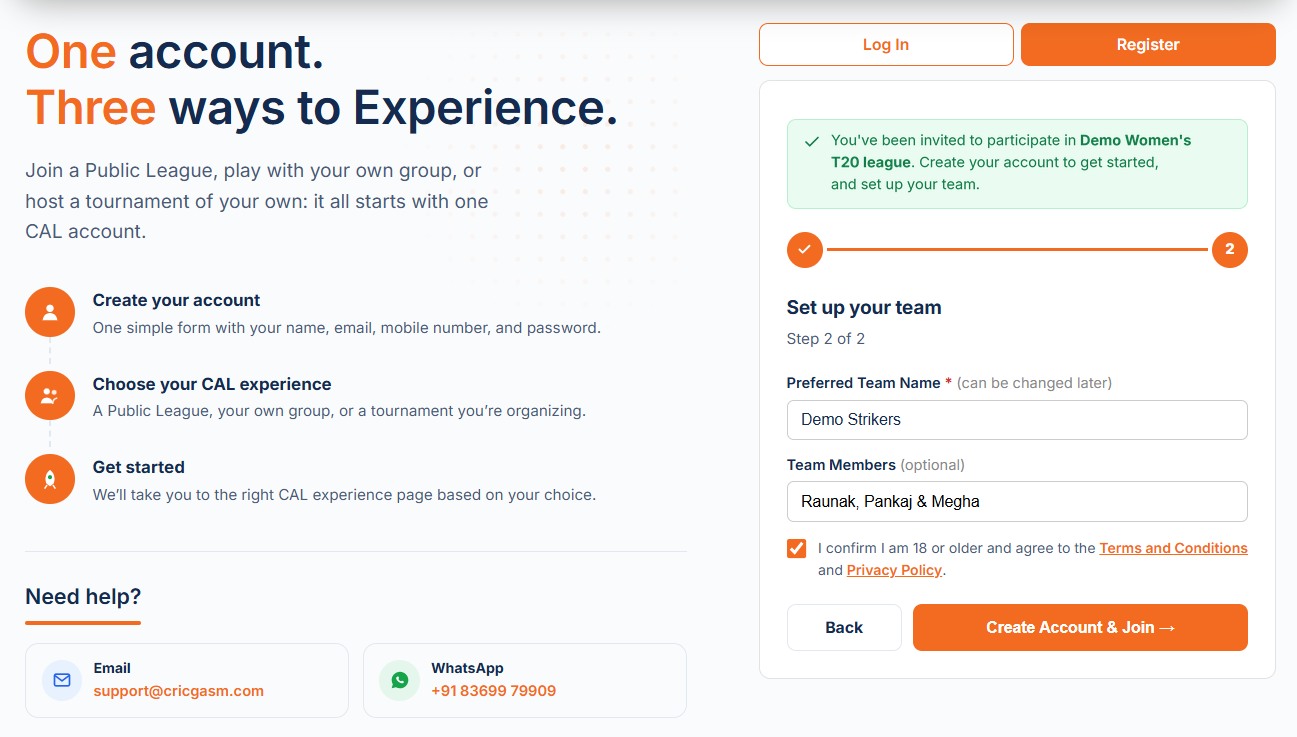
- A team opens your link. A green banner confirms they have been invited to your league.
- Step 1: they create their account with name, email, mobile number and password.
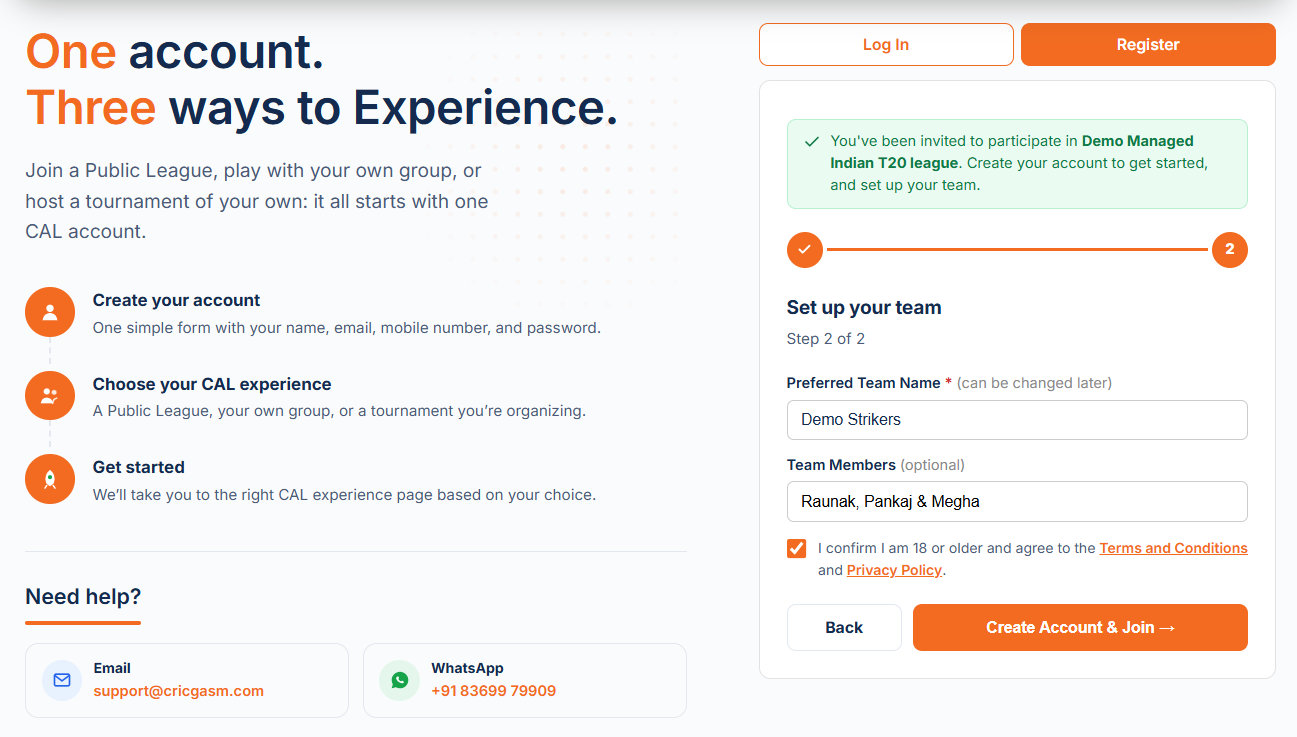
- Step 2: they set up their team: a preferred team name (it can be changed later), optional team members and the tournament that interests them most. They accept the Terms and Conditions and Privacy Policy, then press Create Account and Join.
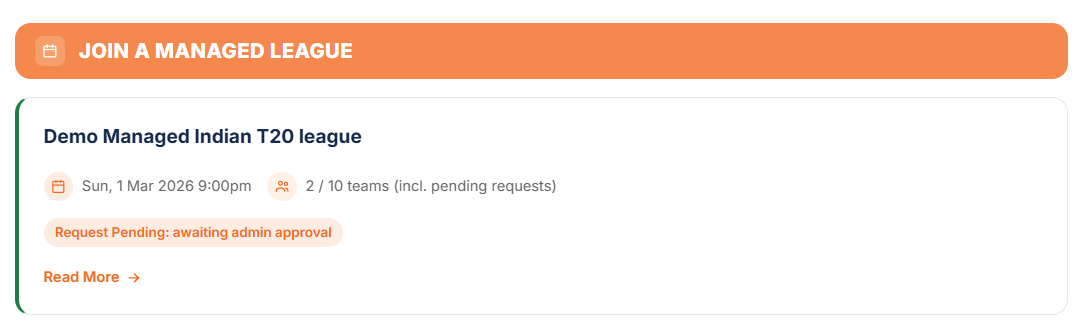
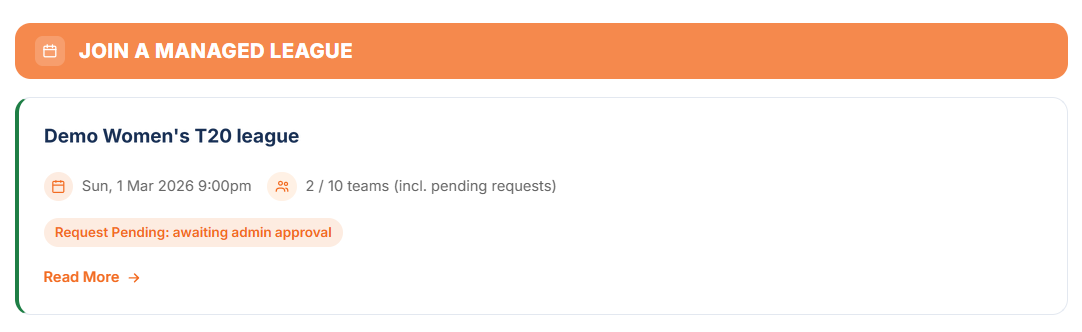
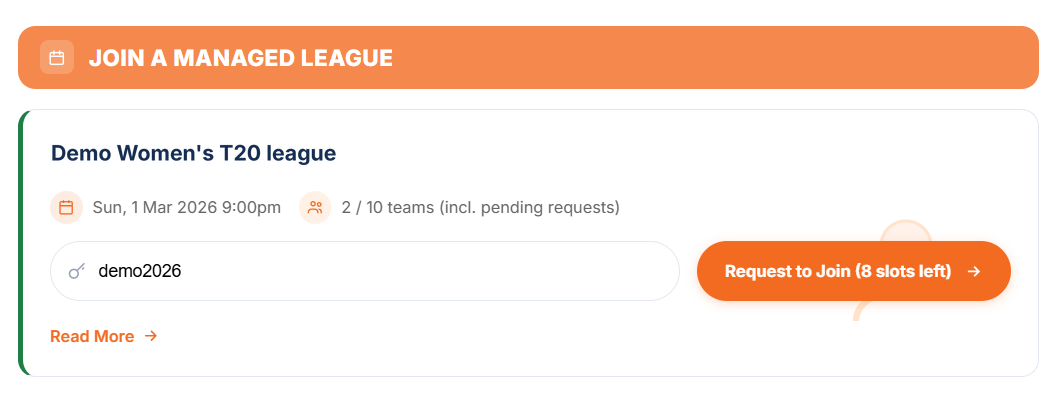
- Their request is sent to you. Their dashboard shows the team under My Teams marked Request Pending until you approve it.
- Teams who already have an account just log in through the link and the request goes straight through.
- Prefer a code? Teams with an account open their dashboard, type your league code into Join a Managed League and press Request to Join.
Open the link
Teams see a banner confirming they were invited to your league.
Set up the team
Team name, members and tournament interest, then accept the terms.
Request sent
The request waits for your approval.
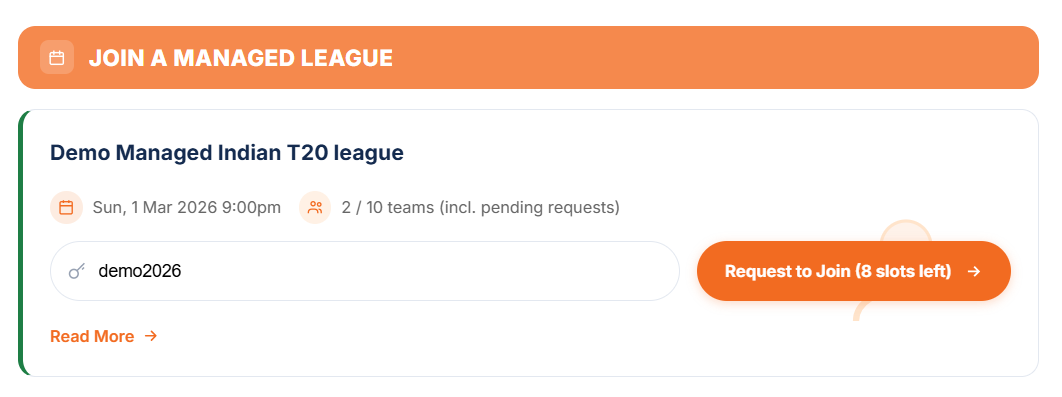
05 Approve Teams
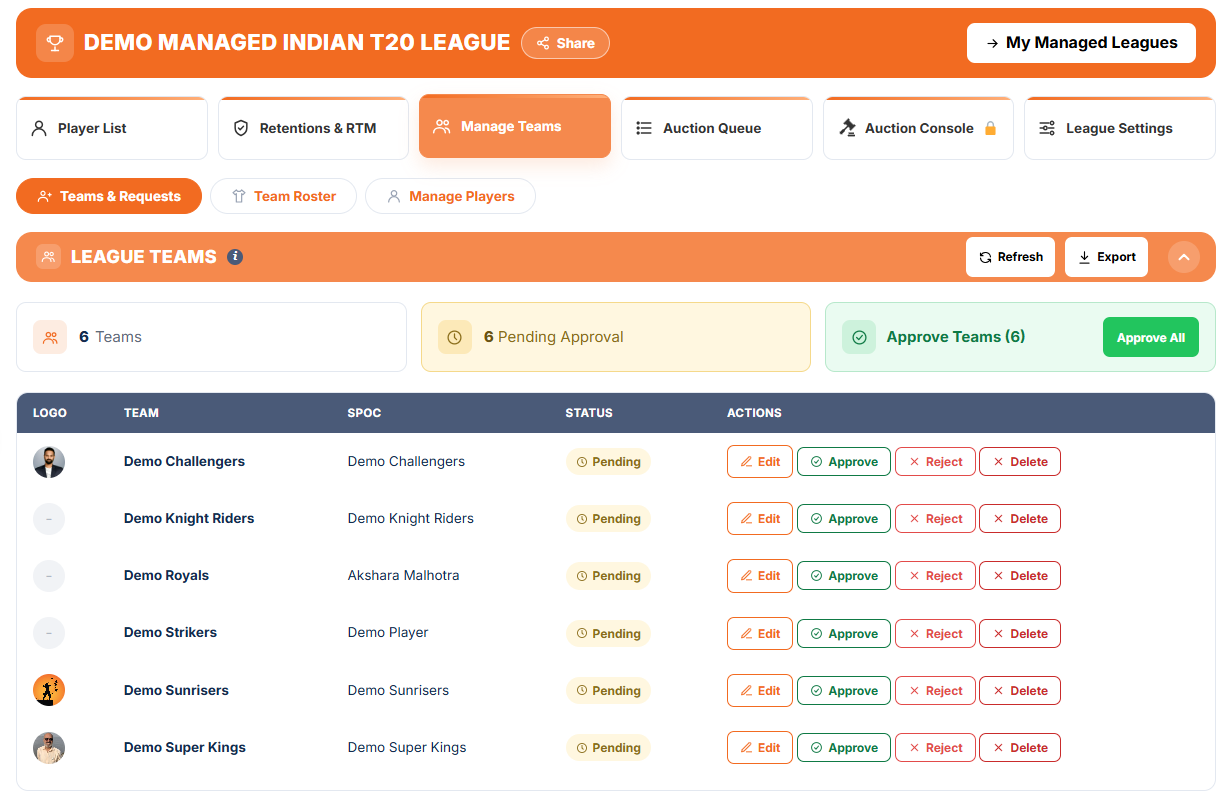
Approve teams who joined, or add teams yourself.
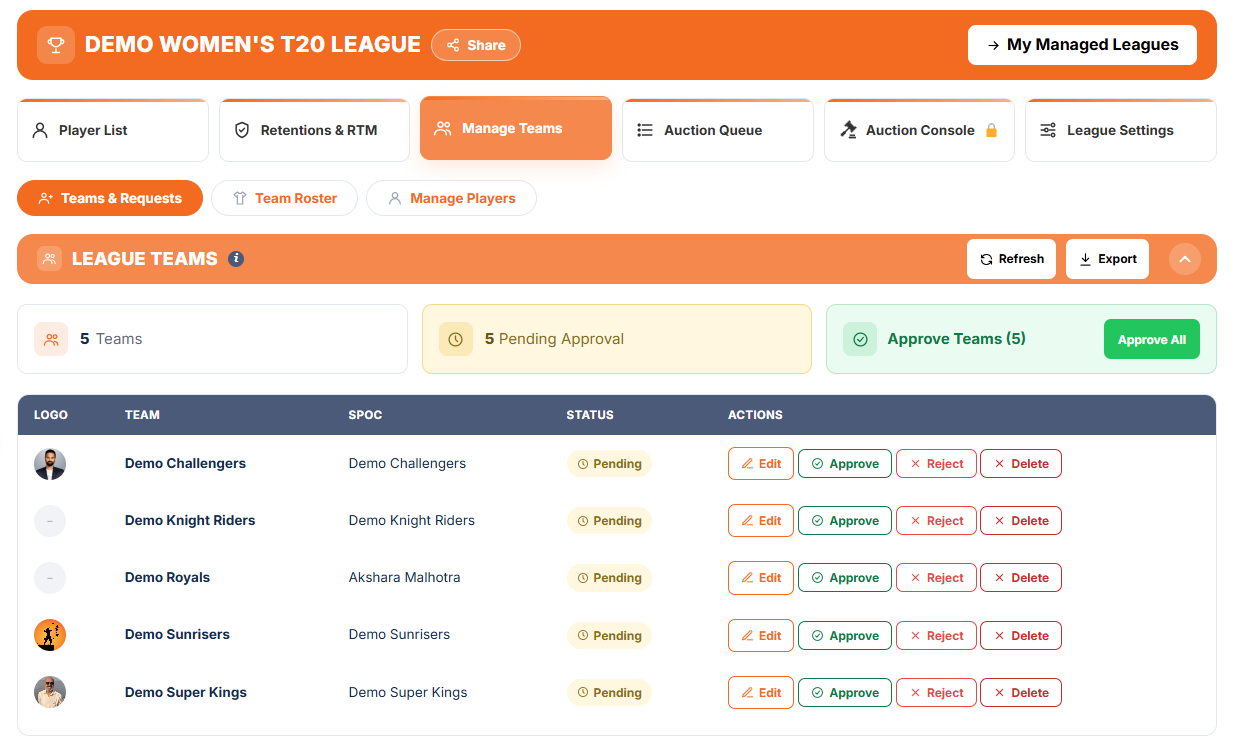
- Open Manage Teams. Teams who joined through your link or code are listed under League Teams, marked Pending.
- Check each team, then press Approve or Reject, or Approve All at once. Only approved teams take part.
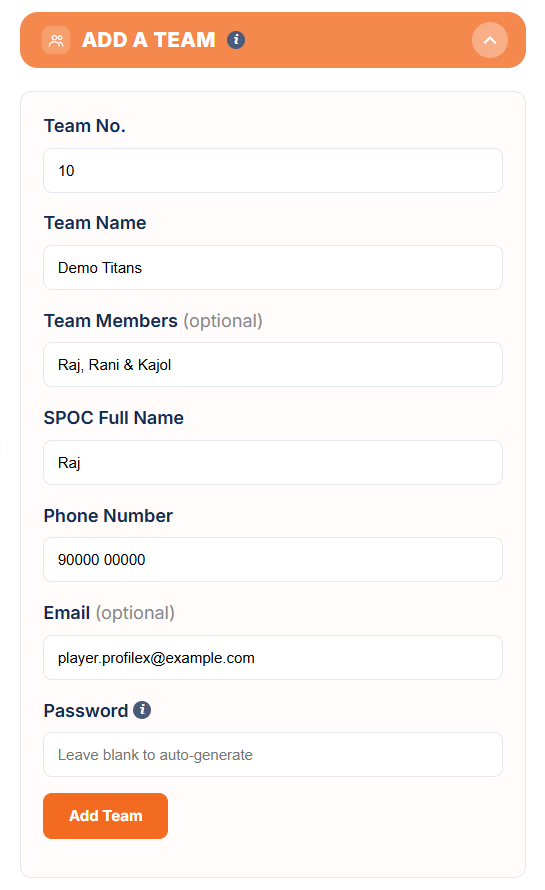
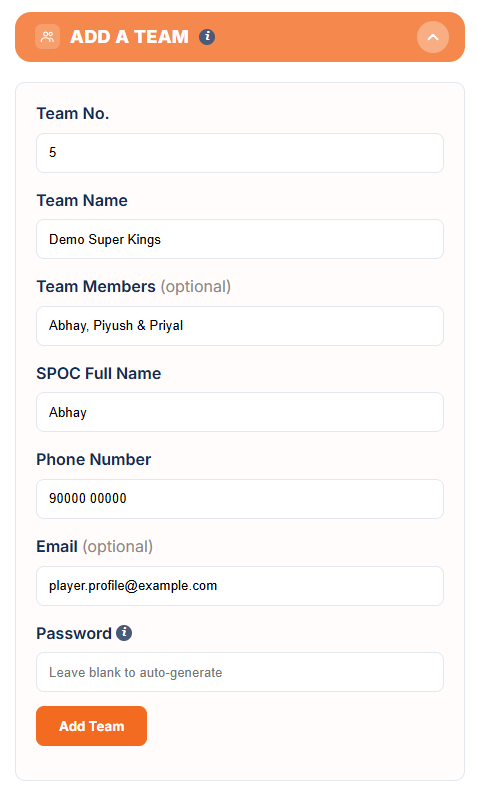
- Running the teams yourself? Fill in Add a Team: team number, team name, SPOC name and phone number, with optional team members. Teams you add are approved straight away.
- Email and password are only needed if that team will log in to bid online or follow the auction.
- Every team gets the Budget Per Team you set for the league. With Flexible Budget on, you can give a team its own budget here.
Open Manage Teams
Teams who joined appear under League Teams.
Approve
One by one, or Approve All. Only approved teams take part.
Or add them yourself
Fill in Add a Team. It is approved straight away.
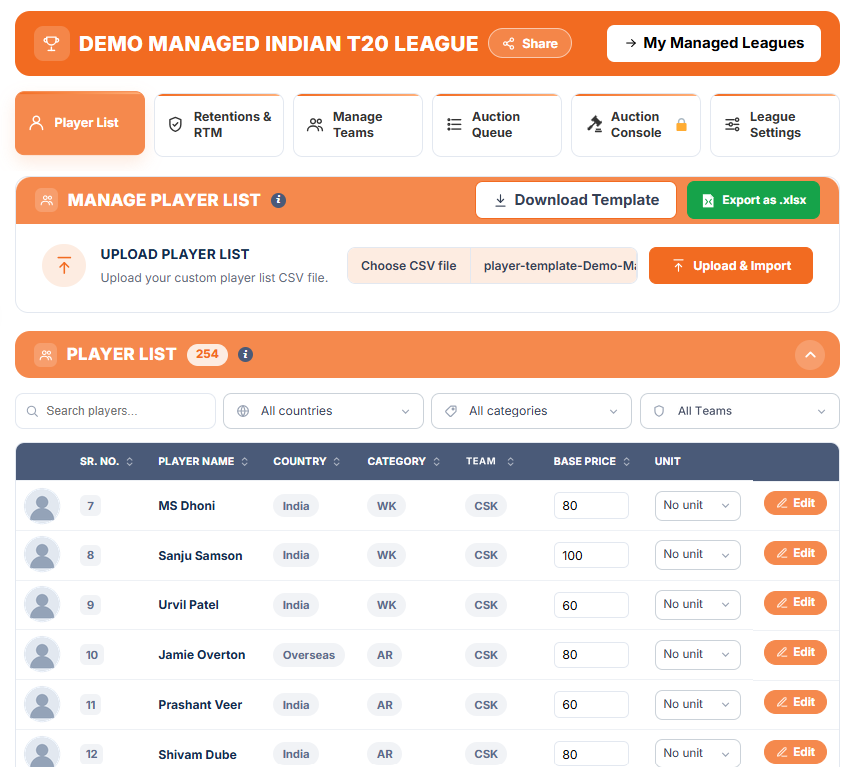
06 Build your Player Pool
Download the prefilled template, set your prices, then import.
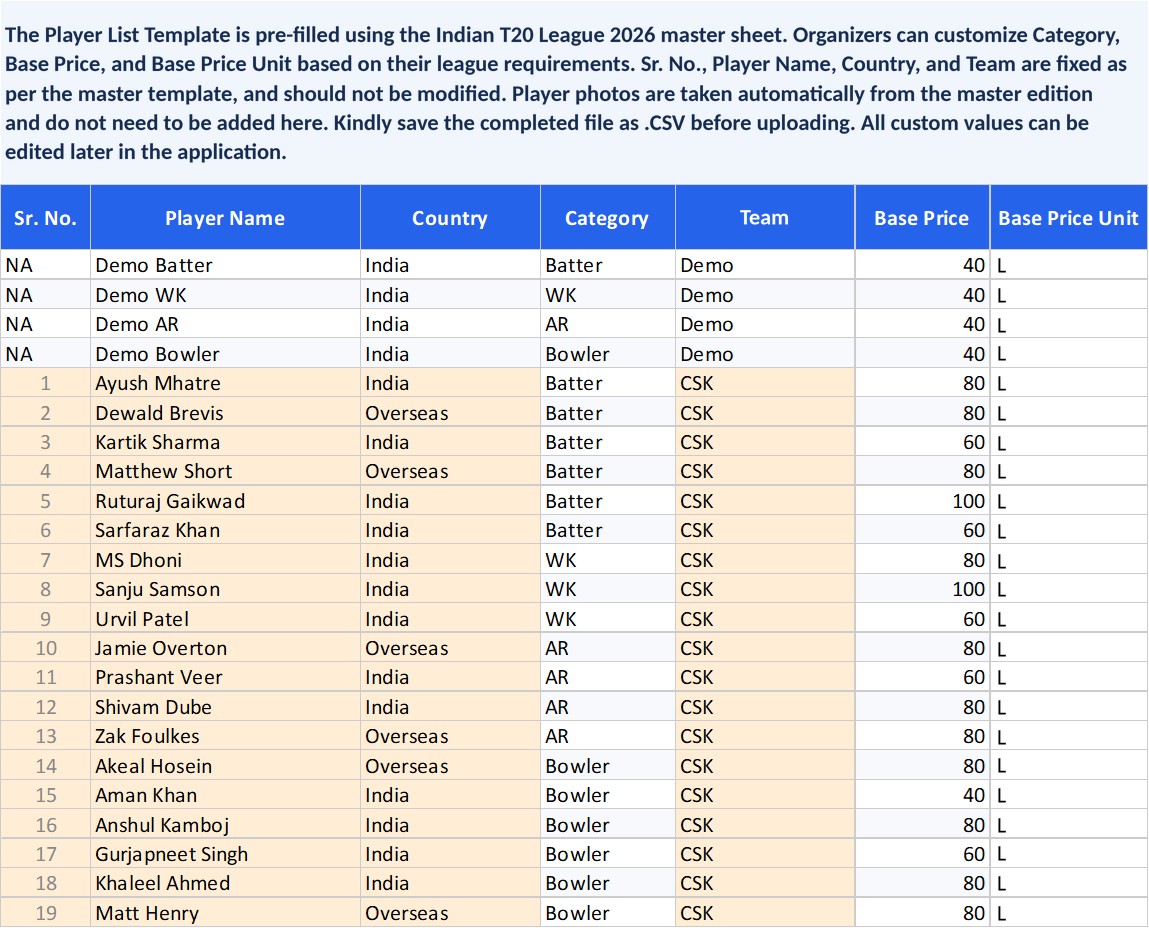
- Open the Player List tab and press Download Template. The template comes prefilled with the players of your tournament, but nothing is added to your league until you import it.
- Serial number, player name, country and team are fixed as per the master template and cannot be changed. Player photos are added automatically.
- Edit each player’s category, base price and base price unit in the file to suit your league.
- Save the file as a CSV and upload it with Upload and Import. Your categories, base prices and units are applied, and the full tournament player set always stays in your league.
- Set your base prices before you build your Rotation Sequence, because sets are groups of players with the same base price.
Download the template
Prefilled with the players of your tournament.
Set your prices
Edit category, base price and base price unit.
Upload and Import
Import the file to build your player pool.
07 Set your Rules
You decide the budget, squad strength and compliance.
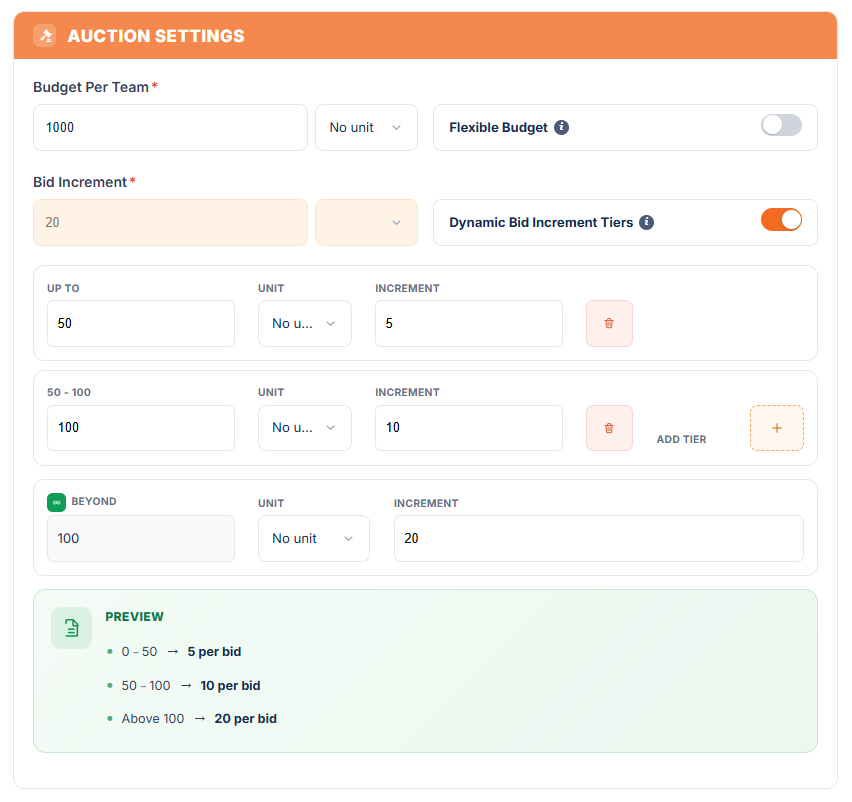
- Open the League Settings tab. Under Auction Settings, set the Budget Per Team in Points, Thousands (K), Lakhs (L) or Crores (Cr). You can also set a different budget for individual teams.
- Set the Bid Increment: a flat amount, or up to five step-up tiers that change as the current bid rises.
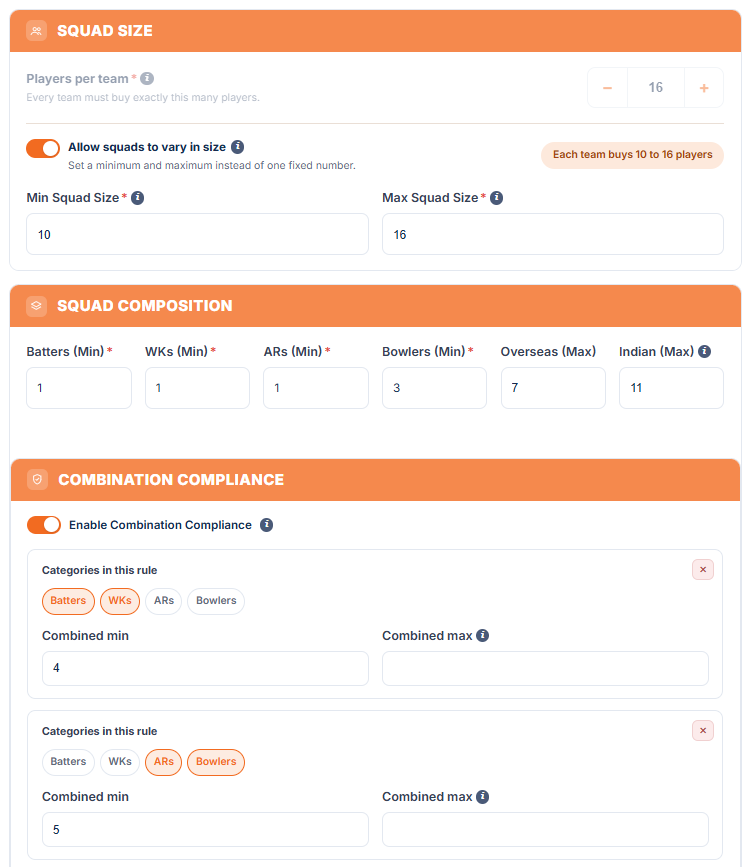
- Set the Squad Size for each team, either as an exact number or as a minimum and maximum.
- Set your Squad Composition: the minimum number of Batters, WKs, ARs and Bowlers, and the maximum number of Overseas and Indian players in a final squad. Leave a limit empty if you do not need it.
- Add Combination Compliance rules on top, for example Batters and WKs combined at least 4 and at most 6.
- Your settings lock when the auction starts, so all teams play under the same rules.
Auction settings
Budget, bid increment and squad size.
Squad strength
Role minimums, plus Indian and overseas limits.
Compliance
Combination rules on top of the role minimums.
08 Retentions and RTM
Optional. Keep players or match a winning bid, then activate your league.
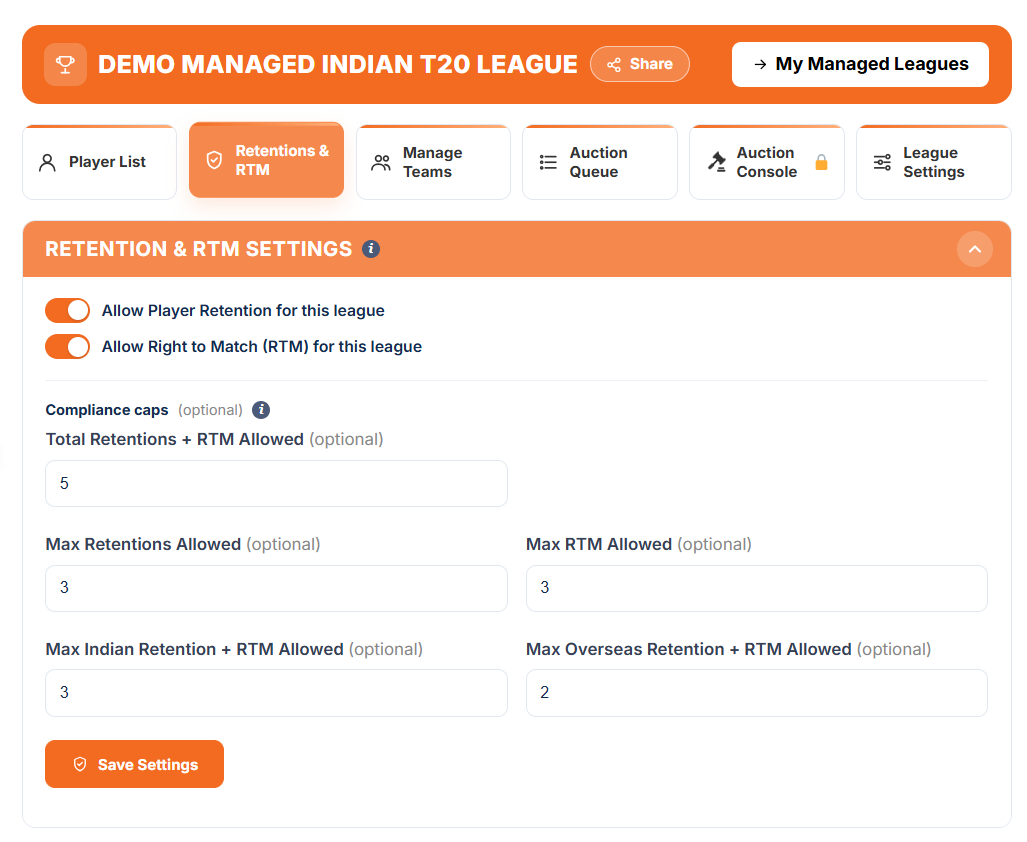
- Open the Retentions & RTM tab. It sits right after Player List, and it appears for every tournament with an international player pool.
- Turn on Allow Player Retention, Allow Right to Match (RTM), or both for your league.
- Optional compliance caps: Total Retentions + RTM Allowed, Max Retentions Allowed, Max RTM Allowed, and the Indian and Overseas limits for Retention + RTM. Leave a cap blank for no limit.
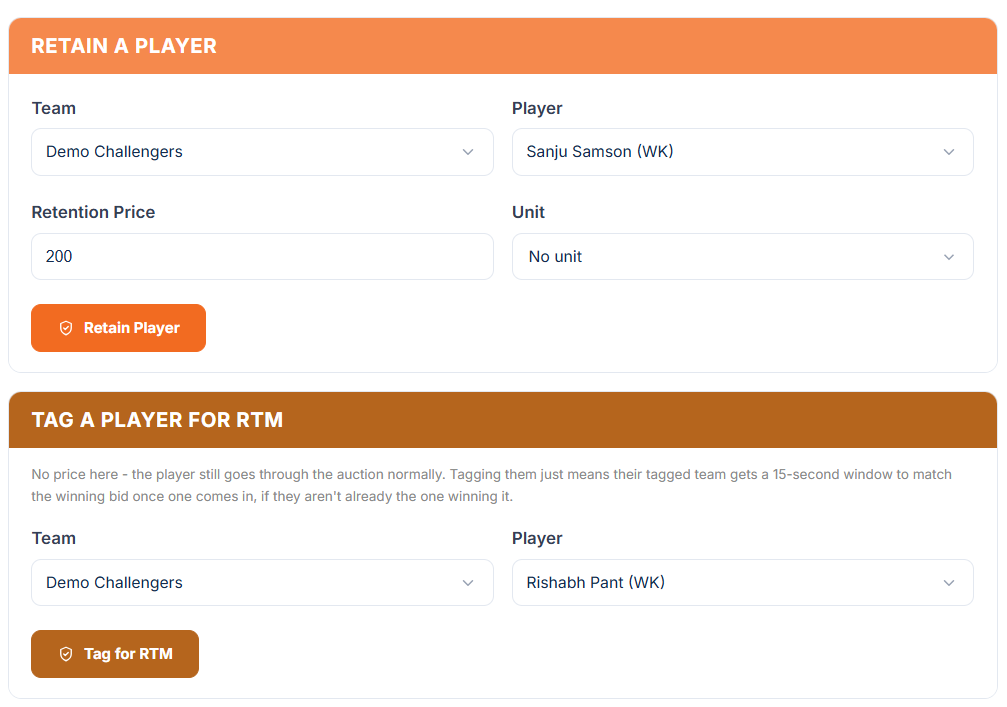
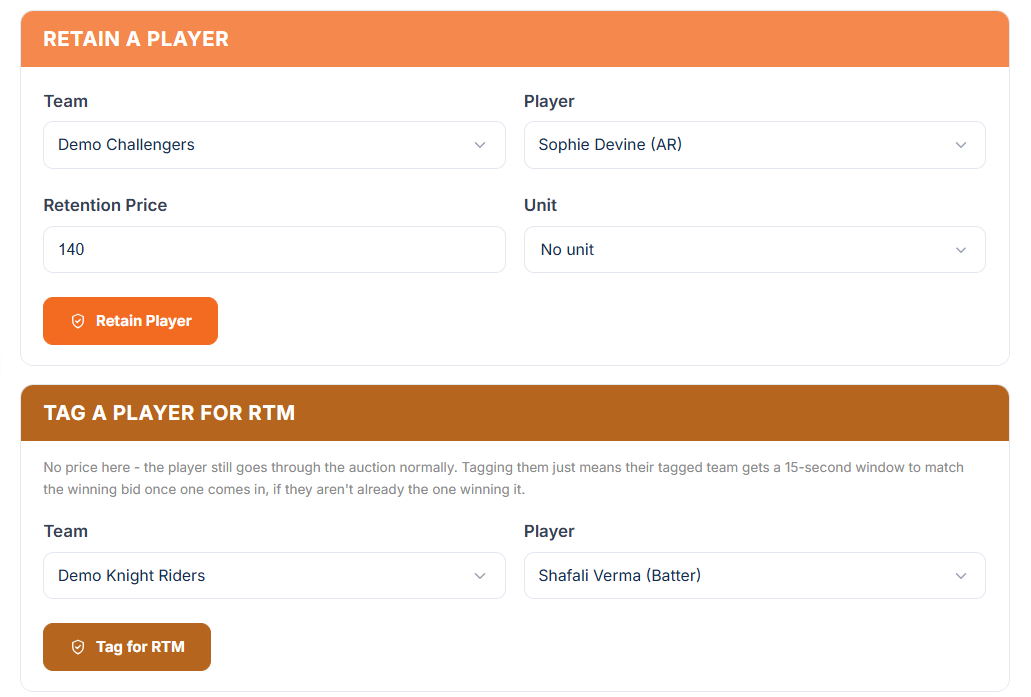
- Retain a Player: choose the team, the player and the Retention Price with its unit. The player goes straight to that team before the auction.
- Tag a Player for RTM: choose the team and the player. When another team wins that player, the tagged team gets a 15-second window to match the winning bid instead.
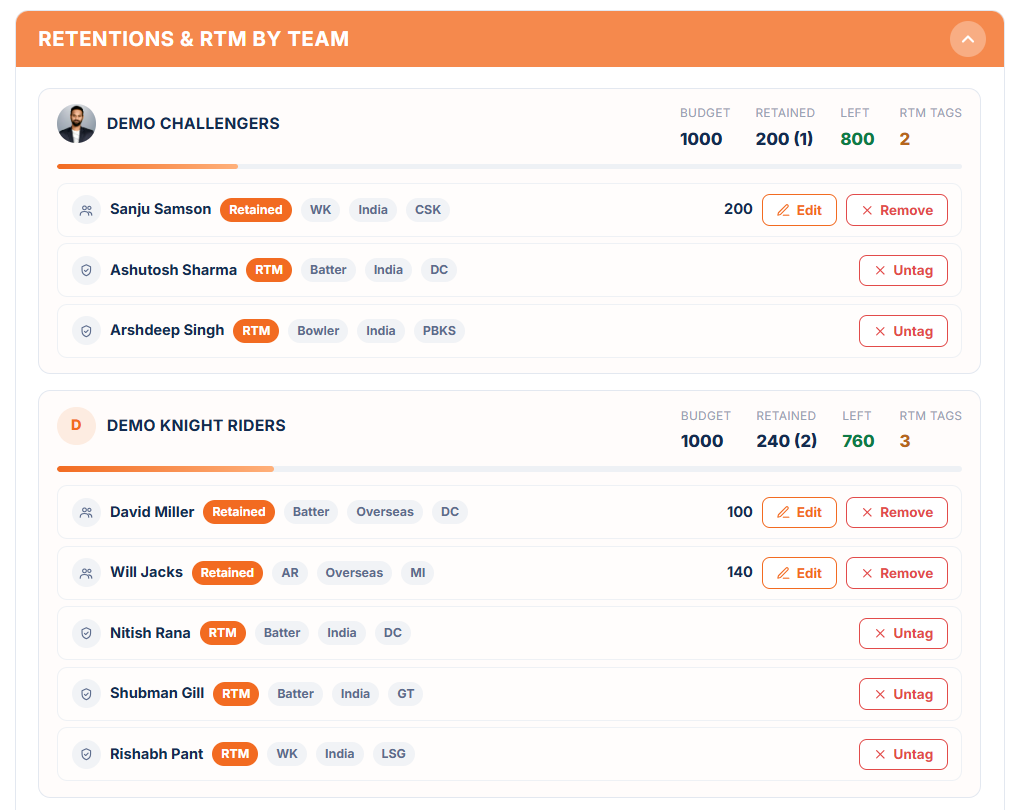
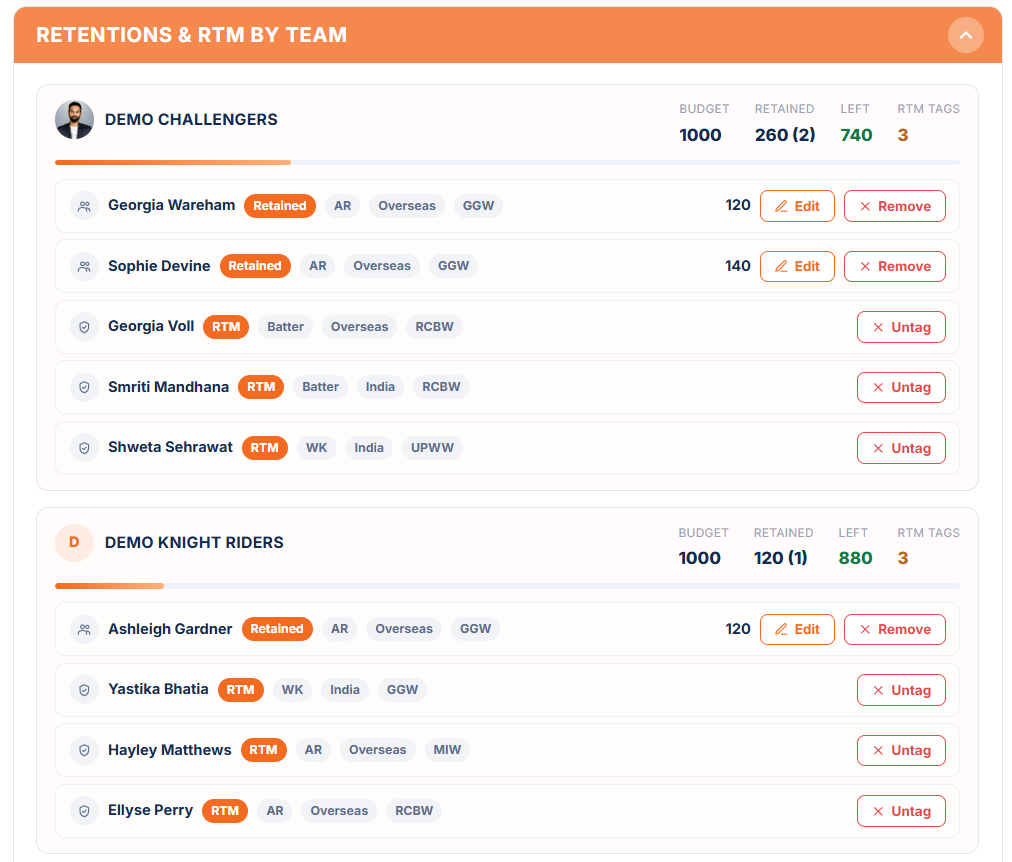
- Retentions & RTM by Team shows what each team has used, so you can check it against your caps.
- You need at least one approved team first. Retained players are left out of the Rotation Queue. Everything locks when the auction starts.
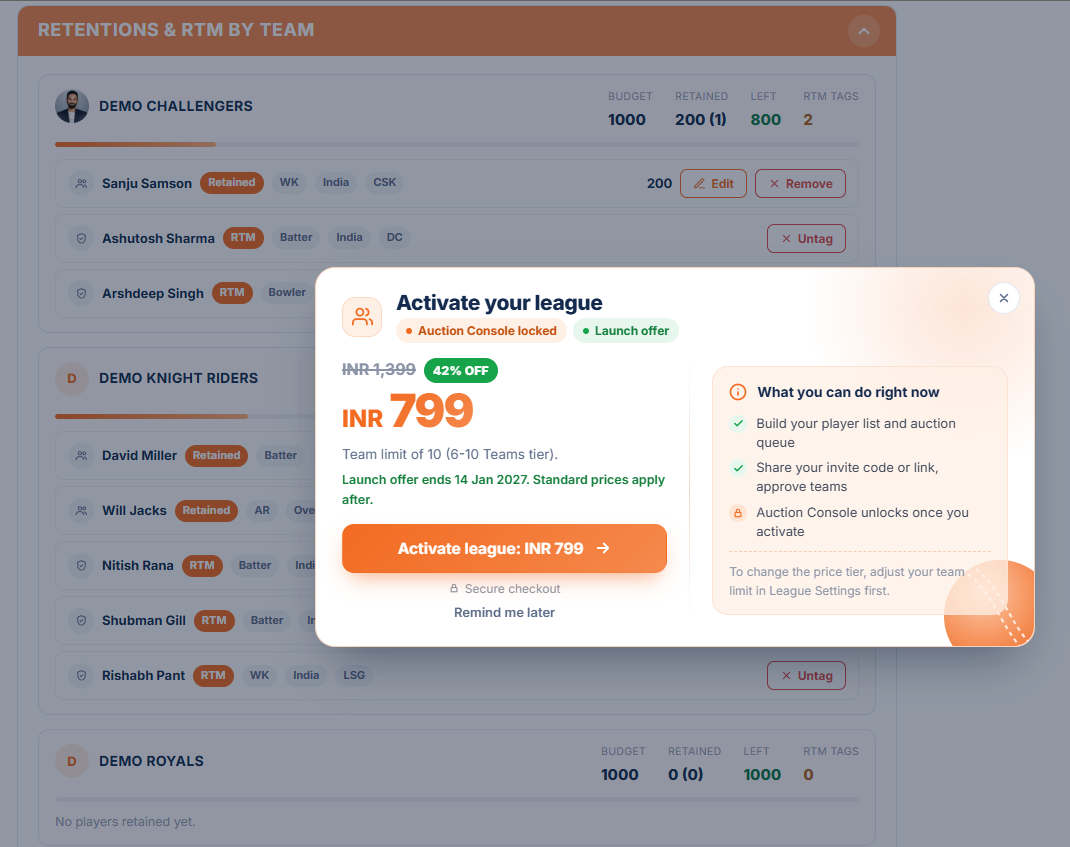
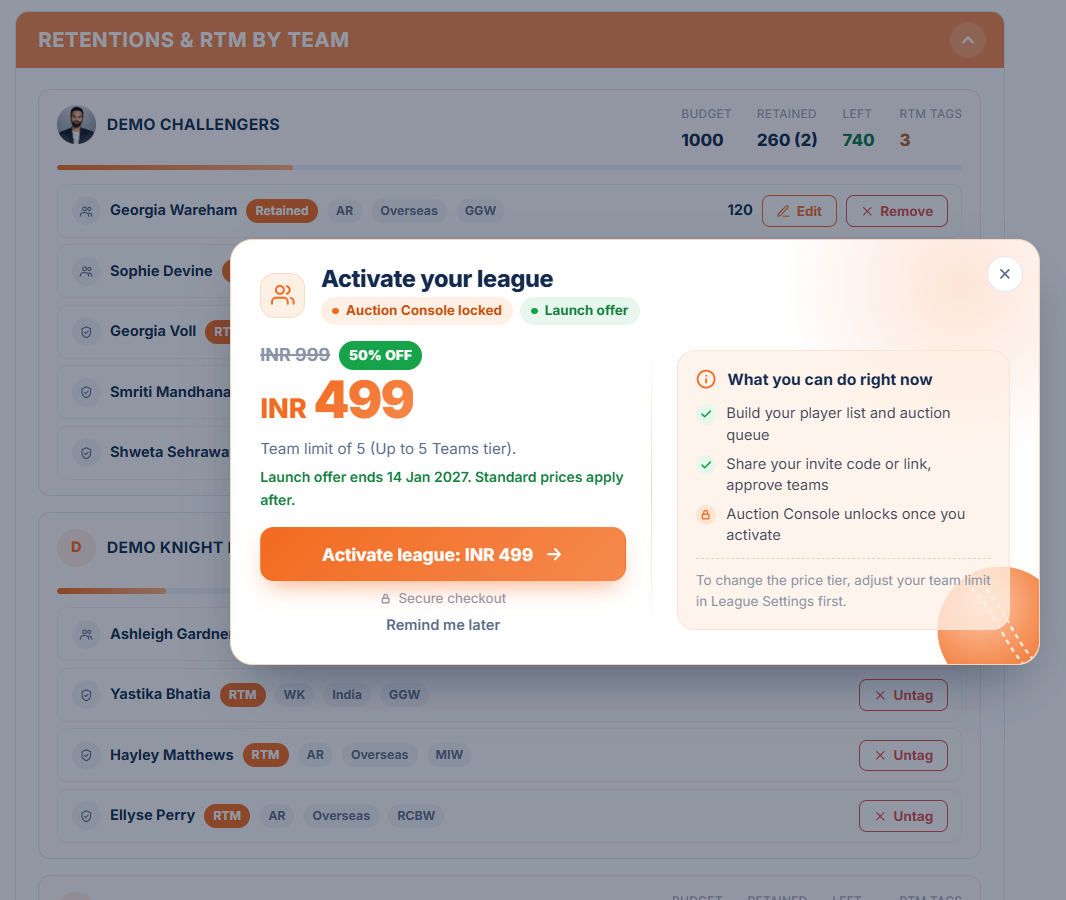
- Activate your league once your teams are ready. The price depends on the number of teams, and if you add more teams later, you only pay the difference. See the Pricing page.
Turn them on
Allow Retention, RTM, or both, with optional caps.
Retain players
Pick the team, player and Retention Price.
Tag for RTM
The tagged team can match the winning bid within 15 seconds.
Activate your league
Pay to activate once your teams are ready.
09 Run the Auction Online
Teams bid live in the Auction Room, with you in control.
- Demo players first: the queue opens with four practice players (Demo Batter, Demo WK, Demo AR and Demo Bowler), so teams can try bidding before the actual players. They never affect a purse, a squad or the results, and they cannot be removed.
- Retained players are already with their teams and are left out of the queue. If a team is tagged for RTM on a player and another team wins that player, the tagged team gets a 15-second window to match the winning bid.
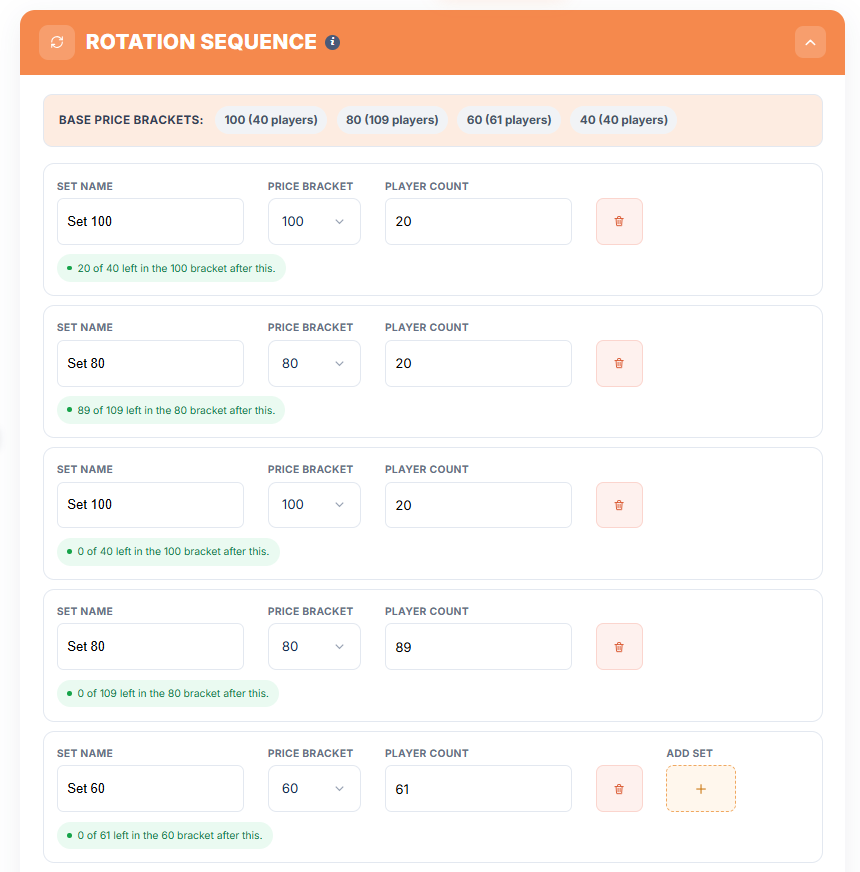
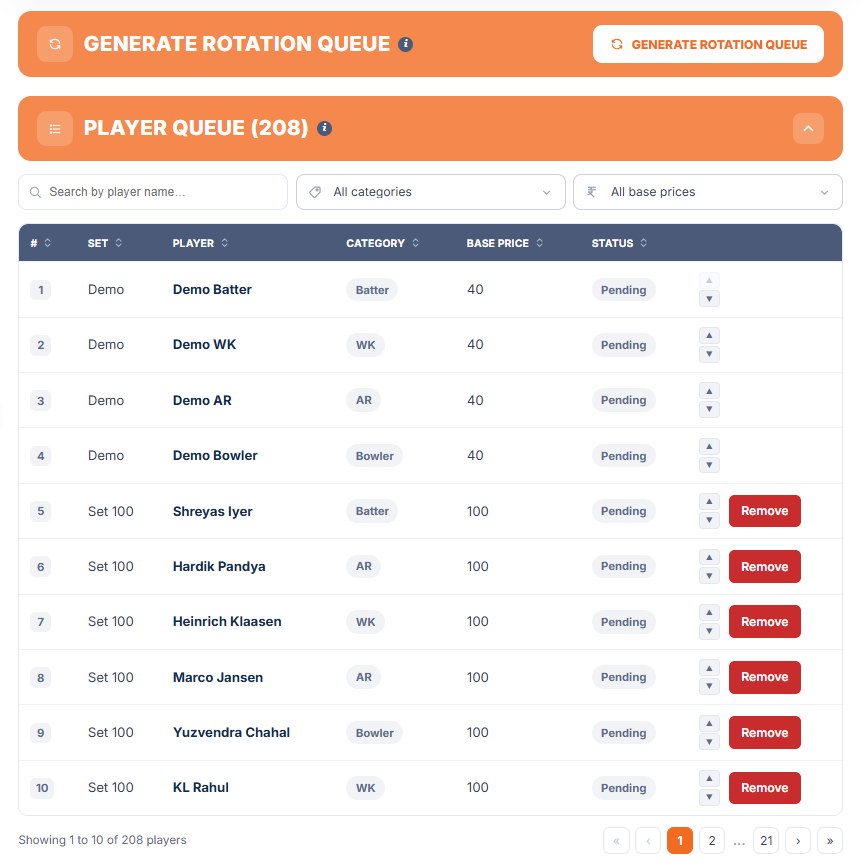
- In the Auction Queue tab, build the Rotation Sequence by ordering your base-price sets and choosing how many players appear at each step. You can also set a Final Set.
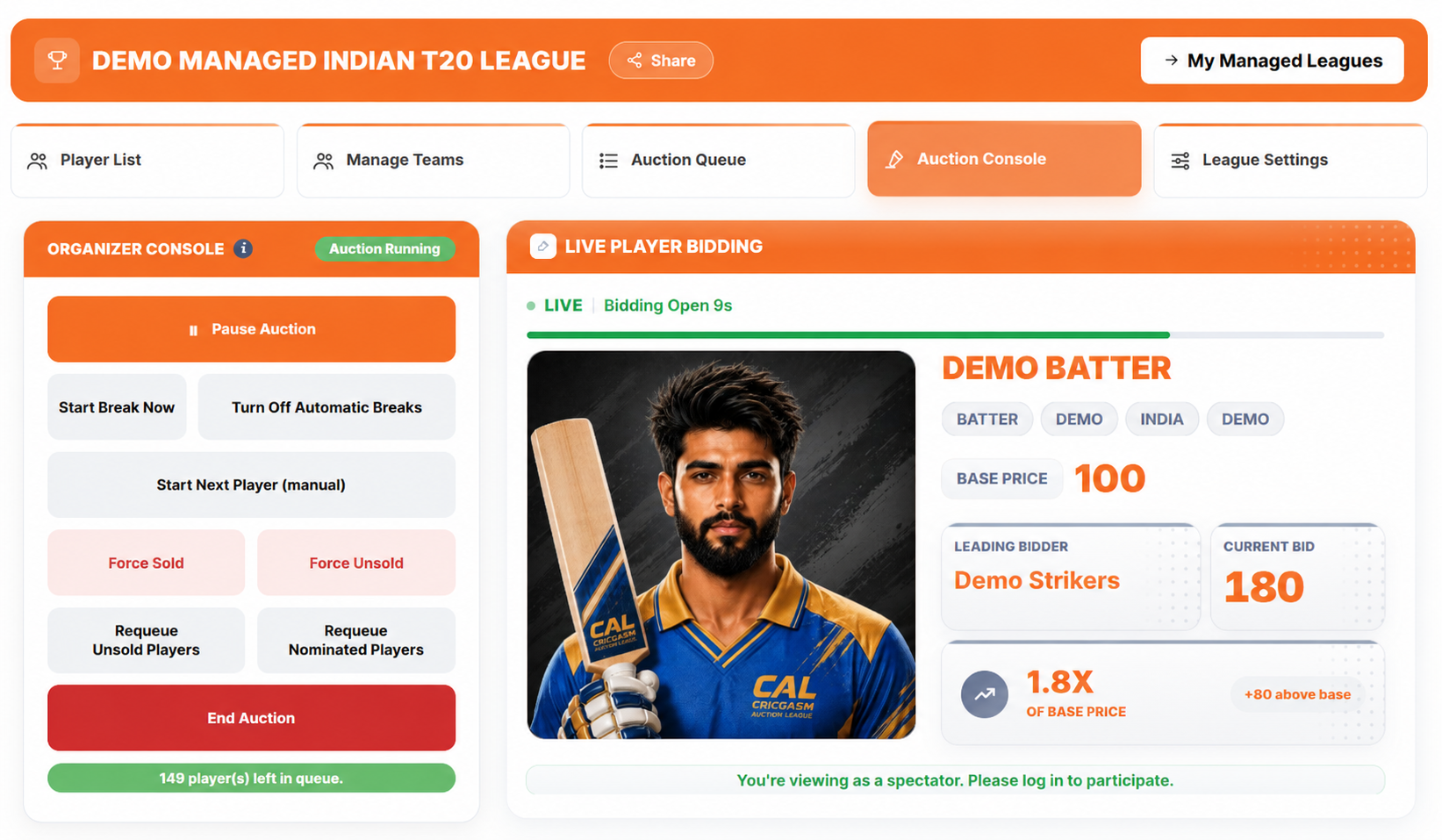
- Open the Auction Console and start the auction. You can pause, resume or end it at any time.
- Teams bid using the live timer. Choose a flat bid increment or up to five step-up tiers.
- Teams still short of a full squad can nominate up to 5 players for the Final Round.
- Teams follow along in the Auction Room: Live Player Bidding, Team Summary, Auction Tracker, Bid Activity, the Sold and Unsold list and the Chatroom.
Build the rotation
Order your base-price sets, with an optional Final Set.
Open the Auction Console
Start, pause, resume or end at any time.
Teams bid online
A flat increment or step-up tiers.
10 Run the Auction Offline
Run the room yourself, with CAL keeping the books.
- While creating your league, choose Offline Auction as the Bidding Mode. It is locked once the auction has started.
- Teams are added and approved as usual. In an offline auction the bidding happens in the room, so there is no timer and no Bid button for teams.
- Organizer and Coordinator: the Organizer owns the league and its settings. If CAL has assigned a Coordinator to your league, they can open the same Auction Console and run the room on auction day, for this league only.
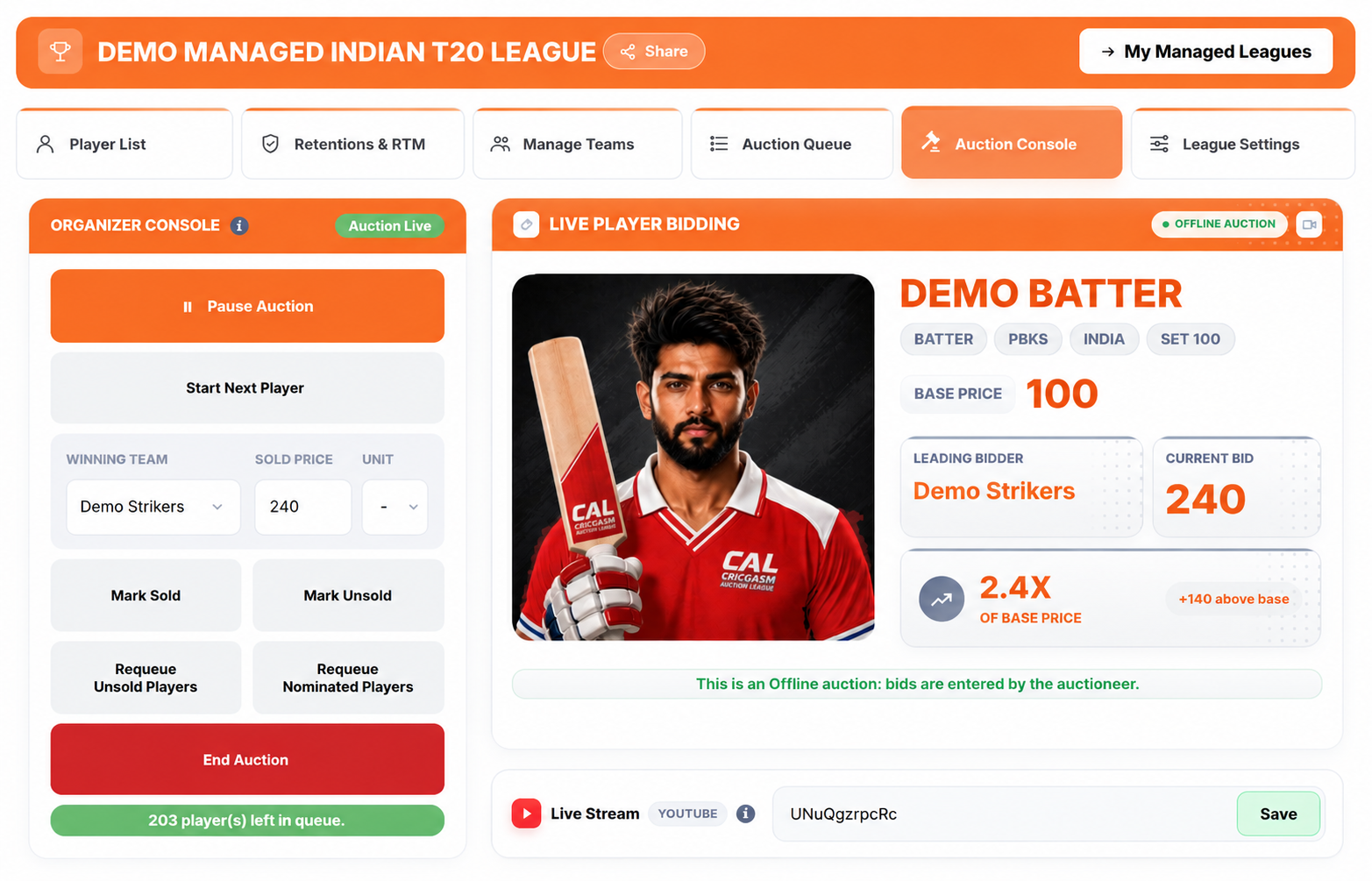
- On auction day, open the Auction Console and press Start Auction. You can pause and resume the session at any time.
- Press Start Next Player. The next player from your queue appears on the console. Call out the bidding in the room.
- When the hammer falls, choose the Winning Team, enter the Sold Price and press Mark Sold. CAL checks the price against the base price, any step-up tiers, the team’s budget and its squad rules. Once recorded, the sale is final.
- If nobody bids, press Mark Unsold. Unsold players can be put back in the queue with Requeue.
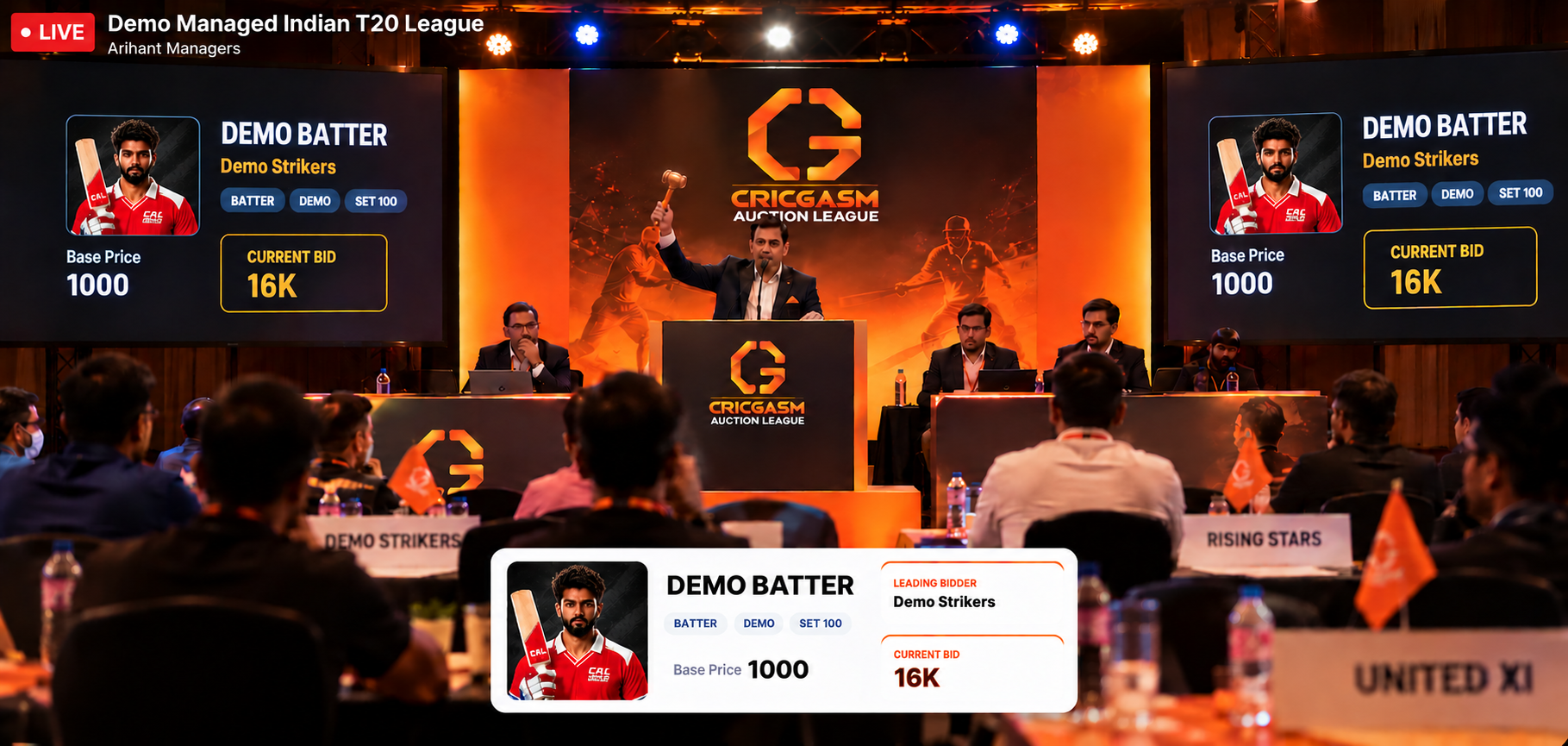
- Streaming the room? Paste your YouTube live link into the Live Stream card, and teams who could not attend can watch from the Auction Room. In full screen, a Current Bid card sits over the video showing the live player, the leading bidder and the current bid.
- Teams can still follow the results in the Auction Room: Team Summary, Auction Tracker, the Sold and Unsold list and the Chatroom.
Choose Offline
Pick Offline Auction as the Bidding Mode when you create the league.
Start the auction
Open the Auction Console, press Start Auction, then Start Next Player.
Record each sale
Choose the Winning Team, enter the Sold Price and press Mark Sold.
Share the stream
Optional: add a YouTube live link so teams can watch remotely.
11 Follow the Tournament
Track your squad as the tournament progresses.
- After the auction, choose your Captain (2× points) and Vice-Captain (1.5× points) before the tournament start countdown ends. They must be two different players.
- If you don’t choose, your two costliest players are assigned automatically, the highest price as Captain. Other teams’ choices stay hidden until the tournament starts.
- Use Player Points to follow points earned from official match scorecards using the CAL Points System.
- Open Standings to see teams ranked by their total CAL Points.
- If a player is officially ruled out, use the Replace tool on your dashboard to request a replacement. The organizer reviews and approves each request.
Choose your captains
Captain scores 2× and Vice-Captain 1.5×. Choose before the tournament starts.
Follow Player Points
Points from official match scorecards, using the CAL Points System.
Check Standings
Teams ranked by their total CAL Points.
Request replacements
If a player is officially ruled out, use the Replace tool on your dashboard.
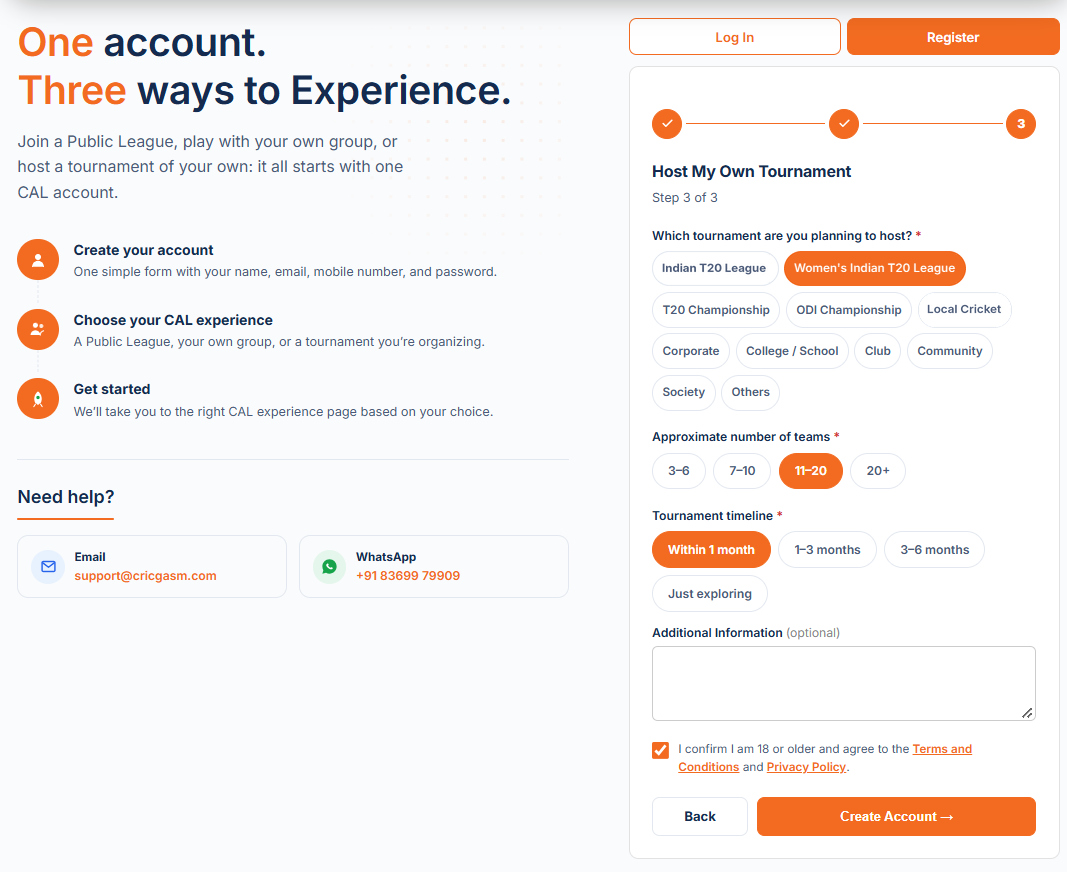
01 Create your Account
Tell us what you plan to host.
- Open the Register page and enter your name, email, mobile number and password.
- Step 2: Select Host My Own Tournament.
- Step 3: Tell us about your tournament, including the tournament type, expected number of teams and timeline. You can also add any additional details.
- Accept the Terms & Conditions and Privacy Policy, then click Create Account.
Open Register
Your details, in step 1 of 3.
Host My Own Tournament
Choose the experience in step 2.
Tell us your plan
Which tournament, about how many teams, and your timeline.
Land on your dashboard
With My Managed Leagues in the menu.
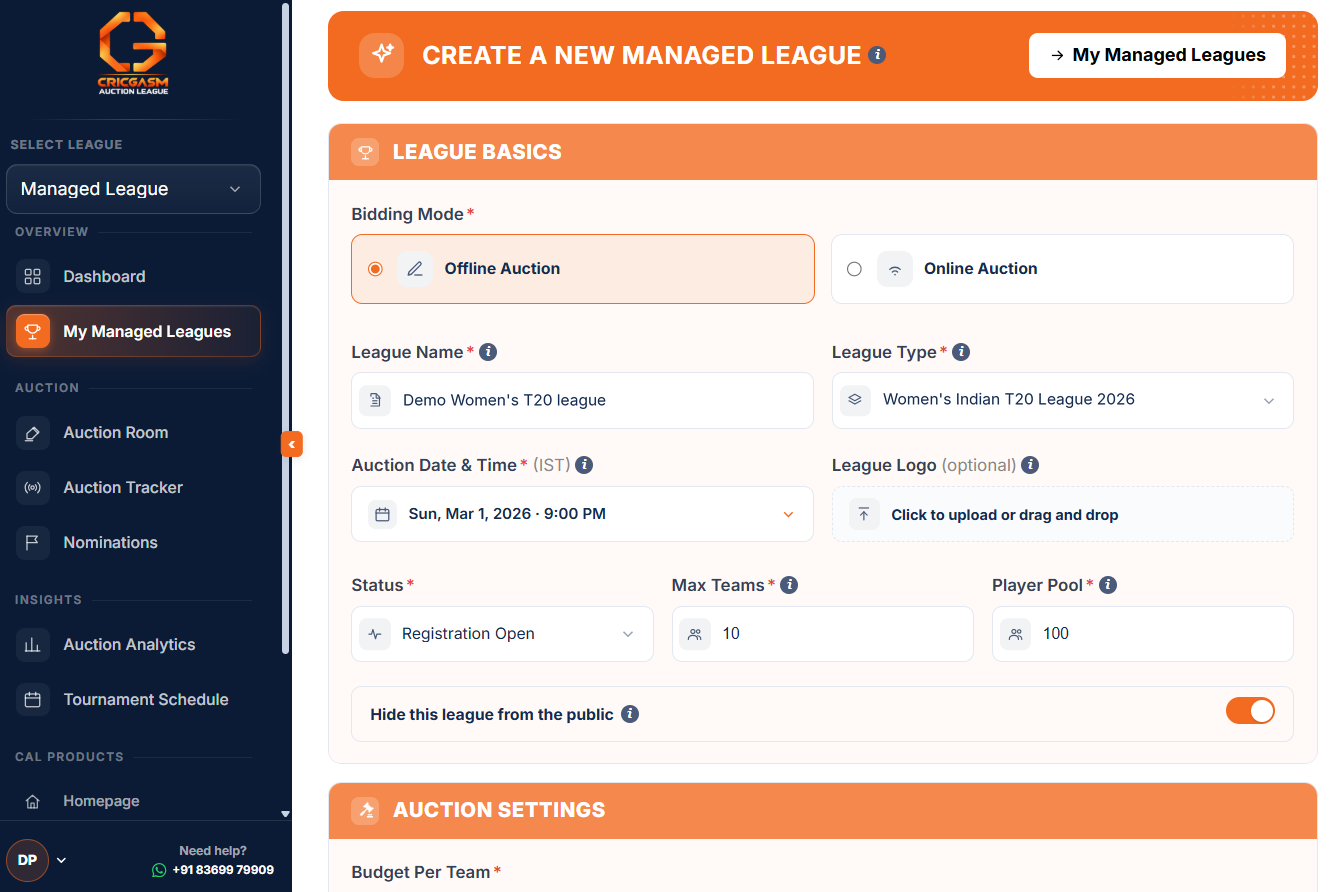
02 Create your League
Free to build. Pay only when you activate your league.
- Try a Demo Auction first: from your console, create one free Demo Auction to learn the system. It is instant, needs no approval or payment, and runs with 2 teams. Only you can see it, and you can have one at a time.
- Open My Managed Leagues and create a league.
- Choose your tournament and decide whether to use its international player pool or your own rules.
- Set your League Basics, including the league name, bidding mode, auction date and time, and team limit.
- Set your Auction Settings, including the budget, bid increment, squad size and budget unit.
- Review your league and check the details before creating it. You pay only when you activate the league, with pricing based on your team limit. See the Pricing page.
My Managed Leagues
Your console for every tournament you host.
Choose your tournament
Use its international player pool or your own rules.
Basics and Auction Settings
Name, bidding mode, date, team limit, budget, bid increment and squad size.
Review and create
Check the details. You pay only when you activate.
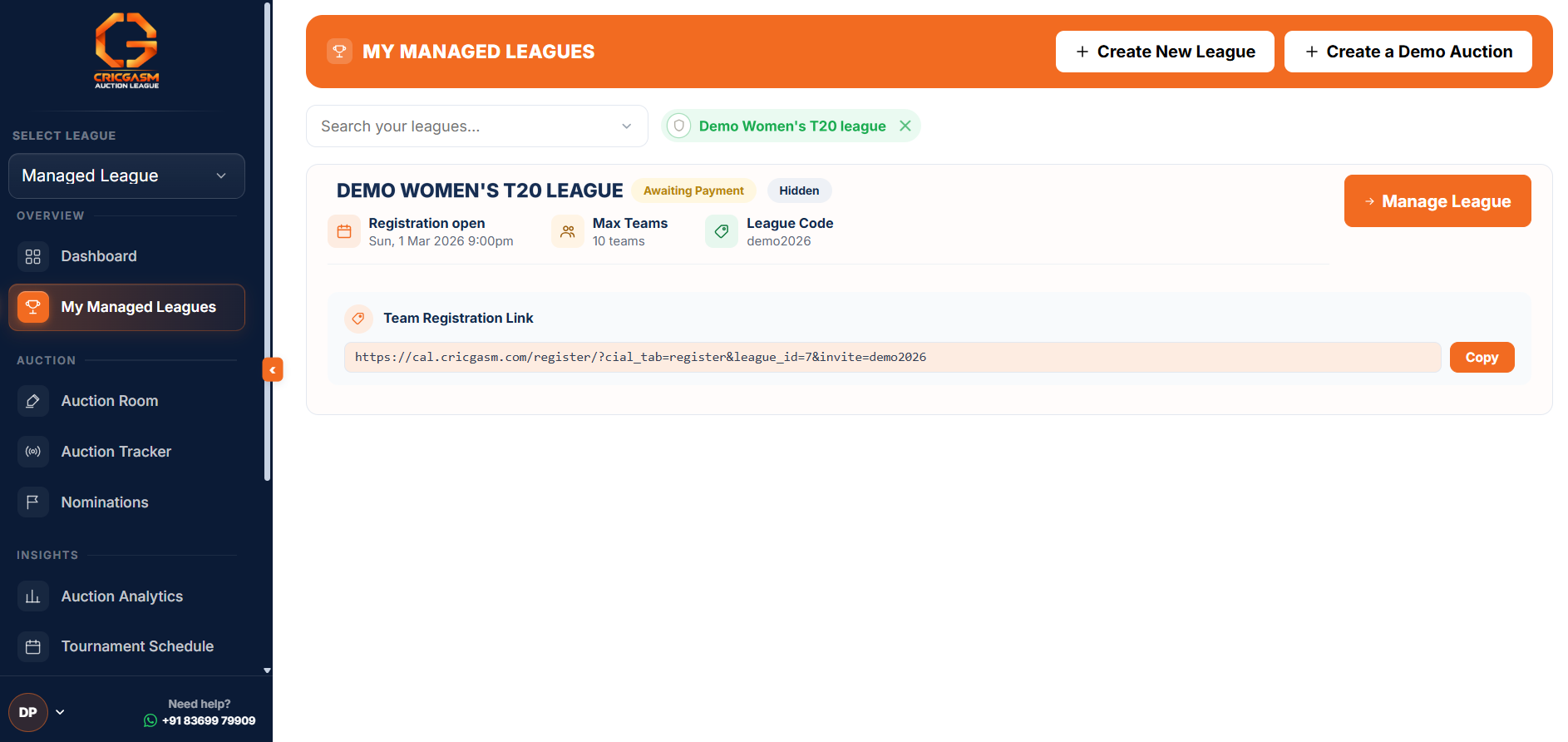
03 Invite your Teams
Your league is invite-only. Share your code or join link.
- Open My Managed Leagues and find your league card. It shows your league code and a Team Registration Link.
- Press Copy and share the link with your teams by WhatsApp or email.
- Teams who prefer can also join with the league code instead of the link.
- You can hide your league from public view, so only people with the link or code can find it.
Find your link
Your league card shows the code and the Team Registration Link.
Copy it
Press Copy to grab the join link.
Share it
Send it to your teams by WhatsApp or email.
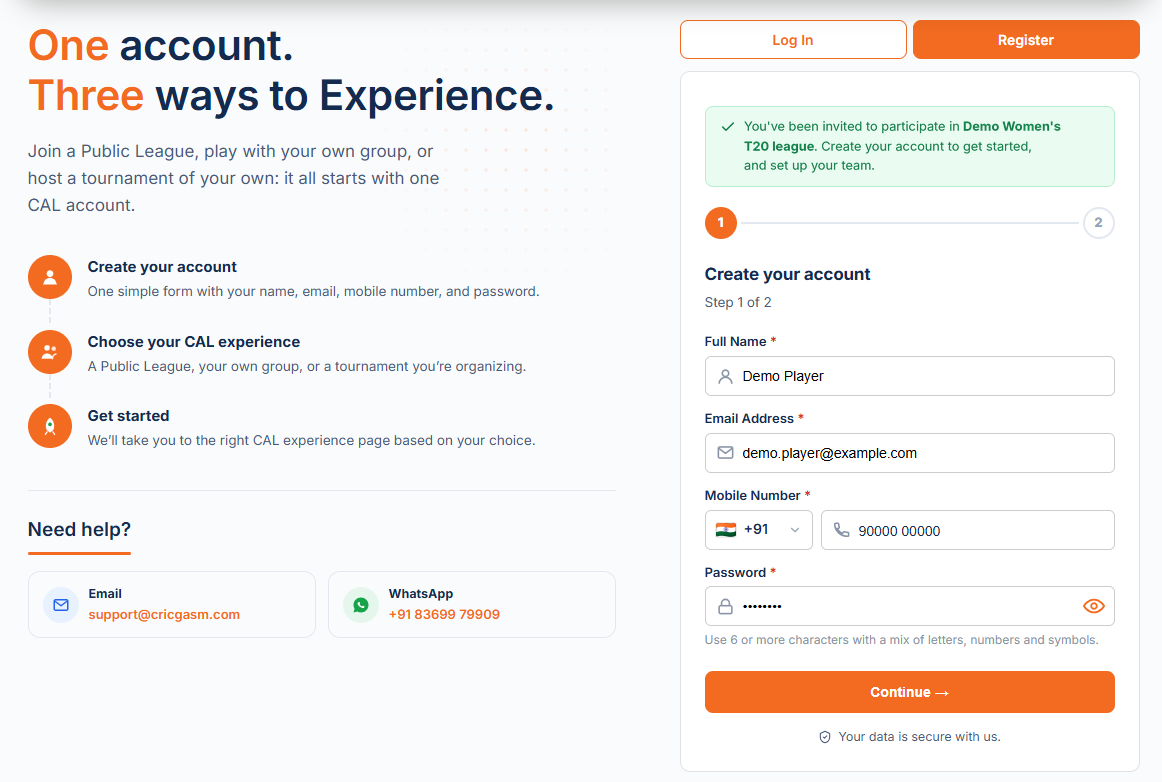
04 Teams Join
Teams register through your link. No code needed.
- A team opens your link. A green banner confirms they have been invited to your league.
- Step 1: they create their account with name, email, mobile number and password.
- Step 2: they set up their team: a preferred team name (it can be changed later), optional team members and the tournament that interests them most. They accept the Terms and Conditions and Privacy Policy, then press Create Account and Join.
- Their request is sent to you. Their dashboard shows the team under My Teams marked Request Pending until you approve it.
- Teams who already have an account just log in through the link and the request goes straight through.
- Prefer a code? Teams with an account open their dashboard, type your league code into Join a Managed League and press Request to Join.
Open the link
Teams see a banner confirming they were invited to your league.
Set up the team
Team name, members and tournament interest, then accept the terms.
Request sent
The request waits for your approval.
05 Approve Teams
Approve teams who joined, or add teams yourself.
- Open Manage Teams. Teams who joined through your link or code are listed under League Teams, marked Pending.
- Check each team, then press Approve or Reject, or Approve All at once. Only approved teams take part.
- Running the teams yourself? Fill in Add a Team: team number, team name, SPOC name and phone number, with optional team members. Teams you add are approved straight away.
- Email and password are only needed if that team will log in to bid online or follow the auction.
- Every team gets the Budget Per Team you set for the league. With Flexible Budget on, you can give a team its own budget here.
Open Manage Teams
Teams who joined appear under League Teams.
Approve
One by one, or Approve All. Only approved teams take part.
Or add them yourself
Fill in Add a Team. It is approved straight away.
06 Build your Player Pool
Download the prefilled template, set your prices, then import.
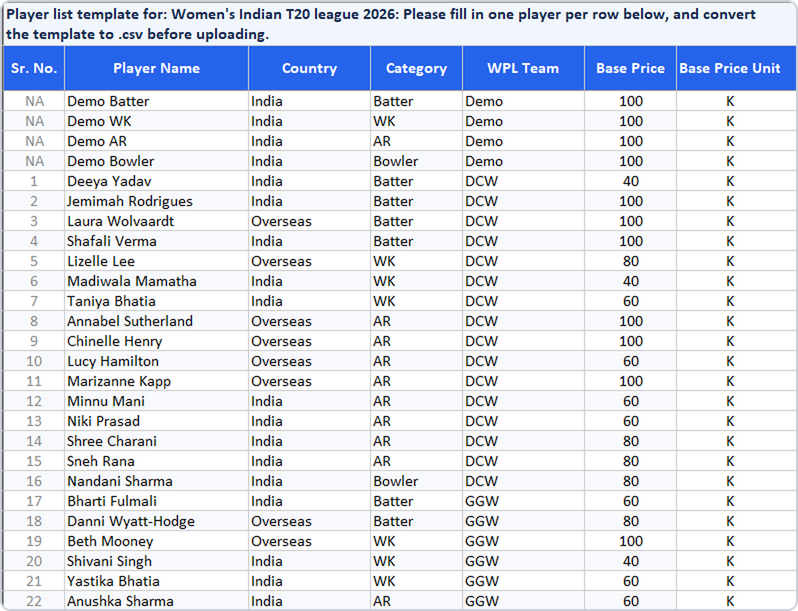
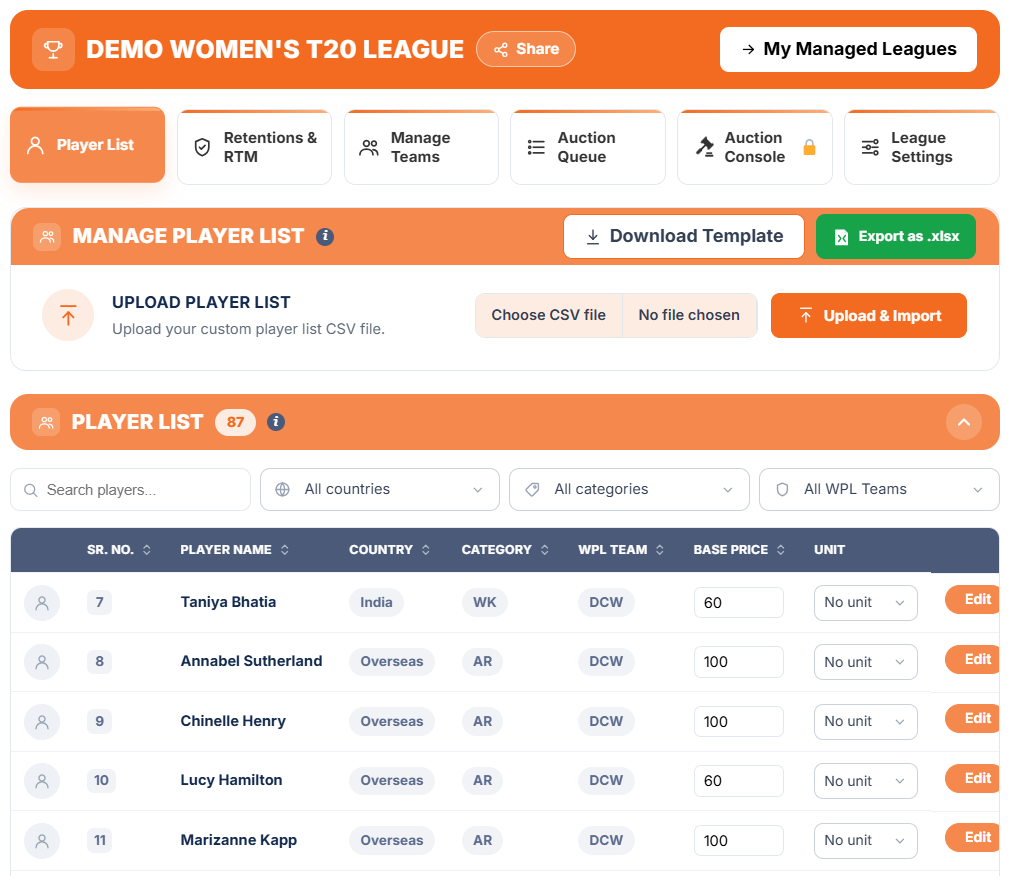
- Open the Player List tab and press Download Template. The template comes prefilled with the players of your tournament, but nothing is added to your league until you import it.
- Serial number, player name, country and team are fixed as per the master template and cannot be changed. Player photos are added automatically.
- Edit each player’s category, base price and base price unit in the file to suit your league.
- Save the file as a CSV and upload it with Upload and Import. Your categories, base prices and units are applied, and the full tournament player set always stays in your league.
- Set your base prices before you build your Rotation Sequence, because sets are groups of players with the same base price.
Download the template
Prefilled with the players of your tournament.
Set your prices
Edit category, base price and base price unit.
Upload and Import
Import the file to build your player pool.
07 Set your Rules
You decide the budget, squad strength and compliance.
- Open the League Settings tab. Under Auction Settings, set the Budget Per Team in Points, Thousands (K), Lakhs (L) or Crores (Cr). You can also set a different budget for individual teams.
- Set the Bid Increment: a flat amount, or up to five step-up tiers that change as the current bid rises.
- Set the Squad Size for each team, either as an exact number or as a minimum and maximum.
- Set your Squad Composition: the minimum number of Batters, WKs, ARs and Bowlers, and the maximum number of Overseas and Indian players in a final squad. Leave a limit empty if you do not need it.
- Add Combination Compliance rules on top, for example Batters and WKs combined at least 4 and at most 6.
- Your settings lock when the auction starts, so all teams play under the same rules.
Auction settings
Budget, bid increment and squad size.
Squad strength
Role minimums, plus Indian and overseas limits.
Compliance
Combination rules on top of the role minimums.
08 Retentions and RTM
Optional. Keep players or match a winning bid, then activate your league.
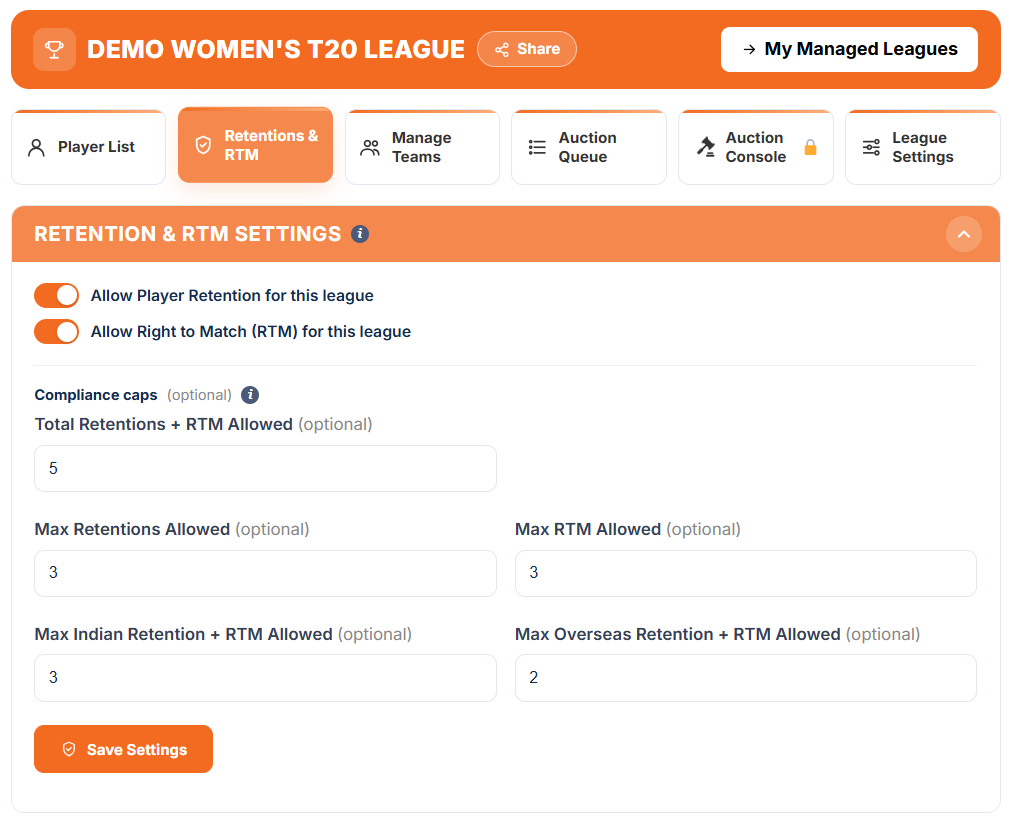
- Open the Retentions & RTM tab. It sits right after Player List, and it appears for every tournament with an international player pool.
- Turn on Allow Player Retention, Allow Right to Match (RTM), or both for your league.
- Optional compliance caps: Total Retentions + RTM Allowed, Max Retentions Allowed, Max RTM Allowed, and the Indian and Overseas limits for Retention + RTM. Leave a cap blank for no limit.
- Retain a Player: choose the team, the player and the Retention Price with its unit. The player goes straight to that team before the auction.
- Tag a Player for RTM: choose the team and the player. When another team wins that player, the tagged team gets a 15-second window to match the winning bid instead.
- Retentions & RTM by Team shows what each team has used, so you can check it against your caps.
- You need at least one approved team first. Retained players are left out of the Rotation Queue. Everything locks when the auction starts.
- Activate your league once your teams are ready. The price depends on the number of teams, and if you add more teams later, you only pay the difference. See the Pricing page.
Turn them on
Allow Retention, RTM, or both, with optional caps.
Retain players
Pick the team, player and Retention Price.
Tag for RTM
The tagged team can match the winning bid within 15 seconds.
Activate your league
Pay to activate once your teams are ready.
09 Run the Auction Online
Teams bid live in the Auction Room, with you in control.
- Demo players first: the queue opens with four practice players (Demo Batter, Demo WK, Demo AR and Demo Bowler), so teams can try bidding before the actual players. They never affect a purse, a squad or the results, and they cannot be removed.
- Retained players are already with their teams and are left out of the queue. If a team is tagged for RTM on a player and another team wins that player, the tagged team gets a 15-second window to match the winning bid.
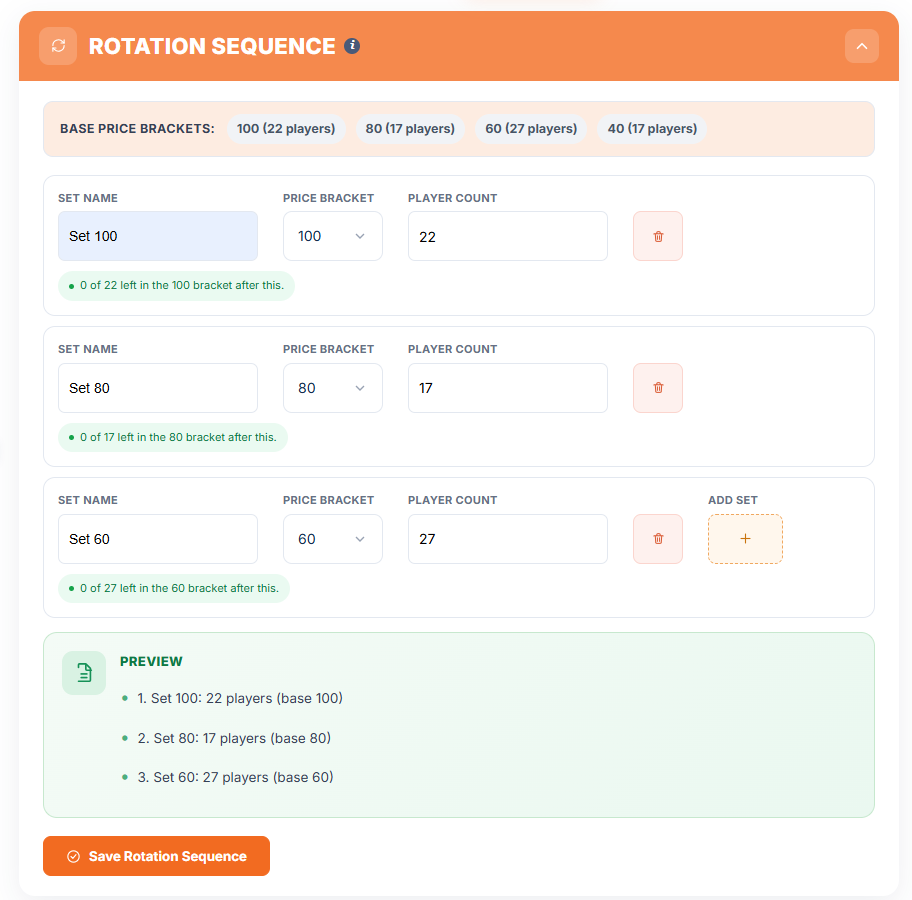
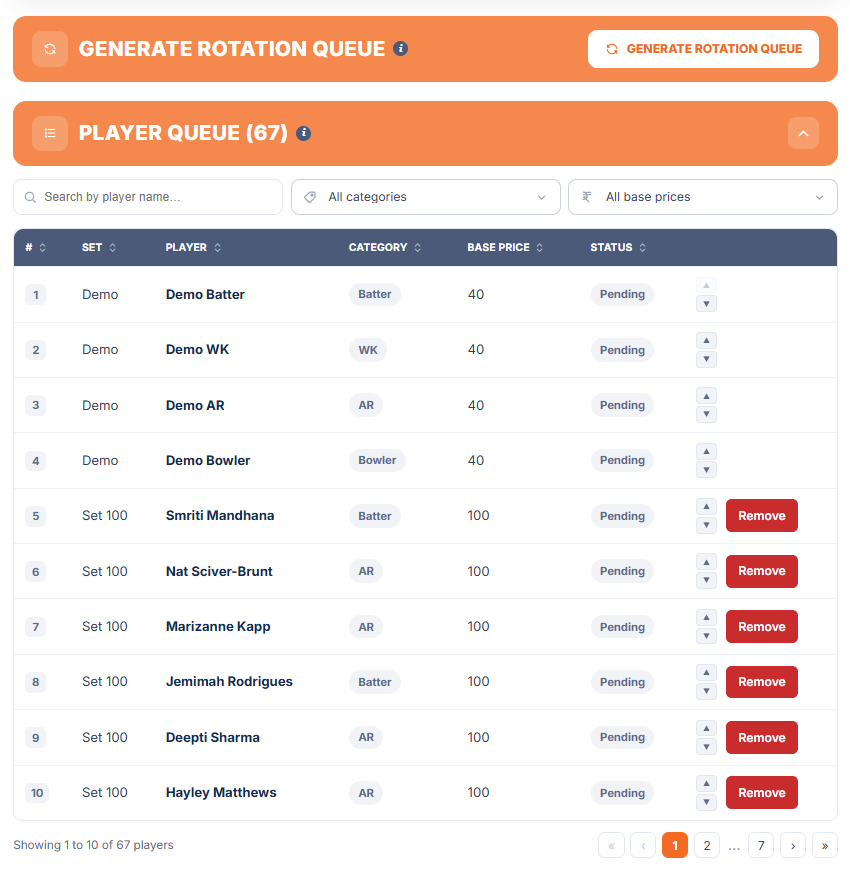
- In the Auction Queue tab, build the Rotation Sequence by ordering your base-price sets and choosing how many players appear at each step. You can also set a Final Set.
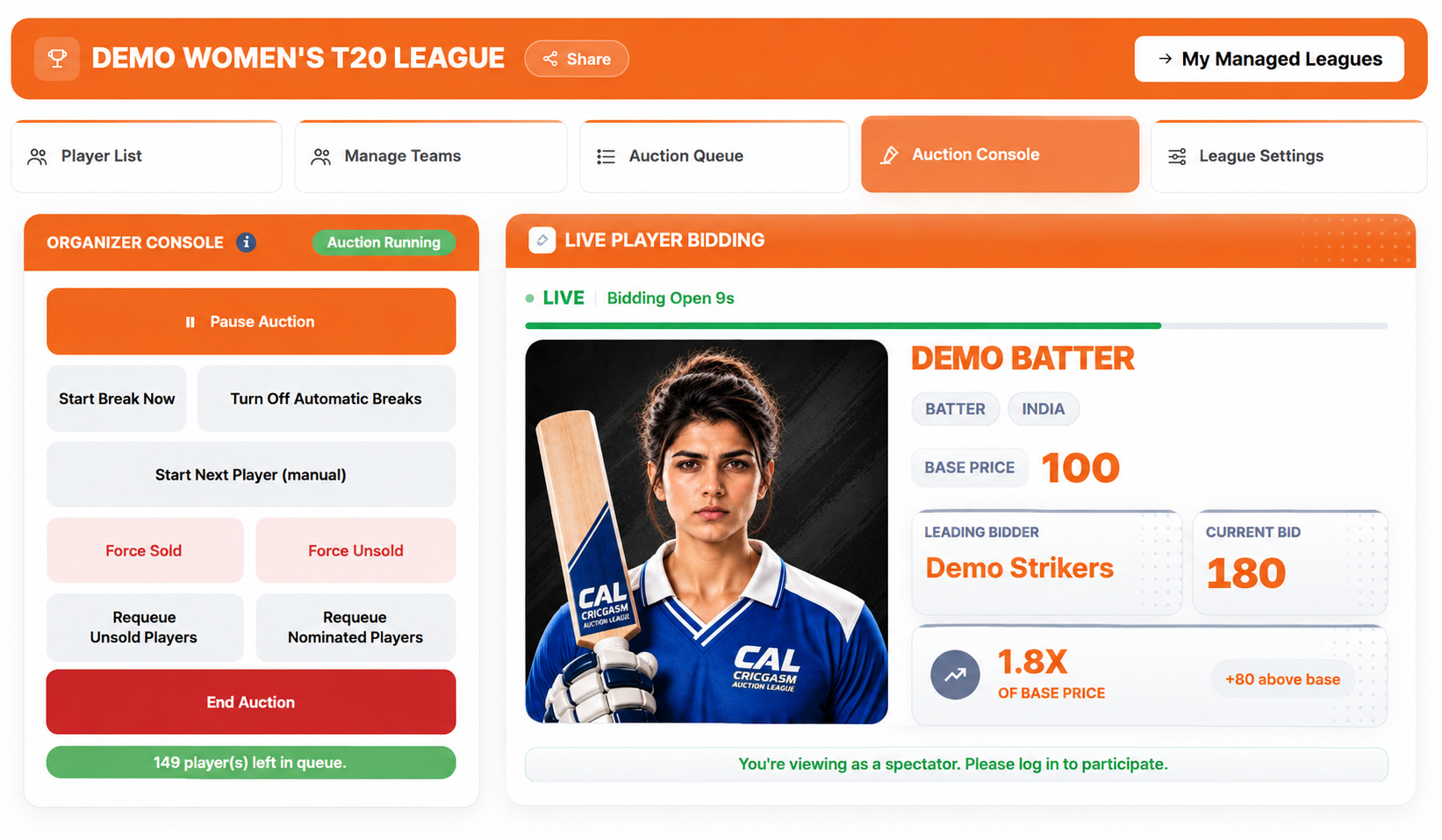
- Open the Auction Console and start the auction. You can pause, resume or end it at any time.
- Teams bid using the live timer. Choose a flat bid increment or up to five step-up tiers.
- Teams still short of a full squad can nominate up to 5 players for the Final Round.
- Teams follow along in the Auction Room: Live Player Bidding, Team Summary, Auction Tracker, Bid Activity, the Sold and Unsold list and the Chatroom.
Build the rotation
Order your base-price sets, with an optional Final Set.
Open the Auction Console
Start, pause, resume or end at any time.
Teams bid online
A flat increment or step-up tiers.
10 Run the Auction Offline
Run the room yourself, with CAL keeping the books.
- While creating your league, choose Offline Auction as the Bidding Mode. It is locked once the auction has started.
- Teams are added and approved as usual. In an offline auction the bidding happens in the room, so there is no timer and no Bid button for teams.
- Organizer and Coordinator: the Organizer owns the league and its settings. If CAL has assigned a Coordinator to your league, they can open the same Auction Console and run the room on auction day, for this league only.
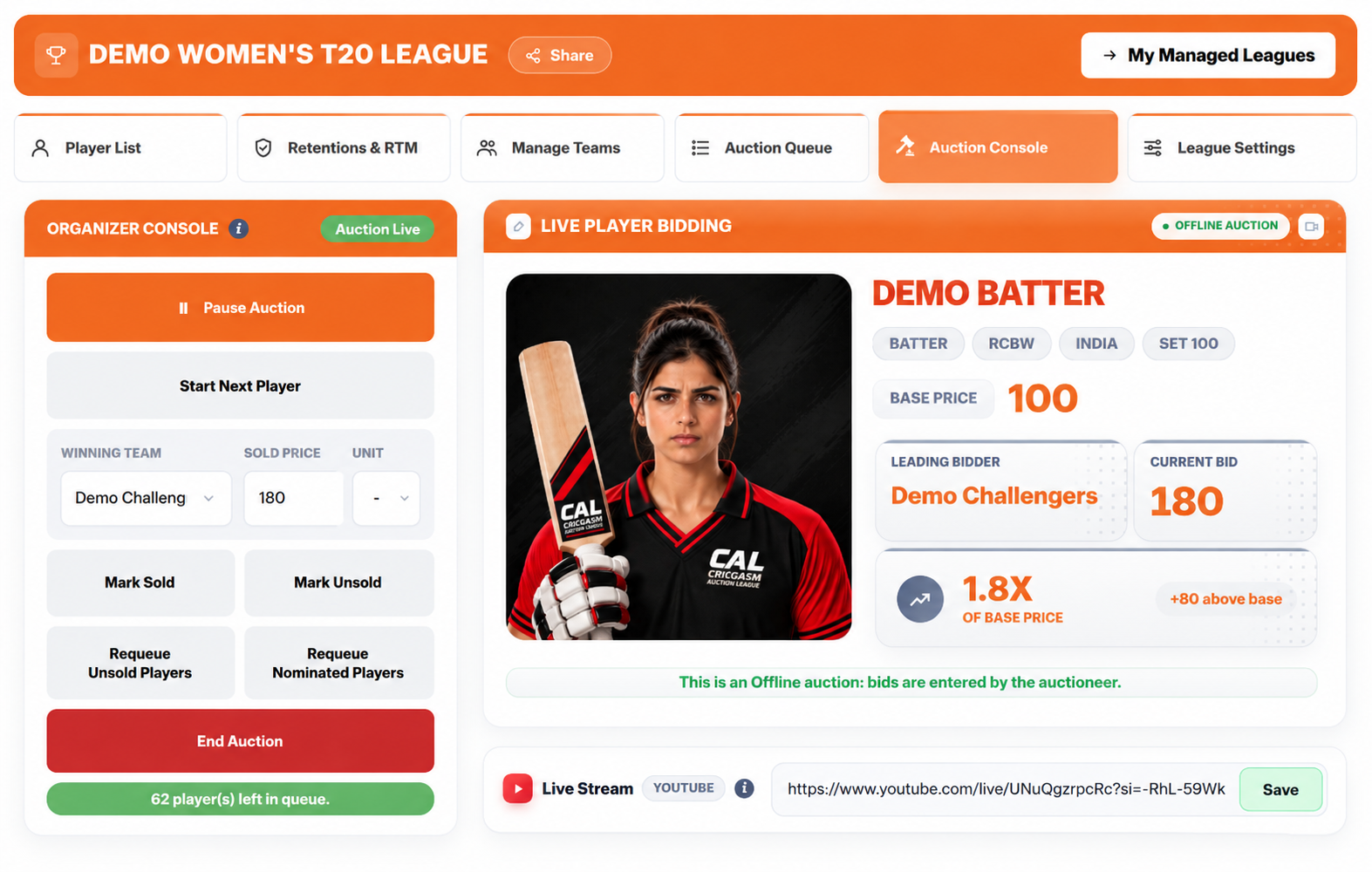
- On auction day, open the Auction Console and press Start Auction. You can pause and resume the session at any time.
- Press Start Next Player. The next player from your queue appears on the console. Call out the bidding in the room.
- When the hammer falls, choose the Winning Team, enter the Sold Price and press Mark Sold. CAL checks the price against the base price, any step-up tiers, the team’s budget and its squad rules. Once recorded, the sale is final.
- If nobody bids, press Mark Unsold. Unsold players can be put back in the queue with Requeue.
- Streaming the room? Paste your YouTube live link into the Live Stream card, and teams who could not attend can watch from the Auction Room. In full screen, a Current Bid card sits over the video showing the live player, the leading bidder and the current bid.
- Teams can still follow the results in the Auction Room: Team Summary, Auction Tracker, the Sold and Unsold list and the Chatroom.
Choose Offline
Pick Offline Auction as the Bidding Mode when you create the league.
Start the auction
Open the Auction Console, press Start Auction, then Start Next Player.
Record each sale
Choose the Winning Team, enter the Sold Price and press Mark Sold.
Share the stream
Optional: add a YouTube live link so teams can watch remotely.
11 Follow the Tournament
Track your squad as the tournament progresses.
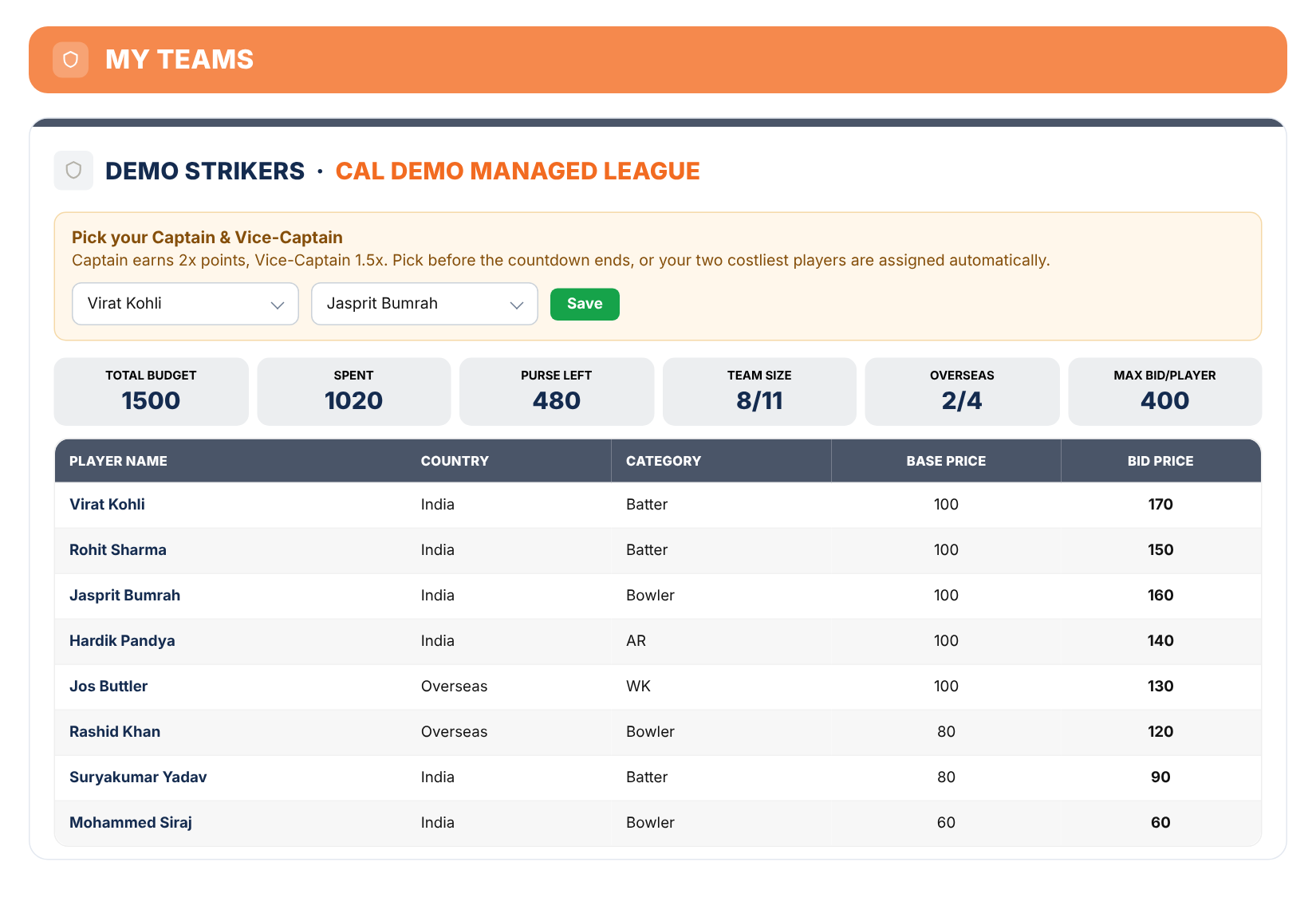
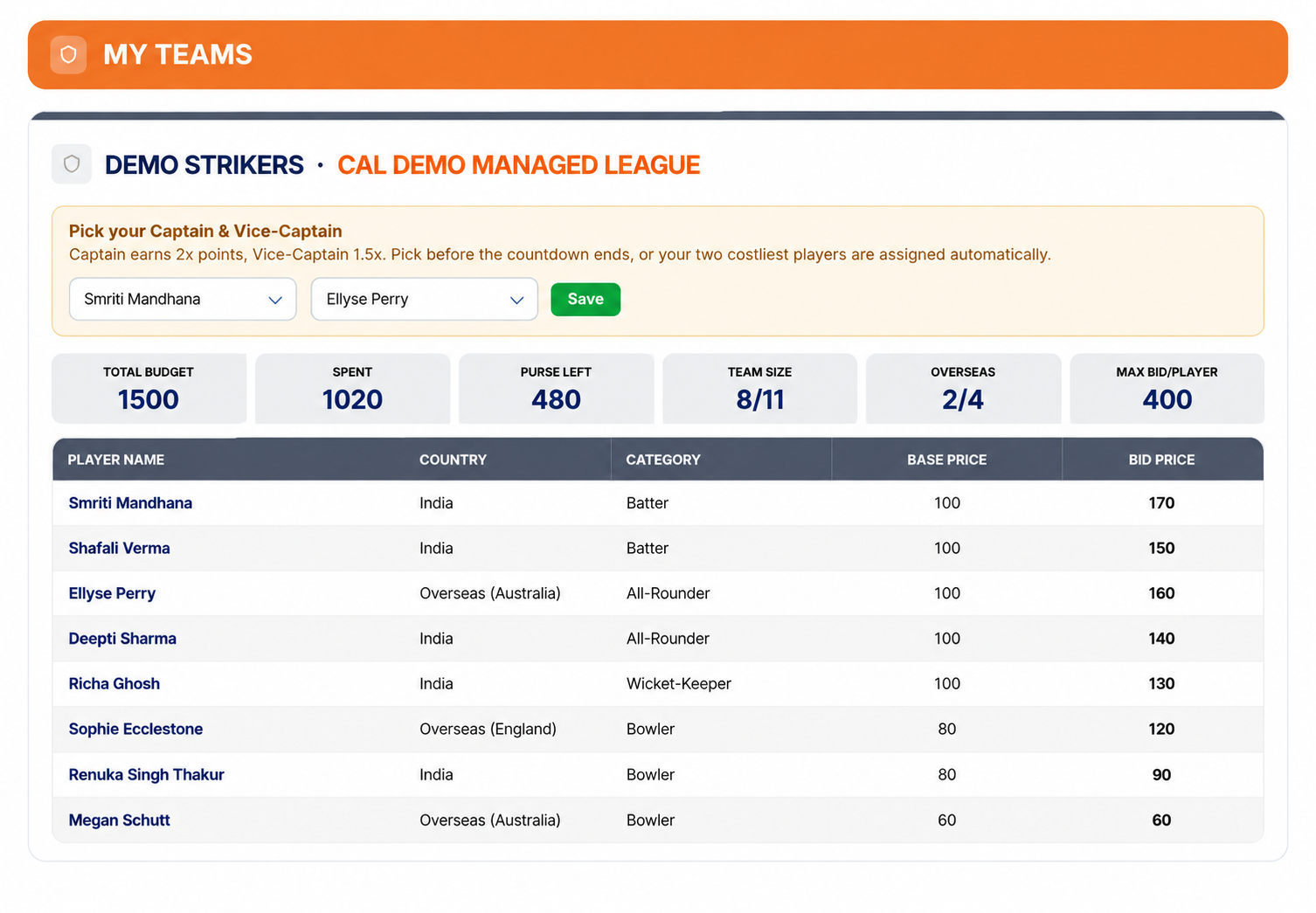
- After the auction, choose your Captain (2× points) and Vice-Captain (1.5× points) before the tournament start countdown ends. They must be two different players.
- If you don’t choose, your two costliest players are assigned automatically, the highest price as Captain. Other teams’ choices stay hidden until the tournament starts.
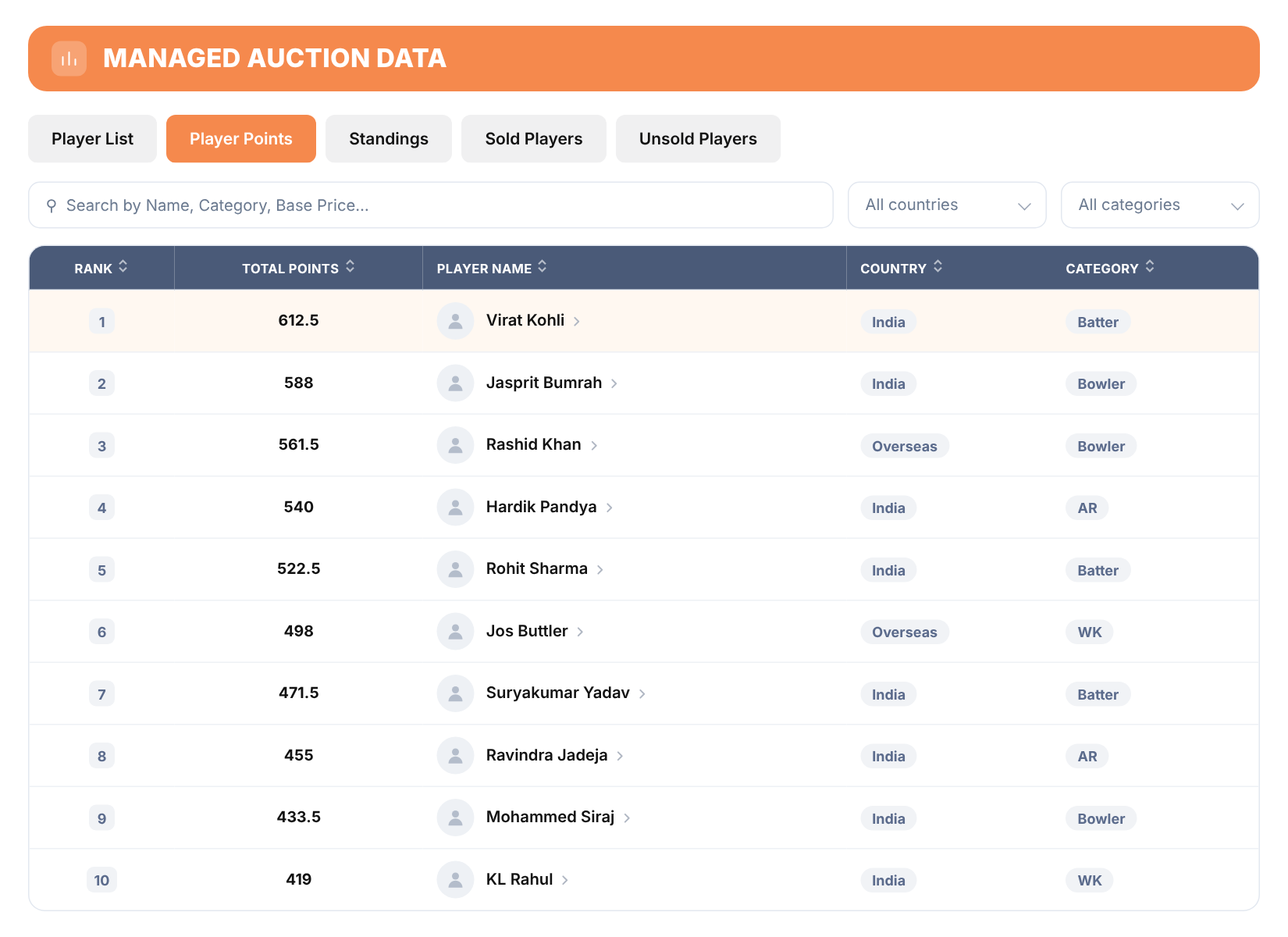
- Use Player Points to follow points earned from official match scorecards using the CAL Points System.
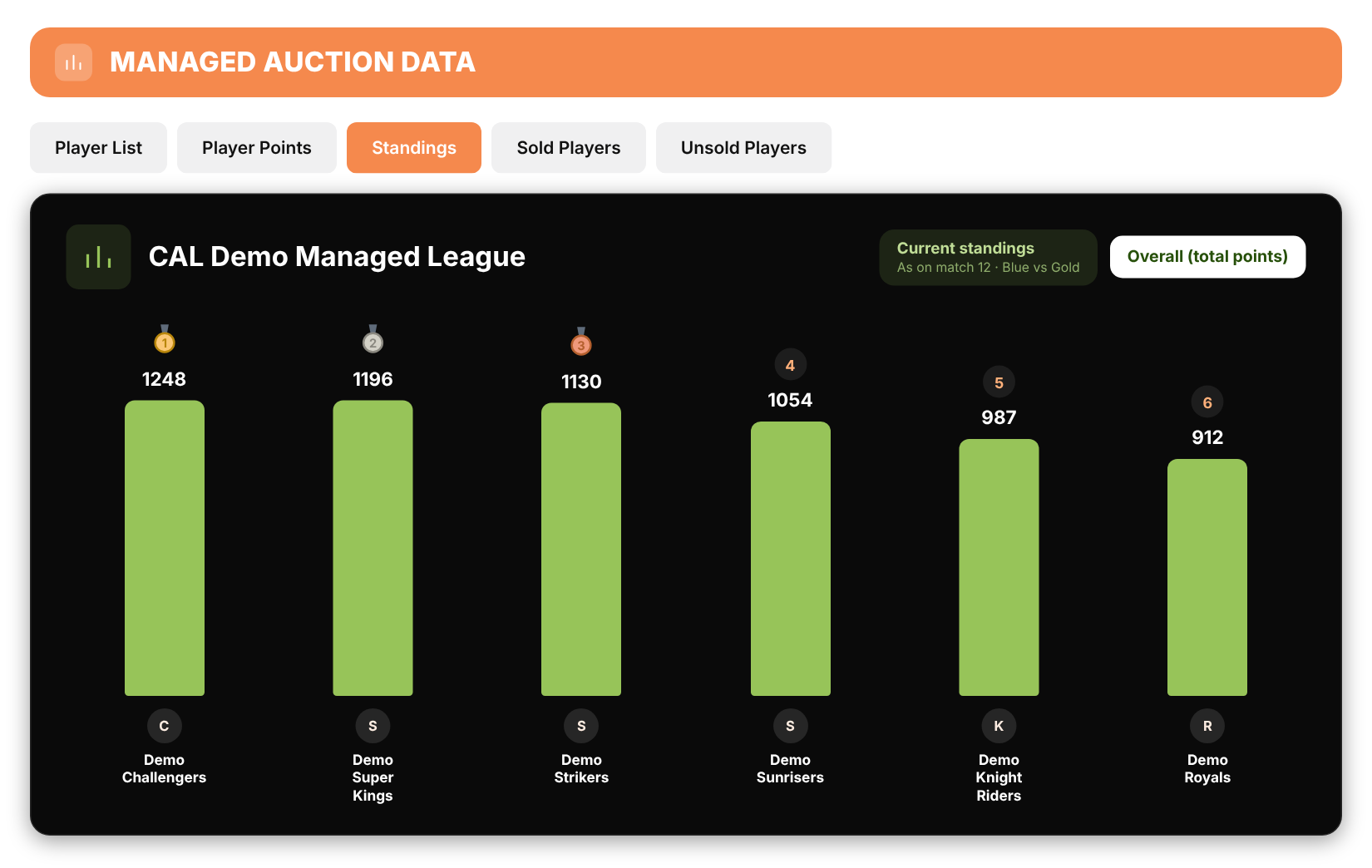
- Open Standings to see teams ranked by their total CAL Points.
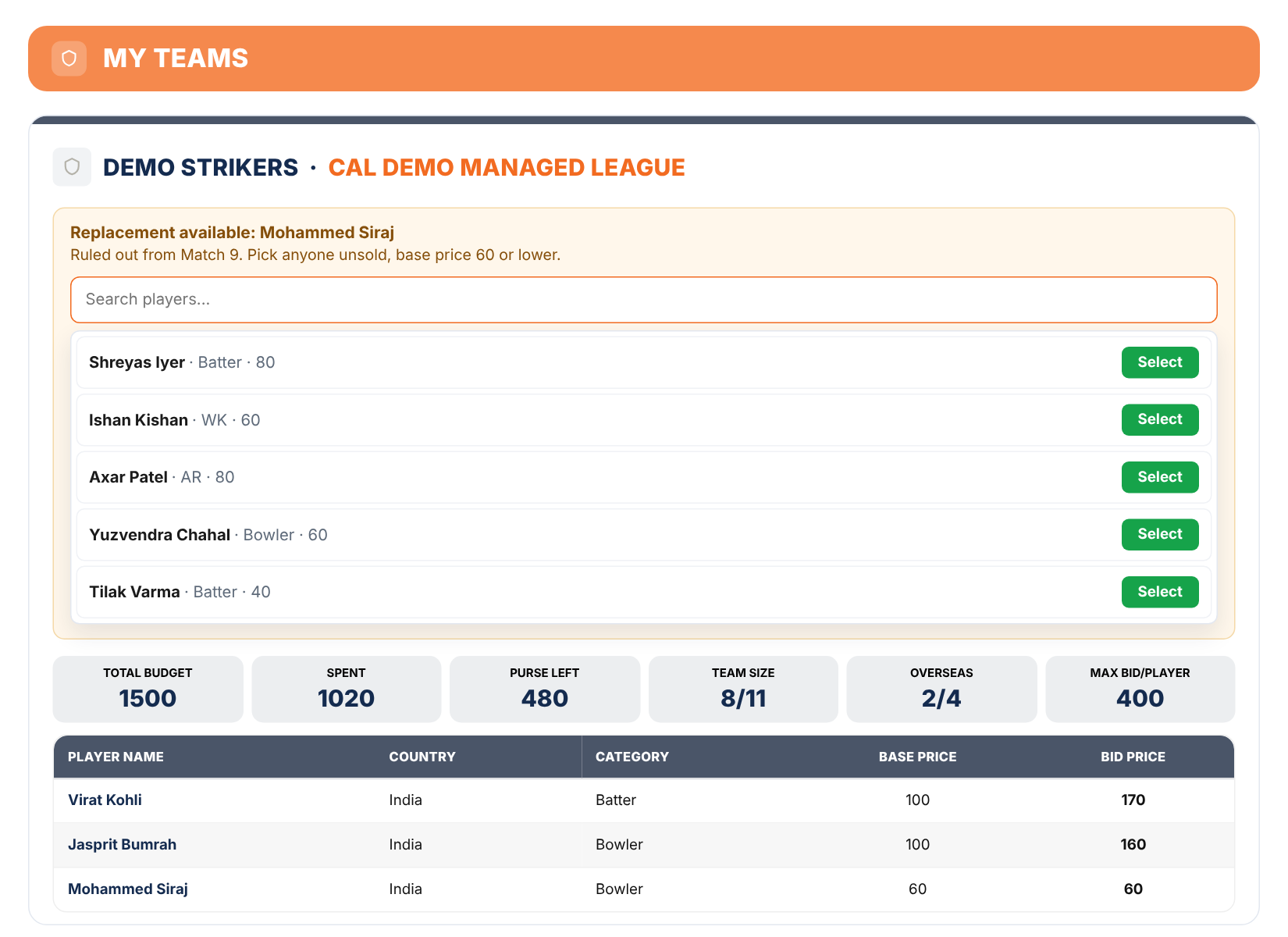
- If a player is officially ruled out, use the Replace tool on your dashboard to request a replacement. The organizer reviews and approves each request.
Choose your captains
Captain scores 2× and Vice-Captain 1.5×. Choose before the tournament starts.
Follow Player Points
Points from official match scorecards, using the CAL Points System.
Check Standings
Teams ranked by their total CAL Points.
Request replacements
If a player is officially ruled out, use the Replace tool on your dashboard.
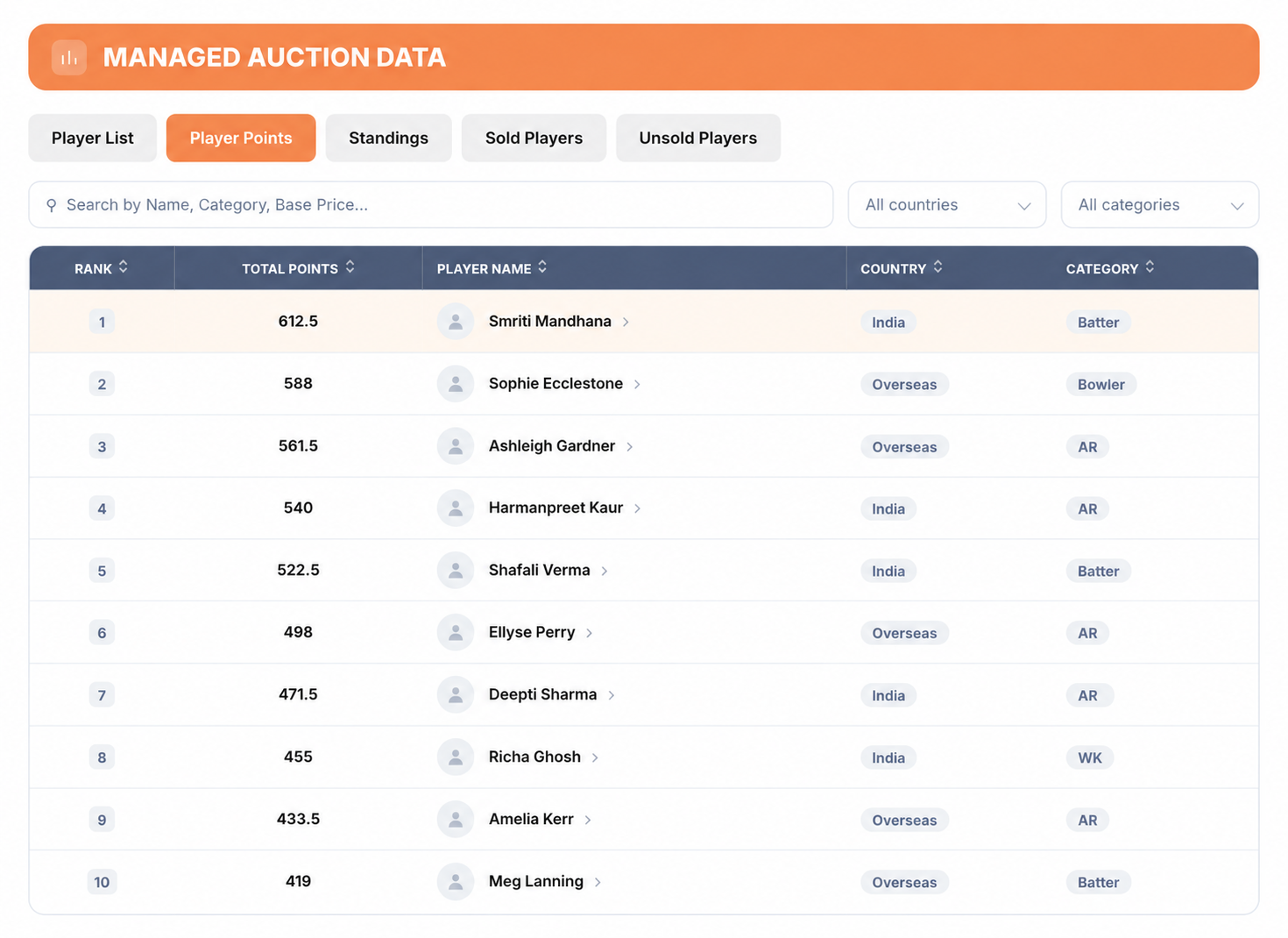
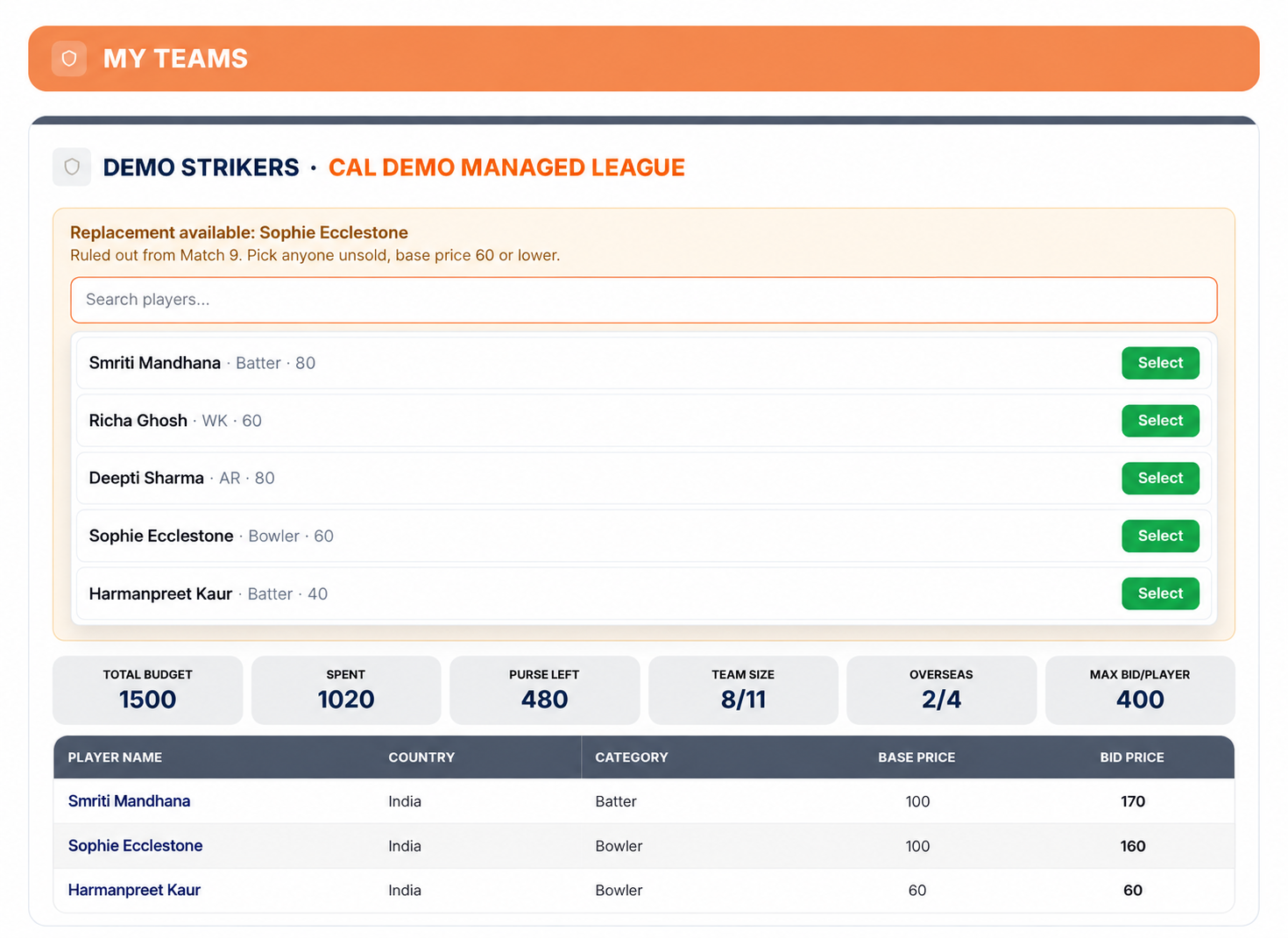
01 Create your Account
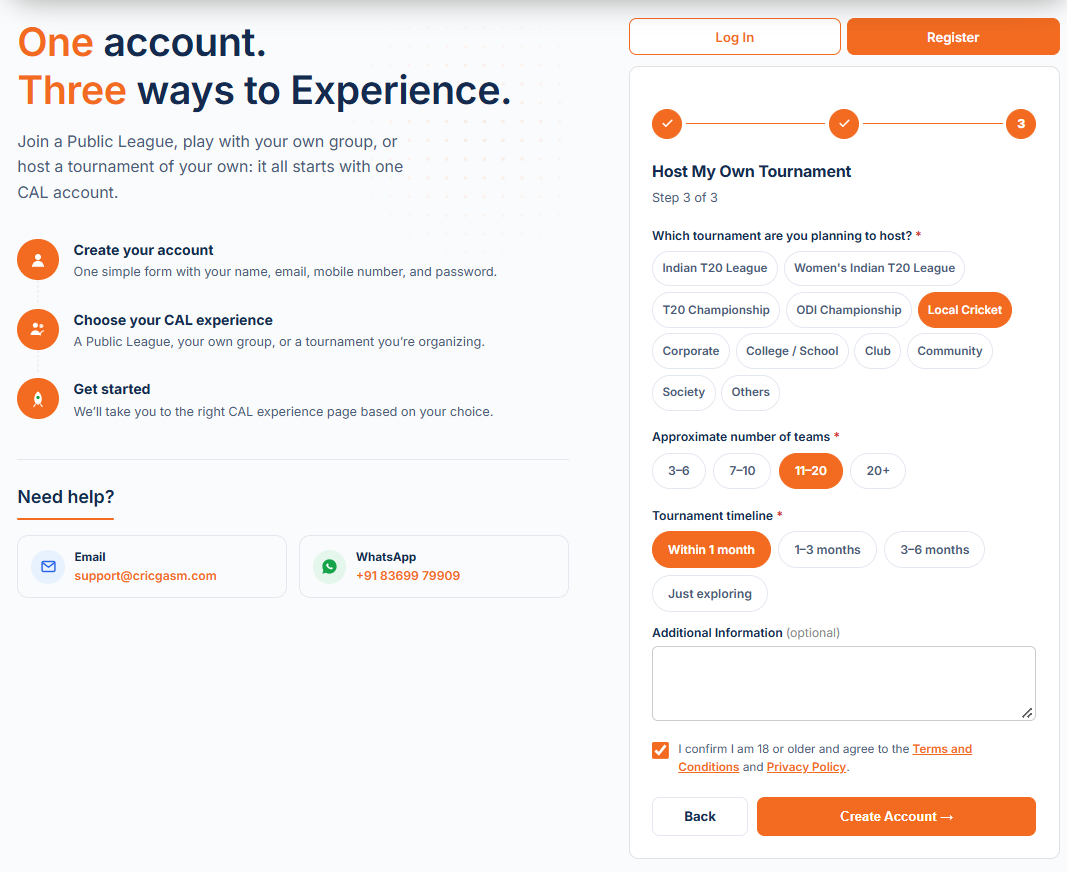
Tell us about your local tournament.
- Open the Register page and enter your name, email, mobile number and password.
- Step 2: Select Host My Own Tournament.
- Step 3: Tell us about your tournament, including the event type, expected number of teams and timeline. You can add any additional details if needed.
- Accept the Terms & Conditions and Privacy Policy, then click Create Account.
Open Register
Your details, in step 1 of 3.
Host My Own Tournament
Choose the experience in step 2.
Your event
The event type, number of teams and timeline.
Land on your dashboard
With My Managed Leagues in the menu.
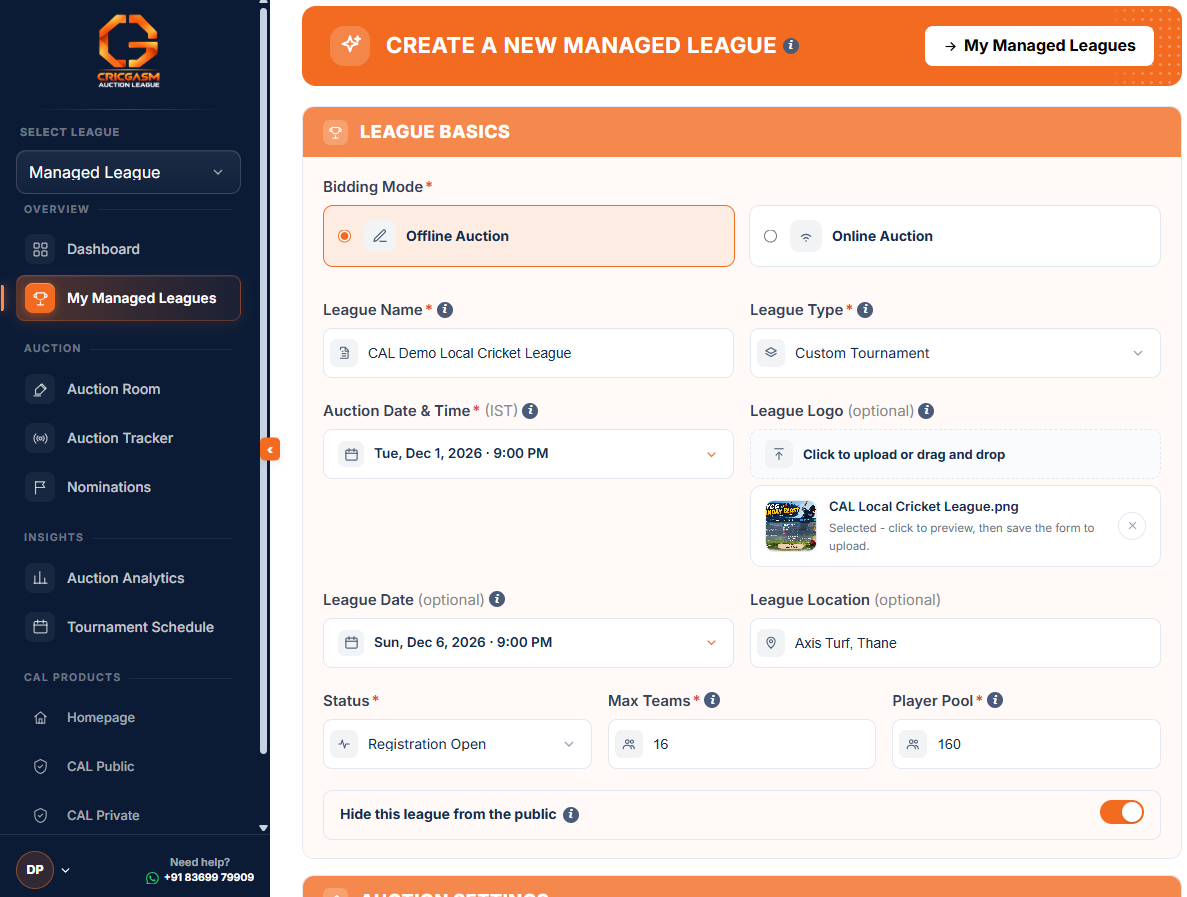
02 Create your League
Pick Local Tournament to use your own players.
- Try a Demo Auction first: from your console, create one free Demo Auction to learn the system. It is instant, needs no approval or payment, and runs with 2 teams. Only you can see it, and you can have one at a time.
- Open My Managed Leagues and create a league.
- Choose Local Tournament as the league type to use your own player pool.
- Set your League Basics and Auction Settings, including the bidding mode, auction date and time, team limit, budget, bid increment and squad size.
- Review your league and check the details before creating it. You pay only when you activate the league, with pricing based on your team limit. See the Pricing page.
My Managed Leagues
Your console for every tournament you host.
Local Tournament
Your players, your ratings, your rules.
Basics and Auction Settings
Bidding mode, date and time, team limit, budget, bid increment and squad size.
Review and create
Check the details. You pay only when you activate.
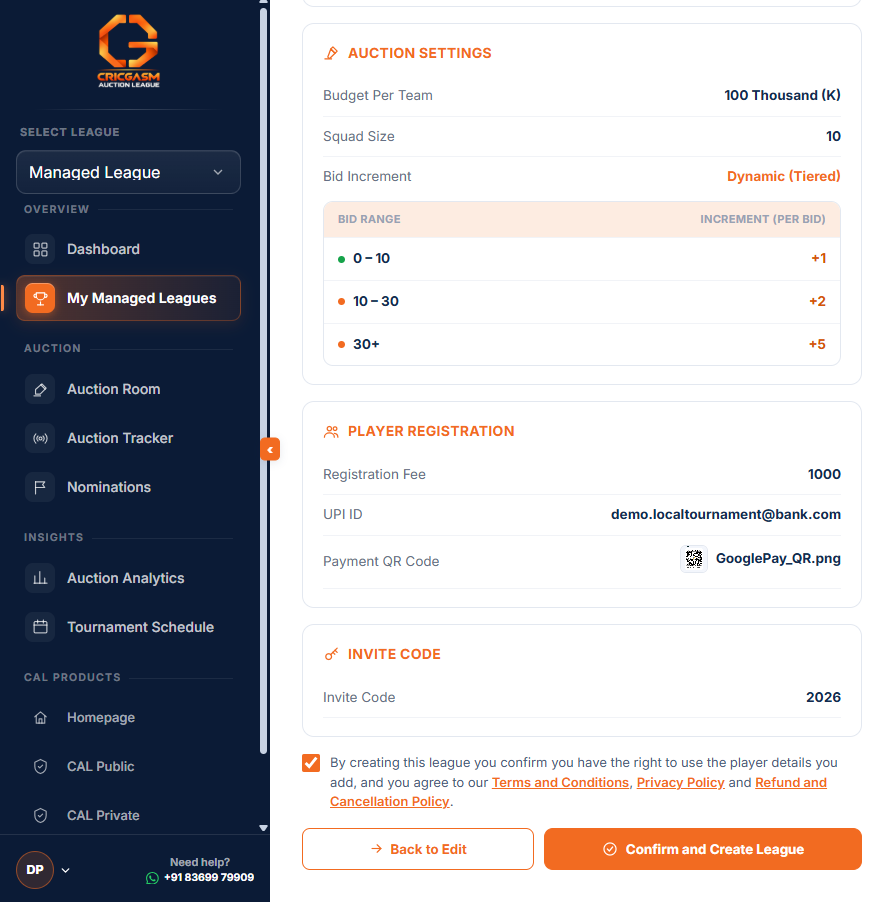
03 Invite your Teams
Your league is invite-only. Share your code or join link.
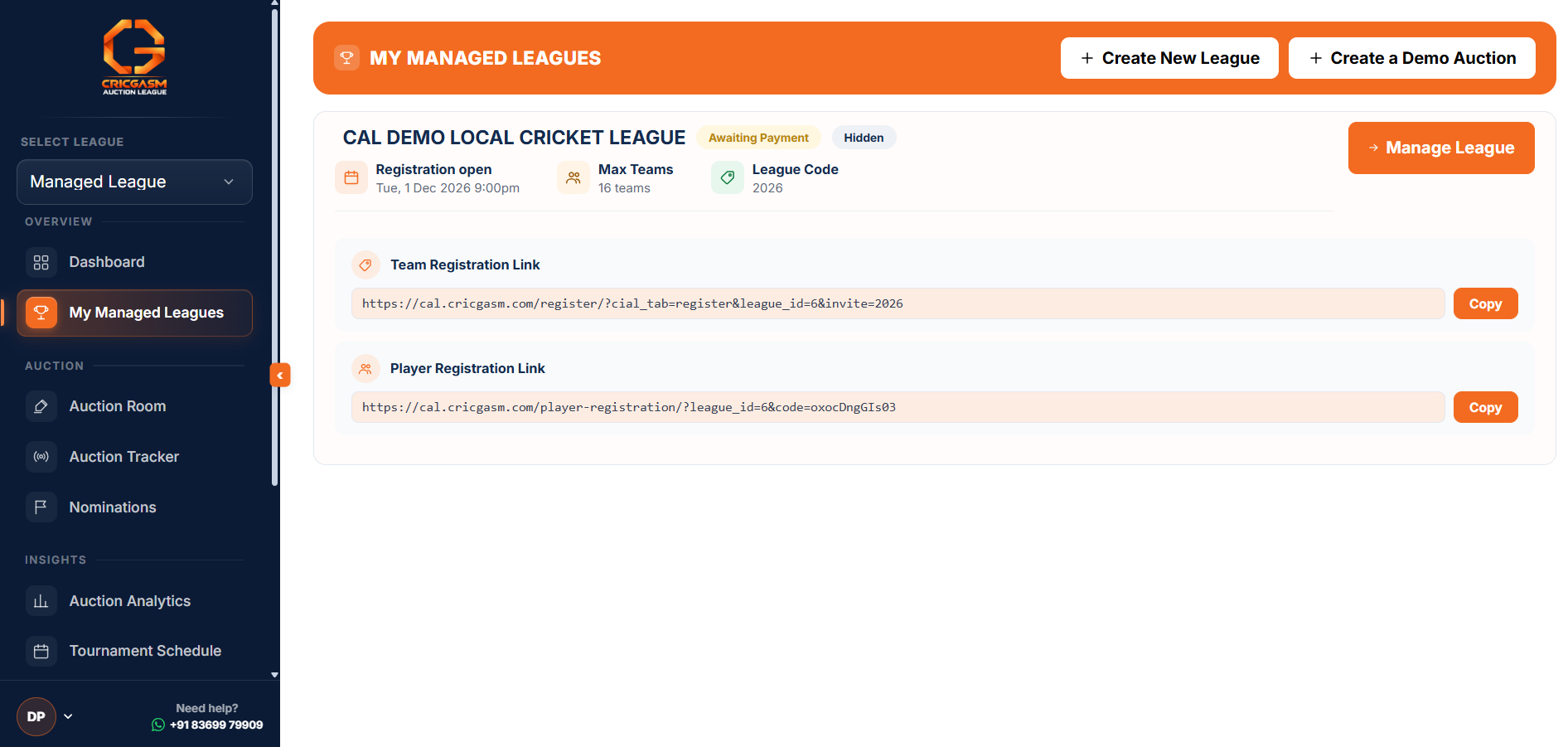
- Open My Managed Leagues and find your league card. It shows your league code and a Team Registration Link.
- Press Copy and share the link with your teams by WhatsApp or email.
- Teams who prefer can also join with the league code instead of the link.
- You can hide your league from public view, so only people with the link or code can find it.
Find your link
Your league card shows the code and the Team Registration Link.
Copy it
Press Copy to grab the join link.
Share it
Send it to your teams by WhatsApp or email.
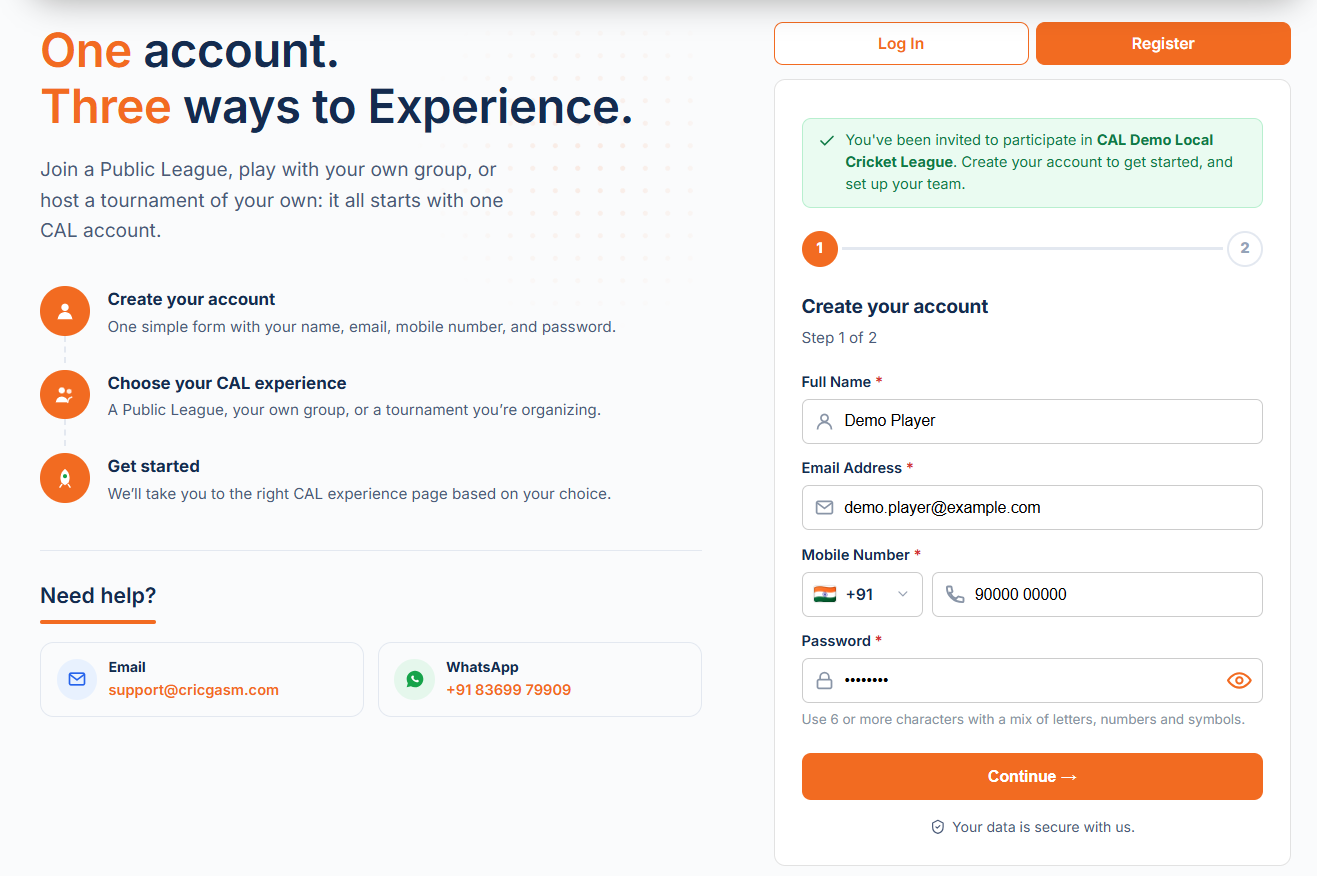
04 Teams Join
Teams register through your link. No code needed.
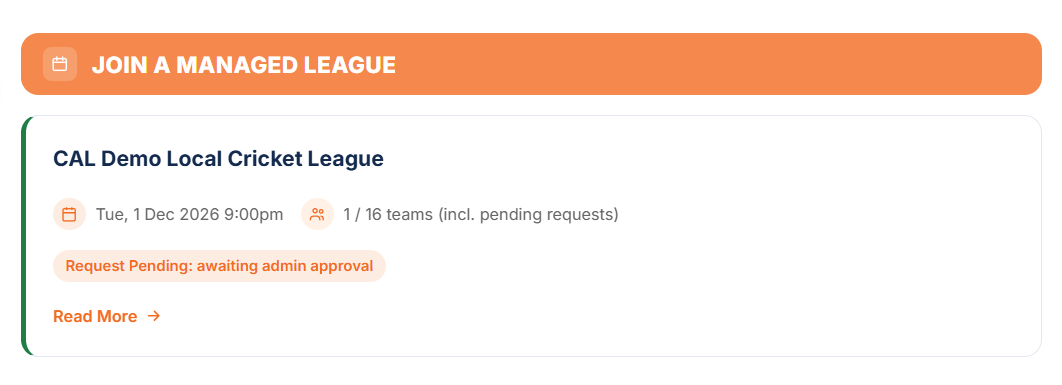
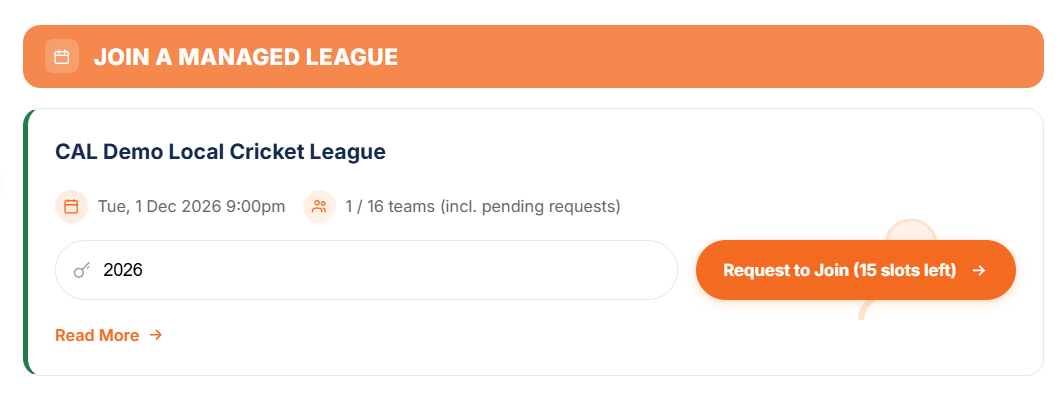
- A team opens your link. A green banner confirms they have been invited to your league.
- Step 1: they create their account with name, email, mobile number and password.
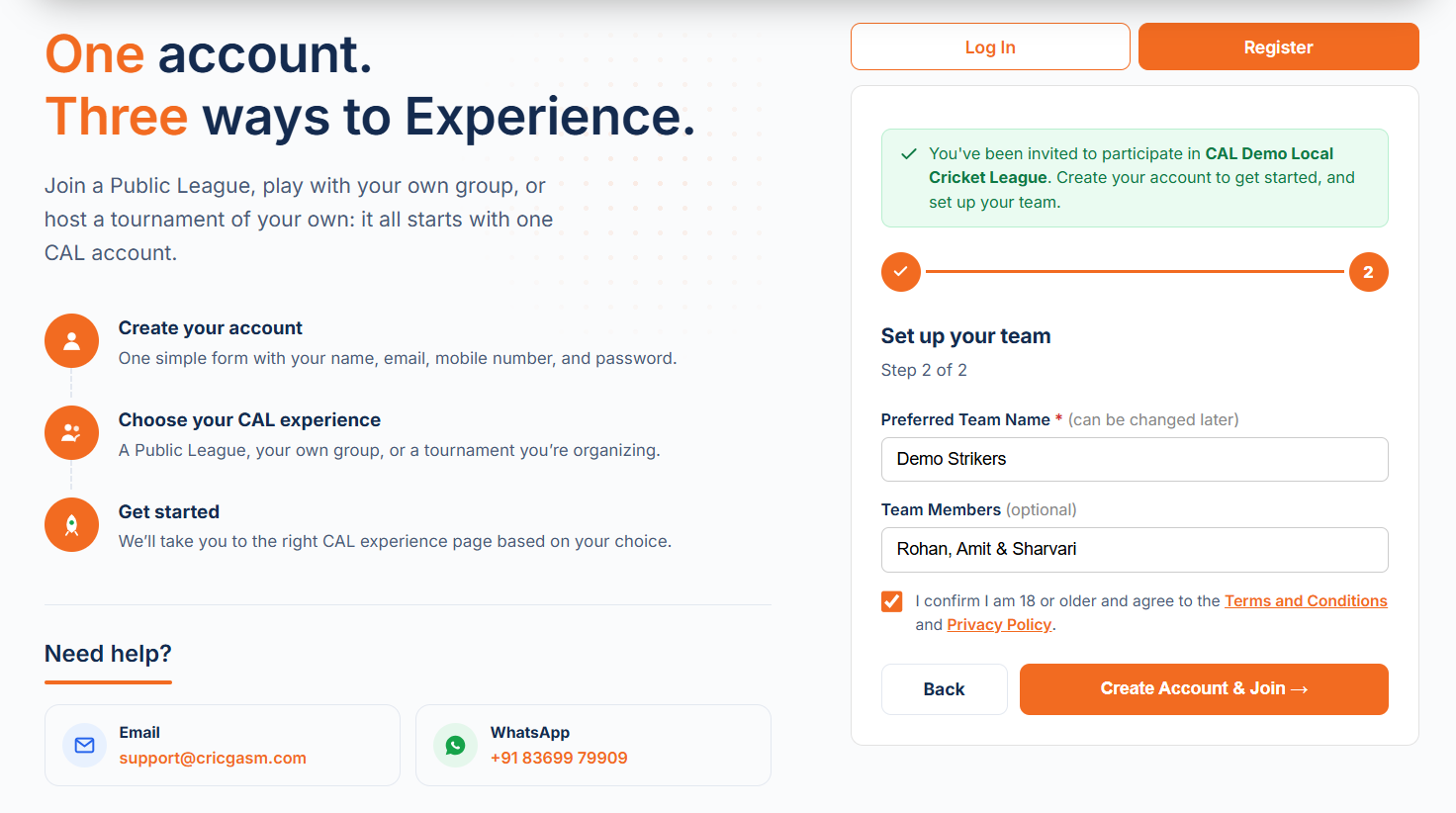
- Step 2: they set up their team: a preferred team name (it can be changed later), optional team members and the tournament that interests them most. They accept the Terms and Conditions and Privacy Policy, then press Create Account and Join.
- Their request is sent to you. Their dashboard shows the team under My Teams marked Request Pending until you approve it.
- Teams who already have an account just log in through the link and the request goes straight through.
- Prefer a code? Teams with an account open their dashboard, type your league code into Join a Managed League and press Request to Join.
Open the link
Teams see a banner confirming they were invited to your league.
Set up the team
Team name, members and tournament interest, then accept the terms.
Request sent
The request waits for your approval.
05 Approve Teams
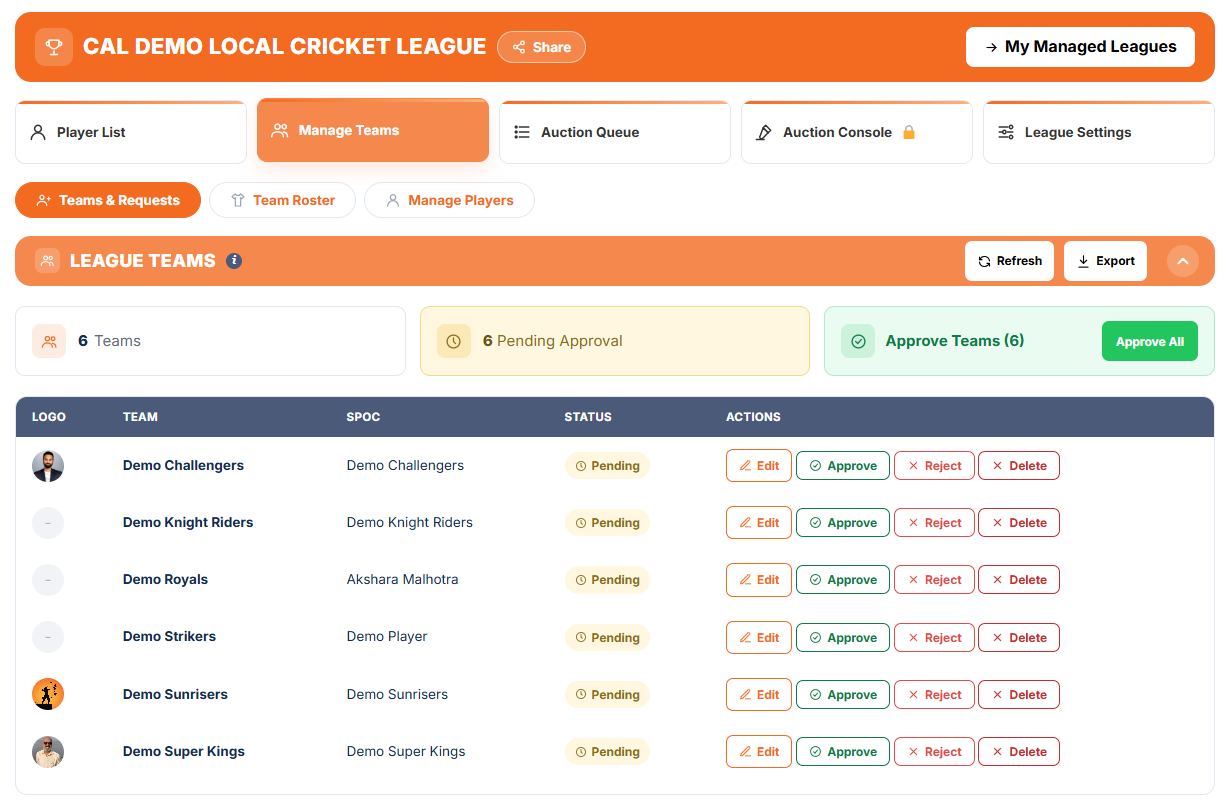
Approve teams who joined, or add teams yourself.
- Open Manage Teams. Teams who joined through your link or code are listed under League Teams, marked Pending.
- Check each team, then press Approve or Reject, or Approve All at once. Only approved teams take part.
- Running the teams yourself? Fill in Add a Team: team number, team name, SPOC name and phone number, with optional team members. Teams you add are approved straight away.
- Email and password are only needed if that team will log in to bid online or follow the auction.
- Every team gets the Budget Per Team you set for the league. With Flexible Budget on, you can give a team its own budget here.
Open Manage Teams
Teams who joined appear under League Teams.
Approve
One by one, or Approve All. Only approved teams take part.
Or add them yourself
Fill in Add a Team. It is approved straight away.
06 Build your Player Pool
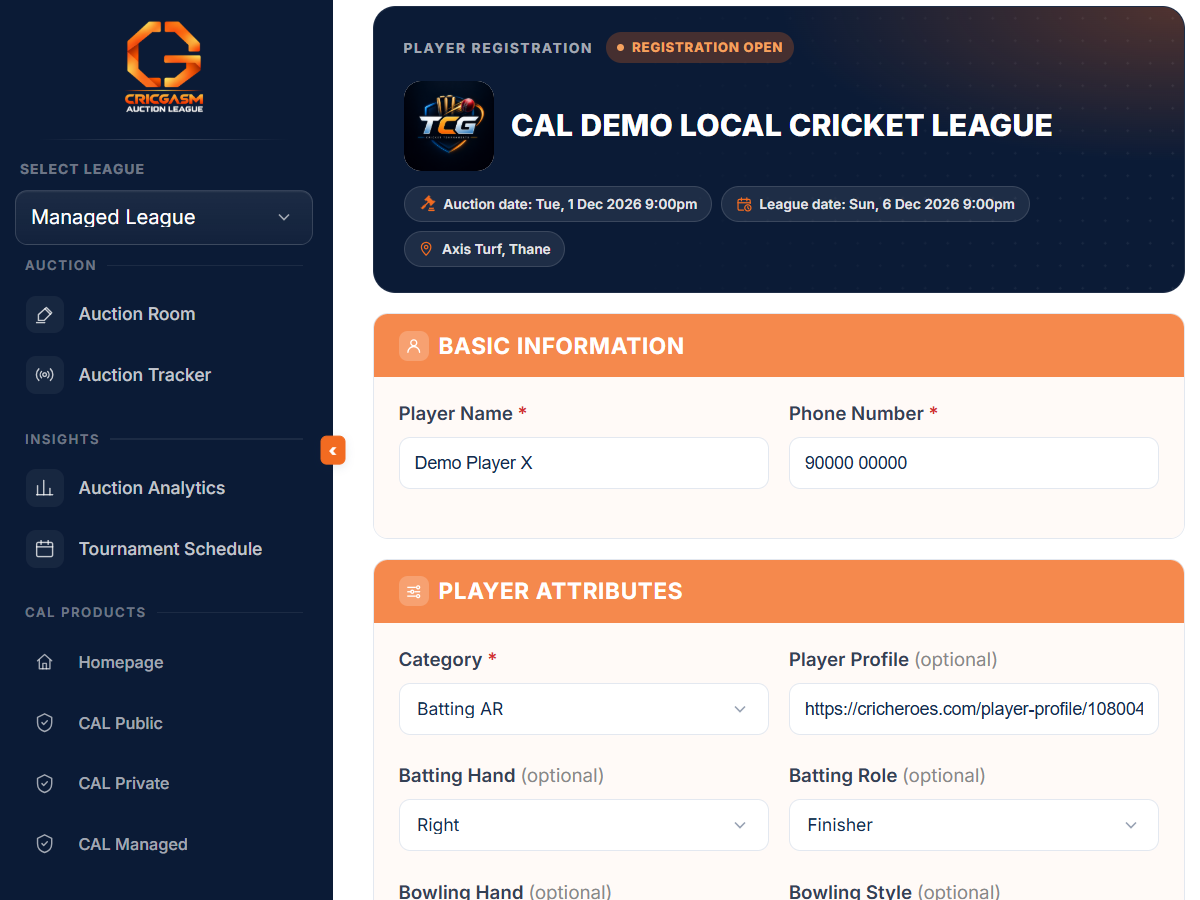
Let players register themselves, or add them yourself.
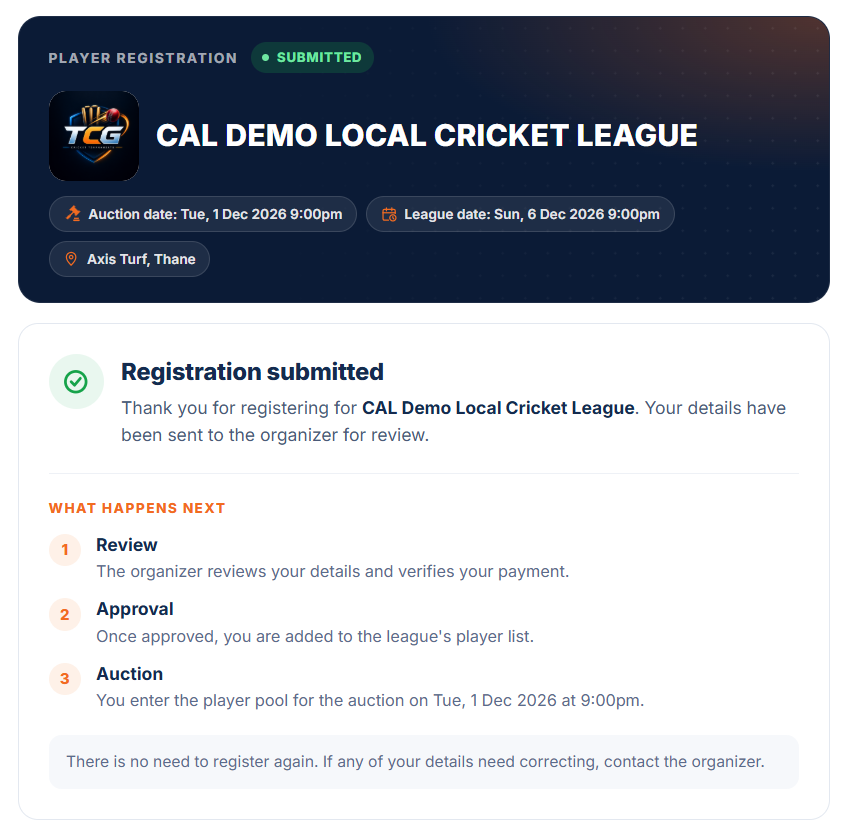
- Player registration link: turn on Allow players to register themselves in League Settings. Your league card then shows a Player Registration Link to share.
- Players fill in their details and rate their own batting and bowling. You can add an optional registration fee, UPI ID and payment QR code.
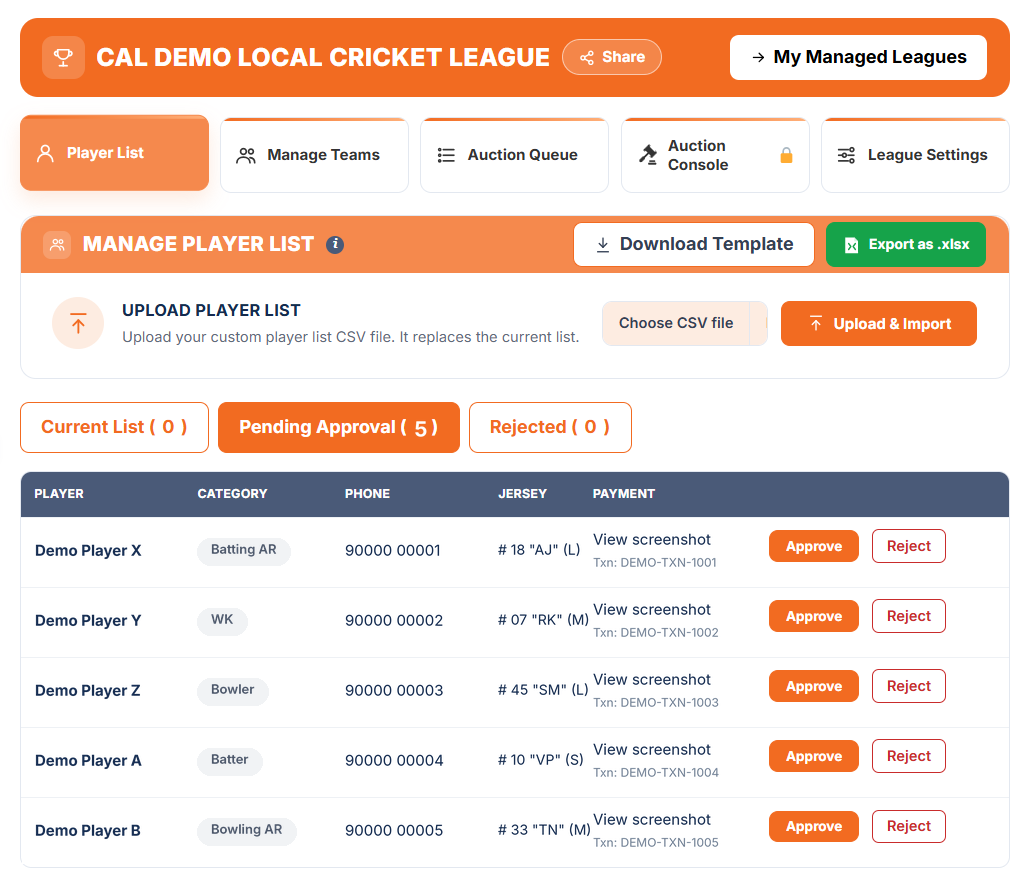
- New registrations appear under Pending Approval on the Player List tab. Approve or reject each one. Only approved players enter your pool.
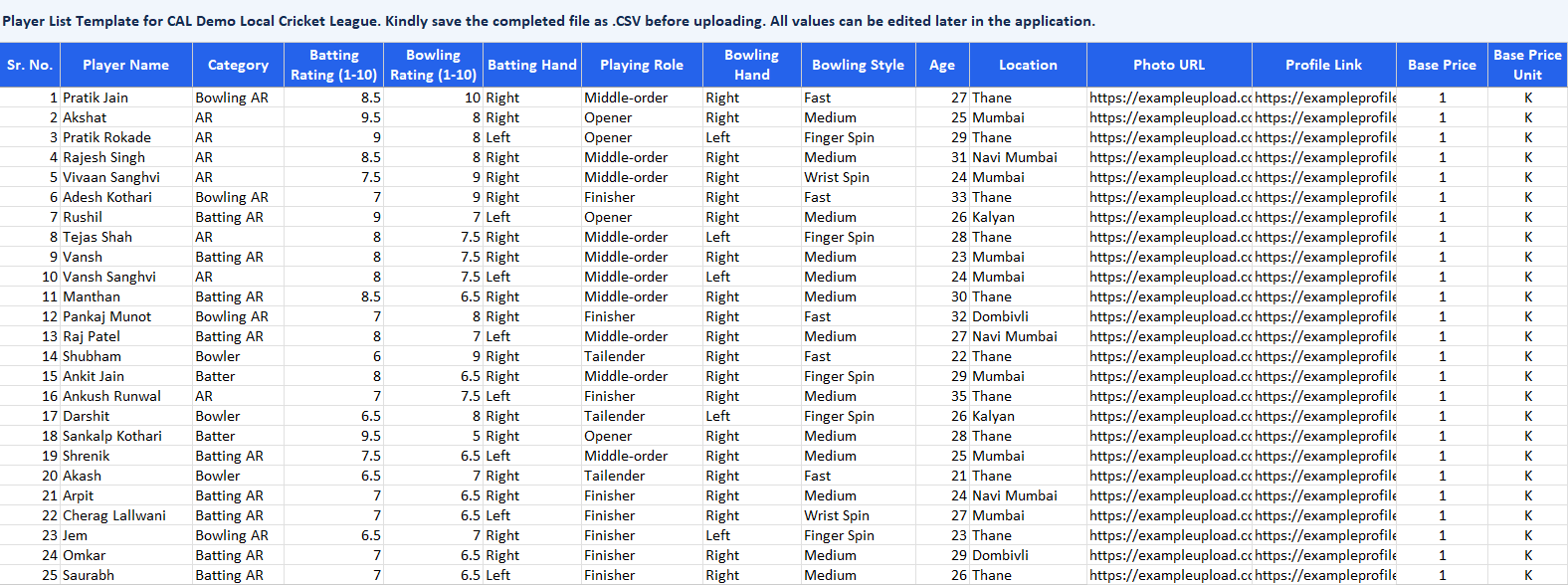
- Template: open the Player List tab and press Download Template. Add each player’s name, category, Batting Rating and Bowling Rating (1 to 10), base price and optional details.
- Save the file as a CSV and upload it with Upload and Import. A new upload replaces the current list, but players who registered through your link are kept.
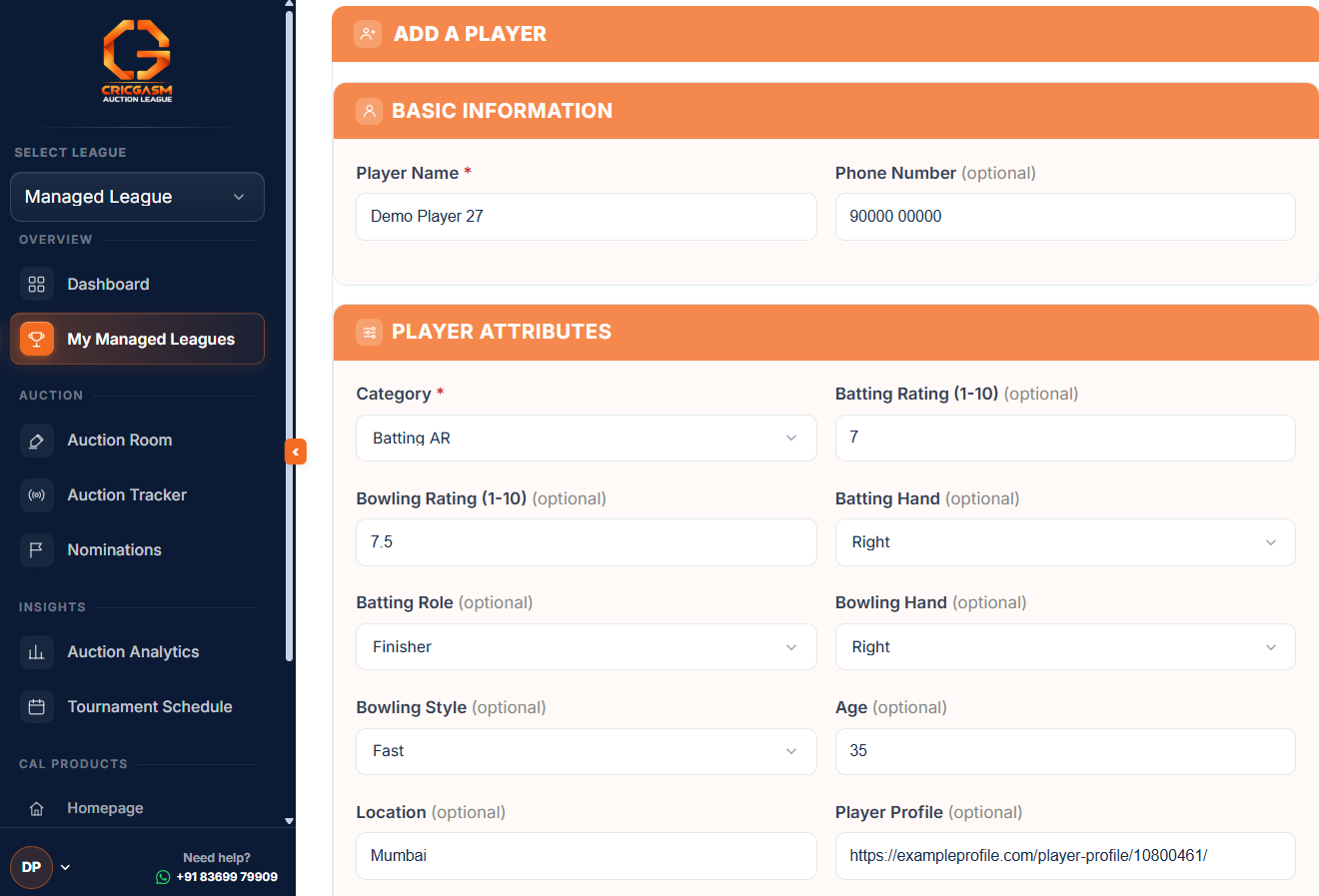
- Player form: add or edit one player at a time with Add a Player.
- Before the auction starts, you can delete the whole player list and start again. Player names can be up to 22 characters.
- With your player pool ready, review it in the Player List section, activate your league, then choose how to form your squads: run an Auction, online or offline, or use Auto Assign for balanced squads without bidding.
Share the registration link
Players sign up and rate themselves.
Approve players
Review each one under Pending Approval.
Upload a template
Download Template, fill it in, then Upload and Import.
Add a Player
Add or edit players one at a time.
07 Player List
Review your players, add Icon Player, Manager and Owner, then activate.
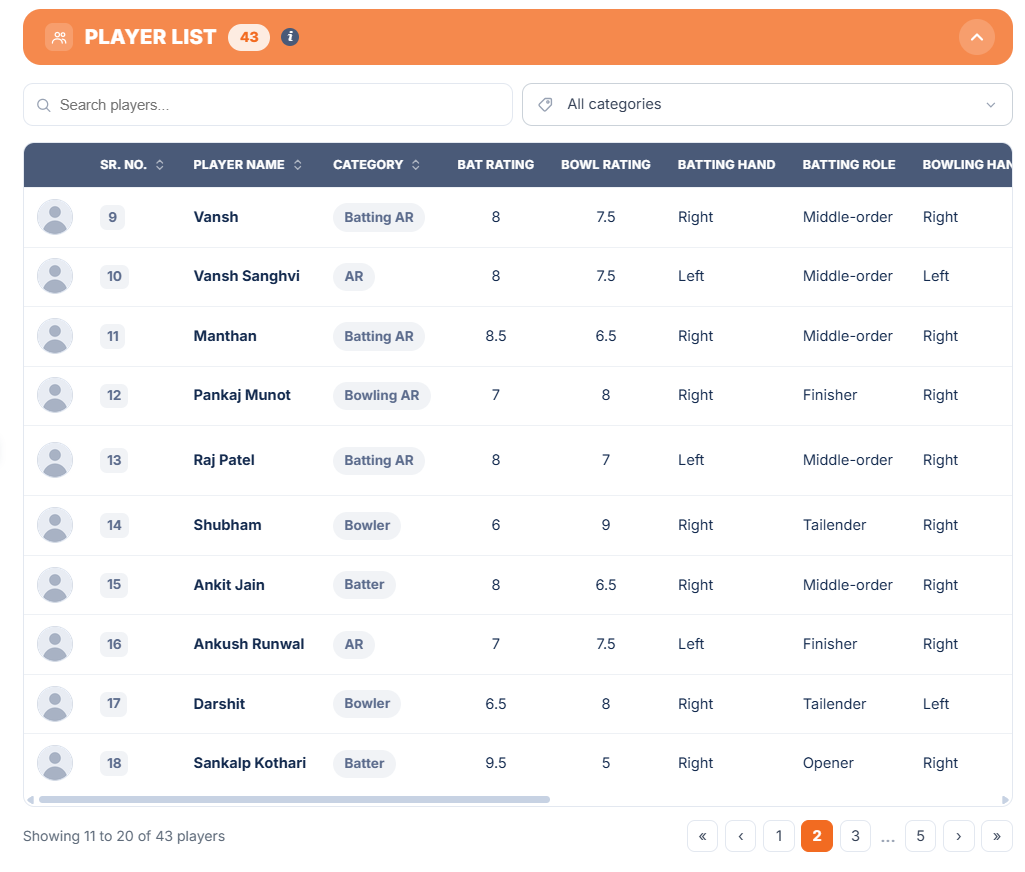
- Open the Player List tab to review your players, categories and base prices before anything else.
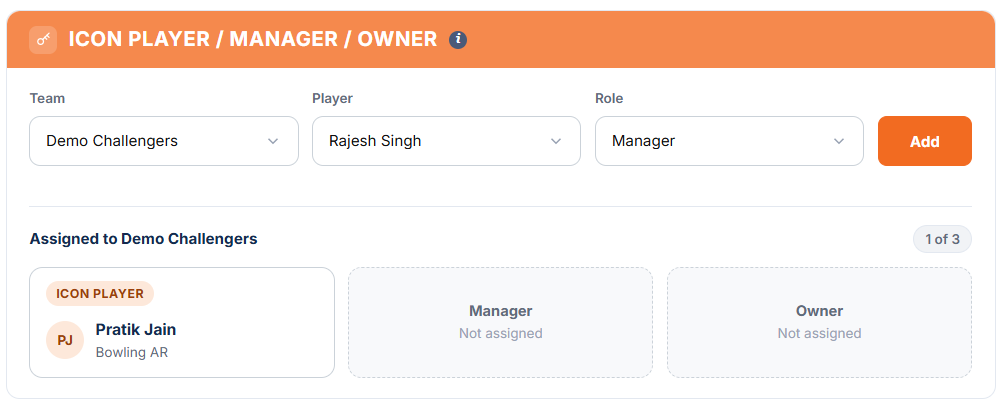
- Icon Player, Manager and Owner: in Manage Teams, you can place one of each in any team straight from your player pool. They join at zero cost and take a normal squad spot without touching the purse.
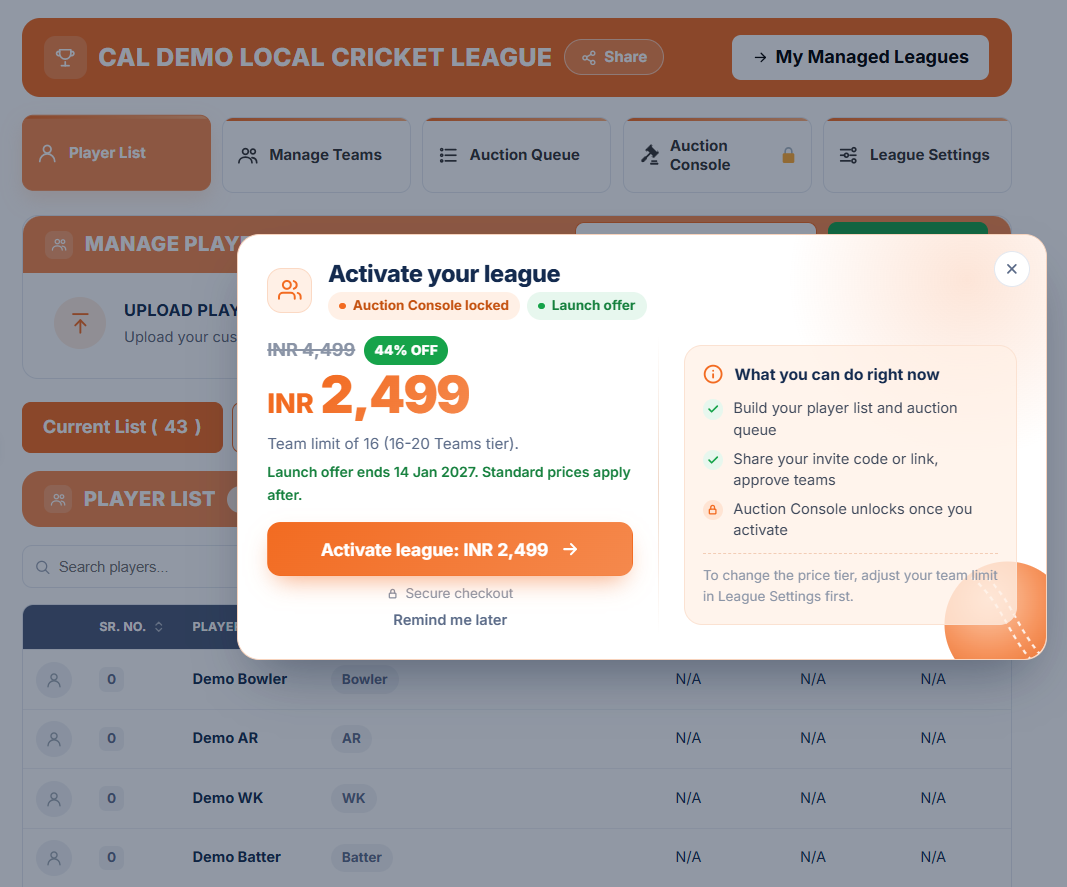
- Activate your league once your teams are ready. The price depends on the number of teams, and if you add more teams later, you only pay the difference. See the Pricing page.
Check the player list
Review the players, categories and base prices.
Add Icon, Manager and Owner
Place one of each in any team at zero cost.
Activate your league
Pay to activate once your teams are ready.
08 Run the Auction Online
Teams bid live in the Auction Room, with you in control.
- Demo players first: the queue opens with four practice players (Demo Batter, Demo WK, Demo AR and Demo Bowler), so teams can try bidding before the actual players. They never affect a purse, a squad or the results, and they cannot be removed.
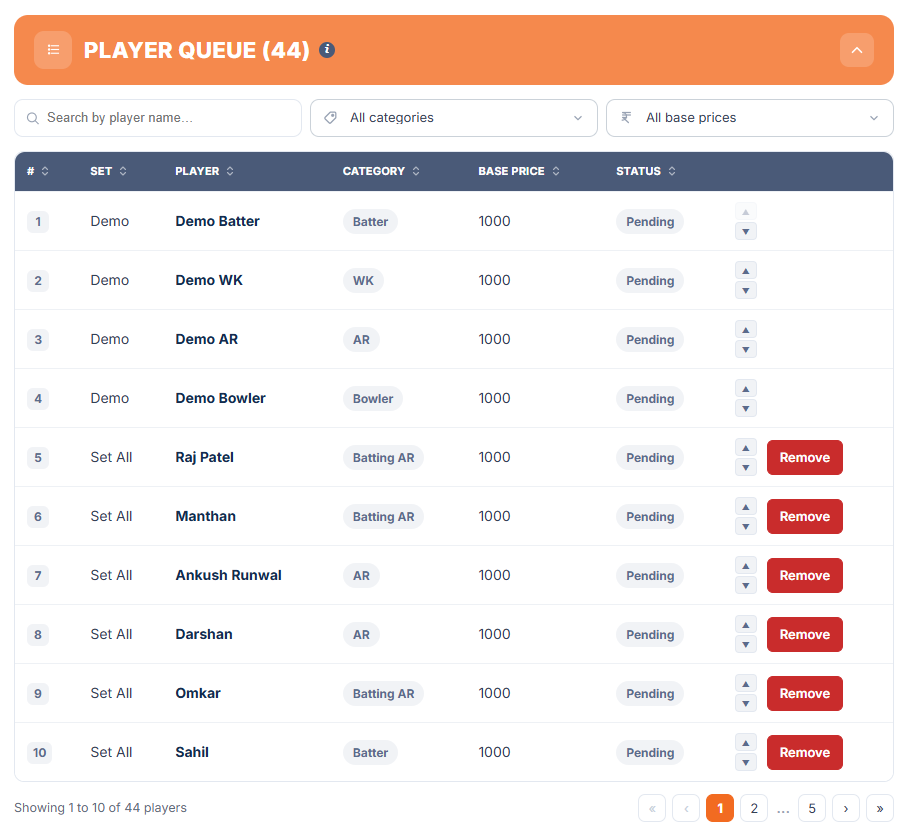
- In the Auction Queue tab, build the Rotation Sequence by ordering your base-price sets and choosing how many players appear at each step. You can also set a Final Set.
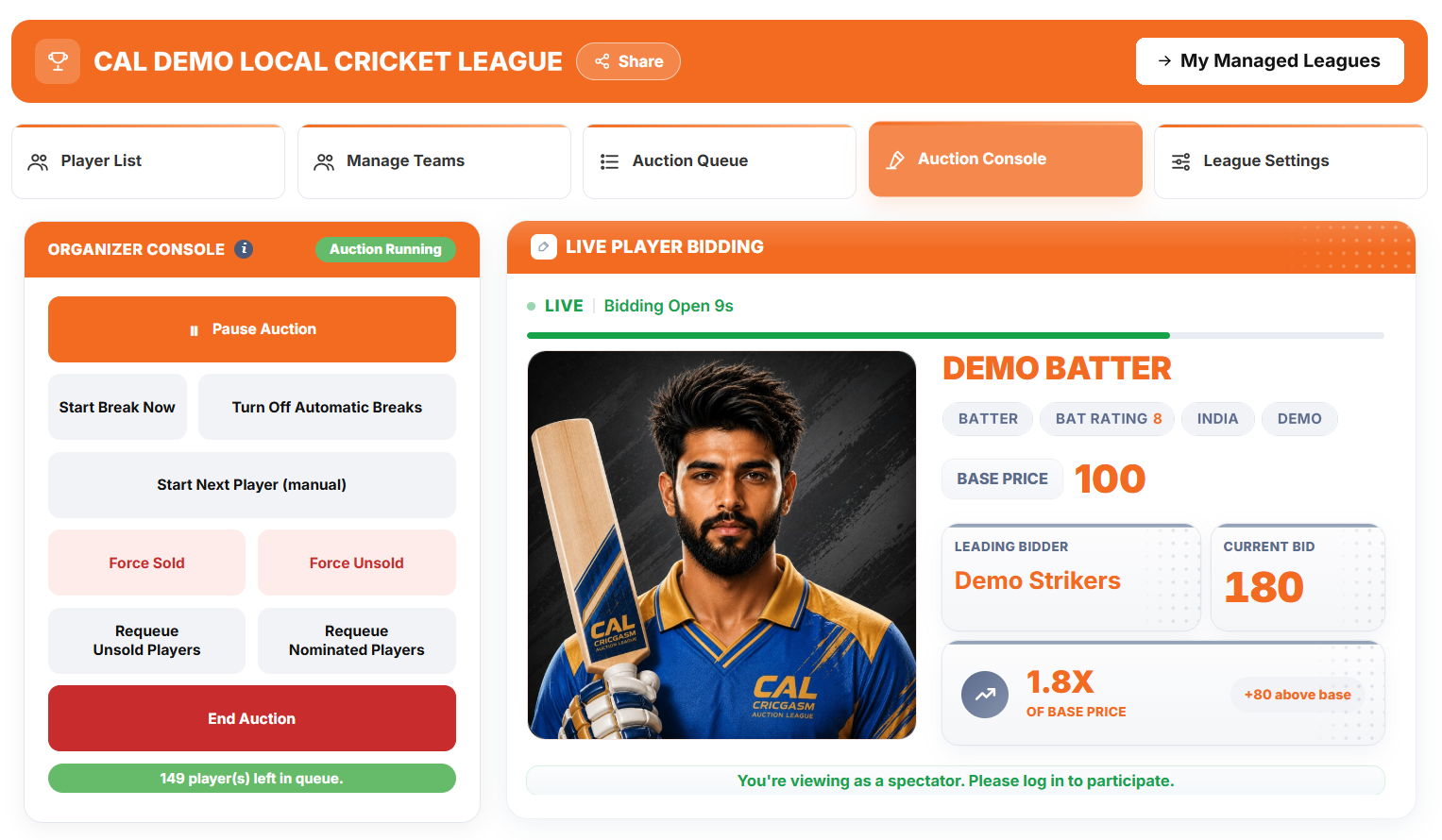
- Open the Auction Console and start the auction. You can pause, resume or end it at any time.
- Teams bid using the live timer. Choose a flat bid increment or up to five step-up tiers.
- Teams still short of a full squad can nominate up to 5 players for the Final Round.
- Teams follow along in the Auction Room: Live Player Bidding, Team Summary, Auction Tracker, Bid Activity, the Sold and Unsold list and the Chatroom.
Build the rotation
Order your base-price sets, with an optional Final Set.
Open the Auction Console
Start, pause, resume or end at any time.
Teams bid online
A flat increment or step-up tiers.
09 Run the Auction Offline
Run the room yourself, with CAL keeping the books.
- While creating your league, choose Offline Auction as the Bidding Mode. It is locked once the auction has started.
- Teams are added and approved as usual. In an offline auction the bidding happens in the room, so there is no timer and no Bid button for teams.
- Organizer and Coordinator: the Organizer owns the league and its settings. If CAL has assigned a Coordinator to your league, they can open the same Auction Console and run the room on auction day, for this league only.
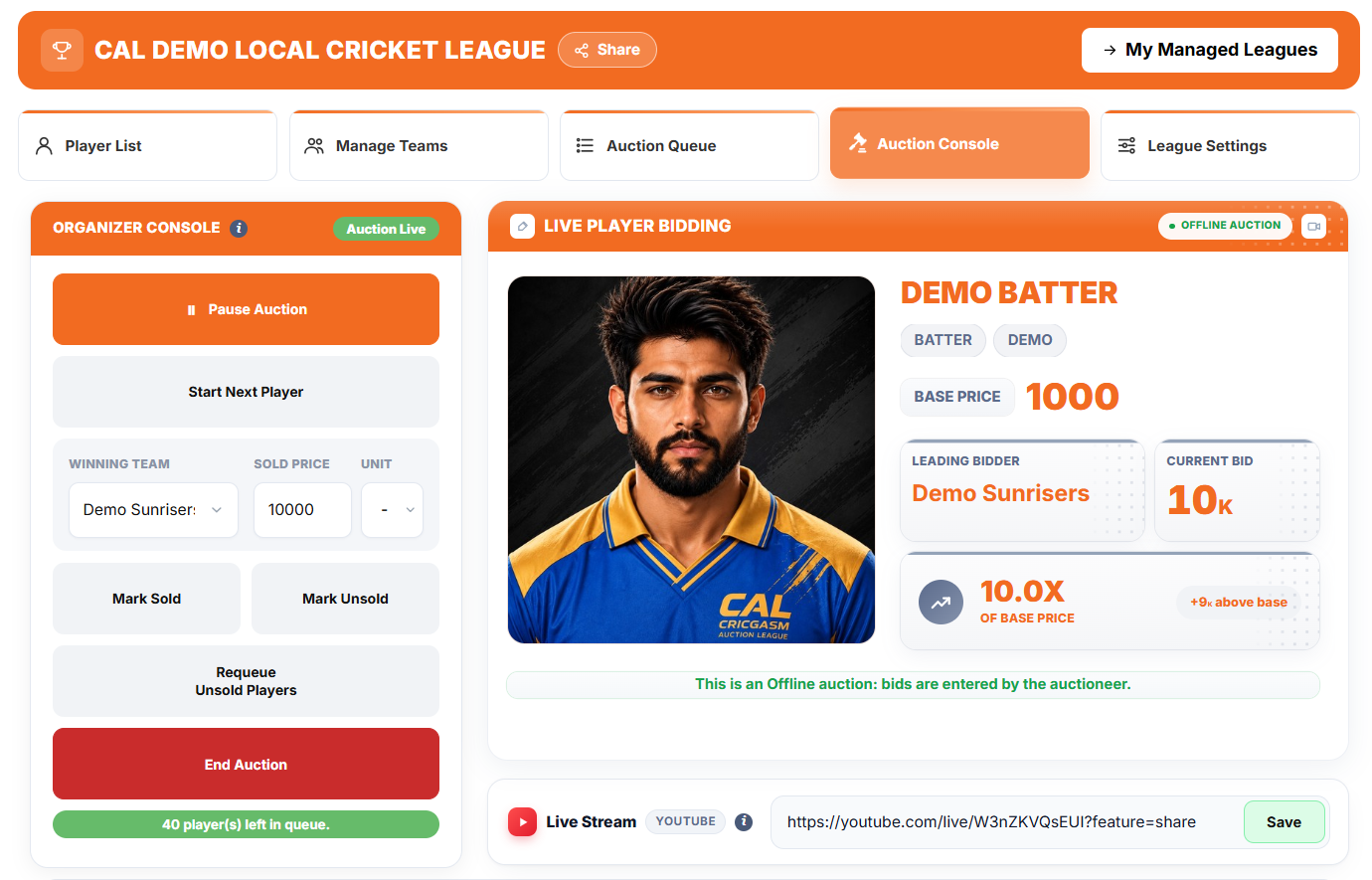
- On auction day, open the Auction Console and press Start Auction. You can pause and resume the session at any time.
- Press Start Next Player. The next player from your queue appears on the console. Call out the bidding in the room.
- When the hammer falls, choose the Winning Team, enter the Sold Price and press Mark Sold. CAL checks the price against the base price, any step-up tiers, the team’s budget and its squad rules. Once recorded, the sale is final.
- If nobody bids, press Mark Unsold. Unsold players can be put back in the queue with Requeue.
- Streaming the room? Paste your YouTube live link into the Live Stream card, and teams who could not attend can watch from the Auction Room. In full screen, a Current Bid card sits over the video showing the live player, the leading bidder and the current bid.
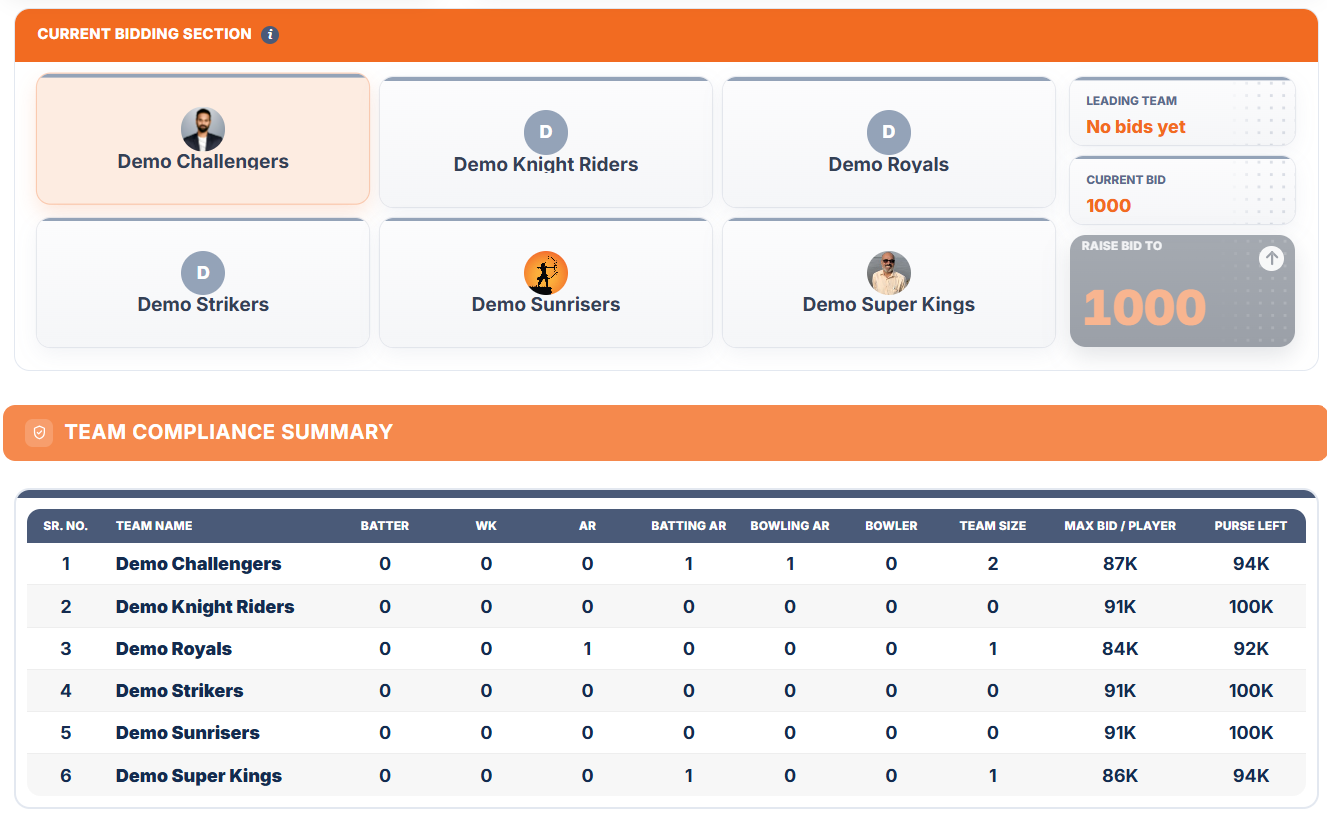
- Teams can still follow the results in the Auction Room: Team Summary, Auction Tracker, the Sold and Unsold list and the Chatroom.
Choose Offline
Pick Offline Auction as the Bidding Mode when you create the league.
Start the auction
Open the Auction Console, press Start Auction, then Start Next Player.
Record each sale
Choose the Winning Team, enter the Sold Price and press Mark Sold.
Share the stream
Optional: add a YouTube live link so teams can watch remotely.

10 Auto-Assign
Or build balanced squads without an auction.
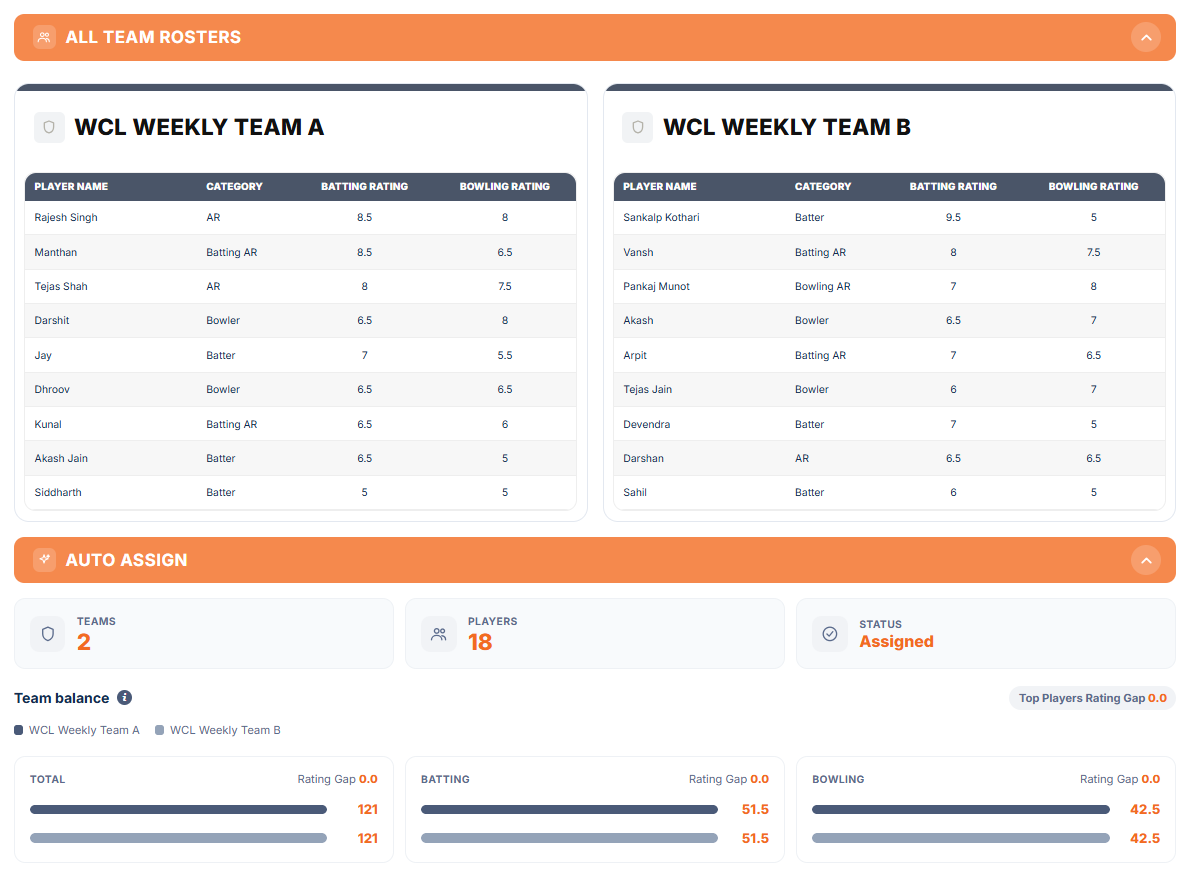
- Make sure every player has a Batting Rating and Bowling Rating from 1 to 10.
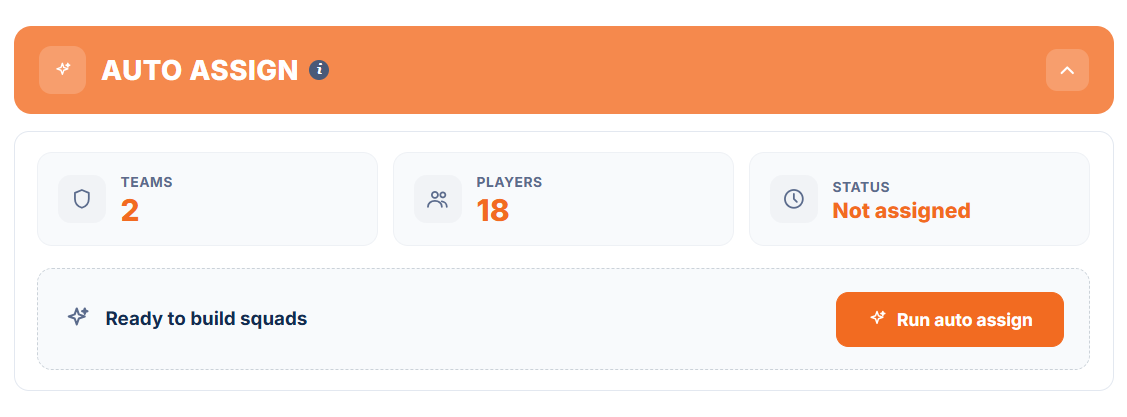
- Open Auto-Assign and run it. CAL creates squads that are as balanced as possible across overall, batting and bowling ratings. Budgets, base prices and bids do not apply.
- Check the Team Balance panel to compare the squads.
- Want a different split? Clear the teams and run Auto-Assign again. CAL can produce a different balanced combination each time.
Rate your players
A Batting and a Bowling Rating from 1 to 10.
Run Auto-Assign
Squads are as balanced as possible.
Review and re-run
Check the Team Balance panel, and run again for a different split.
This guide is being finalized
The CAL Public guide for Indian T20 League will be published here soon. Questions in the meantime? Contact us.
Need a hand?
Tap Need help? in the menu to message us on WhatsApp at +91 83699 79909, or use the Contact page. We reply within 2 business days.
CAL is an online social game and software platform for running cricket auctions for fun. Auction points are virtual. It does not offer cash prizes, winnings or betting.
Ready to Start Your CAL Journey?
Register in a few simple steps. The auction takes it from there.
Experience CALCAL is an online social game, designed for fun and friendly competition around cricket auctions. Auction points are virtual and have no cash value. CAL does not offer or administer cash prizes, winnings, betting, or monetary rewards.